Solved booting into image problem

thejarrick

New member
Local time
7:48 PM
Messages
11
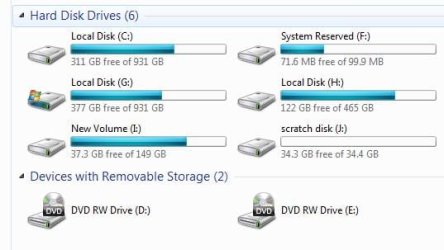
HI, I've recently re-installed windows 7 and I wanted to back it up as an image so that if the hard drive fails, all I have to do is unplug it and plug in my backup drive (G) and it will work.
I used Norton Ghost to make the image but it won't boot. I had a look and it seems that there's no master boot record, even though I checked the box when making the image to copy the master boot record.
The problem I think is that the MBR is on a separate little partition that was created when I installed windows 7 and when I mirrored it, I only mirrored C: and didn't include F: where the MRB is.
The other thing that might be causing me some problems is that drive H: looks like it has a MBR on it too - left over from when XP was installed and I'm not sure if it's safe to delete it.

can someone tell me if I can just copy and past all the files from F: onto my backup drive G:?

on the image I attached, C: is my main OS, F: holds the MBR for C, G: is my backup drive, H: has nothing I want on and is ready for deletion I: is empty, J: is empty,
 

Attachments
  • my system.jpg
    my system.jpg
    98.4 KB · Views: 19

My Computer

OS
windows 7 ultimate x64
Hello thejarrick, welcome to Seven Forums!


Maybe there's a misunderstanding somewhere, maybe it's just me.


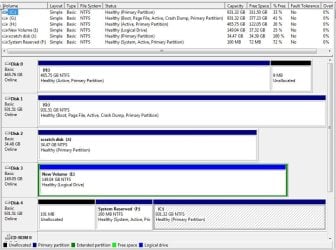
The OS on G: is the one that is booted now, the one you're using at present, the flag Boot is the indication of the OS that is running.

An image won't boot on its own, it must be laid down to a HDD to boot.
 

My Computer

Computer Manufacturer/Model Number
* BFK Customs *
OS
W 7 64-bit Ultimate
CPU
Intel Q9550 Yorkfield
Motherboard
ASUS P5Q Pro
Memory
8GB Dominator 8500C5D
Graphics Card(s)
ATI : XFX 5870
Sound Card
Realtek HD Audio 7-1
Monitor(s) Displays
1x 47" LCD HDMI & 3x 26" LCD HDMI
Screen Resolution
1920x1080P & 1920x1200
Hard Drives
1x 80GB Intel X25-M G2 SSD : 1x 500GB & 1x 640GB WD Caviar Black(s)
PSU
Corsair 620HX
Case
Cooler Master RC-690
Cooling
Tuniq Tower 120, 2x 140mm and 3x 120mm case fans
Keyboard
Microsoft 500
Mouse
Razer Diamondback 3G
Internet Speed
14 Mb/s
Other Info
1x Koutech 3Gb/s SATA HDD Hot Swap Rack
It appears you cloned the C drive over to G without the System MBR which exists on F.

If you want to make G bootable on its own, unplug all other HD's, set G as first HD to boot in BIOS setup, boot the Win7 DVD to run Startup Repair up to 3 separate times to write the System MBR to G. http://www.sevenforums.com/tutorials/105541-startup-repair-run-3-separate-times.html

Power down to plug back in C, set it as first HD to boot in BIOS setup again, then boot G as needed by using the one-time BIOS Boot Menu key which every computer has:
Asus - F8
HP/Compaq - Esc
Sony - F2
Acer - F12
Gateway - F10
eMachnes - F10
Toshiba - F12
Dell - F12
IBM/Lenovo - the blue Thinkvantage button

In the future I'd use Acronis superior cloning app which has free WD and Seagate editions on their SUpport Downloads webpage if you have one of those HD's on your system. Unplug all other HD's, make sure only System drives are marked Active.
 
I guess it was me and the differences between the terms 'image' and 'clone' oh well.
 

My Computer

Computer Manufacturer/Model Number
* BFK Customs *
OS
W 7 64-bit Ultimate
CPU
Intel Q9550 Yorkfield
Motherboard
ASUS P5Q Pro
Memory
8GB Dominator 8500C5D
Graphics Card(s)
ATI : XFX 5870
Sound Card
Realtek HD Audio 7-1
Monitor(s) Displays
1x 47" LCD HDMI & 3x 26" LCD HDMI
Screen Resolution
1920x1080P & 1920x1200
Hard Drives
1x 80GB Intel X25-M G2 SSD : 1x 500GB & 1x 640GB WD Caviar Black(s)
PSU
Corsair 620HX
Case
Cooler Master RC-690
Cooling
Tuniq Tower 120, 2x 140mm and 3x 120mm case fans
Keyboard
Microsoft 500
Mouse
Razer Diamondback 3G
Internet Speed
14 Mb/s
Other Info
1x Koutech 3Gb/s SATA HDD Hot Swap Rack
Hello thejarrick, welcome to Seven Forums!


Maybe there's a misunderstanding somewhere, maybe it's just me.


The OS on G: is the one that is booted now, the one you're using at present, the flag Boot is the indication of the OS that is running.

An image won't boot on its own, it must be laid down to a HDD to boot.

just for clarity, it's C: which I'm currently booted into and I am also a bit confused as to why the windows icon is on drive G: but I checked and I'm definately using C:
 

Attachments

  • my system2.jpg
    my system2.jpg
    21.9 KB · Views: 5

My Computer

OS
windows 7 ultimate x64
No you are not in C:, you're in G: according to Windows.


The OS on G: is the one that is booted now, the one you're using at present, the flag Boot is the indication of the OS that is running.
 

My Computer

Computer Manufacturer/Model Number
* BFK Customs *
OS
W 7 64-bit Ultimate
CPU
Intel Q9550 Yorkfield
Motherboard
ASUS P5Q Pro
Memory
8GB Dominator 8500C5D
Graphics Card(s)
ATI : XFX 5870
Sound Card
Realtek HD Audio 7-1
Monitor(s) Displays
1x 47" LCD HDMI & 3x 26" LCD HDMI
Screen Resolution
1920x1080P & 1920x1200
Hard Drives
1x 80GB Intel X25-M G2 SSD : 1x 500GB & 1x 640GB WD Caviar Black(s)
PSU
Corsair 620HX
Case
Cooler Master RC-690
Cooling
Tuniq Tower 120, 2x 140mm and 3x 120mm case fans
Keyboard
Microsoft 500
Mouse
Razer Diamondback 3G
Internet Speed
14 Mb/s
Other Info
1x Koutech 3Gb/s SATA HDD Hot Swap Rack
It doesn't really matter which you're in now.

Just follow the steps I gave earlier to boot HD's separately via BIOS so each remains independent to come and go as you please.

Isn't this your goal?

You can also store a backup image on another HD instead of keeping an exact clone on hand, but it seems that was your intention and you apparently have HD's to spare.
 
success! that worked just fine, Thanks very much for the wisdom.
 

My Computer

OS
windows 7 ultimate x64
Glad it helped.

You can use Windows Live Sync to sync G to C in place of backup, even synching both to Windows free Skydrive as an off-site backup.
 
Good to see you got the boot-up issue sorted; have you been able to tell them apart yet?
 

My Computer

Computer Manufacturer/Model Number
* BFK Customs *
OS
W 7 64-bit Ultimate
CPU
Intel Q9550 Yorkfield
Motherboard
ASUS P5Q Pro
Memory
8GB Dominator 8500C5D
Graphics Card(s)
ATI : XFX 5870
Sound Card
Realtek HD Audio 7-1
Monitor(s) Displays
1x 47" LCD HDMI & 3x 26" LCD HDMI
Screen Resolution
1920x1080P & 1920x1200
Hard Drives
1x 80GB Intel X25-M G2 SSD : 1x 500GB & 1x 640GB WD Caviar Black(s)
PSU
Corsair 620HX
Case
Cooler Master RC-690
Cooling
Tuniq Tower 120, 2x 140mm and 3x 120mm case fans
Keyboard
Microsoft 500
Mouse
Razer Diamondback 3G
Internet Speed
14 Mb/s
Other Info
1x Koutech 3Gb/s SATA HDD Hot Swap Rack
Glad you solved your problem.
To clear confusion for others. Every HDD has an MBR on the physical first 512 bytes of the drive - nowhere else. It provides a number of functions from basic partition table information for data disks to full first stage boot information for boot disks. See a description of the windows boot process.
Running the Windows repairx3 fixes the key boot elements MBR, PBR/bootsector, BCD.
 

My Computer

Computer type
PC/Desktop
Computer Manufacturer/Model Number
Own build
OS
Windows 7x64 Home Premium SP1
CPU
Intel i7 2600k
Motherboard
ASUS P8Z68 Deluxe
Memory
G.Skill Ripjaws (DDR3-1600) 2x4GB
Graphics Card(s)
Nvidia GeForce GTS 450; Intel HD Graphics 3000(GT2+)
Monitor(s) Displays
Dell Ultrasharp IPS panel U2311H, Samsung SyncMaster P2350
Screen Resolution
1920x1080
Hard Drives
Samsung 850 Pro SSD 256GB, Samsung SSD 840 120GB, Seagates 1TB Barracuda ST31000528AS x2
PSU
Seasonic M12II 520W
Case
Lian Li Lancool PC-K60
Cooling
Case: 1x120mm, 3x140mm CPU: Hyper 212+
Keyboard
Logitech MK520 (wireless)
Mouse
Logitech MK520
Internet Speed
6-7 Mbps
Antivirus
Norton Security Premium, Malwarebytes on 2 (MSE on 3rd PC)
Browser
FireFox
Other Info
Audio: Logitech Z523 2.1
Good to see you got the boot-up issue sorted; have you been able to tell them apart yet?

I think I figured out which drive is which in the BIOS boot order - just a case of unplugging one at a time and seeing how it affects the BIOS.

That thing with windows thinking I'm running it from another drive is a bit wierd - I checked by adding a new file to my desktop and then going into each drive to see where it is and it's definately not on the one where the flag is. Strange, but that's how it is.
 

My Computer

OS
windows 7 ultimate x64
Glad it helped.

You can use Windows Live Sync to sync G to C in place of backup, even synching both to Windows free Skydrive as an off-site backup.

I didn't know that even existed - I'll be giving that a go. I was wondering if it would be better to have windows running on a separate HDD to all my data files (in terms of performance). any idea if that is a better way of doing things?
 

My Computer

OS
windows 7 ultimate x64
One way separating the data to it's own drive is better is that it keeps the backup image more compact with only OS and Programs, so that if WIn7 becomes irreparable you can reimage OS/Programs and data will be waiting and current in its own separate partition "vault." It still needs to be backed up though.

But if you are keeping a backup clone of your System HD, then you have full redundancy so this isn't really necessary.

You can try it to see if you like the arrangement, though: http://www.sevenforums.com/tutorials/18629-user-folders-change-default-location.html
 
Back
Top