Bootmgr is compressed problem

seongjin12

New member
Local time
3:47 AM
Messages
6
Hi there.

So yesterday, i was trying to make some space for my computer because i had less memory and i remember that i touched this option that says "compress files..." something and so i put a check on it. Today, when i turned on my laptop which is an Averatec windows 7 32bit, it didnt work like it used to. It showed "Bootmgr is Compressed Press Alt+cltr+del to restart".

Ive seen youtube videos and tutorials on how to fix it but my problem is that i dont have the windows 7 installer cd. Is there any solution here that i can do? Like download a torrent for the repair?
 

My Computer

Computer type
Laptop
Computer Manufacturer/Model Number
Averatec
OS
Windows 7 32bit
Hi

This issue will happen when you compress the "C" drive which act as both "Boot" and "System" partition. That is your system doesn't have a 100 MB "System Reserved" partition and hence "Bootmgr" and "BCD" store resides on the OS partition ( C: ). In such a situation, when you compress "C:" , this will in turn compress also "BOOTMGR".

The easiest way to fix this issue is unplug the HDD and connect it to another system as slave drive and then reverse the compression process ( decompress OS partition ). This can also be done with the help of an installation DVD or "System Repair" disc. If you have access to another Windows 7 machine, please read the below tutorial and create a "System Repair Disc".

http://www.sevenforums.com/tutorials/2083-system-repair-disc-create.html


If your Windows is a retail copy ( not came preinstalled ), you can officially download legal ISO from Microsoft's own site.

Microsoft Software Recovery
 

My Computer

Computer type
PC/Desktop
OS
Windows 7 Ultimate x64
Hi uhh can you atleast make a simpler explanation
 

My Computer

Computer type
Laptop
Computer Manufacturer/Model Number
Averatec
OS
Windows 7 32bit
Hi

I will try to explain the procedure as far as simple i can. Pardon me if some step is not clear as i don't speak English.

1. You need to get a Windows install DVD. You can either download it from a torrent ( which is of course at your own risk ) or borrow from a friend ( edition doesn't matter ).

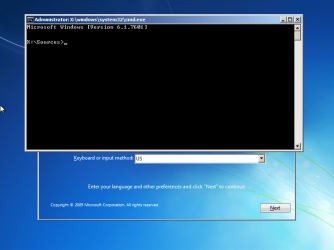
2. Boot from the install DVD and when the first screen appears after the loading bar, press Shift + F10 ( Shift and F10 together ) to open a command prompt Window.

1.png


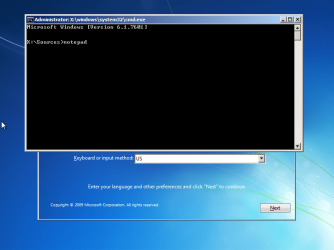
2. Type "notepad" and press Enter key to open MS Notepad.

2.png

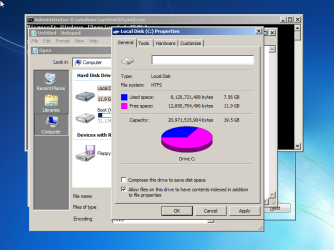
3. From the Notepad window, choose "File --> Open" and the file browsing dialogue Window will be open. On the left pane, click the "Computer" icon and all the partitions on your hard drive will be shown.

3.png

4. Right click on the "C:" drive and choose "Properties". Then deselect the check box "Compress this drive to save disk space" and press "Apply" button and then "OK" button.

4.png


Now Windows will start to decompress the drive but there won't be any progress bar unlike in full Windows. It may look likt the process is hung. Depending on the amount of data, this may take a long time. When the process is complete, the window will close itself. Now reboot the machine and check whether the issue persists.
 

My Computer

Computer type
PC/Desktop
OS
Windows 7 Ultimate x64
I cant even open my computer. How can i do this?
 

My Computer

Computer type
Laptop
Computer Manufacturer/Model Number
Averatec
OS
Windows 7 32bit
I downloaded the Windows 7 installer for 32bit and i put it in my external hard drive. I opened the BIOS setup and put the external hard drive as first option and now this has happened. Any ideas how to fix?
 

My Computer

Computer type
Laptop
Computer Manufacturer/Model Number
Averatec
OS
Windows 7 32bit
Hey i got a usb and put the files in the usb then plug it into the laptop. I selected Usb HDD as the first option and pressed F10 to enter Boot menu and select USB HDD but when i select it nothing happens... Any suggestions?
 

My Computer

Computer type
Laptop
Computer Manufacturer/Model Number
Averatec
OS
Windows 7 32bit
I selected Usb HDD as the first option and pressed F10 to enter Boot menu and select USB HDD but when i select it nothing happens... Any suggestions?

I already suggested you to use a USB flash drive and use either "Rufus" or "WinToFlash" to make it bootable. Simply copying the files to an external HDD won't make it bootable. Please read my previous reply my dear friend.
 

My Computer

Computer type
PC/Desktop
OS
Windows 7 Ultimate x64
I selected Usb HDD as the first option and pressed F10 to enter Boot menu and select USB HDD but when i select it nothing happens... Any suggestions?

I already suggested you to use a USB flash drive and use either "Rufus" or "WinToFlash" to make it bootable. Simply copying the files to an external HDD won't make it bootable. Please read my previous reply my dear friend.
 

My Computer

Computer type
PC/Desktop
OS
Windows 7 Ultimate x64
WinToFlash is a USB or an application?
 

My Computer

Computer type
Laptop
Computer Manufacturer/Model Number
Averatec
OS
Windows 7 32bit
Back
Top