BSOD on a system made for extreme OC

Shept1z

New member
Local time
7:52 PM
Messages
2
Hello, please Help! My setup out of the box is suppose to be easy very stable OC to 4.5+. I have had this mobo for over a year and in the past had it running at 4.3 and 4.2 but after a bios update i never tried to get it back there. I started tring recently and get BSOD everytime it is stressed tested or gaming at 4.2. Ran memtest 3.5 passes (10hrs). checked and updated drivers, clean uninstall and reinstall of latest video drivers. i am at a loss and overwhelmed with all the selection in this bios. whats next? Thanks...

rampage 4 extreme - bios 4901
I7 3930k sandy bridge
32gig Patriot Memory’s Viper Xtreme Edition 8-9-8-24 xmp
2x evga 680 gtx ftw 4gig
psu - hx1200
cool - H100
win 7 64
3 monitors
1 ssd & 1 hhd


Crash Dump Analysis
--------------------------------------------------------------------------------

Crash dump directory: C:\Windows\Minidump

Crash dumps are enabled on your computer.

On Fri 1/30/2015 6:29:15 PM GMT your computer crashed
crash dump file: C:\Windows\memory.dmp
This was probably caused by the following module: Unknown (0xFFFFF880035DF180)
Bugcheck code: 0x101 (0x11, 0x0, 0xFFFFF880035DF180, 0x8)
Error: CLOCK_WATCHDOG_TIMEOUT
Bug check description: This indicates that an expected clock interrupt on a secondary processor, in a multi-processor system, was not received within the allocated interval.
This appears to be a typical software driver bug and is not likely to be caused by a hardware problem. This problem might be caused by a thermal issue.
A third party driver was identified as the probable root cause of this system error.
Google query: CLOCK_WATCHDOG_TIMEOUT


On Fri 1/30/2015 6:01:50 PM GMT your computer crashed
crash dump file: C:\Windows\Minidump\013015-12355-01.dmp
This was probably caused by the following module: hal.dll (hal+0x12818)
Bugcheck code: 0x9C (0x0, 0xFFFFF880009BBD70, 0x0, 0x0)
Error: MACHINE_CHECK_EXCEPTION
file path: C:\Windows\system32\hal.dll
product: Microsoft® Windows® Operating System
company: Microsoft Corporation
description: Hardware Abstraction Layer DLL
Bug check description: This bug check indicates that a fatal machine check exception has occurred.
The crash took place in a standard Microsoft module. Your system configuration may be incorrect. Possibly this problem is caused by another driver on your system that cannot be identified at this time.


On Thu 1/22/2015 2:55:30 AM GMT your computer crashed
crash dump file: C:\Windows\Minidump\012115-12402-01.dmp
This was probably caused by the following module: hal.dll (hal+0x12818)
Bugcheck code: 0x9C (0x0, 0xFFFFF880033DFD70, 0x0, 0x0)
Error: MACHINE_CHECK_EXCEPTION
file path: C:\Windows\system32\hal.dll
product: Microsoft® Windows® Operating System
company: Microsoft Corporation
description: Hardware Abstraction Layer DLL
Bug check description: This bug check indicates that a fatal machine check exception has occurred.
The crash took place in a standard Microsoft module. Your system configuration may be incorrect. Possibly this problem is caused by another driver on your system that cannot be identified at this time.
 

My Computer My Computer

At a glance

Win 7 64bitI7 393032gig 1600 Patriot Memory’s Viper Xtreme Edit...2x evga 680 gtx ftw 4gig
Computer type
PC/Desktop
Computer Manufacturer/Model Number
Custom Build
OS
Win 7 64bit
CPU
I7 3930
Motherboard
Asus Rampage 4 Extreme
Memory
32gig 1600 Patriot Memory’s Viper Xtreme Edition 8-9-8-24 xm
Graphics Card(s)
2x evga 680 gtx ftw 4gig
Hard Drives
1 ssd
1 hdd
Antivirus
Microsoft Security & Malwarebytes
Browser
fox, chrome
Hey, nice system. Pretty similar to mine. I also use to have 2 EVGA 680 FTW+ (4GB) cards.

Let me ask you: What VCores are you running at the different multiplier rates, and how are you specifically going about doing your overclocking? Also, what's the clock speed of your RAM's XMP (1600MHz, 1800, 2400, et cetera), and are you loading the XMP settings?

At 4.2GHz by just raising the multiplier, you should be fine with a VCore of 1.25 or so.

Also, make sure your CPU PLL Voltage is at the stock 1.8. For some reason mine had dropped at some point with out me knowing and was causing stability issues.

For starters, you may want to go to factory default BIOS settings again, and we can work from there to try and get the clock rate up while maintaining stability.
 

My Computer My Computer

At a glance

Windows 7 Professional SP1 64bit, Manjaro Xfc...Intel i7-3930K @ 4.2GHzCorsair Dominator 64GB Quad Channel DDR3 @ 16...EVGA GeForce GTX Titan Black Superclocked (×2...
Computer type
PC/Desktop
OS
Windows 7 Professional SP1 64bit, Manjaro Xfce, Debian 10 64bit Xfce
CPU
Intel i7-3930K @ 4.2GHz
Motherboard
ASUS P9X79 WS
Memory
Corsair Dominator 64GB Quad Channel DDR3 @ 1600MHz
Graphics Card(s)
EVGA GeForce GTX Titan Black Superclocked (×2, SLI)
Monitor(s) Displays
Sony Bravia 46"
Screen Resolution
1920×1080 (Full Screen), 1366×768 (Windows)
Hard Drives
Samsung 860 PRO 4TB SSD, Samsung 850 EVO 1TB SSD, Western Digital WD Gold 16TB 7200 RPM 512MB Cache HDD
PSU
Corsair AX1200 (1200W, 100.4A @ 12V)
Case
Corsair Obsidian 750D
Cooling
Corsair H110, 5 NOCTUA NF-A14 industrialPPC-3000 PWM Fans
Keyboard
Logitech K360
Mouse
Logitech M220
Browser
Firefox Developer Edition, Pale Moon, Tor
Good reply Wrend. I would say it's either down to Vcore or Ram speed/timings.

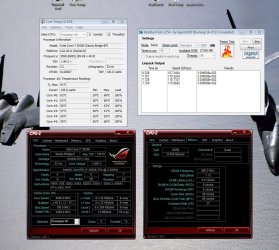
A CPUz screenshot of the CPU tab (under load) and Ram tab would be useful.
 

My Computer My Computer

At a glance

Windows 7 Professional 64 bit
OS
Windows 7 Professional 64 bit
No dice, I turned the vcore up to 1.3 and worked my way up to 1.35 and meet the same result. At ever attempt at 4.2 a BSOD. i used IntelBurnTestV2. My memory is DDR3 1600 (PC3 12800) - Timing 8-9-8-24 - Cas Latency 8 - Voltage 1.65V not sure if the 1.65v is a issue. i have tried it with the XMP but same results.

What VCores are you running at the different multiplier rates, and how are you specifically going about doing your overclocking? all of them, I not aware of any other way. I am only using the multiplier. I am only using the ram timing speed 8-9-8-24 and not touching the bus speed.

I started with this guide ASUS Rampage IV Extreme - Easy Overclocking Guide - Republic of Gamers and thought this should be easy....well I guess not
 

Attachments

  • BSOD.jpg
    BSOD.jpg
    156.9 KB · Views: 3

My Computer My Computer

At a glance

Win 7 64bitI7 393032gig 1600 Patriot Memory’s Viper Xtreme Edit...2x evga 680 gtx ftw 4gig
Computer type
PC/Desktop
Computer Manufacturer/Model Number
Custom Build
OS
Win 7 64bit
CPU
I7 3930
Motherboard
Asus Rampage 4 Extreme
Memory
32gig 1600 Patriot Memory’s Viper Xtreme Edition 8-9-8-24 xm
Graphics Card(s)
2x evga 680 gtx ftw 4gig
Hard Drives
1 ssd
1 hdd
Antivirus
Microsoft Security & Malwarebytes
Browser
fox, chrome
Ran memtest 3.5 passes (10hrs)
Unfortunately thats insufficient - a minimum of 8 consecutive passes is required to call your RAM "passed".
 

My Computer My Computer

At a glance

Windows 10 Pro x64 ; Xubuntu x64Intel i7 860 @ 2.80 GHz O/C'ed to 4.0GHz16GB Corsair Vengance DDR3 @ 661 MHz Dual Cha...EVGA NVidia GTX 560 1024MB
Computer type
PC/Desktop
Computer Manufacturer/Model Number
Golden Mk. I.4
OS
Windows 10 Pro x64 ; Xubuntu x64
CPU
Intel i7 860 @ 2.80 GHz O/C'ed to 4.0GHz
Motherboard
Gigabyte P55A-UD3R Rev.1. Award BIOS F13
Memory
16GB Corsair Vengance DDR3 @ 661 MHz Dual Channel (9-9-9-24)
Graphics Card(s)
EVGA NVidia GTX 560 1024MB
Sound Card
Realtek Integrated
Monitor(s) Displays
Dual Samsung SyncMaster 2494HS
Screen Resolution
1920*1080 and 1920*1080
Hard Drives
1*Samsung 840 EVO 120GB SSD;
1*OCZ Vertex 2 60GB SSD;
2*Samsung F3 SpinPoint 1TB in RAID0;
1*Samsung F1 SpinPoint 1TB;
2*Western Digital 1TB External USB 3.0
1*Western Digital 500GB External USB 3.0
1*Seagate 500GB External USB 2.0
PSU
Thermaltake ToughPower QFan 750W
Case
Thermaltake Element S VK60001W2Z
Cooling
Corsair H60 Water Cooling, 2*230mm and 2*80mm case fans
Keyboard
Logitech G110
Mouse
Logitech MX518
You shouldn't need the VCore that high, especially not at 4.0GHz. If you do, then there is likely something else going on that is wrong, or you have a very weak chip that can't take overclocking. Perhaps you pushed it too high for too long before.

You might want to try reflashing the BIOS, if you can, since you seemed to first notice these problems with a BIOS update.

As I previously stated, you should not need to go above 1.25 VCore for a 4.2GHz clock on the 3930K, definitely not more than 1.3 VCore. So if it isn't stable at that voltage, I wouldn't bother with trying it at higher voltages. Something else is going on, or you have a weak chip. Sorry.
 
Last edited:

My Computer My Computer

At a glance

Windows 7 Professional SP1 64bit, Manjaro Xfc...Intel i7-3930K @ 4.2GHzCorsair Dominator 64GB Quad Channel DDR3 @ 16...EVGA GeForce GTX Titan Black Superclocked (×2...
Computer type
PC/Desktop
OS
Windows 7 Professional SP1 64bit, Manjaro Xfce, Debian 10 64bit Xfce
CPU
Intel i7-3930K @ 4.2GHz
Motherboard
ASUS P9X79 WS
Memory
Corsair Dominator 64GB Quad Channel DDR3 @ 1600MHz
Graphics Card(s)
EVGA GeForce GTX Titan Black Superclocked (×2, SLI)
Monitor(s) Displays
Sony Bravia 46"
Screen Resolution
1920×1080 (Full Screen), 1366×768 (Windows)
Hard Drives
Samsung 860 PRO 4TB SSD, Samsung 850 EVO 1TB SSD, Western Digital WD Gold 16TB 7200 RPM 512MB Cache HDD
PSU
Corsair AX1200 (1200W, 100.4A @ 12V)
Case
Corsair Obsidian 750D
Cooling
Corsair H110, 5 NOCTUA NF-A14 industrialPPC-3000 PWM Fans
Keyboard
Logitech K360
Mouse
Logitech M220
Browser
Firefox Developer Edition, Pale Moon, Tor
I have a different chipset than you and Wrend, so I can't give you specific advice. What I can tell you is you have to know and understand the bios and what every setting means and what affect it has on other settings. You have to spend the time to set the bios up for overclocking before you even think about Multiplier and Vcore settings. Things like Wrend mentioned such as CPU PLL voltage and C states and Load line calibration have a big effect on Vcore and stability. I know those boards can be real tempermental and some settings really throw everything off, especially ram settings.
 

My Computers My Computers

  • At a glance

    Windows 11 ProRyzen 9 5900X32GB G Skill DDR4-3600EVGA RTX 3080 FTW 3 Ultra
    Computer type
    PC/Desktop
    Computer Manufacturer/Model Number
    ALWAYS UNDER CONSTRUCTION
    OS
    Windows 11 Pro
    CPU
    Ryzen 9 5900X
    Motherboard
    Asus X570 Crosshair Viii Hero
    Memory
    32GB G Skill DDR4-3600
    Graphics Card(s)
    EVGA RTX 3080 FTW 3 Ultra
    Sound Card
    On Board/Sennheiser PC37X Headset
    Monitor(s) Displays
    3 X Asus 27"
    Screen Resolution
    2560x1440
    Hard Drives
    2 X 1 TB NVME drives
    PSU
    EVGA 850
    Case
    Phanteks Eclipse P400A
    Cooling
    EVGA 280 AIO
    Keyboard
    Logitech G510s/ Logitech G13
    Mouse
    Logitech G502
    Internet Speed
    24/1
    Antivirus
    ESET/MBAM Pro/SAS Pro
    Browser
    Chrome/ Firefox/ Edge
  • At a glance

    Windows 11 ProIntel Ultra 9 288V32 GB LPDDR5X 8533
    Computer type
    Laptop
    System Manufacturer/Model Number
    Dell 16 Plus
    OS
    Windows 11 Pro
    CPU
    Intel Ultra 9 288V
    Memory
    32 GB LPDDR5X 8533
    Monitor(s) Displays
    16" Mini-LED HDR600 Touch 90 Hz
    Screen Resolution
    2560X1600
    Hard Drives
    1 TB NVME
Yeah, good point, essenbe! Something that seems easy on the outside can likewise easily get thrown off from minor under the hood tweaks.

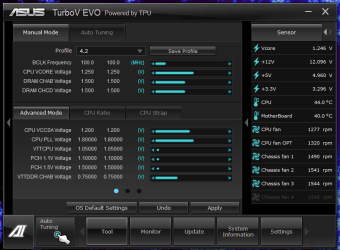
I set this up in the BIOS now, but still use these settings as my default go to, baseline OC. With sufficient cooling, you should reasonably expect and be able to fairly easily hit at least 4.2GHz stable, and likely higher with some fine tuning. Maybe raise the VCore a little (up to 1.3V) if needed, determined through stability tests. You shouldn't need to raise it any more than that for that clock rate.

I do load the XMP for my RAM first, and then just tweak the CPU after that, but only because I've determined that it seems to work well with it. I'm using two identical matched sets of 32GB of RAM (64GB total, 8×8GB DIMMs) and have it set up so that each matched 32GB set is on the same corresponding four channel slots. 10-10-10-27, 1600MHz, 1.5V. You could try loosening up your timings. I have fairly different RAM from you, so I can't comment more specifically on how yours should work and what settings might be best.

Also, for these settings, do not use the VCore offset; manually set it, otherwise it will throw your VCore off from where it should be.

I hope this helps some, as you do have quite a nice rig, and I'd like for it to work well for you.

You can also try reseating things and/or switching out different components to try and rule out any specific component issues. I understand that this isn't always easy nor feasible. It can sometimes take a lot of work finding the weak link and how to resolve it, but in the end when your system is performing where you want it within what you can reasonably expect from it, it's worth it.

Good luck, and let us know how it goes!

Edit:

I just wanted to also mention that the stability and longevity of my 3930K is very important to me since I keep my computer up and running nearly 24/7 crunching for scientific and humanitarian research (primarily on my GPUs, though I do run some of these tasks on the CPU too), while also hosting a few Minecraft servers for family, friends, and co-workers to play on. Point being that I can pretty easily push this CPU significantly higher and keep it "stable enough" for gaming, running benchmarks, or similar, up to around 4.8GHz or so. 4.6GHz is more of a reasonably high OC for this CPU since I can keep the VCore at a safer level, a little below 1.4V.

From my research on this as well (referring to the site you linked to above), 1.4V is generally considered to be the high end VCore limit for a safe, more consistently used OC (which can limit how high you can potentially get the clock rate of your CPU). Ideally though, you want the VCore as low as you can get it at any given OC while still keeping the system stable. Also, it's a given that you need to have sufficient enough cooling, with your 3930K cores preferably staying below or at least not getting much above 70°C loaded. These are just the generally agreed upon safe higher end limits for longer term OCing of this CPU that I am aware of. Some can be pushed significantly higher without failing, of course, though it isn't considered safe for the continued performance and longevity of the CPU. Every individual CPU is at least a little bit different than the rest and will likewise have at least slightly different capabilities and operational tolerances, even if those differences happen to be too small to discern, though of course some outliers can have much more significant differences. These chips are made to at least perform within their stock clock rates, and likely a bit higher, but how high they can safely be pushed over stock rates is never guaranteed. (Well... unless you happen to pick one up from someone who tests them and resells them at a premium with some kind of a performance guarantee, I suppose, though I don't personally have any experience with that.)

Anyway... long story short: From my own experience using this CPU and what I've heard from many others that use it, 4.2GHz isn't asking that much at all really from your 3930K, and it should very likely be relatively easy to reach. This may be a little controversial, but I actually generally consider this to be the clock rate that owners of this CPU should at least OC it to (assuming they have the know-how to do so) to get more of their money's worth from it, though I'm not saying that it isn't a capable CPU if it isn't overclocked. Of course it's a given that sufficient cooling is needed and that CPU power efficiency isn't a higher priority for the CPU's owner. In your case, this makes me think that there is most likely something else that is holding your CPU back. So hopefully this can be resolved.

4.2.PNG
 
Last edited:

My Computer My Computer

At a glance

Windows 7 Professional SP1 64bit, Manjaro Xfc...Intel i7-3930K @ 4.2GHzCorsair Dominator 64GB Quad Channel DDR3 @ 16...EVGA GeForce GTX Titan Black Superclocked (×2...
Computer type
PC/Desktop
OS
Windows 7 Professional SP1 64bit, Manjaro Xfce, Debian 10 64bit Xfce
CPU
Intel i7-3930K @ 4.2GHz
Motherboard
ASUS P9X79 WS
Memory
Corsair Dominator 64GB Quad Channel DDR3 @ 1600MHz
Graphics Card(s)
EVGA GeForce GTX Titan Black Superclocked (×2, SLI)
Monitor(s) Displays
Sony Bravia 46"
Screen Resolution
1920×1080 (Full Screen), 1366×768 (Windows)
Hard Drives
Samsung 860 PRO 4TB SSD, Samsung 850 EVO 1TB SSD, Western Digital WD Gold 16TB 7200 RPM 512MB Cache HDD
PSU
Corsair AX1200 (1200W, 100.4A @ 12V)
Case
Corsair Obsidian 750D
Cooling
Corsair H110, 5 NOCTUA NF-A14 industrialPPC-3000 PWM Fans
Keyboard
Logitech K360
Mouse
Logitech M220
Browser
Firefox Developer Edition, Pale Moon, Tor
Back
Top