BSOD that changed resolution and restarted computer

Emelin

New member
Local time
5:47 AM
Messages
1
Saturday (3/16/13) and today (3/19/13) my laptop crashed with a blue screen that was much smaller than the screen. The first time, I was on Facebook on Chrome and the second time, I was playing Minecraft. I didn't notice any changes the first time before it happened, but when I was playing Minecraft, it started hanging for a couple of minutes before it blue screened. The error message stays on screen for about 10 seconds and then the laptop restarts itself.

I'm not extremely tech savvy so I can't really provide many details. I do know enough to find needed information if I'm given steps and I do have Speccy to find additional information. Attached is the SF Diagnostic Tool information for today's crash. The dump file for Saturday's crash was accidentally deleted by CCleaner.

Please and thank you!
 

My Computer My Computer

Computer type
Laptop
Computer Manufacturer/Model Number
HP Pavilion dv6
OS
Windows 7 Home Premium 64bit
CPU
AMD K10
Motherboard
Hewlett-Packard 143F (Socket S1G4)
Memory
8GB Dual-Channel DDR3 @664MHz
Graphics Card(s)
AMD M880G with ATI Mobility Radeon HD 4250
Hard Drives
466GB Western Digital WDC WD5000BEVT-60A0RT0 ATA Device (SATA)
Antivirus
AVG Free
Browser
Google Chrome
Welcome to Seven Forums.

Seeing the usual causes of this error code, it is usually hard to diagnose.

Code:
STOP 0x0000007F: UNEXPECTED_KERNEL_MODE_TRAP  http://carrona.org/bsodindx.html#0x0000007F

Usual causes:  Memory corruption, Hardware (memory in particular), Overclocking failure, Installing a faulty or mismatched hardware (especially memory) or a failure after installing it, 3rd party firewall, Device drivers, SCSI/network/BIOS updates needed, Improperly seated cards, Incompatible storage devices, Overclocking, Virus scanner, Backup tool, Bad motherboard, Missing Service Pack

We start with the basics:

Perform a clean install of your ATI driver:
Code:
Driver	c:\windows\system32\drivers\atikmpag.sys (8.14.1.6099, 184.50 KB (188,928 bytes), 4/16/2010 9:11 AM)
Sometimes drivers remain, not completely uninstalled. Follow this tutorial for complete removal of drivers of the particular program:
AVG can be a contributor to BSOD's. Please remove it using its removal tool from here: Uninstallers (removal tools) for common antivirus software - ESET Knowledgebase
Code:
Start Menu\Programs\AVG	Public:Start Menu\Programs\AVG	Public
We recommended Microsoft Security Essentials from a strict BSOD perspective. Is most compatible & provides most stability compared to other antivirus app/Internet Security Software.
   Warning
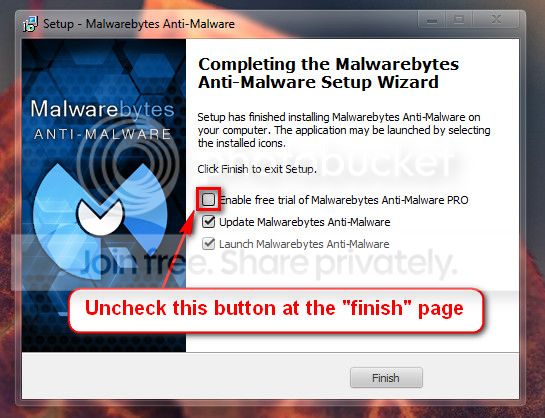
Do not start the free trial of Malware Bytes; remember to deselect that option when prompted.

2013-03-09_224312_zps62dc7c23.jpg

Run a full scan with both (separately) once downloaded, installed and updated.

Please uninstall DAEMON Tools and any Alcohol % software. It uses a driver called sptd.sys which is known to cause BSODs in Windows 7. Uninstall the software using Add/Remove Programs. Reboot the system. Once the program is uninstalled, run sptd.sys uninstaller to remove the driver from your system.
Code:
Start Menu\Programs\DAEMON Tools Lite	Public:Start Menu\Programs\DAEMON Tools Lite	Public
As an alternative, many people recommend the use of Total Mounter or Magic ISO

We do not recommend 3rd party defragging programs. Please uninstall:
Code:
Start Menu\Programs\Defraggler	Public:Start Menu\Programs\Defraggler	Public
Number down items at start-up. Keep only your anti-virus, this also improves the time for logging into windows.
  • Click on the Start button
  • Type “msconfig (without quotes), click the resulting link. It will open the System Configuration window.
  • Select the “Startup” tab.
  • Deselect all items other than the antivirus.
  • Apply > OK
  • Accept then restart.
Full tutorial:
Perform a System File Check to check the integrity of all protected Windows 7:
  • Click Start Menu
  • Click All Programs
  • Click Accessories
  • Right click Command Prompt
  • Click Run as administrator
  • Type
  • Code:
    sfc /scannow
  • and press Enter
Full tutorial here:
Check your hard drive(s) for errors by running chkdsk
Take memtest. Run for 8 passes and test each stick in a know good slot for an additional 6 passes.
   Note
Pay close attention to part 3 of the tutorial in order to rule out the faulty stick.

   Information
Errors are sometimes found after 8 passes.

   Tip
Do this test overnight, before going to bed.

If Memtest86+ does not find any errors with ram run Windows Memory Diagnostics for 7-8 passes following its tutorial: Keep us posted of the results.
 

My Computer My Computer

Computer type
PC/Desktop
Computer Manufacturer/Model Number
Self assembled
OS
Windows 10 Home 64Bit
CPU
Intel Core i5 10400 @ 2.90GHz
Motherboard
Intel Corporation DG41WV (PROCESSOR)
Memory
8.00GB Single-Channel Unknown @ 1329MHz (16-20-20-38)
Sound Card
Realtek High Definition Audio
Monitor(s) Displays
DELL E170S
Screen Resolution
1280x1024 pixels
Hard Drives
931GB TOSHIBA DT01ACA100 (SATA)
238GB TEAM TM8PS7256G (SATA SSD)
Case
Nothing Fancy
Cooling
Fans
Keyboard
A4 Tech Co LTD
Mouse
A4 Tech Co Ltd/Logitech
Internet Speed
25 Mbps
Back
Top