Solved C: Drive almost full after Win 7 Reinstall

Zakaln

New member
Local time
10:45 PM
Messages
24
Hello

I had to reinstall windows while back after one of my RAM sticks failed and on the process it messed up my windows installation.

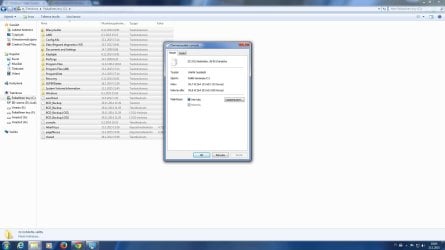
Now after i reinstalled windows 7 64bit ultimate with the option to save old installation into .old folder it says that my harddrive is almost full (13gb free space out of 139gb)
I deleted the old folder and checked all the files size inside the C:drive and it goes no where near the space it shows on the main screen.

Where are these hidden files? if i remember right, this was how it was before i reinstalled all, the hdd space usage

attached few pictures to make it easier to understand.
 

Attachments
  • Cdrive.jpg
    Cdrive.jpg
    120.9 KB · Views: 15
  • hdds.jpg
    hdds.jpg
    146.4 KB · Views: 11

My Computer My Computer

Computer type
PC/Desktop
OS
Windows 7 Ultimate 64bit
CPU
Intel Core i7 6700k
Motherboard
Asus z170 Deluxe
Memory
Corsair 2x8gb DDR
Graphics Card(s)
AMD Radeon 6990
Sound Card
Soundblaster X-FI Titanium/Realtek motherboard
PSU
Corsair RM1000i
Case
Antec 1200
Cooling
Noctua D15

My Computer My Computer

Computer type
Laptop
Computer Manufacturer/Model Number
HP Pavilion dv6-6c10us
OS
x64 (6.3.9600) Win8.1 Pro & soon dual boot x64 (6.1.7601) Win7_SP1 HomePrem
CPU
AMD A6-3420M APU with Radeon(tm) HD Graphics
Motherboard
Hewlett-Packard 1805
Memory
6.00 GB
Graphics Card(s)
AMD Radeon(TM) HD 6520G
Sound Card
(1) AMD High Definition Audio Device (2) IDT High Definiti
Monitor(s) Displays
HP W2072a 20" LCD (1600 x 900) @ 60 Hz
Screen Resolution
1366 x 768 x 32 bits (4294967296 colors) @ 60 Hz
Hard Drives
ST640LM0 00 HM641JI SATA Disk Device
Keyboard
Logitech k520 wireless KB
Mouse
Logitech m320 wireless mouse (bundled with KB)
Internet Speed
15/5 | 54 MB Wireless 'n'
Antivirus
Realtime: Defender or Avast | On-demand: Malwarebytes, ESET
Browser
IE 11 on Win8, IE 10 on win 7
Other Info
Media: [Gimp, Audacity, VLC] || Comm: [WEmail 2012, Skype] || Productivity: [OpenOffice,| Textpad] || Utils: [Sysinternals, cCleaner, Speccy, Defraggler]
That Extended cleanup didnt free any space.

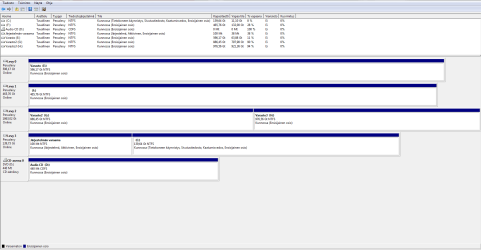
Is this how u wanted the picture?
 

Attachments

  • hddss.PNG
    hddss.PNG
    30.5 KB · Views: 13

My Computer My Computer

Computer type
PC/Desktop
OS
Windows 7 Ultimate 64bit
CPU
Intel Core i7 6700k
Motherboard
Asus z170 Deluxe
Memory
Corsair 2x8gb DDR
Graphics Card(s)
AMD Radeon 6990
Sound Card
Soundblaster X-FI Titanium/Realtek motherboard
PSU
Corsair RM1000i
Case
Antec 1200
Cooling
Noctua D15
Too bad the extended disk cleanup did not reclaim any space.
I should have asked for a screen shot, so I was sure everything was marked - did you select everything or did the image in the tutorial guide you?

That is one perfect picture. This way the drives are connected makes it a bit hard to read, that and I only speak English.
Neither one is a big concern to me, I can determine the information from the column position and deduce that Ensisijainen osio means Primary partition. If I get stuck, there's always Google translate.

If I get really stuck, I'll just ask someone who knows the Finnish language. You would be my first choice ;)

so the 100 Mt partition is:
System, Active, Primary partition

and C: is:
Boot, Page File, Crash Dump, Primary partition

That looks fine if I adjust for Google, just thought I'd check those partition flags.

Try running another good tool, cCleaner
Piriform cCleaner Download page
Press the Download button under the FREE version
Alternate download method: Piriform cCleaner Download button

Select Run on the download action bar

During or after the install
  • Do NOT accept a free trial if offered

  • Do NOT install cross marketing software if offered
    Remove the checkmark from boxes for any additional software (usually a browser or toolbar such as Ask or Google)


Launch cCleaner and look at the options selected. If Windows.old is an option, make sure that is selected. The reset of the defaults are good enough for the first time.

click analyze and then clean.

Don't bother with any other features until you need them, you're only using cCleaner to find disk space. That is the default feature shown when you launch the application.

Depending on the amount of space reclaimed, I might ask you to run Disk Cleanup again using different instructions and posting screen shots.

Bill
.
 

My Computer My Computer

Computer type
Laptop
Computer Manufacturer/Model Number
HP Pavilion dv6-6c10us
OS
x64 (6.3.9600) Win8.1 Pro & soon dual boot x64 (6.1.7601) Win7_SP1 HomePrem
CPU
AMD A6-3420M APU with Radeon(tm) HD Graphics
Motherboard
Hewlett-Packard 1805
Memory
6.00 GB
Graphics Card(s)
AMD Radeon(TM) HD 6520G
Sound Card
(1) AMD High Definition Audio Device (2) IDT High Definiti
Monitor(s) Displays
HP W2072a 20" LCD (1600 x 900) @ 60 Hz
Screen Resolution
1366 x 768 x 32 bits (4294967296 colors) @ 60 Hz
Hard Drives
ST640LM0 00 HM641JI SATA Disk Device
Keyboard
Logitech k520 wireless KB
Mouse
Logitech m320 wireless mouse (bundled with KB)
Internet Speed
15/5 | 54 MB Wireless 'n'
Antivirus
Realtime: Defender or Avast | On-demand: Malwarebytes, ESET
Browser
IE 11 on Win8, IE 10 on win 7
Other Info
Media: [Gimp, Audacity, VLC] || Comm: [WEmail 2012, Skype] || Productivity: [OpenOffice,| Textpad] || Utils: [Sysinternals, cCleaner, Speccy, Defraggler]
Hello Zakaln!

This could also be a System Restore point situation, where too much space is being saved and occupied by the System Restore data.

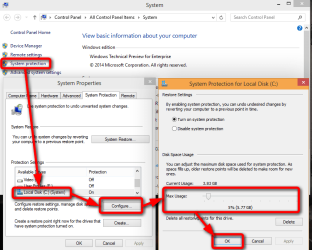
Do a Disk Cleanup on your drive, remove all but the last restore point. Clear the Temp folder. Then go into Restore settings and shrink the amount of hard drive space that's allowed to be used for restore points. If the space allowed is too big, your drive will be shrinking really fast from free capacity and would constantly be performing processes. Normal setting is to use about 5% of space.

Check your programs, if there's something that's acting on the background that would take up such large percentage of active time and temporary files.

Defragment your drive and restart the PC. See what happens.

Hope this helps too!

CK_WD
 

My Computer My Computer

Computer type
PC/Desktop
OS
Windows 7 Home Premium x64
CKWD reminded me of another tool; Temp File Cleaner - it is very good and very fast

Restart your machine in case there are any system operations pending

Click here to download Old Timer-TFC.
>> save the application to your Desktop.
:info: Old Timer-TFC is a standalone application, there is no install.

:warn:Save your work and close all open windows.
TFC will close ALL open programs including your browser!

Right click, run as administrator TFC

Click the Start button to begin the cleaning up temporary files and folders.
:warn: Do not work on other things while TFC is running - most applications use some sort of temporary files. Just let TFC run by itself on the machine until it completes.[/COLOR]
 

My Computer My Computer

Computer type
Laptop
Computer Manufacturer/Model Number
HP Pavilion dv6-6c10us
OS
x64 (6.3.9600) Win8.1 Pro & soon dual boot x64 (6.1.7601) Win7_SP1 HomePrem
CPU
AMD A6-3420M APU with Radeon(tm) HD Graphics
Motherboard
Hewlett-Packard 1805
Memory
6.00 GB
Graphics Card(s)
AMD Radeon(TM) HD 6520G
Sound Card
(1) AMD High Definition Audio Device (2) IDT High Definiti
Monitor(s) Displays
HP W2072a 20" LCD (1600 x 900) @ 60 Hz
Screen Resolution
1366 x 768 x 32 bits (4294967296 colors) @ 60 Hz
Hard Drives
ST640LM0 00 HM641JI SATA Disk Device
Keyboard
Logitech k520 wireless KB
Mouse
Logitech m320 wireless mouse (bundled with KB)
Internet Speed
15/5 | 54 MB Wireless 'n'
Antivirus
Realtime: Defender or Avast | On-demand: Malwarebytes, ESET
Browser
IE 11 on Win8, IE 10 on win 7
Other Info
Media: [Gimp, Audacity, VLC] || Comm: [WEmail 2012, Skype] || Productivity: [OpenOffice,| Textpad] || Utils: [Sysinternals, cCleaner, Speccy, Defraggler]
Moi Zakain, terveisiä sinne koti-Suomeen :).

There are several reasons why disk properties (your screenshot #1 in original post) and Disk Management (screenshot #2 in same post) show different figures for disk usage. For instance the hidden system folder System Volume Information contains data for stored restore points which is not shown as used disk space in Disk Properties but will of course be counted in disk management. Also the page file is not counted as used disk space in Disk Properties.

I suggest you download and install the WinDirStat tool, it shows you exactly what is taking place on your hard disk.

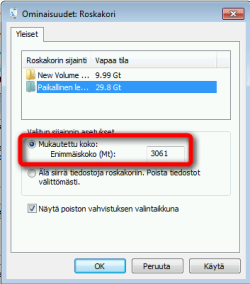
In the future, to save some space you could change the maximum size of Recycle Bin and stored restore points (screenshots from English Windows, I'll boot up a Finnish one and add Finnish screenshots in a few minutes):

2015-01-15_12h05_21.png

2015-01-15_12h07_54.png

Check your C: drive with WinDirStat and come back to tell us what it revealed.

EDIT:

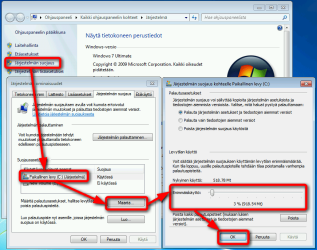
Here the above screenshots from Finnish Windows, how to reduce space Roskakori (Recycle Bin) and Palautuspisteet (Restore points) take:

2015-01-15_13h16_03.png

2015-01-15_13h13_50.png

Kari
 
Last edited:

My Computer My Computer

Computer type
Laptop
Computer Manufacturer/Model Number
HP ENVY 17-1150eg
OS
Windows 10 Pro x64 EN-GB
CPU
1.6 GHz Intel Core i7-720QM Processor
Memory
6 GB
Graphics Card(s)
ATI Mobility Radeon HD 5850 Graphics
Sound Card
Beats sound system with integrated subwoofer
Monitor(s) Displays
17" laptop display, 22" LED and 32" Full HD TV through HDMI
Screen Resolution
1600*900 (1), 1920*1080 (2&3)
Hard Drives
Internal: 2 x 500 GB SATA Hard Disk Drive 7200 rpm
External: 2TB for backups, 3TB USB3 network drive for media
Cooling
As Envy runs a bit warm, I have it on a Cooler Master pad
Keyboard
Logitech diNovo Media Desktop Laser (bluetooth)
Mouse
Logitech Performance Mouse MX
Internet Speed
50/10 Mbps VDSL
Antivirus
Windows Defender 4.3.9431.0
Browser
Maxthon 3.5.2., IE11
Terve Kari! :)

It was the system restore point taking up all that 50gb of space. After running the restorepoint cleanup it freed up fair amount of space \o/. Now its 78gb of 139gb.

I will do those settings to shrink the allowed space for the restore point, cyclebin aint that big of a problem as i empty it quite often + using Ccleaner too fairly often.

Happy that i didnt need to reinstall windows again with formatting the hdd first.

Thanks you alot, saved alot of sweat and annoyance from me :D
 

My Computer My Computer

Computer type
PC/Desktop
OS
Windows 7 Ultimate 64bit
CPU
Intel Core i7 6700k
Motherboard
Asus z170 Deluxe
Memory
Corsair 2x8gb DDR
Graphics Card(s)
AMD Radeon 6990
Sound Card
Soundblaster X-FI Titanium/Realtek motherboard
PSU
Corsair RM1000i
Case
Antec 1200
Cooling
Noctua D15
Good to know you found the culprit :).
 

My Computer My Computer

Computer type
Laptop
Computer Manufacturer/Model Number
HP ENVY 17-1150eg
OS
Windows 10 Pro x64 EN-GB
CPU
1.6 GHz Intel Core i7-720QM Processor
Memory
6 GB
Graphics Card(s)
ATI Mobility Radeon HD 5850 Graphics
Sound Card
Beats sound system with integrated subwoofer
Monitor(s) Displays
17" laptop display, 22" LED and 32" Full HD TV through HDMI
Screen Resolution
1600*900 (1), 1920*1080 (2&3)
Hard Drives
Internal: 2 x 500 GB SATA Hard Disk Drive 7200 rpm
External: 2TB for backups, 3TB USB3 network drive for media
Cooling
As Envy runs a bit warm, I have it on a Cooler Master pad
Keyboard
Logitech diNovo Media Desktop Laser (bluetooth)
Mouse
Logitech Performance Mouse MX
Internet Speed
50/10 Mbps VDSL
Antivirus
Windows Defender 4.3.9431.0
Browser
Maxthon 3.5.2., IE11
Back
Top