Cache Writing - Enable or not to enable?

Edster

New member
Local time
7:05 AM
Messages
53
Location
England
Hello,

Could anyone tell me the advantages and disadvantages of disabling cache writing on the priming HDD? Thanks in advance :D
 

My Computer

Computer Manufacturer/Model Number
Advent 5301 (Laptop)
OS
Windows 7 Professional 32 Bit
CPU
Intel Pentium Dual Core @ 1.73GHZ
Memory
2GB
Graphics Card(s)
SIS Mirage 3
Sound Card
Realtek High Definition Audio
Monitor(s) Displays
Sony Bravia 40 inch
Screen Resolution
1920 x 1080
Hard Drives
120GB and 500GB
Mouse
Labtec wired laser
Internet Speed
12.02MB Download
Other Info
Hard Drives:
Toshiba - 120GB
Iomega - 500GB
I think the default setting is usually to enable it?

I have a dim understand of it from memory. As I recall, enabling it provides slightly faster performance but has a slight risk of data corruption in cases of a bad shutdown--like from a power outage. It can also have consequences when using RAID.

The geekiest thing to do is to enable it, but use a UPS (uninterruptible power supply) to eliminate the risk from power failure.

Me? I've always left it enabled and haven't knowingly suffered any negative consequences.
 

My Computer

Computer type
PC/Desktop
Computer Manufacturer/Model Number
Ignatz Special; 4 speed manual gearbox; factory air conditioning; one of one
OS
Windows 7 Home Premium SP1, 64-bit
CPU
Intel Skylake i5-6600K, not overclocked
Motherboard
AsRock Z170M Extreme 4, micro ATX
Memory
8 GB HyperX DDR4-2666 (2 x 4 GB)
Graphics Card(s)
none; graphics are integrated on CPU
Sound Card
onboard: Realtek ALC1150; external: USB Behringer UF0-202
Monitor(s) Displays
Dell S2340M 23 inch IPS
Screen Resolution
1600 x 900
Hard Drives
System: Crucial MX100 series SSD, 128 GB;
Data: Samsung Spinpoint 103SJ, 1 TB;
Backup: WD Caviar Green WD30EZRX-00D8PB0, 3 TB
PSU
Rosewill SilentNight 500 watt fanless, semi-modular
Case
Antec Solo II
Cooling
Noctua NH-U12S; Noctua F12 intake, Noctua S12A exhaust
Keyboard
Microsoft 200 6JH-00001 USB
Mouse
Dell or Microsoft optical wired; USB
Antivirus
Microsoft Security Essentials and Malwarebytes Premium
Browser
Pale Moon
Other Info
All fans PWM; speeds at idle: CPU circa 500 rpm; intake circa 600 rpm; exhaust circa 600 rpm; CPU temps 27 idle and 47 C load in a warm room (27 C/81 F) when running Intel Extreme Tuning Utility stress test.
Thanks for your help, I guess the best thing to do then is to keep it enabled. I had read somewhere though, that it helped performance? :confused:
 

My Computer

Computer Manufacturer/Model Number
Advent 5301 (Laptop)
OS
Windows 7 Professional 32 Bit
CPU
Intel Pentium Dual Core @ 1.73GHZ
Memory
2GB
Graphics Card(s)
SIS Mirage 3
Sound Card
Realtek High Definition Audio
Monitor(s) Displays
Sony Bravia 40 inch
Screen Resolution
1920 x 1080
Hard Drives
120GB and 500GB
Mouse
Labtec wired laser
Internet Speed
12.02MB Download
Other Info
Hard Drives:
Toshiba - 120GB
Iomega - 500GB
Yeah, it is supposed to help performance. How much, I don't know.

If you disable it, caching is not used, and you don't take the risk of losing or corrupting data on a bad shutdown. I think that means that if disabled. all write operations go directly to the disk (not to the cache). Since they go to the disk directly, you don't have the risk of corruption. If enabled, and you had a bad shutdown, the data sitting in the cache has not yet been written to disk and could be lost. That's my feeble attempt at understanding.

You could easily download HD Tune and do some tests with it off and on to see how much difference it makes. Matter of fact, I might try that myself.
 

My Computer

Computer type
PC/Desktop
Computer Manufacturer/Model Number
Ignatz Special; 4 speed manual gearbox; factory air conditioning; one of one
OS
Windows 7 Home Premium SP1, 64-bit
CPU
Intel Skylake i5-6600K, not overclocked
Motherboard
AsRock Z170M Extreme 4, micro ATX
Memory
8 GB HyperX DDR4-2666 (2 x 4 GB)
Graphics Card(s)
none; graphics are integrated on CPU
Sound Card
onboard: Realtek ALC1150; external: USB Behringer UF0-202
Monitor(s) Displays
Dell S2340M 23 inch IPS
Screen Resolution
1600 x 900
Hard Drives
System: Crucial MX100 series SSD, 128 GB;
Data: Samsung Spinpoint 103SJ, 1 TB;
Backup: WD Caviar Green WD30EZRX-00D8PB0, 3 TB
PSU
Rosewill SilentNight 500 watt fanless, semi-modular
Case
Antec Solo II
Cooling
Noctua NH-U12S; Noctua F12 intake, Noctua S12A exhaust
Keyboard
Microsoft 200 6JH-00001 USB
Mouse
Dell or Microsoft optical wired; USB
Antivirus
Microsoft Security Essentials and Malwarebytes Premium
Browser
Pale Moon
Other Info
All fans PWM; speeds at idle: CPU circa 500 rpm; intake circa 600 rpm; exhaust circa 600 rpm; CPU temps 27 idle and 47 C load in a warm room (27 C/81 F) when running Intel Extreme Tuning Utility stress test.
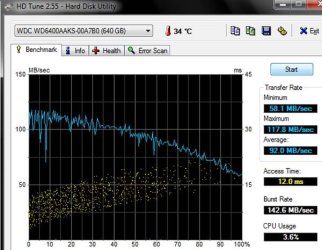
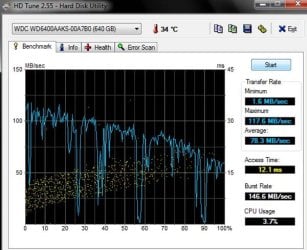
Here ya go. These results are for my boot drive, a WD Caviar SE16 WD6400AAKS 640GB HD.

The first graph is cache writing enabled. The second graph is cache writing disabled.

Note that the transfer rates are negatively affected when caching is off--more of the blue line is in lower territory. The maximum is the same, but the minimums and averages are different. The burst rate and access times are unaffected.

This is the result of one test only, but should be representative, at least of my drive. A hard drive engineer may well laugh at these tests and maybe correctly so--I don't know how much reliance to put on these results as they apply to the real world.
 

Attachments

  • caching enabled.jpg
    caching enabled.jpg
    50.7 KB · Views: 107
  • cache disabled.jpg
    cache disabled.jpg
    53.6 KB · Views: 93

My Computer

Computer type
PC/Desktop
Computer Manufacturer/Model Number
Ignatz Special; 4 speed manual gearbox; factory air conditioning; one of one
OS
Windows 7 Home Premium SP1, 64-bit
CPU
Intel Skylake i5-6600K, not overclocked
Motherboard
AsRock Z170M Extreme 4, micro ATX
Memory
8 GB HyperX DDR4-2666 (2 x 4 GB)
Graphics Card(s)
none; graphics are integrated on CPU
Sound Card
onboard: Realtek ALC1150; external: USB Behringer UF0-202
Monitor(s) Displays
Dell S2340M 23 inch IPS
Screen Resolution
1600 x 900
Hard Drives
System: Crucial MX100 series SSD, 128 GB;
Data: Samsung Spinpoint 103SJ, 1 TB;
Backup: WD Caviar Green WD30EZRX-00D8PB0, 3 TB
PSU
Rosewill SilentNight 500 watt fanless, semi-modular
Case
Antec Solo II
Cooling
Noctua NH-U12S; Noctua F12 intake, Noctua S12A exhaust
Keyboard
Microsoft 200 6JH-00001 USB
Mouse
Dell or Microsoft optical wired; USB
Antivirus
Microsoft Security Essentials and Malwarebytes Premium
Browser
Pale Moon
Other Info
All fans PWM; speeds at idle: CPU circa 500 rpm; intake circa 600 rpm; exhaust circa 600 rpm; CPU temps 27 idle and 47 C load in a warm room (27 C/81 F) when running Intel Extreme Tuning Utility stress test.
That is extremely helpful and I thank you for your efforts :D
I might have a play around with it now!
 

My Computer

Computer Manufacturer/Model Number
Advent 5301 (Laptop)
OS
Windows 7 Professional 32 Bit
CPU
Intel Pentium Dual Core @ 1.73GHZ
Memory
2GB
Graphics Card(s)
SIS Mirage 3
Sound Card
Realtek High Definition Audio
Monitor(s) Displays
Sony Bravia 40 inch
Screen Resolution
1920 x 1080
Hard Drives
120GB and 500GB
Mouse
Labtec wired laser
Internet Speed
12.02MB Download
Other Info
Hard Drives:
Toshiba - 120GB
Iomega - 500GB
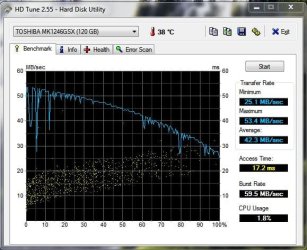
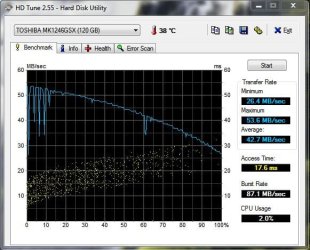
I can see your point now. On mine, the enabled writing cache seems to be the fastest on average, I'll keep that enabled from now on.
 

Attachments

  • before writing disabled.JPG
    before writing disabled.JPG
    55.9 KB · Views: 45
  • after writing disabled.JPG
    after writing disabled.JPG
    56.8 KB · Views: 45

My Computer

Computer Manufacturer/Model Number
Advent 5301 (Laptop)
OS
Windows 7 Professional 32 Bit
CPU
Intel Pentium Dual Core @ 1.73GHZ
Memory
2GB
Graphics Card(s)
SIS Mirage 3
Sound Card
Realtek High Definition Audio
Monitor(s) Displays
Sony Bravia 40 inch
Screen Resolution
1920 x 1080
Hard Drives
120GB and 500GB
Mouse
Labtec wired laser
Internet Speed
12.02MB Download
Other Info
Hard Drives:
Toshiba - 120GB
Iomega - 500GB
Looks like caching helps you very little on your drive. Maybe because the drive is relatively slow by itself and has only a small cache?? You might be a candidate for leaving it off--you might never know the difference and wouldn't have any corruption risk?
 

My Computer

Computer type
PC/Desktop
Computer Manufacturer/Model Number
Ignatz Special; 4 speed manual gearbox; factory air conditioning; one of one
OS
Windows 7 Home Premium SP1, 64-bit
CPU
Intel Skylake i5-6600K, not overclocked
Motherboard
AsRock Z170M Extreme 4, micro ATX
Memory
8 GB HyperX DDR4-2666 (2 x 4 GB)
Graphics Card(s)
none; graphics are integrated on CPU
Sound Card
onboard: Realtek ALC1150; external: USB Behringer UF0-202
Monitor(s) Displays
Dell S2340M 23 inch IPS
Screen Resolution
1600 x 900
Hard Drives
System: Crucial MX100 series SSD, 128 GB;
Data: Samsung Spinpoint 103SJ, 1 TB;
Backup: WD Caviar Green WD30EZRX-00D8PB0, 3 TB
PSU
Rosewill SilentNight 500 watt fanless, semi-modular
Case
Antec Solo II
Cooling
Noctua NH-U12S; Noctua F12 intake, Noctua S12A exhaust
Keyboard
Microsoft 200 6JH-00001 USB
Mouse
Dell or Microsoft optical wired; USB
Antivirus
Microsoft Security Essentials and Malwarebytes Premium
Browser
Pale Moon
Other Info
All fans PWM; speeds at idle: CPU circa 500 rpm; intake circa 600 rpm; exhaust circa 600 rpm; CPU temps 27 idle and 47 C load in a warm room (27 C/81 F) when running Intel Extreme Tuning Utility stress test.
Hi there

In (I hope) plain English

Caching come into its own when you've been using an application for a while (or when the system has learned how you usually use your computer).

What it does is saves often used data into a specially fast memory area (not in RAM but in the disk controllers OWN memory area) so that if you need to access this data the disk contoller can supply it straight from the cache instead of having to create a set of I/O instructions to find the correct sector on Disk, position the drive and do the data transfer - both READ amd WRITE.

On a new computer the system will need to do some form of learning before the cache is effectively used.

Some better algorithms even do a "Data Pre-fetch" which reads data before you actually need it - based on your previous usage of the computer --it does this whilst the computer is idle so it won't degrade the performance at all.

Successful caching algorithms (very tricky to write) can ENORMOUSLY speed up a computer - especially when data bases are being accessed with similar queries.

You'll also find that a disk with a larger cache costs quite a bit more than a similar capacity drive with a smaller or no cache.

(This is why you should also "Quiesce" a USB external drive before unplugging it -- the system will need to write any remaining / pending I/O requests from the cache back to the drive).

Cheers
jimbo
 

My Computer

Computer type
PC/Desktop
Computer Manufacturer/Model Number
Custom built, several laptops HP/ASUS
OS
Linux CENTOS 7 / various Windows OS'es and servers
CPU
Intel i7 Intel i5
Memory
8GB, 16GB
Graphics Card(s)
On Motherboard
Sound Card
Realtek HD audio
Monitor(s) Displays
Apple Cinema display, Samsung LCD
Screen Resolution
1920 X 1080
Hard Drives
4 X 1TB SATA
Mouse
Toshiba wireless laser
Internet Speed
> 20MB up
So in the long term, it is better to enable caching?
 

My Computer

Computer Manufacturer/Model Number
Advent 5301 (Laptop)
OS
Windows 7 Professional 32 Bit
CPU
Intel Pentium Dual Core @ 1.73GHZ
Memory
2GB
Graphics Card(s)
SIS Mirage 3
Sound Card
Realtek High Definition Audio
Monitor(s) Displays
Sony Bravia 40 inch
Screen Resolution
1920 x 1080
Hard Drives
120GB and 500GB
Mouse
Labtec wired laser
Internet Speed
12.02MB Download
Other Info
Hard Drives:
Toshiba - 120GB
Iomega - 500GB
As I understand it, enabling it helps from a speed standpoint and hurts from a data safety standpoint.

So you get to define "better" however you wish--faster or safer; one or the other; not both.

Most people are obsessed with speed and will choose to enable it, even though if the switch had been in the disabled position for years, they probably wouldn't have ever noticed it or complained. It's mostly about benchmarking and obsessing over minor details.

Looking at your HD tests, it seems to make virtually no difference on your drive.

I don't have a clue about the real-world risks of losing or corrupting data. I have never knowingly had data corrupted by enabling the cache, nor do I use a UPS. I have a power failure perhaps once a year.
 

My Computer

Computer type
PC/Desktop
Computer Manufacturer/Model Number
Ignatz Special; 4 speed manual gearbox; factory air conditioning; one of one
OS
Windows 7 Home Premium SP1, 64-bit
CPU
Intel Skylake i5-6600K, not overclocked
Motherboard
AsRock Z170M Extreme 4, micro ATX
Memory
8 GB HyperX DDR4-2666 (2 x 4 GB)
Graphics Card(s)
none; graphics are integrated on CPU
Sound Card
onboard: Realtek ALC1150; external: USB Behringer UF0-202
Monitor(s) Displays
Dell S2340M 23 inch IPS
Screen Resolution
1600 x 900
Hard Drives
System: Crucial MX100 series SSD, 128 GB;
Data: Samsung Spinpoint 103SJ, 1 TB;
Backup: WD Caviar Green WD30EZRX-00D8PB0, 3 TB
PSU
Rosewill SilentNight 500 watt fanless, semi-modular
Case
Antec Solo II
Cooling
Noctua NH-U12S; Noctua F12 intake, Noctua S12A exhaust
Keyboard
Microsoft 200 6JH-00001 USB
Mouse
Dell or Microsoft optical wired; USB
Antivirus
Microsoft Security Essentials and Malwarebytes Premium
Browser
Pale Moon
Other Info
All fans PWM; speeds at idle: CPU circa 500 rpm; intake circa 600 rpm; exhaust circa 600 rpm; CPU temps 27 idle and 47 C load in a warm room (27 C/81 F) when running Intel Extreme Tuning Utility stress test.
Plain and simple...you want write caching enabled for best performance. And the best bet is to put a UPS on your computer that way if you have a power outage you won't lose any data that was committed to cache and not yet written to the hard drive. UPS's are cheap these days. $40 to $80 will be more than enough for home use. I've got 4 of them at home and all of my PC's that I use have one.

I recently ran into a nasty performance issue on a high end server at work which didn't have a battery module on the RAID controller. Without that, VMWare would not write cache anything on it's own and performance was abysmal. Adding the battery to the RAID controller memory meant that anything in memory in the event of a power outage would be maintained by the battery. Once that battery was in place the server controller began write caching and performance shot through the roof. Of course, this example doesn't translate perfectly into the home world market ...but the general idea is that it provides performance.
 

My Computer

Computer Manufacturer/Model Number
Self-Built in July 2009
OS
Windows 7 Ultimate x64
CPU
Intel Q9550 2.83Ghz OC'd to 3.40Ghz
Motherboard
Gigabyte GA-EP45-UD3R rev. 1.1, F12 BIOS
Memory
8GB G.Skill PI DDR2-800, 4-4-4-12 timings
Graphics Card(s)
EVGA 1280MB Nvidia GeForce GTX570
Sound Card
Realtek ALC899A 8 channel onboard audio
Monitor(s) Displays
23" Acer x233H
Screen Resolution
1920x1080
Hard Drives
Intel X25-M 80GB Gen 2 SSD
Western Digital 1TB Caviar Black, 32MB cache. WD1001FALS
PSU
Corsair 620HX modular
Case
Antec P182
Cooling
stock
Keyboard
ABS M1 Mechanical
Mouse
Logitech G9 Laser Mouse
Internet Speed
15/2 cable modem
Other Info
Windows and Linux enthusiast. Logitech G35 Headset.
Back
Top