Solved Can not install "TiMidity"

digiday

Banned
Local time
2:31 PM
Messages
99
Location
SF, Caleeforneea
Hello audio experts on W7F...

I am trying to install and use TiMidity to convert MIDI files to more of a standard audio format that can then be edited in Audacity.

I have looked in to TiMidity and posted a question about it on the ScummVM forum after I Googled "TiMidity", but I'm not sure if I'll get a response because the ScummVM forum seems to be a gamer's forum site.

I'm beginning to figure that TiMidity is a mythical application that people only talk about using so they sound like experts, and a dummy set of files is out there for downloading to make people like me feel like even more of a dummy than they already do... I've typed the word "TiMidity" so many times now, I'm weary of that capital M in the middle since spell check doesn't recognize it... and if one does a Google search on Timidity, half of the results are on articles about how to overcome shyness.

I have downloaded the newest version of TiMidity... it is version 2.13.2 and it is dated 3/01/2004, and after looking at the files and reading the "SETUP.txt" file which is the "TiMidity++ Installation guide" I still can't quite figure out where to get all of the necessary files to make TiMidity work.

The very first URL that is provided in this installation guide is one of the URLs to download a very necessary file... but http://www.stardate.bc.ca/eawpatches/html/default.htm is a dead URL, so it seems that it would be nearly impossible to configure TiMidity without this first necessary "Eawpatch" file.

There is an email address included in this installation guide <[email protected]> but it is to a Japanese email address so I'm not sure how successful I will be at getting any advice from the person who wrote this installation guide to begin with, especially since it seems that one must find so many files from across the internet to make TiMidity run.

Based on experience, can someone out there tell me how to make Timidity work and how to gather the necessary files to make it work... or better yet, is there a way that I could somehow get the files from someone out there that may have already gathered them to make TiMidity run?

All I'm trying to do is to use TiMidity to convert MIDI files to another audio format that can be edited in Audacity.

Or is there another app out there that can convert MIDI to anything else that can be recognized my Audacity?

I sure appreciate it...

Thanks,

digiday
 

My Computer

Computer Manufacturer/Model Number
Dell 531
OS
Windows 7 ULT 32 bit
CPU
2 GHZ
Memory
2 GB
Other Info
Also use Macs, but don't tell anyone
Success installing TiMidity and converting MIDI to WAV

Well, about 5 days ago, a day after posting this topic, I finally had success installing TiMidity and making it convert MIDI files to the editable WAV format that can be converted to MP3 and edited in Audacity and other audio applications... here are the simplest set of instructions possible for this strange little unsupported free app...

Download TiMidity++-2.13.2-cvs20100919.win32.zip from here: http://sourceforge.net/projects/timidit ... 2B%2B-CVS/
Download the 8MBGMSFX.SF2 soundfont from here: 8MBGMSFX.SF2 - ALSA wiki
Any general MIDI soundfont will do, but this is a reasonable quality one that's not too big (about 8 MB).

Extract TiMidity++ from the zip file to your hard drive.
Note: TiMidity does not appear to support long file names so place it at the top level of the C:\ drive

Assuming that you now have the path: C:\TiMidity++\
Create a new folder called soundfonts and place it in TiMidity
so you now have the path:
C:\TiMidity++\soundfonts\

Move the 8MBGMSFX.SF2 file that you previously downloaded into the folder C:\TiMidity++\soundfonts\
so you now have the path:
C:\TiMidity++\soundfonts\8MBGMSFX.SF2

Create an empty file in Notepad called 8MBGMSFX.cfg and place it in the soundfonts folder, so you now have the path:
C:\TiMidity++\soundfonts\8MBGMSFX.cfg

Open 8MBGMSFX.cfg in Notepad and enter the following raw text and then save that .cfg file:
dir "soundfonts"
soundfont "8MBGMSFX.SF2"


Create a Desktop shortcut to C:\TiMidity++\timw32g.exe

Double click on the shortcut to launch TiMidity.
There may be an error message about config.cfg not being found - that's normal because you haven't configured it yet.

Click on "Config" and select "Preference"
In the Config File box, press the "Config File" button and select the 8MBGMSFX.cfg file.
Press "Apply" and "OK",
The 8MBGMSFX.cfg file should now be loaded and be the default.

To play a MIDI file
Click "Output > Windows Audio Driver" (it should already be set to this)
Drag and drop a MIDI file onto TiMidity.

To render the MIDI file to a WAV file
Click on "Config" and select "Preference"
Below the "Output" pane, click the "Output File" button to set the output directory and file name. You can select "Output: "RIFF WAVE file" in the "Output" pane above, but this changes the output without changing the "Output" menu choice in the main window, and then further changes in the Output menu have no effect in that TiMidity session. So better to click "OK" now in "Preference", then click "Output: "RIFF WAVE file"

Finally, click the Play button to start rendering the MIDI as a WAV file. The file will be complete when the timer in the display stops running (you won't hear any sound during this process)... this is a faster than real play time process that is pretty quick.

For better sound quality, use a better soundfont and create a similar config file for it.

I'll say that I found there are two things that make the difference between TiMidity producing good WAV files that have sound data and TiMidity producing full size WAV files that DO NOT have any sound data.

1) Just choose "RIFF WAVE file" under output to begin with and don't bother choosing "Windows audio driver" first in order to listen to the MIDI file... you already know what it sounds like, though if you do use TiMidity for an audio PLAYER, then DO choose the "Windows audio driver"

2) Then have your settings in "Config>Preference>Output" chosen before hand, before the file is dropped on to TiMidity, with a destination folder and a generic name for new file conversions like "newSONG.wav" or something like that which can then be later changed on the file itself to match the original MIDI song file name... these two steps made the difference in successfully producing WAV audio files out of MIDI song files.

If you don't already know what a MIDI song file is, it is akin to the roll of paper that makes a player piano play... your computer has a digital player piano in it, and all operating systems vary a bit in how that piano sounds. Or another analogy is that your computer has digital musical instruments in it and downloading a MIDI file is like bringing in the digital musicians to play the digital instruments that already exist on your computer.

See this link for more on MIDI...
Musical Instrument Digital Interface - Wikipedia, the free encyclopedia

So it is a special, tricky little process to convert something that is a piano, organ, violin and drums player along with all of the instruments that it plays in to an editable audio file format... that's what TiMidity does.

Apparently, TiMidity had more support for development on the Linux platform, but not for Windows, so that is why the installer for Windows is not really an installer, but just some of the files needed to place that make TiMidity a working application.

Happy MIDI converting...

digiday
 

My Computer

Computer Manufacturer/Model Number
Dell 531
OS
Windows 7 ULT 32 bit
CPU
2 GHZ
Memory
2 GB
Other Info
Also use Macs, but don't tell anyone
Very thorough tutorial on the Timidity install. Worked perfectly in my Win 7 64 bit OS. Thanks for sharing!
 

My Computer

Computer Manufacturer/Model Number
Home built
OS
Win 7 64bit Pro
CPU
Intel Core 2 Quad Q9400 2.66
Motherboard
Asus P5Q-E
Memory
8 gig Crucial
Alright well i THINK I have everything working except the sound i can't hear anyhitng when i load a midi file into timidity. Any help here please!?
 

My Computer

OS
Windows 7
Hi batterycharged,

If you have TiMidity set to convert MIDIs to WAV, then you can't here the playback while it is converting.

See this in my post...
1) Just choose "RIFF WAVE file" under output to begin with and don't bother choosing "Windows audio driver" first in order to listen to the MIDI file... you already know what it sounds like, though if you do use TiMidity for an audio PLAYER, then DO choose the "Windows audio driver".

If you want to listen to the MIDI file through TiMidity, then you choose "Windows audio driver", but then it will not convert to WAV... if you want to convert MIDI files, keep the setting at "RIFF WAVE file", and you will not hear the music during the conversion.

When TiMidity is converting, it runs at about 3 or 4 times the normal play time of the song, which is good for fast conversion times, so you probably wouldn't want to hear the song played at that speed anyway.

Enjoy,

digi
 

My Computer

Computer Manufacturer/Model Number
Dell 531
OS
Windows 7 ULT 32 bit
CPU
2 GHZ
Memory
2 GB
Other Info
Also use Macs, but don't tell anyone
So after its done converting the MIDI to a WAV file how do i listen to it? And also I pressed the "Con" button and it read something like this:

"8MBGMSFX.SF2: No such file or directory
Can't open soundfont file 8MBGMSFX.SF2"

What is this about? Btw thanks for your help.
 

My Computer

OS
Windows 7
Hi batterycharged,

You would check your WAV file to make sure it converted properly by playing it in a music player that supports WAV format, like Windows Media Player, the way you would any other WAV file... that part has nothing to do with TiMidity. Then you can convert the WAV file to MP3 (or whatever format) in another free program like Audacity, WinFF or Freemake.

As for the soundfont file message, I would go back over my complete list of instructions to make sure you have the soundfont in the proper location... if TiMidity is otherwise converting to WAV properly, then it is probably an erroneous message.

Good luck,

digi
 

My Computer

Computer Manufacturer/Model Number
Dell 531
OS
Windows 7 ULT 32 bit
CPU
2 GHZ
Memory
2 GB
Other Info
Also use Macs, but don't tell anyone
Well it seems timidity just doesn't work on my computer, but could you do me a favor if i send you the midi file could you convert it to a wav and send it to me? also, doing this makes the midi tune sound like its using real instruments right?
 

My Computer

OS
Windows 7
Hi batterycharged,

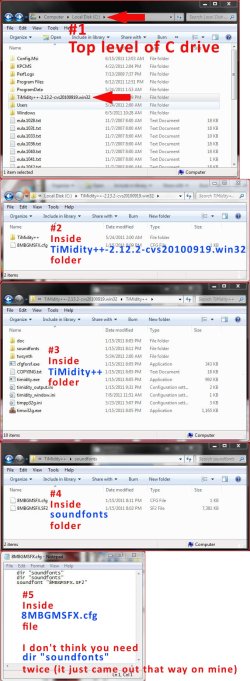
I think it is likely that you have just missed something in my instructions about where to place each file... I think the most obvious mistake that people may make is not putting the base TiMidity++ folder at the top level of your C drive... not in the Programs folder.

I'm attaching a set of screenshots showing the level and contents of each folder that makes TiMidity work... the bottom screenshot shows the code inside the 8MBGMSFX.cfg file that you need to make in Notepad and place in soundfonts folder.

If you still don't have success, then you can either put your MIDI file in a ZIPPED folder and attach it to your next post (this forum supports .zip format attachments), then I'll get it, convert it to WAV and ZIP that and attach it to a post back to you on this forum...
or...
Send me the link to where you downloaded the MIDI file from, I'll get it and convert it and then post it back here for you.

First see the link to the attachment showing the screenshots for TiMidity below.

digi


Attachments

  • TiMidity_folderHIERARCHY .jpg
    TiMidity_folderHIERARCHY .jpg
    186.5 KB · Views: 101

My Computer

Computer Manufacturer/Model Number
Dell 531
OS
Windows 7 ULT 32 bit
CPU
2 GHZ
Memory
2 GB
Other Info
Also use Macs, but don't tell anyone
Digiday, thank you so much for the steps you posted. It has been tremendously helpful =)

I hope you've had the fortune of finding such useful help as I have with yours.

(I registered just to thank you!)
 

My Computer

Computer type
PC/Desktop
OS
Wndows 7 64
For the installation of TiMidity, I found an installer. Where I got it escapes me, but the name is, TiMidity-CVS081206_setup_ENG.exe. Run this file as an administrator; it is important to run as administrator.

On the next window, choose OK. On the next screen, hit I Accept. On the next screen, uncheck whatever you wish. I, myself, usually just uncheck the two shortcut options and leave everything else marked. I'm not 100% on this, but I think you need to leave Timidity++ Driver checked. But because this is by my own personal experience, leave everything checked. When you are done, hit Next and, finally, INSTALL.

At this point, I get a "this application may not have installed correctly" error. If you do, play it safe and reinstall using recommended settings.

Now, what OP said about the soundfonts. The OP is correct in that you can choose any soundfont. I prefer the Titanic 200 soundfont, which is 100+ MB large. But it sounds great. So navigate to wherever you installed Timidity to (default is C:\timidity). I put my soundfonts in the musix subdirectory (C:\timidity\musix). Just copy/paste you chosen soundfont into there. Now find, and execute, the setwindrv.exe file (C:\timidity\bin\setwindrv.exe).

At the top of the newly opened window, you will see directory(where your soundfonts are.) and a text box under that. Hit the folder button to the right of that box and brows for where you placed your soundfont(s). Once selected, below that text box is another text box. To the right of that box, hit add. You are almost done. Your chosen directory should appear in the text box to the left.

Under that are two more text boxes with four buttons between them. On the left is your current active soundfont(s). The box on the right is your available fonts. Highlight anything in the left box you don't want and hit remove. Now on the right, select your font and hit add. If you have more than one thing font on the left, Timidity will use the font on the bottom of the list. If it can't find the instrument it is looking for in that font, it will search the previous font in the list. For example, if you have a font called things.sf2, but don't like the guitars in it, and you have a guitars.sf2 that you do like, you can make the left list look like:
"things.sf2"
"guitars.sf2"


The guitars in guitars.sf2 will override the guitars in things.sf2.

When you are done, hit save and quit in the bottom right corner. And finally, restart your computer. But don't worry too much, we only need to restart the PC because we installed a driver. Any other time you use the setwindrv program, you do not need to restart.

Once your computer is done restarting, you can start using timidity. I have two MIDI programs on my PC: Synthesia, which plays MIDI files, and Guitar Pro 5, which lets you create MIDI music. Both are set to use the Timidity++ Driver as the MIDI output.

Now is the fun part: setup a system variable. Right-click My Computer and select Properties. Now hit Advanced system settings and, finally, Environment Variable. Now go to the second text box, System Variables and hit New. In text box one, type "timidity" and in box two, type "C:\timidity\timidity.exe" Hit OK on all boxes you see. You are done here.

The reason for setting a system variable was to make converting MIDIs easier. To convert a MIDI, navigate to it's path. Shift Right-click the folder and hit Open command window here. You should see a command prompt pointing at your MIDI folder. To convert a MIDI, type something like this:
Code:
timidity "midi.mid" -Ow -o "name of wave.wav"
Where:
  • timidity uses the timidity.exe program. Remember setting that variable? Without having done so, you would have to type
    Code:
    C:\timidity\timidity.exe "midi.mid .....
  • -Ow tells timidity to generate WAVE data
  • -o tells timidity to store it in a wave file, and
  • "name of wave.wav" is the full path and name of the wave file

Another example:
Code:
timidity "Birabuto Theme.mid" -o -Ov "C:\Users\bailey\Desktop\Birabuto Theme.ogg"
That should convert the MIDI to an Ogg Vorbis file. But it said to me Couldn't open Ogg Vorbis ('v'), so I stuck with WAVE conversion.

You can see more here: Timidity Man Pages
 
Last edited:

My Computer

Computer type
PC/Desktop
Computer Manufacturer/Model Number
Custom Build
OS
Windows 7 Ultimate x64
CPU
AMD FX-6300
Motherboard
MSI 970A-G43
Memory
8GB DDR3
Graphics Card(s)
XFX R7 250E 800MHz 1GB DDR5 DP HDMI DVI Graphics Card R7250E
Monitor(s) Displays
Acer H6 Series 2334 IPS LED HD
Hard Drives
Western Digital Caviar Blue 1TB
Western Digital Caviar Blue 500GB
Antivirus
Panda Cloud
Browser
Google Chrome
Back
Top