
Solved cannot add program to Open With menu

Bobobano

New member
Local time
10:52 PM
Messages
24
Whenever I try to open a file not already associated with a program I go to "open with", unfortunately that doesn't seem to work in windows 7. Frakin 7

The program I open it with is not part of the list generated so I go to browse and select the program, the problem is that when I hit open that program doesn't get added to the list.

Is there anyone out there with the same problem/ a solution?

EDIT *PICS*

Step 1, I select the file I wish to open
step1.jpg


Step 2, I right click and select "open with"
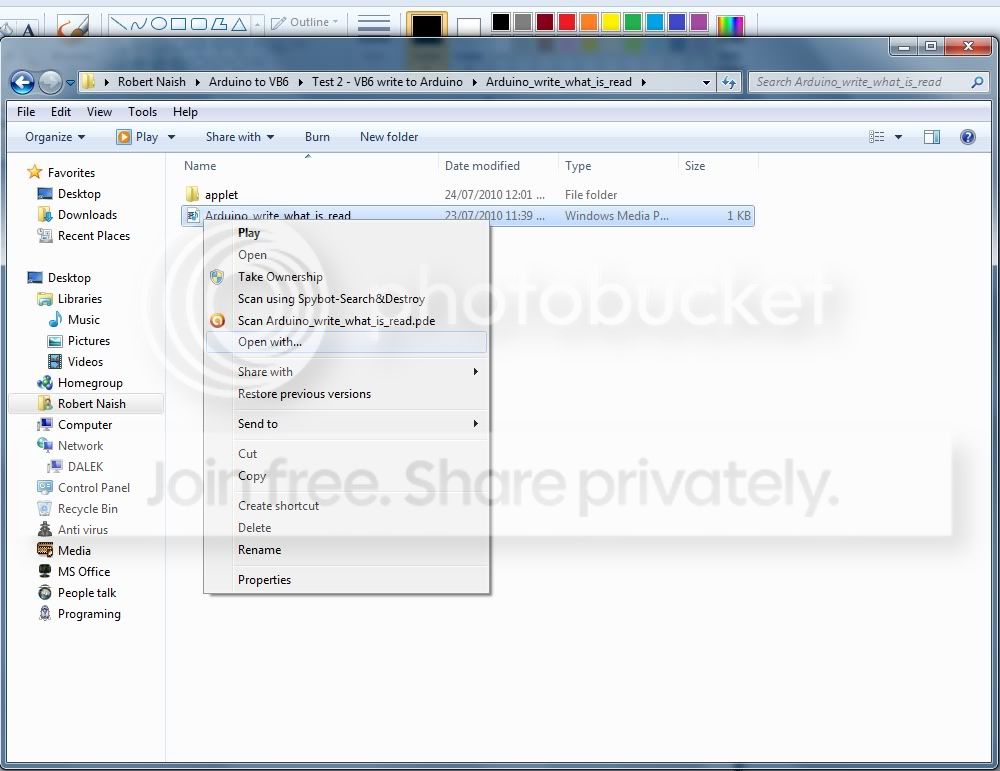
step2.jpg


Step 3, the program I need to open it with is not listed so I select "Browse"
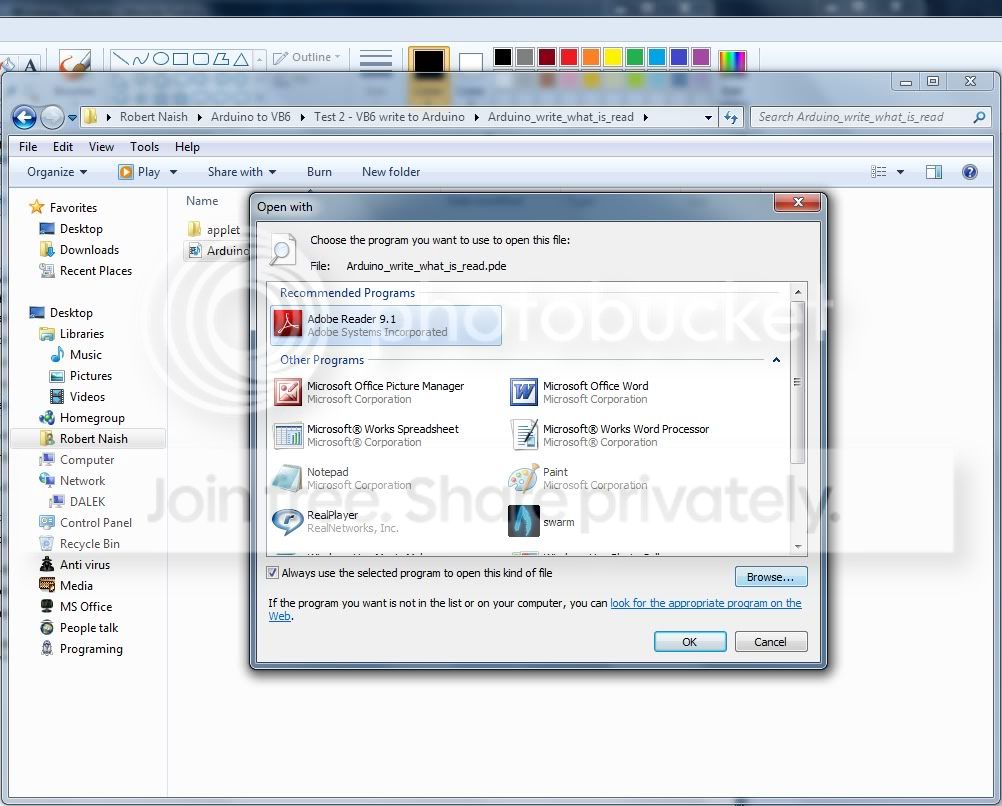
step3.jpg


Step 4, I choose the program to open it with "Arduino" and select "OK"
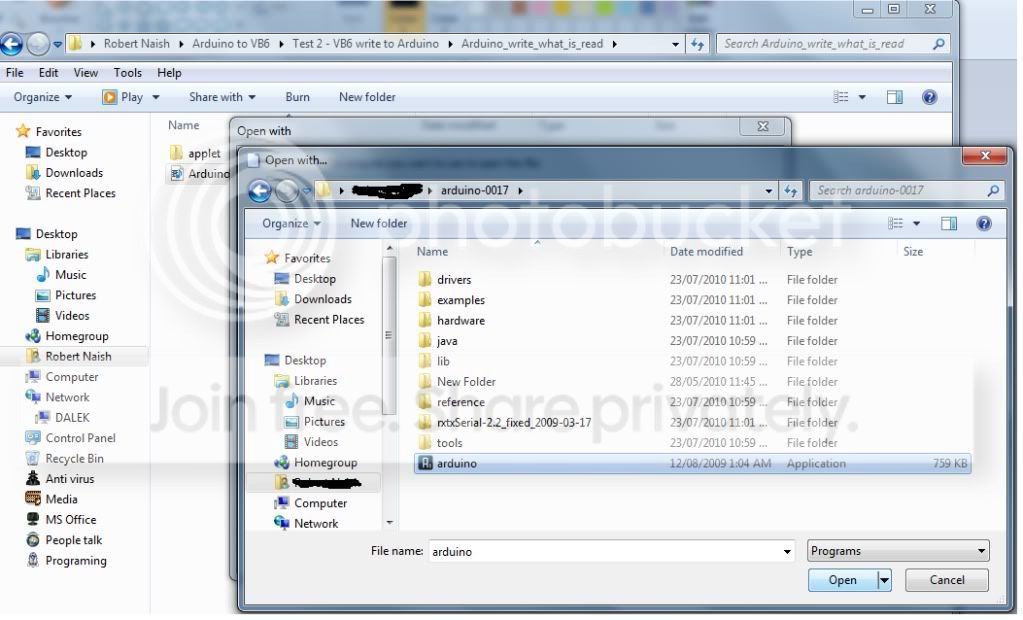
step4.jpg


Step 5, in this step I should be able to select "Arduino from a list" but it doesn't appear there.
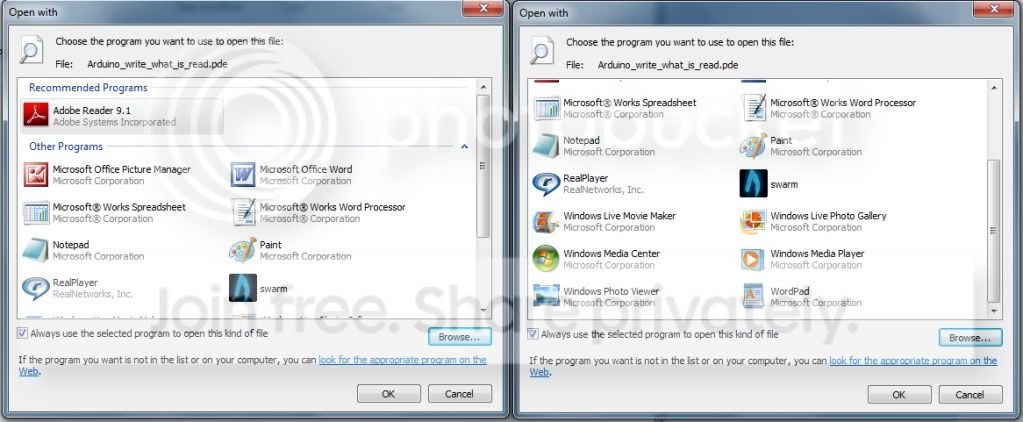
step5.jpg


I have tried it both with and without "always use selected program" being checked,
I have tried not selecting anything (by clicking on empty space) first.

Any thoughts?
 
Last edited:

My Computer

OS
Use 7 and XP
I don't think it adds it to the list, but you can click "always use the selected program for this kind of file." That way you don't have to do it everytime for that file type. Is that the kind of thing you were looking for?
 

My Computer

Computer type
Laptop
Computer Manufacturer/Model Number
Toshiba P775-S7100
OS
Windows 7 Professional SP1 64-bit
CPU
Intel Core i5-2450M @2.5 GHz
Memory
6 GB DDR3 1333MHz
Graphics Card(s)
Intel HD 3000
Monitor(s) Displays
Built-in 17.3" LED; 22" Insignia NS-L22Q-10A
Screen Resolution
1600x900; 1360x768
Hard Drives
750 GB Hitachi
1TB Seagate FreeAgent External
Internet Speed
Verizon DSL Speed(Down/Up): 3360 Kbps / 800 Kbps
Antivirus
MSE and MBAM Pro
Browser
IE10
Yes, it worked like Petey7 said. Just check "Always use the selected program".
It will then be in the list, but the list may be minimized. Sometimes Win shows you only a few programs in that dialogue, and below their icons you'll notice a tiny plus sign (+). Click that to get access to all the other software you've assigned to files in the past.
 

My Computer

OS
Win 7 Professional 64bit
CPU
Intel i7-3930K @ 3.2GHz
Memory
16 GB
Graphics Card(s)
NVIDIA GeForce GTX 650
Monitor(s) Displays
1 CRT, 1 LCD
Hard Drives
3 hard drives
I found something on how to actually add it to the list posted by harpua. In the original thread, the person wanted to add Photoshop to the list.

"What usually works for me is to actually right click a file type you want the app (in this case, Photoshop) to be able to open from that "open with" menu and then from the "Open with" menu, select "choose default program" and browse for the .exe of the application you want to have on the menu (i.e., Photoshop) that is not currently there and select it. But make sure to uncheck the box to make this the default application for opening that type of file. After that, that program (in this case Photoshop) should always appear in the list when you use open with on a file of the type you just used for the above procedure. "
 

My Computer

Computer type
Laptop
Computer Manufacturer/Model Number
Toshiba P775-S7100
OS
Windows 7 Professional SP1 64-bit
CPU
Intel Core i5-2450M @2.5 GHz
Memory
6 GB DDR3 1333MHz
Graphics Card(s)
Intel HD 3000
Monitor(s) Displays
Built-in 17.3" LED; 22" Insignia NS-L22Q-10A
Screen Resolution
1600x900; 1360x768
Hard Drives
750 GB Hitachi
1TB Seagate FreeAgent External
Internet Speed
Verizon DSL Speed(Down/Up): 3360 Kbps / 800 Kbps
Antivirus
MSE and MBAM Pro
Browser
IE10
none of that works, the problem is that when I select browse and choose the program, it doesn't get associated with it. I'll edit the first posting to include pics
 

My Computer

OS
Use 7 and XP
How about changing the file association.
 

My Computer

Computer Manufacturer/Model Number
HP, Dell, Gateway, Toshiba - 4 laptops and 2 desktops
OS
Vista, Windows7, Mint Mate, Zorin, Windows 8
CPU
from 1.6GHz Duo to i7
Monitor(s) Displays
2x HP w2207
Hard Drives
5x HDD, 7x SSD, 12x Externals
Keyboard
with trackball - no mices
Mouse
Trackball mice
Internet Speed
DSL 6000
That does not work. The file association uses the same system as the "open with" option, which is not working.
 

My Computer

OS
Use 7 and XP
Why is take ownership in the context menu? Try clicking that, then use previously mentioned methods. Particularly what I said in my second post.
 

My Computer

Computer type
Laptop
Computer Manufacturer/Model Number
Toshiba P775-S7100
OS
Windows 7 Professional SP1 64-bit
CPU
Intel Core i5-2450M @2.5 GHz
Memory
6 GB DDR3 1333MHz
Graphics Card(s)
Intel HD 3000
Monitor(s) Displays
Built-in 17.3" LED; 22" Insignia NS-L22Q-10A
Screen Resolution
1600x900; 1360x768
Hard Drives
750 GB Hitachi
1TB Seagate FreeAgent External
Internet Speed
Verizon DSL Speed(Down/Up): 3360 Kbps / 800 Kbps
Antivirus
MSE and MBAM Pro
Browser
IE10
Why is take ownership in the context menu? Try clicking that, then use previously mentioned methods. Particularly what I said in my second post.

I did, that's whats in the pictures, it didn't work.

*edit*
I added "Take Ownership" when I was trying to speed things up trying to solve another error in Windows 7. This OS is infuriating
 

My Computer

OS
Use 7 and XP
I find it hard to believe that it wouldn't open with a program you told it to. If you only need certain files to open with that program, right click the file, click properties and look for something that says "opens with" and click Change. You might not be able add it to that list without playing with the registry directly (not recommended). Once you set it to open with that program all you have to do is double click the file as you would when normally opening any other files.
 

My Computer

Computer type
Laptop
Computer Manufacturer/Model Number
Toshiba P775-S7100
OS
Windows 7 Professional SP1 64-bit
CPU
Intel Core i5-2450M @2.5 GHz
Memory
6 GB DDR3 1333MHz
Graphics Card(s)
Intel HD 3000
Monitor(s) Displays
Built-in 17.3" LED; 22" Insignia NS-L22Q-10A
Screen Resolution
1600x900; 1360x768
Hard Drives
750 GB Hitachi
1TB Seagate FreeAgent External
Internet Speed
Verizon DSL Speed(Down/Up): 3360 Kbps / 800 Kbps
Antivirus
MSE and MBAM Pro
Browser
IE10
I find it hard to believe that it wouldn't open with a program you told it to. If you only need certain files to open with that program, right click the file, click properties and look for something that says "opens with" and click Change. You might not be able add it to that list without playing with the registry directly (not recommended). Once you set it to open with that program all you have to do is double click the file as you would when normally opening any other files.

tried that, it seems to use the exact same app as "open with" and it appears that it is that app that is causing the issue. It seems I may have to tweak the registry. Does anyone know which entry I would tweak?
 

My Computer

OS
Use 7 and XP
I'm not sure if anyone has actually done it, as you are the first I know of to have this problem. I found something that might help put you on the right track. Are you familiar with the registry? Have you tweaked it before? Some serious problems that would require reinstalling Windows to fix can be caused by messing around in the registry.
 

My Computer

Computer type
Laptop
Computer Manufacturer/Model Number
Toshiba P775-S7100
OS
Windows 7 Professional SP1 64-bit
CPU
Intel Core i5-2450M @2.5 GHz
Memory
6 GB DDR3 1333MHz
Graphics Card(s)
Intel HD 3000
Monitor(s) Displays
Built-in 17.3" LED; 22" Insignia NS-L22Q-10A
Screen Resolution
1600x900; 1360x768
Hard Drives
750 GB Hitachi
1TB Seagate FreeAgent External
Internet Speed
Verizon DSL Speed(Down/Up): 3360 Kbps / 800 Kbps
Antivirus
MSE and MBAM Pro
Browser
IE10
I am familiar with the registry and have tweaked it before, but only to change the login screen background.
 

My Computer

OS
Use 7 and XP
Go to this website and look for the section about removing programs from the open with menu.

I can't guarantee it will work, but you might be able to get it to by adding a folder instead of removing it. Once again, I can't guarantee it will work and I haven't tried to. I suggest making a restore point to be safe (I doubt you'll actually need it for this type of change).

Also, don't you love being able to change the login screen :).
 

My Computer

Computer type
Laptop
Computer Manufacturer/Model Number
Toshiba P775-S7100
OS
Windows 7 Professional SP1 64-bit
CPU
Intel Core i5-2450M @2.5 GHz
Memory
6 GB DDR3 1333MHz
Graphics Card(s)
Intel HD 3000
Monitor(s) Displays
Built-in 17.3" LED; 22" Insignia NS-L22Q-10A
Screen Resolution
1600x900; 1360x768
Hard Drives
750 GB Hitachi
1TB Seagate FreeAgent External
Internet Speed
Verizon DSL Speed(Down/Up): 3360 Kbps / 800 Kbps
Antivirus
MSE and MBAM Pro
Browser
IE10
Adding to "open with" menu

Sometimes the program you want to open a program with is not listed in this menu. For example, to open older Power point files with Power Point 2010. To get it there:
step one: go to Control Panel - folder options and make sure that " show hidden files" is ticked - or you won't see the program.
step 2 - find the program executable file, - in this case Powerpnt.exe which you will fine with all the other office files in Program files (x86) folder.
step 3 -now you have located the file, you can find the file type you want to open, eg .PPT - select "open with" - go to browse and browse to the Program files (x86) folder and select your executable file - Powerpnt.exe for example.
Not only does this set the file type to open with Power point, but it now puts Power Point in the menu as one of the choosable programs.

good hunting!
 

My Computer

Computer Manufacturer/Model Number
home built
OS
Windows 7 Home Premium x64
CPU
amd 6000
Motherboard
gigabyte m610me
Memory
4gb
Monitor(s) Displays
lcd
Hard Drives
1x western digital 500Gb; 1 x Western digital 160gb
Sometimes the program you want to open a program with is not listed in this menu. For example, to open older Power point files with Power Point 2010. To get it there:
step one: go to Control Panel - folder options and make sure that " show hidden files" is ticked - or you won't see the program.
step 2 - find the program executable file, - in this case Powerpnt.exe which you will fine with all the other office files in Program files (x86) folder.
step 3 -now you have located the file, you can find the file type you want to open, eg .PPT - select "open with" - go to browse and browse to the Program files (x86) folder and select your executable file - Powerpnt.exe for example.
Not only does this set the file type to open with Power point, but it now puts Power Point in the menu as one of the choosable programs.

good hunting!

I did that, many times. And for some programs it works, unfortunately it will not allow me to do so with the program I am trying to associate .pde files with.
 

My Computer

OS
Use 7 and XP
Good morning/afternoon Bobo,

Currently i am having the same issue as you and have spent the odd hour or so chasing it down to try and find out what the issue is. Which i believe i have come to an answer which seems to explain it in the most sense.

Basically in short, Windows has lost the Registered link with the .EXE program that you are trying to open them with. An example of this could be when you install an application vs when you download a self contained zip with a standalone exe.

So if this application you are trying to use has been copied across to the system by chance instead of being installed or something along these lines where at some stage windows may have lost some form of installation link. From what i have heard and seen from others, These seems to be a simple if no link, Windows can be dumb enough to ignore the direct command and say it cant find blender.

Registry and other methods like the "Open Always With" will work if the file assoc has been removed,changed or damaged. This on the other hand is a system/app conflict.

Other ways of testing these things are mentioned like the "Send To" which has been know to get pass this issue and another method is to either do a test "Run Command" or batch file and see what results you get there.
 

My Computer

OS
Win 7 x32/x64 Ultimate
Makes sense, I'll try a fresh download and unzip and see if that helps any. If not I may need to try and manually create a reg key for it.
 

My Computer

OS
Use 7 and XP
Hey, I have this exact same problem. How would you go about manually creating a reg key for it?
 

My Computer

OS
Windows 7 Home Premium x64
CPU
AMD Athlon(tm) II Dual-Core M300
Memory
2.00 GB
Graphics Card(s)
AMD M860G with ATI Mobility Radeon 4100
Screen Resolution
1366 x 768
Other Info
It's a Toshiba Satellite L505D. \/\/007.
Why not use the shell:sendto way.

Type in Run "shell:sendto" (without the quotes) if you've a shortcut on your desktop simply Copy, drag into window and Paste.

That will fix it in the send menu
 

My Computer

Computer Manufacturer/Model Number
Home build.
OS
Vista Ultimate 32 bit, Win 7 Pro 32 bit, Win 7 Pro 64 bit
CPU
Intel i5 CPU 750 @ 2.67 GHZ, OC 3.7 GHZ
Motherboard
Asus P7P55D
Memory
4 Gig
Graphics Card(s)
Nvidia GeForce GTS450
Monitor(s) Displays
Acer 24"
Screen Resolution
1440 x 900
Hard Drives
1000 GIG
1000 GIG
PSU
650
Case
Antec Nine Hundred Two
Internet Speed
14 MB (APPROX)
Back
Top