
Cannot move VMWare machine!

yankleber

IT Dinosaur
Member
VIP
Local time
8:25 PM
Messages
212
Location
Home
Hey there!

I have a couple legacy software that will only run on XP so I set up a virtual machine using VMWare Workstation 8. Everything is fine, but to unload the burden of my system disk I decided to move the virtual machine to a secondary drive.

So I moved it and configured it properly like this:

nFkZBCA.jpg


However when I try to start the virtual machine it says:
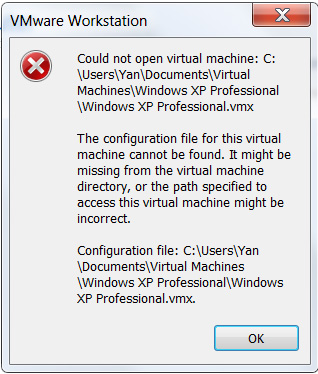
0Ye05Jz.jpg


I double checked my configuration and noticed that regardless I have pointed it to the new drive it still keep saying that it is in the old place:
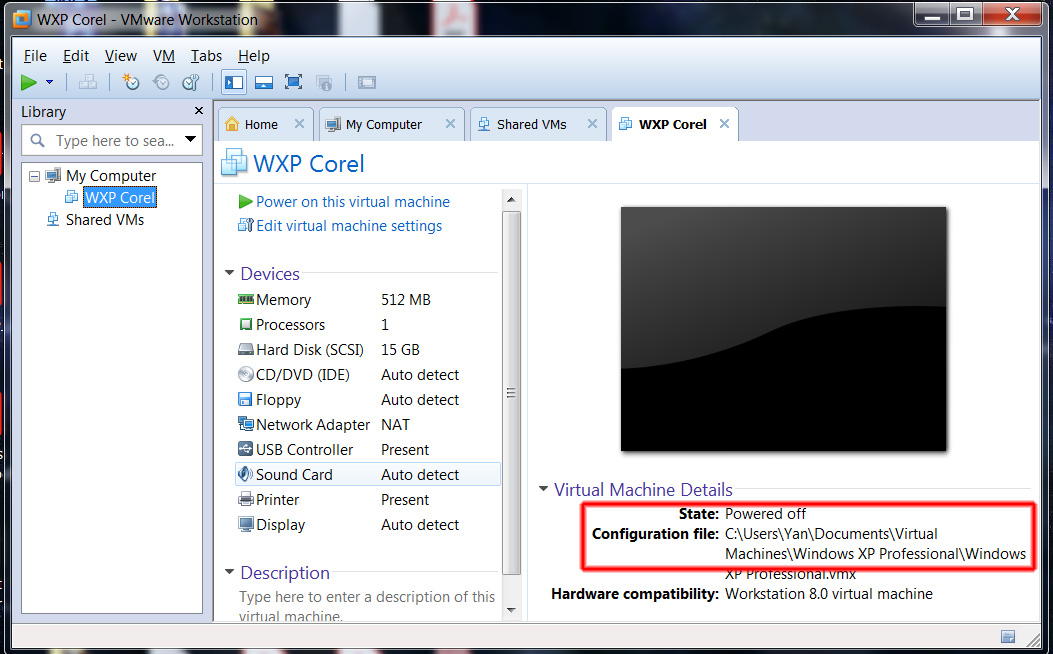
Cc72z2H.jpg


And, yes, I configured the virtual machine default location in VMWare:
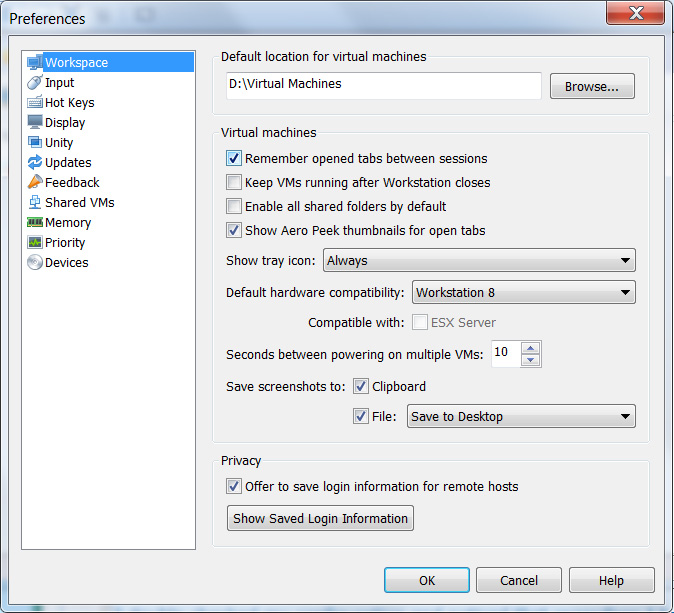
xTeSpng.jpg


Someone have experienced this issue and would know how to solve it?

PS: If I move (or copy) the virtual machines folder back it works normally, so I know that there is nothing corrupted and that's only a matter of a path problem...

PS 2: I tried to install my legacy software directly on W7 and set compatibility mode to XP but it doesn't work, so I HAVE to run it on a virtual machine...
 

My Computer

Computer type
PC/Desktop
Computer Manufacturer/Model Number
Custom
OS
Windows 7 Professional 64bit
CPU
Intel i5-3330
Motherboard
GigaByte B75M-D3H
Memory
8GB
Graphics Card(s)
Onboard
Sound Card
Behringer UCA222
Monitor(s) Displays
Samsung 22.5"
Screen Resolution
1920x1080
Hard Drives
SSD Kingston 120GB
HDD Samsung 320GB
Internet Speed
1M
Antivirus
ZoneAlarm FW + AV Free
Browser
Chrome
I only use the free Workstation Player, but I think in your list of virtual machines there is an option there to change directory. I'll have to look latter when I get on my desktop.
 

My Computer

Computer type
PC/Desktop
OS
Windows 7 Ultimate x64
I only use the free Workstation Player, but I think in your list of virtual machines there is an option there to change directory. I'll have to look latter when I get on my desktop.

Cool, great... I configured what I could so far but got no luck. I appreciate any help!

:-)
 

My Computer

Computer type
PC/Desktop
Computer Manufacturer/Model Number
Custom
OS
Windows 7 Professional 64bit
CPU
Intel i5-3330
Motherboard
GigaByte B75M-D3H
Memory
8GB
Graphics Card(s)
Onboard
Sound Card
Behringer UCA222
Monitor(s) Displays
Samsung 22.5"
Screen Resolution
1920x1080
Hard Drives
SSD Kingston 120GB
HDD Samsung 320GB
Internet Speed
1M
Antivirus
ZoneAlarm FW + AV Free
Browser
Chrome
I would create a post on VMWare forums. Community: Workstation Pro |VMware Communities

If you can't get it to work you can create another virtual machine and reference the existing drive how you would likely have to reactivate XP. Those people should be able to help though.
 

My Computers

System One System Two

I would create a post on VMWare forums. Community: Workstation Pro |VMware Communities

If you can't get it to work you can create another virtual machine and reference the existing drive how you would likely have to reactivate XP. Those people should be able to help though.

Thank you! Your suggestion helped me to solve the issue. However it was a bit tricky. See below...
 
Last edited:

My Computer

Computer type
PC/Desktop
Computer Manufacturer/Model Number
Custom
OS
Windows 7 Professional 64bit
CPU
Intel i5-3330
Motherboard
GigaByte B75M-D3H
Memory
8GB
Graphics Card(s)
Onboard
Sound Card
Behringer UCA222
Monitor(s) Displays
Samsung 22.5"
Screen Resolution
1920x1080
Hard Drives
SSD Kingston 120GB
HDD Samsung 320GB
Internet Speed
1M
Antivirus
ZoneAlarm FW + AV Free
Browser
Chrome
Okay, I looked and my setting and is the same as yours with the working directory option. So your best bet would be the VMware forums. Let us know what resolved your issue because I may have the same issue in the future should I decided to move the working directory.
 

My Computer

Computer type
PC/Desktop
OS
Windows 7 Ultimate x64
Okay, I looked and my setting and is the same as yours with the working directory option. So your best bet would be the VMware forums. Let us know what resolved your issue because I may have the same issue in the future should I decided to move the working directory.

The Townsbg post (above) threw some light on it...

I started creating a new empty virtual machine in the new drive "D" with the very same specifications of the old one (in drive "C"). Then I copied the contents of the old virtual machine to the new one. Finally I opened the configuration files .vmx and .vmxf (they are text) and fixed the paths manually. It worked!

:-)
 

My Computer

Computer type
PC/Desktop
Computer Manufacturer/Model Number
Custom
OS
Windows 7 Professional 64bit
CPU
Intel i5-3330
Motherboard
GigaByte B75M-D3H
Memory
8GB
Graphics Card(s)
Onboard
Sound Card
Behringer UCA222
Monitor(s) Displays
Samsung 22.5"
Screen Resolution
1920x1080
Hard Drives
SSD Kingston 120GB
HDD Samsung 320GB
Internet Speed
1M
Antivirus
ZoneAlarm FW + AV Free
Browser
Chrome
Thanks for pointing that out.
 

My Computer

Computer type
PC/Desktop
OS
Windows 7 Ultimate x64
Back
Top