cannot unlock taskbar or make changes in Start menu properties

Would the UsrClass.dat file be one that Carbonite would normally back up? I can check my on-line backup for the file & date...
 

My Computer

Computer type
Laptop
Computer Manufacturer/Model Number
Dell 1640
OS
Win 7 Pro 64
CPU
Intel Dual Core T9900 @ 3.06 GHz
Memory
8G
Graphics Card(s)
ATI Mobility Radeon HD 4670
Hard Drives
750G
Antivirus
Vipre and Zone Alarm
Browser
Chrome, MSIE, Mozilla
omegatx,

My apology, but just realized that I had you download the wrong version of SystemLook.
You need to use the 64-bit version.

Download:
http://jpshortstuff.247fixes.com/SystemLook_x64.exe

The basic instructions for usage are the same as that in Post #2, except for the quote, which will change, depending on what we are looking for.

With that said, please remove the current SystemLook you have on the Desktop, and download the 64-bit version from the link above.

Run SystemLook, as in Post #2, this time with the following:
:reg
HKEY_LOCAL_MACHINE\SYSTEM\CurrentControlSet\Control\hivelist
HKEY_CURRENT_USER\Software\Microsoft\Windows\CurrentVersion\Explorer\User Shell Folders
HKEY_USERS\S-1-5-21-2542295906-685563110-2760403507-1000\Software\Microsoft\Windows\CurrentVersion\Explorer\User Shell Folders

Also, you can check the Carbonite backup, if you wish, but doubt that it will back up this type of file.
It looks as if Carbonite backs up files that you created, but, I am really not familiar with the program.

Please bear with me. Have to know where is whatever in order to engage in a Registry modification.
These modifications cannot be taken lightly.
 
Last edited:

My Computer

Computer type
PC/Desktop
Computer Manufacturer/Model Number
An ol' eMachines
OS
Windows 7 Home Premium
Internet Speed
Fine for me...I'm retired!
omegatx,

My apology, but just realized that I had you download the wrong version of SystemLook.
You need to use the 64-bit version.

Download:
http://jpshortstuff.247fixes.com/SystemLook_x64.exe

The basic instructions for usage are the same as that in Post #2, except for the quote, which will change, depending on what we are looking for.

With that said, please remove the current SystemLook you have on the Desktop, and download the 64-bit version from the link above.

Run SystemLook, as in Post #2, this time with the following:
:reg
HKEY_LOCAL_MACHINE\SYSTEM\CurrentControlSet\Control\hivelist
HKEY_CURRENT_USER\Software\Microsoft\Windows\CurrentVersion\Explorer\User Shell Folders
HKEY_USERS\S-1-5-21-2542295906-685563110-2760403507-1000\Software\Microsoft\Windows\CurrentVersion\Explorer\User Shell Folders

Also, you can check the Carbonite backup, if you wish, but doubt that it will back up this type of file.
It looks as if Carbonite backs up files that you created, but, I am really not familiar with the program.

Please bear with me. Have to know where is whatever in order to engage in a Registry modification.
These modifications cannot be taken lightly.

OK, here are the results from System Look 64x:

SystemLook 30.07.11 by jpshortstuff
Log created at 13:59 on 03/03/2013 by Paul Christensen
Administrator - Elevation successful

No Context: HKEY_LOCAL_MACHINE\SYSTEM\CurrentControlSet\Control\hivelist

No Context: HKEY_CURRENT_USER\Software\Microsoft\Windows\CurrentVersion\Explorer\User Shell Folders

No Context: HKEY_USERS\S-1-5-21-2542295906-685563110-2760403507-1000\Software\Microsoft\Windows\CurrentVersion\Explorer\User Shell Folders

-= EOF =-
 

My Computer

Computer type
Laptop
Computer Manufacturer/Model Number
Dell 1640
OS
Win 7 Pro 64
CPU
Intel Dual Core T9900 @ 3.06 GHz
Memory
8G
Graphics Card(s)
ATI Mobility Radeon HD 4670
Hard Drives
750G
Antivirus
Vipre and Zone Alarm
Browser
Chrome, MSIE, Mozilla
omegatx,

My apology, but just realized that I had you download the wrong version of SystemLook.
You need to use the 64-bit version.

Download:
http://jpshortstuff.247fixes.com/SystemLook_x64.exe

The basic instructions for usage are the same as that in Post #2, except for the quote, which will change, depending on what we are looking for.

With that said, please remove the current SystemLook you have on the Desktop, and download the 64-bit version from the link above.

Run SystemLook, as in Post #2, this time with the following:
:reg
HKEY_LOCAL_MACHINE\SYSTEM\CurrentControlSet\Control\hivelist
HKEY_CURRENT_USER\Software\Microsoft\Windows\CurrentVersion\Explorer\User Shell Folders
HKEY_USERS\S-1-5-21-2542295906-685563110-2760403507-1000\Software\Microsoft\Windows\CurrentVersion\Explorer\User Shell Folders

Also, you can check the Carbonite backup, if you wish, but doubt that it will back up this type of file.
It looks as if Carbonite backs up files that you created, but, I am really not familiar with the program.

Please bear with me. Have to know where is whatever in order to engage in a Registry modification.
These modifications cannot be taken lightly.

OK, here are the results from System Look 64x:

SystemLook 30.07.11 by jpshortstuff
Log created at 13:59 on 03/03/2013 by Paul Christensen
Administrator - Elevation successful

No Context: HKEY_LOCAL_MACHINE\SYSTEM\CurrentControlSet\Control\hivelist

No Context: HKEY_CURRENT_USER\Software\Microsoft\Windows\CurrentVersion\Explorer\User Shell Folders

No Context: HKEY_USERS\S-1-5-21-2542295906-685563110-2760403507-1000\Software\Microsoft\Windows\CurrentVersion\Explorer\User Shell Folders

-= EOF =-

Also attached is a listing of the files backed up on carbonite in the specified folder.
 

Attachments

My Computer

Computer type
Laptop
Computer Manufacturer/Model Number
Dell 1640
OS
Win 7 Pro 64
CPU
Intel Dual Core T9900 @ 3.06 GHz
Memory
8G
Graphics Card(s)
ATI Mobility Radeon HD 4670
Hard Drives
750G
Antivirus
Vipre and Zone Alarm
Browser
Chrome, MSIE, Mozilla
omegatx,

Since you cannot use Folder Options to enable the viewing of hidden files, etc., please go to Start > All Programs > Accessories > Command Prompt

At the blinking cursor of the Command Prompt, copy/paste, using right-click menu, the following (elevation not necessary), and press: Enter

dir /a:h %userprofile%\AppData\Local\Microsoft\Windows

It should show the UsrClass.dat file, it's size, modification date and time, etc.

To provide the info in your reply, right-click the Command Prompt frame at the top, and go to
Edit > Select all

The black Command Prompt turns white. Next, go to back to Edit > Copy

Open Notepad, and post the information in your reply.

~~~~
Now, please go to the Run prompt, (Windows key and R key), and type in: regedit

Navigate to the following Registry key:
HKEY_CURRENT_USER\Software\Microsoft\Windows\CurrentVersion\Explorer\User Shell Folders

Do so by clicking the > to the left of each of the following:
HKEY_CURRENT_USER
Software
Microsoft
Windows
CurrentVersion
Explorer

Under Explorer, find: User Shell Folders
Highlite: User Shell Folders

Go to File (at the top), and select: Export
In Export Registry File, Save in: Desktop
File name: PaulUSF
Click: Save

Please provide the PaulUSF reg file in your reply.

~~~~
Back to the Registry Editor and the same key...

Right-click User Shell Folders, and select: Permissions
In the Permissions for User Shell Folders, click the entry that shows your User name
Next, click: Advanced

Now you are at: Advanced Security Settings for User Shell Folders

Maximize the Advanced Security Settings for User Shell Folders window to fill your entire screen.

Capture its image by using this Tutorial:
http://www.sevenforums.com/tutorials/9733-screenshots-files-upload-post-seven-forums.html

Please provide the image in your reply


BTW, no need to quote my posts. ;)
 
Last edited:

My Computer

Computer type
PC/Desktop
Computer Manufacturer/Model Number
An ol' eMachines
OS
Windows 7 Home Premium
Internet Speed
Fine for me...I'm retired!
omegatx,

Since you cannot use Folder Options to enable the viewing of hidden files, etc., please go to Start > All Programs > Accessories > Command Prompt

At the blinking cursor of the Command Prompt, copy/paste, using right-click menu, the following (elevation not necessary), and press: Enter

dir /a:h %userprofile%\AppData\Local\Microsoft\Windows

It should show the UsrClass.dat file, it's size, modification date and time, etc.

To provide the info in your reply, right-click the Command Prompt frame at the top, and go to
Edit > Select all

The black Command Prompt turns white. Next, go to back to Edit > Copy

Open Notepad, and post the information in your reply.

~~~~
Now, please go to the Run prompt, (Windows key and R key), and type in: regedit

Navigate to the following Registry key:
HKEY_CURRENT_USER\Software\Microsoft\Windows\CurrentVersion\Explorer\User Shell Folders

Do so by clicking the > to the left of each of the following:
HKEY_CURRENT_USER
Software
Microsoft
Windows
CurrentVersion
Explorer

Under Explorer, find: User Shell Folders
Highlite: User Shell Folders

Go to File (at the top), and select: Export
In Export Registry File, Save in: Desktop
File name: PaulUSF
Click: Save

Please provide the PaulUSF reg file in your reply.

~~~~
Back to the Registry Editor and the same key...

Right-click User Shell Folders, and select: Permissions
In the Permissions for User Shell Folders, click the entry that shows your User name
Next, click: Advanced

Now you are at: Advanced Security Settings for User Shell Folders

Maximize the Advanced Security Settings for User Shell Folders window to fill your entire screen.

Capture its image by using this Tutorial:
http://www.sevenforums.com/tutorials/9733-screenshots-files-upload-post-seven-forums.html

Please provide the image in your reply


BTW, no need to quote my posts. ;)

The reason I am including the quotes is I may be replying to several of your posts and want top keep them straight for me. It helps me go back a& review.

OK, I ran the command prompt search for the hidden files. The search returned nothing. I did it twice. The results are in the attached txt file. The second entry in that txx file are the results of copying the contents of the explorer folder. There are no other folders or keys in that area except the one indicated, Session Info. In other words, there are no User Shell Folders folder, only a Sessions Info folder. Could not locate any of the keys you requested in part 2 of your post, since none of those folders are under explorer. Hope I am making myself clear? Pretty Weird...
 

Attachments

My Computer

Computer type
Laptop
Computer Manufacturer/Model Number
Dell 1640
OS
Win 7 Pro 64
CPU
Intel Dual Core T9900 @ 3.06 GHz
Memory
8G
Graphics Card(s)
ATI Mobility Radeon HD 4670
Hard Drives
750G
Antivirus
Vipre and Zone Alarm
Browser
Chrome, MSIE, Mozilla
Re-ran the System Look x64 app by double clicking it rather than right clicking. File attached, appears to be the same. BTW, Why is the date the same as when I first ran the app? I deleted the earlier txt file a re-ran the app and still got the same date?
 

Attachments

My Computer

Computer type
Laptop
Computer Manufacturer/Model Number
Dell 1640
OS
Win 7 Pro 64
CPU
Intel Dual Core T9900 @ 3.06 GHz
Memory
8G
Graphics Card(s)
ATI Mobility Radeon HD 4670
Hard Drives
750G
Antivirus
Vipre and Zone Alarm
Browser
Chrome, MSIE, Mozilla
omegatx,

It looks as if we are banging our heads against the wall.

If you wish to use the Carbonite program to fix your system, do so, if you are sure of how to do it. If not, you may want to go to their websie, and obtain some help.

An issue of concern with Carbonite is whether it backed up the corruption or part of the ransomware.
To my understanding, with the help of a colleague who uses Carbonite, a plan that mirrors the system being backed up picks up everything, including any system errors.


~~~~
If you decide you do not want to use Carbonite, we can start with the following...

First: http://www.sevenforums.com/tutorials/697-system-restore-point-create.html

Next, please download ReProfiler:
IWR Computer Consultancy - Technical Support and advice on IT issues for Small Businesses.
(Download link near the bottom of the page.)
Save to the Desktop.
Unzip the file.

You can use this program when Windows no longer recognises a profile as belonging to its User.

If you are using the account with the problem, you need to logoff.

When you logoff, if the only account showing is yours,open it, and enable the (hidden) Administrator account in Windows 7 as follows:

Right-click a Command Prompt and select: Run as Administrator
Type in the following command:
net user administrator /active:yes
A message appears: The command completed successfully.

Log off, and the Administrator account is now a choice.
There’s no password for this account.

Now, from the Administrator account as the only active user, select your User Account (top panel) and its Profile Folder (bottom panel) and press: Assign

Your User account and the profile folder should both have your name.
Please capture an image (as explained previously) and post it, if you can, so I can see what is showing and confirm what to use.


When done, restart the computer.

Logged on to your regular User account, disable the Administrator account that was previously enabled:
Open an administrator mode command prompt as above.
Type the following command:

net user administrator /active:no

Log back into your regular account, and see if tou are still having the same problems.

If so, we have another option.
 

My Computer

Computer type
PC/Desktop
Computer Manufacturer/Model Number
An ol' eMachines
OS
Windows 7 Home Premium
Internet Speed
Fine for me...I'm retired!
Thanks for all the help you have provided so far. Believe it or not I had been operating my PC with everything working except the corrupted user profile. Today, however, I opened MSIE, and went to a site I maintain. When I clicked on a page I uploaded yesterday, Vipre blocked several files from opening. In other words, the malware was somehow still present and I have allowed it to upload to this particular site. I call the host company and they are running walwear checks on the site files as well as installing an app that blocks scripts from running. In the mantime, I have no more good restore points left. I will contact Carbonite to see what they say, but I may just do a complete re-install. :(
 

My Computer

Computer type
Laptop
Computer Manufacturer/Model Number
Dell 1640
OS
Win 7 Pro 64
CPU
Intel Dual Core T9900 @ 3.06 GHz
Memory
8G
Graphics Card(s)
ATI Mobility Radeon HD 4670
Hard Drives
750G
Antivirus
Vipre and Zone Alarm
Browser
Chrome, MSIE, Mozilla
Further info: Dell provides a re-image disk partition. I am restoring the PC to factory condition. :(
 

My Computer

Computer type
Laptop
Computer Manufacturer/Model Number
Dell 1640
OS
Win 7 Pro 64
CPU
Intel Dual Core T9900 @ 3.06 GHz
Memory
8G
Graphics Card(s)
ATI Mobility Radeon HD 4670
Hard Drives
750G
Antivirus
Vipre and Zone Alarm
Browser
Chrome, MSIE, Mozilla
omegatx,

Thanks for the update.

Restoring the PC to factory condition is a good move.

From the get-go, had a hunch that there was more than met the eye here. As mentioned before, using System Restore to get rid of certain malware is sometimes risky. There may be infected RPs, and you can tap right into them. However, that is water under the bridge.

When you get back to factory defaults, you are welcomed to come back and we can run a proggie or two that can dig deep to make sure nothing shows up.

Or, if you feel comfortable the way things are, or, develop malware problems at a later time, give us a holler!!


Also, if you wish to give this old dog a bone (rep) do so by using the scale icon above (in the middle). Thanks!
 

My Computer

Computer type
PC/Desktop
Computer Manufacturer/Model Number
An ol' eMachines
OS
Windows 7 Home Premium
Internet Speed
Fine for me...I'm retired!
OK, I restored the PC and am installing software. I will get back to you soon for the additional malware progs or any other apps. I am not sure how to give you the "dog bone" rating? I looked around the message as well as the Forum top, but could not find a link. I clicked on the dog icon, but it took me to a german site. Please supply more details and I will respond...

Thanks again for all the help... Paul...
---
 

My Computer

Computer type
Laptop
Computer Manufacturer/Model Number
Dell 1640
OS
Win 7 Pro 64
CPU
Intel Dual Core T9900 @ 3.06 GHz
Memory
8G
Graphics Card(s)
ATI Mobility Radeon HD 4670
Hard Drives
750G
Antivirus
Vipre and Zone Alarm
Browser
Chrome, MSIE, Mozilla
Will be waiting for you when you get done.

Look at your last post, and you should see the following. It is the icon in the middle, a miniature scale:
 

Attachments

  • rep.PNG
    rep.PNG
    1.1 KB · Views: 30

My Computer

Computer type
PC/Desktop
Computer Manufacturer/Model Number
An ol' eMachines
OS
Windows 7 Home Premium
Internet Speed
Fine for me...I'm retired!
Latest update. Restored back to factory image. During re-install of apps, I went to carbonite to sign in and re-download the software. The second time I went back to Carbonite, my Vipre vurus app alerted me that it had blocked a trojan (much like what happened before the DOJ mess). I quickly closed MSIE browser and clicked on details. Vipre stated the trojan attempted to change what appeared to be a cookie? The trojan name contained carbonite. So I emptied my cache and dumped my cookies. Have not had any other instances, but now I am really spooked. Vipre log shows an item was quarentined at the same time. I have included two txt files from the log. The blocking and the quarentine. Kind of spooked as you can imagine.
 

Attachments

My Computer

Computer type
Laptop
Computer Manufacturer/Model Number
Dell 1640
OS
Win 7 Pro 64
CPU
Intel Dual Core T9900 @ 3.06 GHz
Memory
8G
Graphics Card(s)
ATI Mobility Radeon HD 4670
Hard Drives
750G
Antivirus
Vipre and Zone Alarm
Browser
Chrome, MSIE, Mozilla
You did the right thing.

Let's take a look at the system running a special tool...

Do you have the Repair your computer option in the Advanced Boot Options menu?

To find out:
Restart the computer.
As soon as the BIOS is loaded begin tapping the F8 key until the Advanced Boot Options menu appears.
Is the Repair your computer option listed?


>>> If you have the Repair your computer option, please run FRST from your bootable computer, as follows:
(You may want to print these instructions for reference after the process starts.)

First, please check the size an name of the Hard Drive that has Windows Seven installed.
Start > double-click: Computer (Take note of the info.)

Next, download the Farbar Recovery Scan Tool:
Farbar Recovery Scan Tool Download
Select the version that applies to computer (64-bit)

Save FRST.exe to the Desktop

Right-click Start, and select: Open Windows Explorer
Look for drive C:\
On the Desktop, right-click FRST.exe, and move it into C:\
Confirm that FRST.exe is in C:\.

Restart the computer.

Tap the F8 key until the Advanced Boot Options menu appears.
Select: Repair your Computer
Select language settings, and User account. (In the User Account leave the passworrd field blank, if you do not have one.)

On the System Recovery Options menu, select: Command Prompt

In the Command Prompt window, at the blinking cursor, type: notepad

In Notepad, under the File menu select: Open
Double-click: Computer
Double-click on the OS drive (May not show as C:\ in the Recovery Environment, but you have its name and size to recognize it)
Press: Open

At the Command Prompt window type: X:\frst64.exe, and press: Enter
(Replace X with the letter of drive that showed.)

The tool starts and presents a prompt with:
The tool is setting up to read the Local Disk. Please wait...

Click OK to continue.

When presented with the disclaimer, press: Yes

When the FRST console appears, press the Scan button.

Once the scan finishes, a prompt appears stating:
Scan completed. The frst.txt has been saved in the same location FRST tool is run.

Close this prompt. Notepad shows that a log was created.

Close FRST, and close everything else except System Recovery Options.
Press: Restart


Back in Windows, right-click Start, and select: Open Windows Explorer
Look for drive C:\, and open it.
A folder named: FRST is there.

Inside the FRST folder, there are three folders.
One of them is named: Logs

Open the Logs folder to find the text document resulting from the scan.

Please post the FRST.txt in your reply.

 

My Computer

Computer type
PC/Desktop
Computer Manufacturer/Model Number
An ol' eMachines
OS
Windows 7 Home Premium
Internet Speed
Fine for me...I'm retired!
See the attached files for more...

See info file for background... HELP!!!
 

Attachments

My Computer

Computer type
Laptop
Computer Manufacturer/Model Number
Dell 1640
OS
Win 7 Pro 64
CPU
Intel Dual Core T9900 @ 3.06 GHz
Memory
8G
Graphics Card(s)
ATI Mobility Radeon HD 4670
Hard Drives
750G
Antivirus
Vipre and Zone Alarm
Browser
Chrome, MSIE, Mozilla
omegatx,

Vipre is recognizing the following:
Trojan.HTML.Framer.do:
It exploits PDF or Flash vulnerabilities
Trojan.JS.Obfuscator.aa
May be hosted on a website and run when you access it.

Please download CCleaner:
CCleaner - Standard
Save to the Desktop.

Double-click the downloaded setup file to install.

On the program console, select Options > Advanced

Uncheck: Only delete files in Windows Temp folder older than 24 hours

Go back to: Cleanup (left side)
Press: Run Cleaner

A notice appears advising this process permanently deletes files...
Click: OK

Exit when done scanning and cleaning the system.


~~~~
Next, download Security Check:
http://screen317.spywareinfoforum.org/SecurityCheck.exe
Save to the Desktop.

Double-click SecurityCheck.exe and follow the onscreen instructions (on the black screen).
When done, a Notepad document opens automatically: checkup.txt
Please post the contents of checkup.txt in your reply.


~~~~
Please download Emsisoft Anti-Malware Free edition 7.0.0.18:
http://www.majorgeeks.com/Emsisoft_Anti-Malware_Free_edition_d4281.html
Save to the Desktop.

Double-click on the a2FreeSetup.exe.cgzgic1 icon to install the program.
After the program is installed, you are asked the mode you wish to use Emsisoft Anti-Malware.
Click on: Freeware mode

On the next prompt, uncheck:
Join the Anti-Malware Network
Update additional languages

Click: Next

Update Emsisoft Anti-Malware.

When the updates are completed, click on: Clean computer now

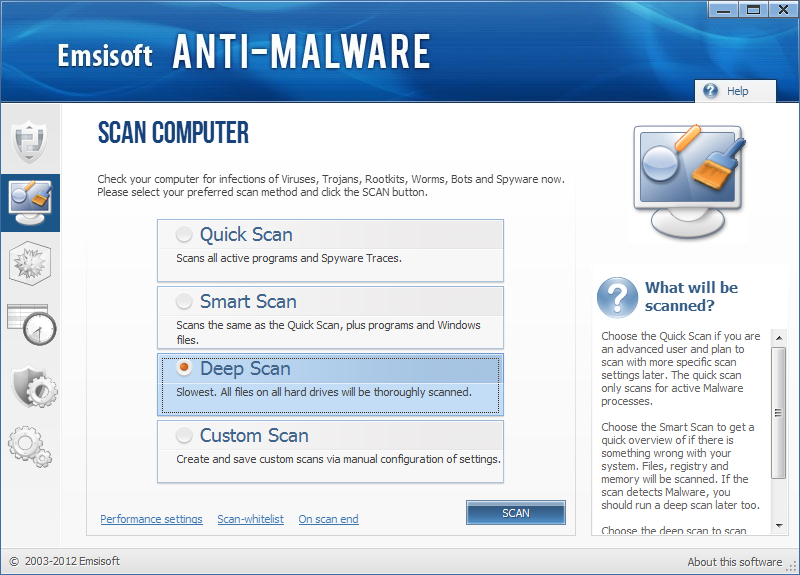
Emsisoft Anti-Malware starts to load its scanning engine and then displays a screen asking what type of scan you would like to perform:

scantype.png


Please select: Deep Scan

Click on the Scan button.

Emsisoft Anti-Malware now starts to scan your computer for rootkits and malware.

When the scan finishes, the program displays the scan results with any infections found.

mbam-fbi-anti-piracy-warning.jpg


Click: Quarantine selected objects (If the option is available)
(Please do not delete anything!)

Click: View results

If Emsisoft prompts you to reboot your computer to finish the clean up process, please allow it to do so.

Please provide the Emisoft report in your reply..


~~~~
As this infection is known to be installed by vulnerabilities in out-dated and insecure programs,
it is strongly suggested that you use Secunia PSI to scan for vulnerable programs on your computer.
A tutorial on how to use Secunia PSI to scan for vulnerable programs can be found here:
http://www.bleepingcomputer.com/tutorials/detect-vulnerable-programs-with-secunia-psi/


~~~~
Option: Use if Emsisoft does not run on your computer.

Download Malwarebytes Anti-Malware (MBAM):
Downloading Malwarebytes Anti-Malware
Save to the Desktop.

If you already installed MBAM, launch the program.

MBAM may make changes to the Registry as part of its disinfection routine.
If using other security programs that detect Registry changes, they may interfere or alert you. Permit the program to allow the changes, or, temporarily disable:
How To Temporarily Disable Your Anti-virus, Firewall And Anti-malware Programs - BleepingComputer.com

When MBAM starts, you are asked to update the program.
Press OK, and continue.

On the Scanner tab:
Select the Perform Quick Scan option.
Then click on the Scan button.

If asked to select the drives to scan, leave all the drives selected.

Next, click on the Start Scan button.

The scan may take some time to complete, so please be patient.

When finished, a message box shows: The scan completed successfully. Click 'Show Results' to display all objects found.
Click OK to close the message box and continue with the removal process.

Back at the main Scanner screen:
Click on the Show Results button to see a list of any malware found.

Make sure everything is checked, and click: Remove Selected

When removal is completed, a report opens in Notepad.
The log is also automatically saved and can be viewed by clicking the Logs tab.

Please provide the entire contents of the MBAM report in your reply.

Exit MBAM when done.

Note: If MBAM encounters a file that is difficult to remove, you are asked to reboot the computer so MBAM can proceed with the disinfection process. If asked to do this, please do so immediately. Failure to reboot normally (not into safe mode) prevents MBAM from removing all the malware.
 
Last edited:

My Computer

Computer type
PC/Desktop
Computer Manufacturer/Model Number
An ol' eMachines
OS
Windows 7 Home Premium
Internet Speed
Fine for me...I'm retired!
You did the right thing.

Let's take a look at the system running a special tool...

Do you have the Repair your computer option in the Advanced Boot Options menu?

To find out:
Restart the computer.
As soon as the BIOS is loaded begin tapping the F8 key until the Advanced Boot Options menu appears.
Is the Repair your computer option listed?


>>> If you have the Repair your computer option, please run FRST from your bootable computer, as follows:
(You may want to print these instructions for reference after the process starts.)

First, please check the size an name of the Hard Drive that has Windows Seven installed.
Start > double-click: Computer (Take note of the info.)

Next, download the Farbar Recovery Scan Tool:
Farbar Recovery Scan Tool Download
Select the version that applies to computer (64-bit)

Save FRST.exe to the Desktop

Right-click Start, and select: Open Windows Explorer
Look for drive C:\
On the Desktop, right-click FRST.exe, and move it into C:\
Confirm that FRST.exe is in C:\.

Restart the computer.

Tap the F8 key until the Advanced Boot Options menu appears.
Select: Repair your Computer
Select language settings, and User account. (In the User Account leave the passworrd field blank, if you do not have one.)

On the System Recovery Options menu, select: Command Prompt

In the Command Prompt window, at the blinking cursor, type: notepad

In Notepad, under the File menu select: Open
Double-click: Computer
Double-click on the OS drive (May not show as C:\ in the Recovery Environment, but you have its name and size to recognize it)
Press: Open

At the Command Prompt window type: X:\frst64.exe, and press: Enter
(Replace X with the letter of drive that showed.)

The tool starts and presents a prompt with:
The tool is setting up to read the Local Disk. Please wait...

Click OK to continue.

When presented with the disclaimer, press: Yes

When the FRST console appears, press the Scan button.

Once the scan finishes, a prompt appears stating:
Scan completed. The frst.txt has been saved in the same location FRST tool is run.

Close this prompt. Notepad shows that a log was created.

Close FRST, and close everything else except System Recovery Options.
Press: Restart


Back in Windows, right-click Start, and select: Open Windows Explorer
Look for drive C:\, and open it.
A folder named: FRST is there.

Inside the FRST folder, there are three folders.
One of them is named: Logs

Open the Logs folder to find the text document resulting from the scan.

Please post the FRST.txt in your reply.

Does it matter in what order I run your suggestions? This one is a little more complex, so would prefer to run the later ones first... Paul...
---
 

My Computer

Computer type
Laptop
Computer Manufacturer/Model Number
Dell 1640
OS
Win 7 Pro 64
CPU
Intel Dual Core T9900 @ 3.06 GHz
Memory
8G
Graphics Card(s)
ATI Mobility Radeon HD 4670
Hard Drives
750G
Antivirus
Vipre and Zone Alarm
Browser
Chrome, MSIE, Mozilla
omegatx,

Press on with the instructions in Post #37 (the last one).

Depending on what these programs show, we can go back to FRST.
 

My Computer

Computer type
PC/Desktop
Computer Manufacturer/Model Number
An ol' eMachines
OS
Windows 7 Home Premium
Internet Speed
Fine for me...I'm retired!
I am going to run all of the MS updates, since I restored the PC from a 2010 Win 7 pro factory image. The Emsisoft Malware will only run if I have some of the updates (service pack I think). I will get back as soon as I run the updates.

In the meantime, I did run the Security Check. The report is below:

Results of screen317's Security Check version 0.99.60
Windows 7 x64 (UAC is enabled)
Out of date service pack!!
Internet Explorer 8 Out of date!
``````````````Antivirus/Firewall Check:``````````````
Windows Firewall Disabled!
GFI Software VIPRE
Antivirus up to date!
`````````Anti-malware/Other Utilities Check:`````````
Malwarebytes Anti-Malware version 1.70.0.1100
Java 7 Update 17
Java version out of Date!
Adobe Flash Player 10 Flash Player out of Date!
Adobe Reader XI
Google Chrome 25.0.1364.152
````````Process Check: objlist.exe by Laurent````````
CheckPoint ZoneAlarm vsmon.exe
CheckPoint ZoneAlarm zatray.exe
`````````````````System Health check`````````````````
Total Fragmentation on Drive C: 3%
````````````````````End of Log``````````````````````
 

My Computer

Computer type
Laptop
Computer Manufacturer/Model Number
Dell 1640
OS
Win 7 Pro 64
CPU
Intel Dual Core T9900 @ 3.06 GHz
Memory
8G
Graphics Card(s)
ATI Mobility Radeon HD 4670
Hard Drives
750G
Antivirus
Vipre and Zone Alarm
Browser
Chrome, MSIE, Mozilla
Back
Top