Well yes, it can be useful to be able to start WordPad quickly like that. Perhaps an even more convenient thing would be to create an empty document that's got the settings of your choice - in my case it's usually Times Roman 14 point, and I like the Tool Bar and the Format Bar to be there - and pin that (or a shortcut to it) to the task bar.
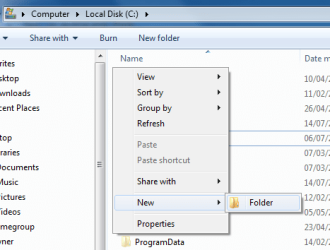
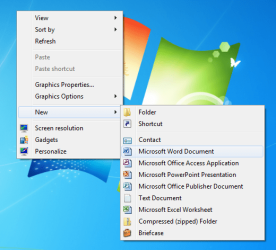
But here I'm after something slightly different. I do a lot of work in subfolders, and I often find I want to quickly create a new document right there in the subfolder I'm currently working in. Then I can double-click it, write or paste whatever I want, and when I close it, it will automatically get saved in that same folder, which is where I want it to be. If I started by just opening the program (Wordpad, Word or whatever), then when it comes to saving it, it'll always want to save to the "MyDocuments" folder on the system drive, which isn't where I want it to be at all, so I have to browse to the folder I'm working in on the data drive. That can be tedious if I'm working in a subfolder several layers down from the root folder, which is very often the case. I guess it was for people like me that Microsoft introduced the New > Text Document (etc.) feature into the rightclick menu in Explorer.
It works fine for .txt files, but I often want some formatting, which is where .rtf would be a nice addition to that menu. I have the file associations set up to open .rtf in WordPad by default, because otherwise they open in Word, which is rather slow to start and too "clever" for most of my needs.
The method I saw the other day
403 Forbidden
looks like it might do the trick quite well if it works at all. The article explains why .rtf can't be added by the usual method, and talks of adding an empty .rtf file to a system folder to help get it to work. It strikes me that if I set up the formatting and preferences of that document to my liking, they might still be present in the new documents I create with the rightclick menu. So I think that will be the next thing for me to try out.



 Seems Microsoft don't know who wrote Wordpad any more. It's not the end of the world at all because I can restore the system from an image that will set everything back the way it was.


