Cant Delete Old Primary XP Partition after Win 7 Installation

Emilford1506

New member
Local time
1:49 PM
Messages
2
Hi Guys. I am having a tough time here. I have an older hp pc that came with Windows XP. Last Year I upgraded it to Windows 7, but to be safe I installed 7 on a newly created partition.

Problem is is now that im satisfied with 7 I want to delete my old xp install, but the partition is still labeled as primary.

It wont let me just delete/format the old partition (using EASEUS Partition software), so i was wondering what steps do i take.
Picture of the problem:
clipboard01gwy.jpg
 
Last edited:

My Computer My Computer

At a glance

Windows 7 Ultimate2 GB
Computer type
PC/Desktop
Computer Manufacturer/Model Number
HP Pavilion a1523w
OS
Windows 7 Ultimate
Memory
2 GB
And windows will not let you delete an active partition.

As suggested your windows 7 partition has to be made primary and set to active, and the XP partition has to be set to inactive. You will then have to run startup repair to get 7 booting again.

You can do all this with a partition wizard boot cd, and a windows 7 system repair disc, made from backup and restore from the control panel.

Partition Wizard Bootable CD allows user to manage partition directly with partition manager bootable CD.

http://www.sevenforums.com/tutorials/2083-system-repair-disc-create.html

http://www.sevenforums.com/tutorials/71432-partition-mark-active.html
 

My Computer My Computer

At a glance

Windows 10 Pro x64Intel Core i7 6700KGSkill TridentZ RGB 16GB 3600 16-16-16-36EVGA GTX 980 Ti SC x2
Computer type
PC/Desktop
Computer Manufacturer/Model Number
Skylake Special #666
OS
Windows 10 Pro x64
CPU
Intel Core i7 6700K
Motherboard
Asus Sabertooth Z170 Mark 1
Memory
GSkill TridentZ RGB 16GB 3600 16-16-16-36
Graphics Card(s)
EVGA GTX 980 Ti SC x2
Sound Card
Realtek High Definition
Monitor(s) Displays
AOC G2460PG
Screen Resolution
1920 x 1080 144Hz
Hard Drives
Samsung 860 Pro 256GB, Seagate Barracuda 4TB x2
PSU
EVGA 1000 P2, EVGA White Custom Braided Cables
Case
Corsair Vengeance C70 Gunmetal Black
Cooling
Corsair H100i v2, Corsair ML120 x2, Thermal Grizzly Kryonaut
Keyboard
Logitech G910 Orion Spectrum
Mouse
Logitech G700s
Internet Speed
Verizon Fios Quantum Gateway 75/75
Antivirus
Windows Defender, Malwarebytes Free 3.8.3
Browser
Chrome
Other Info
Corsair SP120 x4, LG Blu-ray Drive, Durabrand HT-395 100 Watt Dolby Digital Amp, Corsair H2100 Wireless 7.1 Headset
Could i just clone my windows 7 install, & use that to the replace both the old xp & 7 version?
 

My Computer My Computer

At a glance

Windows 7 Ultimate2 GB
Computer type
PC/Desktop
Computer Manufacturer/Model Number
HP Pavilion a1523w
OS
Windows 7 Ultimate
Memory
2 GB
Honestly, I would just reinstall windows and delete the xp partition during the install.

Why don`t you just make the PW boot cd and delete the xp partition and change the W7 partition to primary and active, then run startup repair ?

You could have been done hours ago either way.

1st thing you need to do is make the W7 partition primary. You could easily install Partition Wizard to do that.

http://partitionwizard.com/free-partition-manager.html
 

My Computer My Computer

At a glance

Windows 10 Pro x64Intel Core i7 6700KGSkill TridentZ RGB 16GB 3600 16-16-16-36EVGA GTX 980 Ti SC x2
Computer type
PC/Desktop
Computer Manufacturer/Model Number
Skylake Special #666
OS
Windows 10 Pro x64
CPU
Intel Core i7 6700K
Motherboard
Asus Sabertooth Z170 Mark 1
Memory
GSkill TridentZ RGB 16GB 3600 16-16-16-36
Graphics Card(s)
EVGA GTX 980 Ti SC x2
Sound Card
Realtek High Definition
Monitor(s) Displays
AOC G2460PG
Screen Resolution
1920 x 1080 144Hz
Hard Drives
Samsung 860 Pro 256GB, Seagate Barracuda 4TB x2
PSU
EVGA 1000 P2, EVGA White Custom Braided Cables
Case
Corsair Vengeance C70 Gunmetal Black
Cooling
Corsair H100i v2, Corsair ML120 x2, Thermal Grizzly Kryonaut
Keyboard
Logitech G910 Orion Spectrum
Mouse
Logitech G700s
Internet Speed
Verizon Fios Quantum Gateway 75/75
Antivirus
Windows Defender, Malwarebytes Free 3.8.3
Browser
Chrome
Other Info
Corsair SP120 x4, LG Blu-ray Drive, Durabrand HT-395 100 Watt Dolby Digital Amp, Corsair H2100 Wireless 7.1 Headset
Here's the steps to do what you want.

Download free Partition Wizard bootable CD
and burn to CD using Windows Image Burner.

Boot the CD, rightclick Win7 partition to Modify>Set to Primary, click OK.

Then rightclick 7 partition again to Modify>Set to Active, click OK. Apply both steps.

Now boot into Win7 DVD or Repair CD to run Startup Repair - Run up to 3 Separate Times.

When Win7 boots and holds the System Active flags, you can delete XP partition and resize C to the left to take up the space using Partition Wizard Resize Partition - Video Help.
 
I have a similar problem with both partitions, the D with XP and C with Win 7 but both are marked as Primary. Please see the configuration from this puush link (don't know how to paste in the image). Could you please advise how to delete the XP in D? Thanks. I hope it is a bit easier than the solution above!

http://puu.sh/j3ys3/dc483f7bb3.png
 

My Computer My Computer

At a glance

OtherWin 7 Home Premium, 32 bit,1 gb
Computer type
PC/Desktop
Computer Manufacturer/Model Number
medion
OS
OtherWin 7 Home Premium, 32 bit,
Memory
1 gb
Browser
chrome
dc483f7bb3.png


First move the Bootmgr - Move to C with EasyBCD - Windows 7 Forums.

After restart confirm that C is now labeled System Active Boot Page File.

You can then delete D in Disk Mgmt: Partition or Volume - Delete and create a new partition(s) in the free space: Partition or Volume - Create New

However this puts C way over on the right (or slow) side of the hard drive whereas with a few other steps you can move it over to the faster left side and then resize it to exactly the size you want - even the whole disk if you prefer that.

To do this download free Partition Wizard CD and burn to CD with Windows Image Burner. Boot PW CD, rightclick on XP partition (if you haven't already) to Delete, click OK.

Next rightclick on Win7 partition, select Resize. Drag the left border all the way to the left against the left border of the hard drive. You can then drag the right border wherever you want it. click OK. See video here: Partition Wizard Resize Partition - Video Help.

Now create a new partition(s) in the space which is left if you want, lettered and labeled as desired: Partition Wizard Create Partition - Video Help. Click OK, Apply all steps.

Sometimes when resizing on the boot sector it requires running Startup Repair so have your Win7 disk or System Repair Disk standing by if it doesn't start.
 
Hello gregrocker -

I have completed my XP partition deletion and managed the resulting partitions ok but....

I have landed up with my first boot loader partition which should be C: with no drive letter at all! just the *

The Change letter option is of course greyed out. How to fix this - it won't boot without a drive letter will it?

I have - Basic MBR 465.76GB| (NTFS) 233.8GB | Unallocated 232GB (Which I can change latter)

Please advise - thanks.
 

My Computer My Computer

At a glance

OtherWin 7 Home Premium, 32 bit,1 gb
Computer type
PC/Desktop
Computer Manufacturer/Model Number
medion
OS
OtherWin 7 Home Premium, 32 bit,
Memory
1 gb
Browser
chrome
Well I rebooted OK and found the startup still gives me the choice of Win7 or Earlier version of Windows.

But clicking on Computer and in Disk Management it is listed as Local Disk (C:) so that seems OK. I wonder what would happen if I chose the 'Earlier version....' which was the XP. So perhaps in the Partition Wizard the drive letter C is not shown, only ones that can be changed?
 

My Computer My Computer

At a glance

OtherWin 7 Home Premium, 32 bit,1 gb
Computer type
PC/Desktop
Computer Manufacturer/Model Number
medion
OS
OtherWin 7 Home Premium, 32 bit,
Memory
1 gb
Browser
chrome
Obviously we need to see another Disk Mgmt screenshot. This time attach it correctly using paper clip icon in reply box.

Type msconfig in Start Search box to delete XP listing on Boot tab.
 

My Computer My Computer

At a glance

Windows 10 Pro. 64/ version 1709 Windows 7 Pr...Intel i7-6800K @ 4.3Corsair Platinum 16 gig @2400EVGA GTX 1070 OC
Computer type
PC/Desktop
Computer Manufacturer/Model Number
Home made Desktop
OS
Windows 10 Pro. 64/ version 1709 Windows 7 Pro/64
CPU
Intel i7-6800K @ 4.3
Motherboard
ASUS X-99 Deluxe II
Memory
Corsair Platinum 16 gig @2400
Graphics Card(s)
EVGA GTX 1070 OC
Monitor(s) Displays
Asus 27" LED LCD/VE278Q
Screen Resolution
1920-1080 or 1280-720 HDMI
Hard Drives
INTEL SSD 730-240 Gb Sata 3.0/
PSU
EVGA Platium 1200W
Case
Phanteks Luxe Tempered Glass 8 fans/ one radiator
Cooling
XSPC/ Water Cooled CPU
Keyboard
Das 4 Professional
Mouse
Logitech M705/MX Anywhere 2-S
Internet Speed
100 mbits
Antivirus
Microsoft Security Essentials/ Malwarebytes Premium 3.0/ SAS
Browser
I.E. 11 default/Firefox/ ISP Time Warner Cable/Spectrum
Other Info
LG BluRay Burner/
Sound system-KLipsch-THX/
Icy Dock ssd Hot Swap bays.
greglocker Type msconfig in Start Search box to delete XP listing on Boot tab.[/QUOTE said:
On Boot tab only the Win 7 is listed -

I have spent over one hour on this reply describing problems with the screen shot - there is no paper clip icon in this reply pane only an attachments icon but with this using snipping tool and Paint I could not show a screen shot only something like [attach35465attach] by Saving as into documents and uploading from there. Even the MS screenshot posting tutorial didn't help! Snip.tool goes into clipboad, then what? - cannot paste from there.

When trying with Paint the whole post disappeared so I can't repeat all of that (you may be glad to read). What's wrong with puush? - not liking links?

Anyway the Disk Management shows C: exactly as it should so I'm OK.

Thanks to all who responded to my queries on this as it greatly helped me resolve what I wanted to do - much appreciated.
 

My Computer My Computer

At a glance

OtherWin 7 Home Premium, 32 bit,1 gb
Computer type
PC/Desktop
Computer Manufacturer/Model Number
medion
OS
OtherWin 7 Home Premium, 32 bit,
Memory
1 gb
Browser
chrome
I've just noticed I can paste in the Disk Man. screenshot from Snipping tool with no trouble into Wordpad but not into the forum - how so?
 

My Computer My Computer

At a glance

OtherWin 7 Home Premium, 32 bit,1 gb
Computer type
PC/Desktop
Computer Manufacturer/Model Number
medion
OS
OtherWin 7 Home Premium, 32 bit,
Memory
1 gb
Browser
chrome

My Computer My Computer

At a glance

Windows 10 Pro. 64/ version 1709 Windows 7 Pr...Intel i7-6800K @ 4.3Corsair Platinum 16 gig @2400EVGA GTX 1070 OC
Computer type
PC/Desktop
Computer Manufacturer/Model Number
Home made Desktop
OS
Windows 10 Pro. 64/ version 1709 Windows 7 Pro/64
CPU
Intel i7-6800K @ 4.3
Motherboard
ASUS X-99 Deluxe II
Memory
Corsair Platinum 16 gig @2400
Graphics Card(s)
EVGA GTX 1070 OC
Monitor(s) Displays
Asus 27" LED LCD/VE278Q
Screen Resolution
1920-1080 or 1280-720 HDMI
Hard Drives
INTEL SSD 730-240 Gb Sata 3.0/
PSU
EVGA Platium 1200W
Case
Phanteks Luxe Tempered Glass 8 fans/ one radiator
Cooling
XSPC/ Water Cooled CPU
Keyboard
Das 4 Professional
Mouse
Logitech M705/MX Anywhere 2-S
Internet Speed
100 mbits
Antivirus
Microsoft Security Essentials/ Malwarebytes Premium 3.0/ SAS
Browser
I.E. 11 default/Firefox/ ISP Time Warner Cable/Spectrum
Other Info
LG BluRay Burner/
Sound system-KLipsch-THX/
Icy Dock ssd Hot Swap bays.
Capture.PNG Is this it? As indicated in my Post 13. Again if this is correct what is the difference between it and a puush link?

This what I got originally but thought,as in most forums, a real image is wanted. (Note the end of this post)

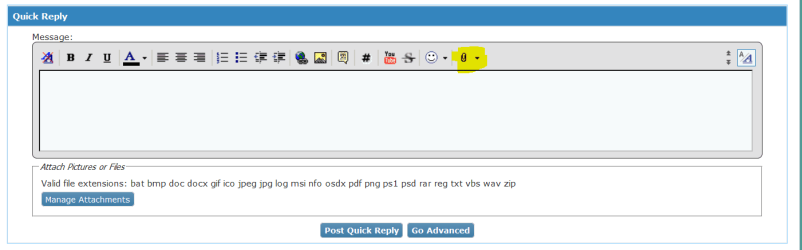
The problem(s) - there is no paper clip icon, as I know one, even with a magnifying glass cannot decipher what that icon is supposed to represent. The tutorial in Post #12 does not indicate this icon until the following one.

This following tutorial then says:
Navigate to where you have the image or file you want to upload to your post is saved at,...

If using the Snipping tool the only place the file is located, in my knowledge, is the Clipboard and I don't know how to navigate to there which is why I saved it to Documents as described in my Post #13. If only someone said that is OK!

These tutorials are usually very well written and try to explain every detail clearly so when I think there cannot be a gap in the procedure it takes a lot of time trying to figure out what is missing.

So with these perceived anomalies I was quite confused.

After posting and this edit -
I wondered if after posting this that the actual image would appear without having to click a link - it happened so my guess was right - pity this is not in the tutorials!
 

My Computer My Computer

At a glance

OtherWin 7 Home Premium, 32 bit,1 gb
Computer type
PC/Desktop
Computer Manufacturer/Model Number
medion
OS
OtherWin 7 Home Premium, 32 bit,
Memory
1 gb
Browser
chrome
It may not appear clearly to be a paper clip to everyone:

Capture.PNG

There is also the larger Manage Attachments button below it. I should refer to that button instead. Thanks for bringing this to my attention and sorry for the poor description. :geek:

Did you leave the 150 gb Unallocated Space intending to create it into a storage partition? If so follow Partition or Volume - Create New.

If you want it to be part of C then follow Partition or Volume - Extend.

To remove a ghost OS listing in Boot Menu, type msconfig in Start Search box, from Boot tab delete the unneeded listing. Dual Boot - Delete a OS - Windows 7 Help Forums

If not there, install EasyBCD to delete the ghost listing on Edit OS Menu tab. EasyBCD (click Download - no Name or Email required)
 
Thanks gregrocker for your added info.

No, the msconfig fix didn't fix the ghost OS so will try the Easy BCD method.

I left the 150 GB unallocated to decide later what I want to do with it - pity I won't be able to install the free upgrade Win 10 there!

If MS is offering a free upgrade to Win 10 by overwriting my Win 7 they wouldn't like me to have both if the Win 7 is the same one (prod. key) would they? I could make a bootable image of the win 7 and make a dual boot?

Oh sorry this is off topic and I'll have a year to work that out!
 

My Computer My Computer

At a glance

OtherWin 7 Home Premium, 32 bit,1 gb
Computer type
PC/Desktop
Computer Manufacturer/Model Number
medion
OS
OtherWin 7 Home Premium, 32 bit,
Memory
1 gb
Browser
chrome
You can indeed Clean Install Windows 10 Technical Preview to the 150gb as it will continue to function as a preview for subsequent builds - which is how newer issues of Windows are going to be handled going forward, both Updates and the OS version itself.

MS seems to have backed off a bit on earlier statements that if you enroll your email address in the Insider program (used to provide feedback on Technical Preview) you will automatically get a free 10 license. But it has assured that you can keep 10 going as a preview. If you don't want to waste a 7 or 8 license this is what I would do until they clarify whether you'll get a free license out of the TP. You should have a year to decide. But monitor that time limit because it may change too.

So I'd get the TP installed before July 29th and enroll in Insider program after using your MS ID (any Outlook or H Otmail account) to sign into 10.

They've already said that if you Upgrade from Win7 or 8 to 10 you'll be able to later clean reinstall with an ISO they provide. I believe the license will be coded to the PC's BIOS. But let's watch how that works next week too.
 
Back
Top