AeroMonk
New member
For some unknown reason, I am having trouble playing dvd's on my computer. Before my problems started, I had zero troubles playing a disc. I would pop in the disc, and be able to play/activate the movie one of several ways. For instance, as soon as the disc went in, a pop-up screen would say autoplay - and it would offer a few different ways to play the dvd. Or the other main way, I would click once on the dvd drive just to highlight it, then I would go up to one of the toolbars and click the button "AutoPlay", which would open up a drop-down list and I would select what player I wanted to use.
Here's a screen-cap, showing the AutoPlay button as missing:
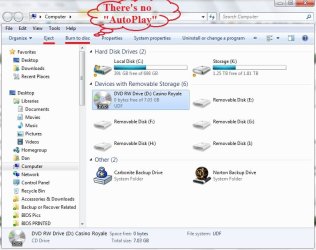
Well, none of that is working now. Now when I insert a disc, Windows doesn't give me anyway to play the movie. There's no more pop-ups, and the AutoPlay button is just not available. The only buttons that toolbar offers me -
Organize
Eject
Burn to disc
Properties
System Properties
etc...
Where the word "Eject" appears, is where the AutoPlay button always used to be. I also tried right clicking on the dvd drive to bring up the Context Menu, even that doesn't help - because I used to be able to right click and choose the option "Open With" and select a movie player (ie. VLC, MPC, WMP, etc...), but now thats gone too.
I know the dvd drive works, because I can still play dvd's if I go into Windows Media Player and play the movie thru that backdoor way.
I don't know exactly what caused this problem, but I have a few general ideas. Over the past 5 days I been adjusting my RAM timing & voltage settings. I also just did a successfull Update of my BIOS, and installed the most current version of the BIOS - and that flashing went well with no problems. I checked my dvd Drives drivers, and they are all up to date. I also just installed, less than a week ago, a new internal 2TB Hitachi Hard Drive.
Now, I have tried to resolve my problem on my own, with no success. So, let me explain everything I've tried thus far:
I tried to "reset all defaults" - in the Control Panel, AutoPlay section.
I've got the "Use AutoPlay for all media and devices" box selected with a check mark and for all of the other options, I have set "Ask me everytime"
Then I located Shell Hardware Detection (from Services console), and made sure that the “Service Status” is Running, and “Startup Type” is Automatic.
It is running, here's a screen-cap:
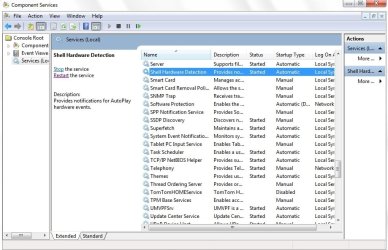
Made sure that CD-ROM AutoRun is not disabled in registry - under this subkey section:
HKEY_LOCAL_MACHINE\System\CurrentControlSet\Services\CDRom
It is enabled, here's a screen-cap:
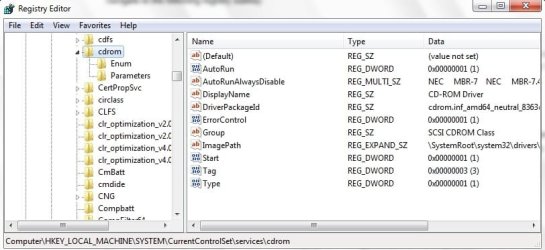
I also read somewhere that I should make sure that the correct NoDriveTypeAutoRun and/or NoDriveAutoRun policy value is set - for this subkey section:
KEY_LOCAL_MACHINE\Software\Microsoft\Windows\CurrentVersion\Policies\Explorer
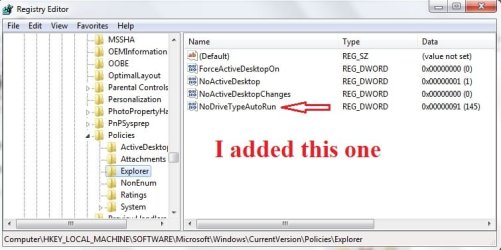
But there wasn't any registry key for "NoDriveTypeAutoRun" - under this subkey section:
HKEY_LOCAL_MACHINE\Software\Microsoft\Windows\CurrentVersion\Policies\Explorer
Here's a screen-cap:
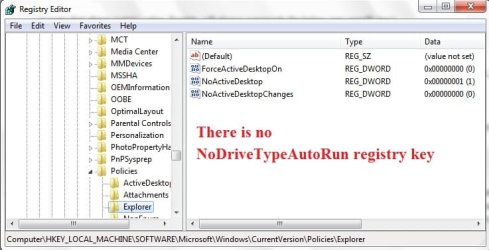
And this where I get lost. I read that I should change one of the entries of the "NoDriveTypeAutoRun" - under this different subkey section:
HKEY_CURRENT_USER\Software\Microsoft\Windows\CurrentVersion\Policies\Explorer
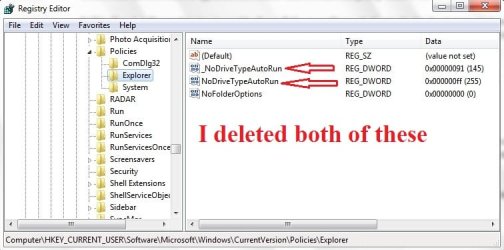
But there are two entries. So, which one of those entries do I touch. Secondly, what should I change it too?
Here's a screen-cap:

Here's a screen-cap, showing the AutoPlay button as missing:
Well, none of that is working now. Now when I insert a disc, Windows doesn't give me anyway to play the movie. There's no more pop-ups, and the AutoPlay button is just not available. The only buttons that toolbar offers me -
Organize
Eject
Burn to disc
Properties
System Properties
etc...
Where the word "Eject" appears, is where the AutoPlay button always used to be. I also tried right clicking on the dvd drive to bring up the Context Menu, even that doesn't help - because I used to be able to right click and choose the option "Open With" and select a movie player (ie. VLC, MPC, WMP, etc...), but now thats gone too.
I know the dvd drive works, because I can still play dvd's if I go into Windows Media Player and play the movie thru that backdoor way.
I don't know exactly what caused this problem, but I have a few general ideas. Over the past 5 days I been adjusting my RAM timing & voltage settings. I also just did a successfull Update of my BIOS, and installed the most current version of the BIOS - and that flashing went well with no problems. I checked my dvd Drives drivers, and they are all up to date. I also just installed, less than a week ago, a new internal 2TB Hitachi Hard Drive.
Now, I have tried to resolve my problem on my own, with no success. So, let me explain everything I've tried thus far:
I tried to "reset all defaults" - in the Control Panel, AutoPlay section.
I've got the "Use AutoPlay for all media and devices" box selected with a check mark and for all of the other options, I have set "Ask me everytime"
Then I located Shell Hardware Detection (from Services console), and made sure that the “Service Status” is Running, and “Startup Type” is Automatic.
It is running, here's a screen-cap:
Made sure that CD-ROM AutoRun is not disabled in registry - under this subkey section:
HKEY_LOCAL_MACHINE\System\CurrentControlSet\Services\CDRom
It is enabled, here's a screen-cap:
I also read somewhere that I should make sure that the correct NoDriveTypeAutoRun and/or NoDriveAutoRun policy value is set - for this subkey section:
KEY_LOCAL_MACHINE\Software\Microsoft\Windows\CurrentVersion\Policies\Explorer
But there wasn't any registry key for "NoDriveTypeAutoRun" - under this subkey section:
HKEY_LOCAL_MACHINE\Software\Microsoft\Windows\CurrentVersion\Policies\Explorer
Here's a screen-cap:
And this where I get lost. I read that I should change one of the entries of the "NoDriveTypeAutoRun" - under this different subkey section:
HKEY_CURRENT_USER\Software\Microsoft\Windows\CurrentVersion\Policies\Explorer
But there are two entries. So, which one of those entries do I touch. Secondly, what should I change it too?
Here's a screen-cap:
My Computer
At a glance
Windows 7 Home Premium (64-bit Edition)Intel Core i7-920 2.66 GHz 8M L3 Cache LGA1366G.SKILL Ripjaws 12GB DDR3 1600 Model F3-12800...NVIDIA GeForce GTS 250 1GB 16X PCI Express
- Computer Manufacturer/Model Number
- Custom Built PC - CyberPower PC
- OS
- Windows 7 Home Premium (64-bit Edition)
- CPU
- Intel Core i7-920 2.66 GHz 8M L3 Cache LGA1366
- Motherboard
- EVGA X58 3X SLI LE (141-BL-E757-TR)
- Memory
- G.SKILL Ripjaws 12GB DDR3 1600 Model F3-12800CL9T-12GBRL
- Graphics Card(s)
- NVIDIA GeForce GTS 250 1GB 16X PCI Express
- Sound Card
- High Definition On-Board 7.1 Audio
- Monitor(s) Displays
- 19" Hanns.G HW191
- Hard Drives
- HDD: WD 750GB SATA-II 3.0Gb/s 16MB Cache 7200RPM HDD
HDD2: Hitachi 2TB Serial ATA Hard Drive - 7200RPM, 64MB, SATA-6G
- PSU
- 1000 Watts Power Supply (Xion SuperNova AXP-10000R14HE)
- Case
- Thermaltake Spedo Full Tower Case
- Cooling
- Asetek LCLC 240 Liquid Cooling 240MM Radiator - Dual Fans