Can't Print from networked computers

rmpjr777

New member
Local time
5:49 PM
Messages
7
Hi! I have 2 laptops and a desktop. All of them are now running Windows 7.

I am unable to print from either of the laptops. I have set up my Home Group and made sure each computer has the same password.

The HP printer I have is connected via USB port to the desktop. I can print from the desktop. When I try to print from either of the laptops it does not print.

Please help-is their a sequence of things I should check on each computer?

Bob
 

My Computer

OS
Windows 7
Have you made sure the printer share settings are enabled?
 

My Computer

Computer Manufacturer/Model Number
Home Built
OS
Windows 7 Ultimate x64 RTM
CPU
AMD Athlon II X2 240 @ 3.2Ghz
Motherboard
Gigabyte GA-MA785GMT-UD2H
Memory
6GB Mushkin DDR3 PC-1333
Graphics Card(s)
ATI Radeon HD 4200 IGP Hybrid CrossFireX w\ Sapphire HD3450
Sound Card
Onboard Realtek HD audio controller
Monitor(s) Displays
D-SUB: LG W2343T-PF 23" LCD HDMI: LG 32LH20 32" LCD
Screen Resolution
1920*1080
Hard Drives
WD Caviar Green 1TB SATA3
PSU
Cooler Master Elite Power 400W
Case
Cooler Master Elite 360
Cooling
AMD Stock :)
Keyboard
Crappy wirelss logitech
Mouse
crappy wireless logitech
Internet Speed
792k
Not sure what you mean by that. Do I go to each computer and open the printer icon and enable sharing, or just the computer that the printer is connected directly to?

Bob
 

My Computer

OS
Windows 7
the computer the printer is connected to... but it sounds like that is already enabled if you can see the printer on all your machines...
 

My Computer

Computer Manufacturer/Model Number
Home Built
OS
Windows 7 Ultimate x64 RTM
CPU
AMD Athlon II X2 240 @ 3.2Ghz
Motherboard
Gigabyte GA-MA785GMT-UD2H
Memory
6GB Mushkin DDR3 PC-1333
Graphics Card(s)
ATI Radeon HD 4200 IGP Hybrid CrossFireX w\ Sapphire HD3450
Sound Card
Onboard Realtek HD audio controller
Monitor(s) Displays
D-SUB: LG W2343T-PF 23" LCD HDMI: LG 32LH20 32" LCD
Screen Resolution
1920*1080
Hard Drives
WD Caviar Green 1TB SATA3
PSU
Cooler Master Elite Power 400W
Case
Cooler Master Elite 360
Cooling
AMD Stock :)
Keyboard
Crappy wirelss logitech
Mouse
crappy wireless logitech
Internet Speed
792k
I'll double check that at lunchtime today but I can see the printer on the other computers.
 

My Computer

OS
Windows 7
There is another thread in this forum whereby both the OP of the thread and I are having similar issues with our HP Laserjet 1022 printers not working across Homegroups.

In your case what model HP is it and are you absolutely sure you are using Win7 drivers for this printer?

HP has announced on their site that they won't have Win7 drivers for the Laserjet 1022 until mid-November. Thus I am holding off spending time on this problem until I have the Win7 drivers installed.
 

My Computer

Computer Manufacturer/Model Number
Dell Vostro 420
OS
Windows 7 Pro x64
CPU
3.00 GHz Intel Core2 Quad Q9650
Memory
4 GB
Graphics Card(s)
ATI Radeon HD 3400 Series
Monitor(s) Displays
DELL 2405FPW
Screen Resolution
1920x1200
Hard Drives
System: 80GB WDC WD800JD-22MSA1
Data: 500GB Hitachi HDP725050GLA360
Internet Speed
Verizon FiOS 20/5 mbps
Other Info
Computing is primarily business use with off-time troubleshooting practice: Remote desktop, scanning and producing invoices, some minor graphics work.
Peter- My HP is a Photosmart D7460 and the HP site does have win 7 drivers which I have downloaded and installed.

Bob
 

My Computer

OS
Windows 7
Still Not Working

I went back and set the printer to work wirelessly. It recognized my network and said it was setup successfully to work wirelessly.

I have updated software installed from HP but nothing will print!!

Any ideas?

Bob
 

My Computer

OS
Windows 7
Is your computer wired directly to the router?

Sharing printers and file in Windows 7 HomeGroup involves 3 steps:
1. Setting up HomeGroup
2. Connecting to HomeGroup
3. Share Printer

1~ Setting Up Homegroup

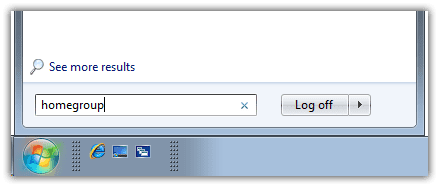
1- To setup you HomeGroup in Windows 7, Go to Start menu and type homegroup in Windows 7 Search bar.
share-files-printers-windows-7-homegroup.png

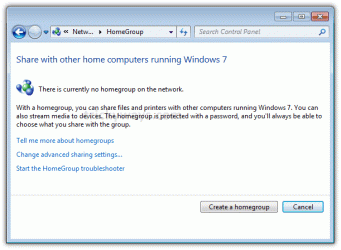
2- Next click create homegroup on the screen.
share-files-printers-windows-7-homegroup-2.gif

3- On the next screen select what you would like to share. **Make sure you select printer.

share-files-printers-windows-7-homegroup-3.gif

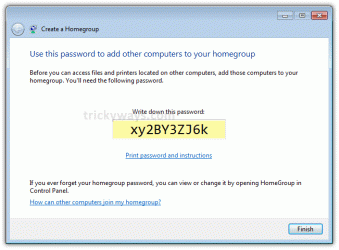
4. Next you will receive a password. Make notation of this b/c it will be required to add machines to you homegroup.
share-files-printers-windows-7-homegroup-4.gif

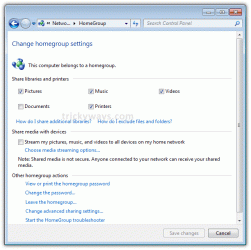
5. Finally click the finish button. Here you can make addition changes at this time is you desire.
share-files-printers-windows-7-homegroup-5.gif


2~ Connecting to Homegroup

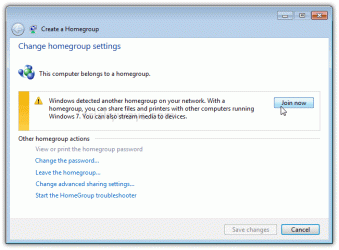
1. To setup you HomeGroup in Windows 7, On your next computer, Go to Start menu and type homegroup in Windows 7 Search bar.
share-files-printers-windows-7-homegroup-6.gif

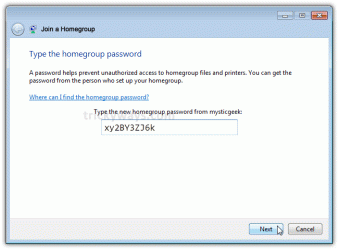
2. You're now prompt to enter the password from step one. Insert the password into the space provided.
share-files-printers-windows-7-homegroup-7.gif

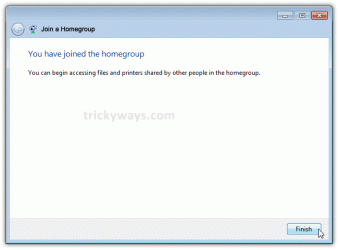
3. You have now joined the homegroup

share-files-printers-windows-7-homegroup-8.gif

3~ Add printing device


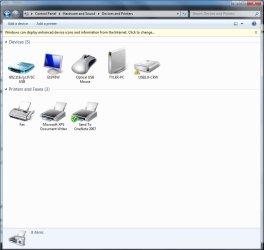
1. Choose Start→Devices and Printers.

You see the Device Stage list. You may or may not have any printers indicated at this point.
1-1.jpg

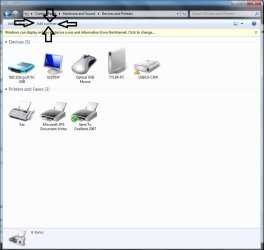
2. At the top, click the Add a Printer button.

Windows 7 asks whether you want to add a local printer or a network, wireless, or Bluetooth printer. You wantt to add a network printer.
1-2.jpg

3. Click the Add a Network, Wireless, or Bluetooth Printer paragraph.

Windows starts searching for printers throughout your entire network. Usually, it finds the printer you want. Sometimes it doesn’t. The wizard should show you a list of found printers.

4. If you see your printer in the list, go to the next step. If Windows isn’t finding it, click the Stop button and then click The Printer That I Want Isn’t Listed. Click the Browse button and then locate the printer on your network.

If the wizard doesn’t display the printer you want to install, you can install it by typing its name into the Printer text box under the Select a Shared Printer by Name option. The name should be in the form \\host\printer

5. Select the printer, click the OK button, and click the Next button.

6. Click Install Driver. Then click Next.

7. Select the default printer and click Finish.

Ok now reboot all your systems. They should have detected the printer and allow you to print. If they didn't don't panic follow step "3~ Add printing device" on each computer connected to your homegroup. Note you may need to install the drivers you previously downloaded to your laptops.

 
Last edited:

My Computer

Computer Manufacturer/Model Number
emachines EL 1200-06w
OS
Microsoft Windows 7 Ultimate
CPU
AMD Athlon 2650e, 1600 MHz (8 x 200)
Motherboard
eMachines WMCP61M
Memory
3 GB (2.75 Usable)
Graphics Card(s)
NVIDIA GeForce 6150SE nForce 430
Sound Card
Reltek ALC888/1200 @ nVIDIA nforce 6100-430
Monitor(s) Displays
Generic PnP Monitor [NoDB]; E19T6W
Screen Resolution
1440 x 900 (recommended)
Hard Drives
160GB SATA II (7200rpm, 8MB cache)
Keyboard
Standard multifunction keyboard
Mouse
2-button wheel mouse (PS/2)
Ok follow "3~ Add printing device" on each one of your computers and it should fix the problem. (Above your last post) After doing that make sure all your drivers for your printer for windows 7 is installed. You should now successfully print without error. Hope this helps
 

My Computer

Computer Manufacturer/Model Number
emachines EL 1200-06w
OS
Microsoft Windows 7 Ultimate
CPU
AMD Athlon 2650e, 1600 MHz (8 x 200)
Motherboard
eMachines WMCP61M
Memory
3 GB (2.75 Usable)
Graphics Card(s)
NVIDIA GeForce 6150SE nForce 430
Sound Card
Reltek ALC888/1200 @ nVIDIA nforce 6100-430
Monitor(s) Displays
Generic PnP Monitor [NoDB]; E19T6W
Screen Resolution
1440 x 900 (recommended)
Hard Drives
160GB SATA II (7200rpm, 8MB cache)
Keyboard
Standard multifunction keyboard
Mouse
2-button wheel mouse (PS/2)
tyleroor95-

Thanks for the step by step-just what this dummy needs!

I will go thru the process tonight that you outlined and see if that works. Thanks for the time you put in typing this!

Bob
 

My Computer

OS
Windows 7
tyleroor95-

Thanks for the step by step-just what this dummy needs!

I will go thru the process tonight that you outlined and see if that works. Thanks for the time you put in typing this!

Bob

np, I hope this resolves your problem. :)
 

My Computer

Computer Manufacturer/Model Number
emachines EL 1200-06w
OS
Microsoft Windows 7 Ultimate
CPU
AMD Athlon 2650e, 1600 MHz (8 x 200)
Motherboard
eMachines WMCP61M
Memory
3 GB (2.75 Usable)
Graphics Card(s)
NVIDIA GeForce 6150SE nForce 430
Sound Card
Reltek ALC888/1200 @ nVIDIA nforce 6100-430
Monitor(s) Displays
Generic PnP Monitor [NoDB]; E19T6W
Screen Resolution
1440 x 900 (recommended)
Hard Drives
160GB SATA II (7200rpm, 8MB cache)
Keyboard
Standard multifunction keyboard
Mouse
2-button wheel mouse (PS/2)
Tried everything suggested but guess we're just going to have to wait until HP release updated drivers for Win7. I can print to the HP1022 from my main PC but not from the laptop. I'm running win7 64bit and the laptop is on Win7 32bit.

The silly thing is that when I open up the print queue for the 1022 you can see the document sitting there - but it will not release to actually print. So it is getting across the network.

If I reboot back into Win XP then the thing is suddenly released and prints without any action on my part - weird. Printing from the laptop running Win7 32bit to XP is not a problem - works fine.

Reality is HP should have got these drivers released by now but no amount of prodding from anyone will speed up the process. So until they get round to it then sadly I'll be using XP as my main OS.:(
 

My Computer

Computer type
PC/Desktop
Computer Manufacturer/Model Number
Self Build
OS
Win7 Home Premium x64, Linux Mint 14
CPU
Intel i5 Sandy Bridge 1155 2400
Motherboard
Gigabyte P67A-UD3-B3
Memory
8gb DDR3
Graphics Card(s)
ATI 3870HD
Sound Card
On board Realtek
Monitor(s) Displays
Asus VE278
Screen Resolution
1920x1080
Hard Drives
1 Kingston 128gb SSD
1 Samsung 500gb
1 Samsung 1000gb
PSU
650w
Case
Aztec
Cooling
Stock
Keyboard
Logitech USB
Mouse
Microsoft USB Optical
Internet Speed
2.0
Antivirus
Avast
Browser
Firefox
okay im having a similar problem. I have a main desktop pc and two laptops connected to it through windows 7 homegrown. My dell laptop is able to print to the desktop printer my my wifes toshiba laptop is having issues.

When i follow the steps with my dell laptop it was able to find an update and installed it and had no problems. The difference with my wifes toshiba is when I get to the screen where it locates my network printer which it is able to locate but when i hit next it tells me it's searching for a windows update but then eventually it gives me the following message "

Windows can't find a driver for hp laserjet 1020 on the network.

this results in the install failing. the laptop will claim its searching windows updates but it never finds anything unlike my dell. do i need to install my printer software on the laptop? i'm so confused right now. any help would be great.
 

My Computer

OS
Windows 7 Ultimate x32
Back
Top