Can't reinstall Windows 7

tokaireco

New member
Local time
3:10 AM
Messages
9
I recently bought an ASUS N53SV, due to problems that resulted in frequent blue screen and crashes(Mozilla, Chrome etc). I decided to download and re-install a fresh copy of Windows 7 Professional from digitalriver. Beforehand i ran diskchck, everythings seemed fine.

I tried methods like booting from a USB stick, safe mode and just a double-click on Setup.exe but nothings works. Installation gets stuck halfway and i get the message :


"Windows cannot install required files The file may be corrupt or missing.. Make sure all files required for installation are available and restart installation. error 0x80070570" The same iso file worked on other laptops. Also tried by downloading from other sources.

I got fed up did something stupid . While booting from USB, i formatted the C: drive which is the only primary partition with an operating system. The installation failed once more and now when i start up the machine i get :

"BOOTMGR is missing press CTRL+ALT+DEL to reset"


I have unlimited amount of Windows 7 Professional keys from my uni and another laptop available. Please tell me what to do. Asus did not come with an installation dvd. If necessary i could buy a new retail windows 7 but will that work since nothing is left on the hard disk to start the installation? Can i still enter BIOS?

fatigue.png
Please help i will constantly recheck this post if you need more info.
 

My Computer

OS
64
   Information
We always assume you have made your Recovery Disks using the OEM manufacturer's Recovery Media Creator app the first day you had your new PC.
& made the Startup Repair CD.
startup repair disc-create


Did you make the OEM manufacturer's Recovery Disks?


System recovery

Disable Boot Booster in BIOS setup before you perform system recovery from USB flash disk, external optical drive or hidden partition.

Ensure to connect your PC to the AC power adapter before using F9 recovery to avoid recovery failure.
Using recovery partition (F9 Recovery)

1. Press <F9> during bootup.
Ensure to press <F9> only once during bootup.

2. Select the language you use and click to continue.

3. Click Recovery in the Recovery System dialog box to start the system recovery.

4. The system starts system recovery automatically and follow the onscreen instructions to complete the recovery process.
 

My Computer

OS
ME/XP/Vista/Win7
   Information
We always assume you have made your Recovery Disks using the OEM manufacturer's Recovery Media Creator app the first day you had your new PC.
& made the Startup Repair CD.
startup repair disc-create


Did you make the OEM manufacturer's Recovery Disks?


System recovery

Disable Boot Booster in BIOS setup before you perform system recovery from USB flash disk, external optical drive or hidden partition.

Ensure to connect your PC to the AC power adapter before using F9 recovery to avoid recovery failure.
Using recovery partition (F9 Recovery)

1. Press <F9> during bootup.
Ensure to press <F9> only once during bootup.

2. Select the language you use and click to continue.

3. Click Recovery in the Recovery System dialog box to start the system recovery.

4. The system starts system recovery automatically and follow the onscreen instructions to complete the recovery process.

i did the same procedure 3 times but the recovery stops with the word ERROR the fills up almost the whole screen... :cry:

Is it a hardware problem that s causing it? Will it work better f i obtain an official Windows 7 installation DVD??
 

My Computer

OS
64

My Computer

OS
ME/XP/Vista/Win7
I have an ASUS, and I know that its possible to make a copy of the Windows (OEM) already installed by using its tool called ASUS Recovery Burner, under ASUS Utilities folder. It takes 3-5 dvds. I guess its better to have a dvd installation on hand, if you don't have it already.

Can you enter BIOS/safe mode? If so, make the change that it starts reading from the cd/optical drive drive, and insert the dvd for a new installation if you have it already, otherwise you can make a copy of Windows also within safe mode.
 

My Computer

Computer type
Laptop
Computer Manufacturer/Model Number
Acer Aspire 5750G
OS
Windows 7 Home Premium x64, Windows 8 Pro
CPU
i5-2430M
Motherboard
Acer JE50_HR
Memory
8 Gb
Graphics Card(s)
nVidia GeForce 610M
Sound Card
Realtek High Definition Audio
Antivirus
Avast
Browser
Chrome
   Information
We always assume you have made your Recovery Disks using the OEM manufacturer's Recovery Media Creator app the first day you had your new PC.
& made the Startup Repair CD.
startup repair disc-create


Did you make the OEM manufacturer's Recovery Disks?


System recovery

Disable Boot Booster in BIOS setup before you perform system recovery from USB flash disk, external optical drive or hidden partition.

Ensure to connect your PC to the AC power adapter before using F9 recovery to avoid recovery failure.
Using recovery partition (F9 Recovery)

1. Press <F9> during bootup.
Ensure to press <F9> only once during bootup.

2. Select the language you use and click to continue.

3. Click Recovery in the Recovery System dialog box to start the system recovery.

4. The system starts system recovery automatically and follow the onscreen instructions to complete the recovery process.

I tried all the 3 options and i get this error :

"image.exe - Application Error

The instructions at 0x00cb2e34 referenced memory at 0x04000aac. The memory could not be read.

Click on OK to terminate the program"

and no i did not make a recovery disk, something which i regret deeply... :cry:
 

My Computer

OS
64

i check the RAM all seems to be in order. Now when i start the machine i get this:

" Status : 0xc0000098
Info : The windows boot configuration data file does not contain a valid OS entry."
 

My Computer

OS
64
How far does it get in expanding windows files? I know this is frustrating, I have dealt with this before :3 Hang in there and we will get you sorted.
 

My Computer

Computer Manufacturer/Model Number
Pugh Technologies
OS
W7 Professional x64
CPU
AMD Athlon II X3 445 Rana 3.10 GHz
Motherboard
MSI 870A-G54
Memory
PNY XLR DDR3 1600 4x2GB
Graphics Card(s)
NVIDIA GeForce GTS 450 (fermi) 1GB GDDR5
Sound Card
Realtek ALC892 onboard
Monitor(s) Displays
ASUS VE205t, Viewsonic VX2035WM
Screen Resolution
1600x900, 1600x1050
Hard Drives
977GB Hitachi Hitachi HDS721010CLA332
244GB Western Digital WDC WD2500AAJS-65B4A0
488GB Western Digital WDC WD5000AAJS-00A8B0
488GB Western Digital WDC WD5000AAKS-00UU3A0
PSU
Antec EarthWatts EA650 650W
Case
ThermalTake Armor A90 Mid Tower
Cooling
3x 120mm in, 1x 120mm & 200mm out, self built hydro-cooler
Keyboard
Logitec 55
Mouse
Razer Deathadder
Internet Speed
20 Mbps D/L, 9 Mbps U/L
How far does it get in expanding windows files? I know this is frustrating, I have dealt with this before :3 Hang in there and we will get you sorted.

The furthest i can go is into the BIOS.(by hitting some function keys)... i tried booting with a recovery usb but nothing can be fixed because i wiped clean the C drive....
 

My Computer

OS
64
The problem is likely with the installer. Confirm the ISO integrity or download another, burn DVD or write to flash stick using this tool: Windows 7 USB-DVD Download Tool

Boot the DVD or stick, follow the steps in the Perfect Reinstall link in my signature box below. Report back results including verbatim error messages.

You do NOT need to buy another Win7 key but can clean reinstall using the Product Key on COA sticker which came on PC and which you own for life and can reinstall any way you like. A clean reinstall is a much superior install.

Use the Digital River installer, unlocking all versions if needed as given in the steps, but save any retail keys for other machines and don't waste the one which came with the Asus.
 
I would Check the hard drive with the manufacturer's diagnostic tools.
Hard Drive Diagnostics Tools and Utilities (Storage) - TACKtech Corp.
HD Diagnostic

Have you?


No i don't know what model of HDD the laptop is using.... i ran chkdsk frm the installation command prompt and results are good. 0 bad sectors...


The problem is likely with the installer. Confirm the ISO integrity or download another, burn DVD or write to flash stick using this tool: Windows 7 USB-DVD Download Tool

Boot the DVD or stick, follow the steps in the Perfect Reinstall link in my signature box below. Report back results including verbatim error messages.

You do NOT need to buy another Win7 key but can clean reinstall using the Product Key on COA sticker which came on PC and which you own for life and can reinstall any way you like. A clean reinstall is a much superior install.

Use the Digital River installer, unlocking all versions if needed as given in the steps, but save any retail keys for other machines and don't waste the one which came with the Asus.

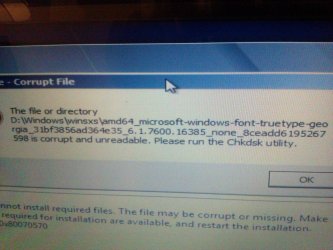
i don't think it's the iso.. i tried with retail version, oem version, and integrated sp1 version... all did no worked... at the 'expanding files' stage i get this :

The file or directory D:\Windows\winsxs\amd64_microsoft-windows-fonts-truetype-georgia_<etc numbers and stuffs> is corrupt and unreadable. Pls run the diskcheck utility.(which i did)
 

Attachments

  • IMAG0044.jpg
    IMAG0044.jpg
    640.8 KB · Views: 6

My Computer

OS
64

My Computer

OS
ME/XP/Vista/Win7
I am a bit confused about how you try to install Windows.


I tried methods like booting from a USB stick, safe mode and just a double-click on Setup.exe but nothings works.


The same iso file worked on other laptops.Also tried by downloading from other sources.

To install Windows you need to make a bootable dvd and make changes in BIOS before inserting the dvd so it starts reading from the optical drive rather than the hard drive. You can not double click the Windows file installation while you are in Windows.

To run a test for the hard drive you can choose this its simple to use and it takes some time to perform the test.Downloads


Second options for testing the hard drive is, enter Windows, go to My Computer ->right click on the drives name c: -> and then press for check the errors.
 

My Computer

Computer type
Laptop
Computer Manufacturer/Model Number
Acer Aspire 5750G
OS
Windows 7 Home Premium x64, Windows 8 Pro
CPU
i5-2430M
Motherboard
Acer JE50_HR
Memory
8 Gb
Graphics Card(s)
nVidia GeForce 610M
Sound Card
Realtek High Definition Audio
Antivirus
Avast
Browser
Chrome
Did you try burning another DVD with confirmed ISO using ImgBurn or the MS tool linked?

If so, try writing installer ISO to flash stick with tool linked. If it still stalls with error then test your HD and run Disk Check again.

How did you run Disk Check? Without an OS you´ll need to boot the DVD Repair consoleto run it from Command Prompt: Disk Check

I would also wipe the HD to also try install as clearing the boot sector can sometimes solve problems. Then make one large partition to Disk Check, Since you need to run Disk Check on partitions. SSD - HDD Optimize for Windows Reinstallation
 
Fixed!!!!!!

I FIXED IT!!!:D

here's what i did:
1) redownloaded an OEM version of Windows 7 Pro 64bits.
2) make bootable USB with it manually using diskpart
3) boot with the USB and entered BIOS to change boot order.
4) restarted and entered command prompt from system repair.
5) entered these commands as advised by some of your members
bootrec.exe /fixboot
bootrec.exe /fixmbr
bootrec.exe /rebuildbcd
6) Restarted and the installations went smoothly!!!:party:

i guess the same iso that worked on one laptop might not necessarily will work on another...


THANK YOU AND A BIG HUG TO EVERYONE WHO HELPED!! <3 this forum...
 

My Computer

OS
64
Good luck with your new ASUS.
 

My Computer

Computer type
Laptop
Computer Manufacturer/Model Number
Acer Aspire 5750G
OS
Windows 7 Home Premium x64, Windows 8 Pro
CPU
i5-2430M
Motherboard
Acer JE50_HR
Memory
8 Gb
Graphics Card(s)
nVidia GeForce 610M
Sound Card
Realtek High Definition Audio
Antivirus
Avast
Browser
Chrome
Back
Top