Captmcnet

Captmcnet

New member
Local time
12:27 AM
Messages
4
Two installations of Win 7 Pro on two different PC's showing different results.
1st 1 TB drive, with an Intel DP55WB mobo, with an Intel I7 860 CPU.
2nd 1 TB drive, with a Gigabyte EP45UD3R mobo, with an Intel Core 2 Q9550 CPU.

The 2nd machine shows a normal Disk 0 C: NTFS drive partition as: System, Boot,
Page File, Active, Primary Partition.

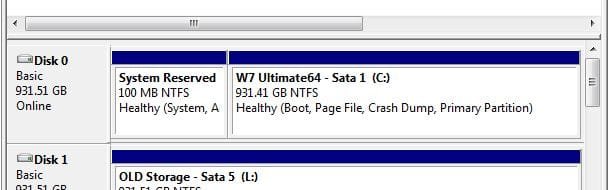
The 1st machine shows a Disk 0 with a 100 MB (no drive letter, System Reserved),
partition as: System, Active, Primary Partition; and then the remainder of Disk 0
C: NTFS drive partition as: Boot, Page File, Primary Partition.
The 1st machine also shows three startup entries which are not in the startup of
the 2nd machine. They are; Shell (explorer.exe),
Userinit (windows\system32\userinit.exe, and
VmApplet (SystemPropertiesPerformance.exe /pagefile).

Is the 100 MB System Reserved partition necessary (if so, Why?), and if not,
should I use Partitioning software to re-claim the 100 MB for the C: partition?
And how do I make the C: partition show as "System" as well as Boot, etc.?

Suggestions appreciated.
Tks
 
Last edited:

My Computer

OS
win 7 Pro 64 bit
Hello Captmcnet, welcome to Seven Forums!

I would suggest you study the need for the "System, Reserved" partition for your-self and then if you choose to remove it, that process is out-lined in Step Two of this tutorial at the link below; be sure to post back with any further questions you may have and to keep us informed.

Partition Wizard : Use the Bootable CD


The info below explains the "System, Reserved" partition and more info can be vied at this tutorial at the link below.

Startup Repair - Run 3 Separate Times


   Information
There is another situation that is common now, when Windows 7 is installed to an un-partitioned or "unallocated space" on a Hard Disk Drive (HDD) it creates one partition (the first) labeled "System Reserved" that becomes the "system volume" and a second partition that Windows 7 installs to, both "Primary" partitions; the "System Reserved" partition is where the boot files are created and has a link to the recovery options console built into Windows 7, it serves a very useful purpose but there may be times when removing or repairing the "System Reserved" partition becomes necessary.
 

My Computer

Computer Manufacturer/Model Number
* BFK Customs *
OS
W 7 64-bit Ultimate
CPU
Intel Q9550 Yorkfield
Motherboard
ASUS P5Q Pro
Memory
8GB Dominator 8500C5D
Graphics Card(s)
ATI : XFX 5870
Sound Card
Realtek HD Audio 7-1
Monitor(s) Displays
1x 47" LCD HDMI & 3x 26" LCD HDMI
Screen Resolution
1920x1080P & 1920x1200
Hard Drives
1x 80GB Intel X25-M G2 SSD : 1x 500GB & 1x 640GB WD Caviar Black(s)
PSU
Corsair 620HX
Case
Cooler Master RC-690
Cooling
Tuniq Tower 120, 2x 140mm and 3x 120mm case fans
Keyboard
Microsoft 500
Mouse
Razer Diamondback 3G
Internet Speed
14 Mb/s
Other Info
1x Koutech 3Gb/s SATA HDD Hot Swap Rack
Hello Captmcnet Welcome to the Seven Forums!

To answer your question on the 100mb reserved partition seen that is placed onto a raw drive by the 7 installer itself when using the installer's own drive tools. When using using a 3rd party drive partitioning and already created and formatted a new primary 7 will install right onto that without any need for the separate 100mb system reserved.

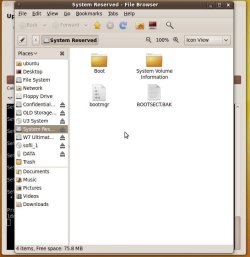
The two images artacked show not only the typical install with the 100mb present but how it looks when mounted as a normal logical drive provided a drive letter. What you see there is the BCD store placed on a separate partition from C.

For simply avoiding that entirely you would simply use a 3rd party program like the free Partition Wizard Bare Froot Kid linked or even the free Linux drive tool GParted. When the beta and RC buids were first installed here there was no 100mb since the drives used had been in use for the previous versions. New drives for a new build then saw the 7 installer place it there.

If you elect to remove it from either system moving the C primary forward to expand that after the move first be sure to back everything up in case of a mishap often seen with the partition table itself. If anything happens to that the drive can be turned into a raw drive where the primary is turned into unallocated drive space. Just a forewarning for you ahead of time.

The alternative method for seeing the drive made bootable if all goes well can be performed while booted live with a 7 recovery disk which you will need. You may have to create one if none were provided or use the option to burn a repair cd found in the Control Panel>Backup & Restore section there. A one time boot to the Repair Tools>command prompt option while booting live from a repair cd or recovery disk(recommended to have) allows you to use the Bootrec.exe tool in what MS labels as the Windows Recovery Environment. How to use the Bootrec.exe tool in the Windows Recovery Environment to troubleshoot and repair startup issues in Windows

For reclaiming that 100mb of drive space there are two recommendations regardless of which method is used to rebuild the BCD store. 1)Back everything up 2)If a 3rd party drive partitioning program is used the live cd method generally sees working results over mishaps with the installed to drive type programs especially since the OS primary is involved.
 

Attachments

  • System 100mb.jpg
    System 100mb.jpg
    24.4 KB · Views: 3
  • System 100mb2.jpg
    System 100mb2.jpg
    56.2 KB · Views: 4

My Computers

System One System Two

  • Computer type
    PC/Desktop
    Computer Manufacturer/Model Number
    Custom builds = 2
    OS
    W7 Ultimate x64/W10 Pro x64/W11 Pro Triple Boot - Main PC W7 Remote PC Micro ATX W7 Pro x64/W11 Pro
    CPU
    AMD Phenom II X4 975 Deneb 3.6ghz - 965 2nd remote pc
    Motherboard
    Gigabyte GA-790XTA-UD4-Gigabyte GA-880GM-D2H remote pc
    Memory
    Kingston Hyper X DDR3 1600 1.5v 16gb - Hyper X Fury 8gb 2nd
    Graphics Card(s)
    MSI HD Radeon 5750 1gb - MSI HD Radeon 6450 on mini tower
    Sound Card
    Creative Labs X-Fi Xtreme Audio P - Realtek onooard 2nd case
    Monitor(s) Displays
    ASUS VW199T-P 19" HP 2082a Main-HP 2082a 20" remote pc
    Screen Resolution
    Asus 1440x900 - HP 1600x900
    Hard Drives
    WD Black 1TB HD per OS W7, W10, and pending W11 presently on 500gb OS Drive - Pending Triple 1TB HDs for Spanned Storage/backup volume
    Single 2TB external USB enclosure, single 1TB System 7 Host/Boot drive, Pending 8TB external HD for system image b
    PSU
    Corsair 750TX - primary / Corsair CX600 - second
    Case
    Antec 900-2 - SSD compatible / NZXT Vulcan mini tower
    Cooling
    Zalman CNPS9900A
    Keyboard
    AZIO L70 Backlit Letters Gaming - ONN Cordless/USB
    Mouse
    MSI DS200 Programmable, Logitech Cordless
    Internet Speed
    30mbps upgrade - primary hard wired - mini tower usb WiFi
    Antivirus
    GFI VIPRE Internet Security 2014 on W7 2016 beta on W10,
    Browser
    Cyberfox, WaterFox 64bit FF variants, FireFox x64, Pale Moon
    Other Info
    Accomdata fan cooled usb 2.0 PIDE/Sata II, III external enclosure.
    Sambient usb/eSata PATA/Sata II, III external enclosure.
  • Computer type
    PC/Desktop
    System Manufacturer/Model Number
    CUSTOM ASSEMBLY
    OS
    W7 Pro x64/W11 Pro
    CPU
    AMD Deneb 3.6ghz - 965
    Motherboard
    Gigabyte GA-880GM-D2H remote pc
    Memory
    Kingston Hyper X Fury 8gb
    Graphics Card(s)
    MSI HD Radeon 6450 DVI Output
    Sound Card
    Realtek onooard Creative or Other separate PENDING
    Monitor(s) Displays
    VIZIO 32" LCD TV Separate LCD Pending
    Screen Resolution
    1600x1080
    Hard Drives
    WD 500GB OS Host/Boot WD Green 1TB Storage/Backup
    PSU
    Corsair 600W - THERMALTAKE 600W spare case
    Case
    NZXT Vulcan mini tower
    Cooling
    Twin 120mm Top Fans - 240mm Side Cover
    Keyboard
    ONN Cordless/USB Logitech Cordless
    Mouse
    ONN USB/Cordless - Logitech Cordless
    Internet Speed
    DSL 5G
    Browser
    MS Edge, FireFox, WaterFox x64, FireFox Nightly
    Other Info
    OS Testing-Remote Access to Main TeamViewer
Back
Top