Change Unallocated to useable space

markg2

New member
Member
VIP
Local time
9:17 AM
Messages
477
I just received a Lenovo 160GB warranty replacement drive, installed the drive and restored my most current Acronis image. The drive that was replaced was 100GB, thus the restored Acronis image was ~96GB C drive.

The attached Acronis Disk Director screen shot shows the difference between the restored C area versus the available drive space as unallocated.

From previous conversations on the forum I have a boot CD burned with Magic Partition Manager (not used thus far).

Before I boot the computer with the MPM CD would someone give me a bit of reassurance that there will be a clear MPM option to convert the currently unallocated space to allocated and then either merge the two spaces or have the currently active space increase in size subsuming that space which is currently unallocated?

Thanks,

Mark
 

Attachments

  • Unallocated.PNG
    Unallocated.PNG
    21.5 KB · Views: 80

My Computer My Computer

Computer type
PC/Desktop
OS
Windows 7 & Windows 10
mark, are you able to successfully boot into windows? maybe reboot a couple of times to check? If yes, you can definitely format the unallocated space to create a new partition or extend the existing C: partition to use that space. Just remember you have some unallocated space to the left of C: as well - to extend C: into that you'll need a 3rd party partition manager (windows cant do it natively). I don't know about MPM but if that doesn't work you can always use Partition wizard.

http://www.sevenforums.com/tutorials/93322-partition-wizard-use-bootable-cd.html
 

My Computer My Computer

Computer Manufacturer/Model Number
Too many to describe...
OS
Windows 7 x64 pro/ Windows 7 x86 Pro/ XP SP3 x86
I would stay away from the MPM. Use Disk Management. It is a lot safer. Just right click on the C partition and "Extend". Or right click on the unallocated space and create a partition.

If you want to recover the bit of space in front of C:, follow the advice of Bill2 - but I think it is not worth the risk of making a mistake for such an itty bitty amount of space.
 

My Computer My Computer

Computer Manufacturer/Model Number
HP, Dell, Gateway, Toshiba - 4 laptops and 2 desktops
OS
Vista, Windows7, Mint Mate, Zorin, Windows 8
CPU
from 1.6GHz Duo to i7
Monitor(s) Displays
2x HP w2207
Hard Drives
5x HDD, 7x SSD, 12x Externals
Keyboard
with trackball - no mices
Mouse
Trackball mice
Internet Speed
DSL 6000
Not sure how I have the CD labeled Magic Partition Manager by Mini Tool but it is Partition Wizard. After reading your message, for some reason, I decided creating a partition from the unallocated space would be a good idea and then would go on to merge the two partitions. The free PW would not do that. I then deleted the newly created partition and was able to drag the size of C to cover the entire area absent the tiny area at the left. For now I'll leave the area to left and relish my newly enlarged C.

I'm also uninstalling Acronis' Disk Director.

Thanks--

Mark
 

My Computer My Computer

Computer type
PC/Desktop
OS
Windows 7 & Windows 10
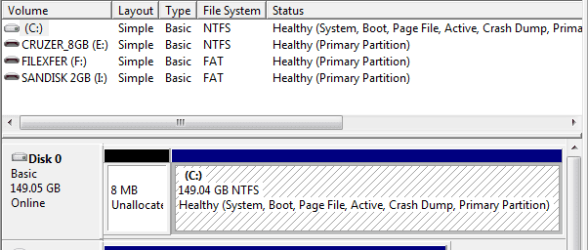
So I went back and tried to clean up the tiny unallocated space (attachment) with Partition Wizard.

Whereas the day before yesterday I was able to drag the primary partition C to the right to include and eliminate the large unallocated space resulting from a new drive (see earlier in this thread), I cannot drag the resulting C to the left to eliminate (include) the remaining, tiny space.

Since the free version of Partition Wizard does not allow one to merge, any suggestions on a method of subsuming the tiny space within C?

Mark
 

Attachments

  • Partition.PNG
    Partition.PNG
    7.2 KB · Views: 28

My Computer My Computer

Computer type
PC/Desktop
OS
Windows 7 & Windows 10

My Computer My Computer

Computer type
PC/Desktop
Computer Manufacturer/Model Number
Custom-built
OS
Windows 7 Professional SP1 32-bit
CPU
Intel Core 2 Duo E6600 2.4GHz
Motherboard
Asus PL5D2
Memory
4GB DDR2-667 (4x1GB in dual-channel config)
Graphics Card(s)
nVidia GeForce 9800 GT
Sound Card
Creative X-Fi XtremeMusic
Monitor(s) Displays
Acer P236H
Screen Resolution
1920x1200 (DVI)
Hard Drives
OCZ SSD Vertex Plus 60GB SATA (Firmware 3.55), 64MB cache
Hitachi HD321KJ SATA, 320GB, 7200rpm, 16MB cache
PSU
Antec TruePower 2.0
Case
Cooler Master Centurion
Cooling
Too many fans
Keyboard
Standard
Mouse
Microsoft wireless optical mouse
Internet Speed
AT&T U-verse (18mbit/sec)
Antivirus
Microsoft Security Essentials
Browser
Firefox
Other Info
Other devices:
Compaq CQ-60 laptop
Google Nexus 7 (2012) tablet
Nvidia SHIELD tablet (US/LTE)
Hardkernel ODROID-XU single-board computer (Samsung Exynos 5420)
Prior to any attempt moving C: to the left I would make sure you have an image of C: in case the operation fails. I'd do it as well for "neatness" but it will probably involves physical file movements.
 

My Computer My Computer

Computer type
PC/Desktop
Computer Manufacturer/Model Number
Own build
OS
Windows 7x64 Home Premium SP1
CPU
Intel i7 2600k
Motherboard
ASUS P8Z68 Deluxe
Memory
G.Skill Ripjaws (DDR3-1600) 2x4GB
Graphics Card(s)
Nvidia GeForce GTS 450; Intel HD Graphics 3000(GT2+)
Monitor(s) Displays
Dell Ultrasharp IPS panel U2311H, Samsung SyncMaster P2350
Screen Resolution
1920x1080
Hard Drives
Samsung 850 Pro SSD 256GB, Samsung SSD 840 120GB, Seagates 1TB Barracuda ST31000528AS x2
PSU
Seasonic M12II 520W
Case
Lian Li Lancool PC-K60
Cooling
Case: 1x120mm, 3x140mm CPU: Hyper 212+
Keyboard
Logitech MK520 (wireless)
Mouse
Logitech MK520
Internet Speed
6-7 Mbps
Antivirus
Norton Security Premium, Malwarebytes on 2 (MSE on 3rd PC)
Browser
FireFox
Other Info
Audio: Logitech Z523 2.1
Thanks for the software recommendation.

However, to merge (using Easeus) I first have to create a partition out of the tiny unallocated space. When attempting to do so, the software says that the space is too small to create a partition.

I guess I'll just leave well enough alone.

Mark
 

My Computer My Computer

Computer type
PC/Desktop
OS
Windows 7 & Windows 10
There is no need to create a new partition and then merge. Simply extend your existing partition into the free space. This will work even if that space is very small - I've done it.
 

My Computer My Computer

Computer type
PC/Desktop
Computer Manufacturer/Model Number
Custom-built
OS
Windows 7 Professional SP1 32-bit
CPU
Intel Core 2 Duo E6600 2.4GHz
Motherboard
Asus PL5D2
Memory
4GB DDR2-667 (4x1GB in dual-channel config)
Graphics Card(s)
nVidia GeForce 9800 GT
Sound Card
Creative X-Fi XtremeMusic
Monitor(s) Displays
Acer P236H
Screen Resolution
1920x1200 (DVI)
Hard Drives
OCZ SSD Vertex Plus 60GB SATA (Firmware 3.55), 64MB cache
Hitachi HD321KJ SATA, 320GB, 7200rpm, 16MB cache
PSU
Antec TruePower 2.0
Case
Cooler Master Centurion
Cooling
Too many fans
Keyboard
Standard
Mouse
Microsoft wireless optical mouse
Internet Speed
AT&T U-verse (18mbit/sec)
Antivirus
Microsoft Security Essentials
Browser
Firefox
Other Info
Other devices:
Compaq CQ-60 laptop
Google Nexus 7 (2012) tablet
Nvidia SHIELD tablet (US/LTE)
Hardkernel ODROID-XU single-board computer (Samsung Exynos 5420)
Thanks for the software recommendation.

However, to merge (using Easeus) I first have to create a partition out of the tiny unallocated space. When attempting to do so, the software says that the space is too small to create a partition.

I guess I'll just leave well enough alone.

Mark

Leaving well enough alone is an excellent idea.
 

My Computer My Computer

Computer Manufacturer/Model Number
Toshiba Satellite S875D-S7239 laptop
OS
MS Windows 7 Ultimate SP1 64-bit
CPU
AMD A10-4600M
Motherboard
AMD Pumori (Socket FT1)
Memory
6.00 GB Dual-Channel DDR3 @ 798MHz (11-11-12-28)
Graphics Card(s)
AMD Radeon HD 7660G
Sound Card
High Definition Audio Device
Monitor(s) Displays
Generic PnP Monitor (1600x900@60Hz)
Screen Resolution
1600x900@60Hz
Hard Drives
SSD 119GB Corsair CSSD-V128GB2 ATA Device
Keyboard
Standard PS/2 Keyboard
Mouse
HP Wireless Optical Mobile Mouse Model FHA-3410
Internet Speed
What the local pub, local coffee shop offers.
Other Info
Optical Drive:MATSHITA BD-CMB UJ160B ATA Device


Also have an Asus ha1002xp netbook with Win 7 Ultimate installed.
If you want to be fancy, image your C partition, then delete the C partition (with bootable CD of PW) and make a new C from the sum of the unallocated spaces. Then dump the image into the new C.
 
Last edited:

My Computer My Computer

Computer Manufacturer/Model Number
HP, Dell, Gateway, Toshiba - 4 laptops and 2 desktops
OS
Vista, Windows7, Mint Mate, Zorin, Windows 8
CPU
from 1.6GHz Duo to i7
Monitor(s) Displays
2x HP w2207
Hard Drives
5x HDD, 7x SSD, 12x Externals
Keyboard
with trackball - no mices
Mouse
Trackball mice
Internet Speed
DSL 6000
It was the merge that wanted 2 partitions to work with and when I tried creating a partition from the tiny unallocated is when the software said the space was too small to create same.

Oddly, when I dragged C to the left and it appeared to subsume the unallocated to the left, at the completion of the process the unallocated was simply moved to the right of C.

The very small unallocated space was a peculiar, unintended result of the reformat that was part of my upgrading from 32 to 64 bit (thread of several months ago).

Now, this is the point at which I say A) thanks Lenovo for the new (bigger) warranty replacement drive, B) thanks forum for assisting with my increase from 2 to 4GB RAM, C) thanks for the assist moving from 32 to 64 bit and thanks for the tip on the Easeus software in addition to Partition Wizard and I'm stayin with what I got that works great and is a bit untidy and taking my marbles and going home :-).

Mark
 

My Computer My Computer

Computer type
PC/Desktop
OS
Windows 7 & Windows 10
Back
Top