Changing Default Windows 7 Color with Style Builder

chris35

New member
Local time
11:01 PM
Messages
2
Hello - I recently purchased a new Dell XPS 8500 system running Windows 7 and otherwise am very happy with it, with one exception: I find the default baby blue/sky blue color in Windows 7 absolutely unbearable.

I use the computer primarily for extensive photo, video and music editing, and even after a week of use simply cannot stand this light blue color - it hurts my eyes as I work. I wish I could simply change that default color to a simple gray like in Vista.

As that is no simple chore, I purchased Ave's Windows7 Style Builder but cannot for the life of me figure out how to change the default color from that baby blue to a simple gray. Any help/advice would be most appreciated. I am not looking for a fancy theme or style, but rather simply wish to get rid of that baby blue default. Thank you in advance for your assistance!
 

My Computer

OS
Windows 7
Welcome to the Seven Forums
1st
You need to use a copy of the aero theme to make a custom theme so you do not damage the default theme.
Look at post #38 it will show you how to start a new theme http://www.sevenforums.com/customization/135985-start-menu-color-change-4.html#post1358071
2nd
This will be a custom theme and you will need to do 1 of these 2 ways of Enabling custom themes for it to work.
http://www.sevenforums.com/tutorials/34579-enabling-custom-themes-windows-7-a.html
Or
http://www.sevenforums.com/tutorials/28377-theme-how-apply-custom-themes.html?filter
3rd
Open the new themes .msstyles up in Windows Style Builder
4th
Here is a start after you get this will help more.
Look at screenshots

Computer.png
1
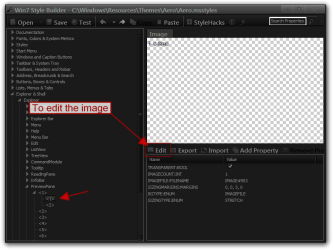
Explorer & Shell > Explorer > CommandModule > <1> (edit the

image)
2
Explorer & Shell > Explorer > PreviewPane > <1> > <1> (edit

the image)
3
Explorer & Shell > Explorer > Menu Bar > Background (edit

the image)
and
Toolbars, Headers and Rebar > Rebar > Rebar (edit the

image)
they need to be to same
4
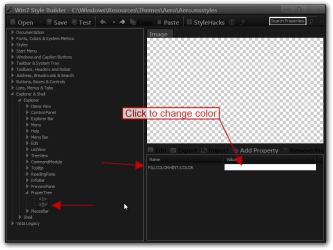
Explorer & Shell > Explorer > Items View > ItemsView >

FILLCOLOR:COLOR (change the color)
5
Explorer & Shell > Explorer > ProperTree > <2> >

FILLCOLOR:COLOR (change the color)

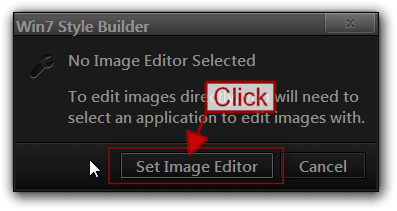
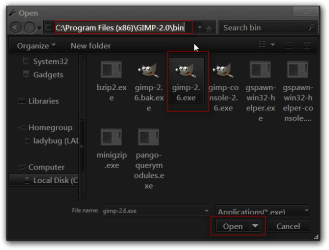
The 1st time you go to edit a image it will ask what image editor you want to use navigate to your editor .exe in the program file.
1.png2.png

If you need more help let me know
Jerry
 

My Computer

Computer type
Laptop
Computer Manufacturer/Model Number
Sager NP9170
OS
Win 7 Pro x64 / Win 10 Pro
CPU
Intel(R) Core(TM) i7-3630QM CPU @ 2.40GHz
Motherboard
CLEVO P170EM
Memory
12 GB
Graphics Card(s)
(1) Intel(R) HD Graphics 4000 (2) NVIDIA GeForce GTX 675M
Sound Card
(1) Realtek High Definition Audio (2) Intel(R) Display Aud
Monitor(s) Displays
17.3
Screen Resolution
1920x1080
Hard Drives
(1) Samsung 860 EVO 500GB(OS) (1) Samsung 860 EVO 500GB(Data)
Keyboard
Backlite
Antivirus
MSE, Malwarebytes Pro
Browser
Firefox
Other Info
DESKTOP: Custom-built.
OS: Win 10 Pro x64.
CASE: Rosewill R5.
CPU: Intel I5 4670K CPU @ 3.40GHz.
CPU COOLER: Cool Master Hyper 212 EVO.
MOTHERBOARD: Asus Z87-A.
MEMORY: Kingston HyperX 2x4 GB.
GPU: Nvidia Geforce 650 TI.
PSU: Corsair TX750.
DRIVES: (1) Samsung 840 120 GB SSD (2) Western Digital blue 500 GB 7200 RPM.
Thank you Bongo for your assistance! I followed your instructions and successfully created the "test" copy of the aero style & folder. However perhaps you could clarify - once in StyleBuilder, how exactly do I "edit the image"? I have Photoshop Elements but am unsure how to change the color, and then input that back into Style Builder. My apologies if I am missing something obvious, but thank you again for your help.
 

My Computer

OS
Windows 7
Navigate to the image and click on it then click Edit.
1.png


The 1st time you go to edit a image it will ask what image editor you want to use navigate to your editor .exe in the program file.
2.png2b.png


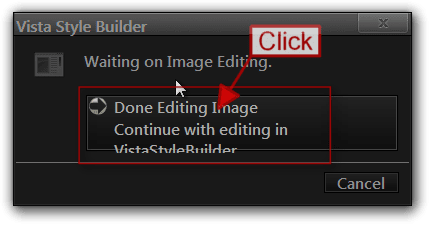
After you edit the image click save in your image editor after it saves click on Done editing image.
3.png


Or
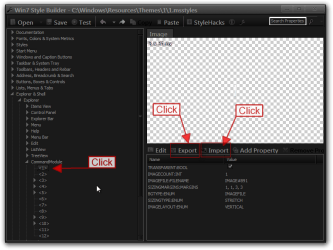
Export the image to your desktop then edit it then Import the image back in.
5.png


Jerry
 

My Computer

Computer type
Laptop
Computer Manufacturer/Model Number
Sager NP9170
OS
Win 7 Pro x64 / Win 10 Pro
CPU
Intel(R) Core(TM) i7-3630QM CPU @ 2.40GHz
Motherboard
CLEVO P170EM
Memory
12 GB
Graphics Card(s)
(1) Intel(R) HD Graphics 4000 (2) NVIDIA GeForce GTX 675M
Sound Card
(1) Realtek High Definition Audio (2) Intel(R) Display Aud
Monitor(s) Displays
17.3
Screen Resolution
1920x1080
Hard Drives
(1) Samsung 860 EVO 500GB(OS) (1) Samsung 860 EVO 500GB(Data)
Keyboard
Backlite
Antivirus
MSE, Malwarebytes Pro
Browser
Firefox
Other Info
DESKTOP: Custom-built.
OS: Win 10 Pro x64.
CASE: Rosewill R5.
CPU: Intel I5 4670K CPU @ 3.40GHz.
CPU COOLER: Cool Master Hyper 212 EVO.
MOTHERBOARD: Asus Z87-A.
MEMORY: Kingston HyperX 2x4 GB.
GPU: Nvidia Geforce 650 TI.
PSU: Corsair TX750.
DRIVES: (1) Samsung 840 120 GB SSD (2) Western Digital blue 500 GB 7200 RPM.
Back
Top