
Changing "System" disk on an XP/7 multiboot setup

schwig

New member
Local time
5:05 PM
Messages
3
Hi, I have a multiboot setup, with XP on my C: drive and Win7 on G:, but I want to remove the hard drive with XP on it and just stick with Win7. Problem is, C: is considered the "system" disk, so I can't remove the hard drive and just have Win7, which is what I want to do.

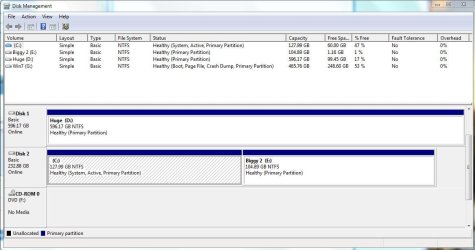
Here's a screenshot of my setup:
diskmng.JPG

C: = XP
E: = Partition on the C drive
D: = various data, no OS
G: = Win7

Can I use the same bootsect.exe solution that SIW2 recommended for another user who posted here (Drakmyth)? I would greatly appreciate any help before I do something stupid and accidentally nuke my computer.

Thanks very much in advance,
Andy
 

My Computer

Computer Manufacturer/Model Number
Custom
OS
XP Pro 32 / 7 Pro 32
CPU
AMD Athlon X2 5400+ Black
Motherboard
Asus M2N-E
Memory
2GB Corsair XMS2 DDR2 800Mhz
Graphics Card(s)
XFX 8800GTS 320MB
Monitor(s) Displays
Samsung Syncmaster 2494
Hard Drives
WD 250GB (XP)
WD 640GB (Stuff)
WD 500GB (Win7)
PSU
Cooler Master 600w
Case
Antec Sonata
Welcome!

It is actually pretty simple to remove the XP drive. Just unplug it, and run Startup Repair if 7 won't boot.

Hope this helps,
~JK
 

My Computer

Computer Manufacturer/Model Number
Custom
OS
Windows 7 Professional x64
CPU
Intel i7 2600K OC'd @ 4620 MHz
Motherboard
Asus P8Z68-V Pro
Memory
16GB GSkill Sniper 2133 Mhz (4x4GB)
Graphics Card(s)
EVGA GeForce GTX 480 SuperClocked+
Sound Card
Realtek High Definition Audio
Monitor(s) Displays
2x Acer S273HLbmii 27"
Screen Resolution
2 x 1920x1080
Hard Drives
64GB Crucial M4 SSD

Storage: Hitachi 1TB 5400RPM, Samsung 1.5TB 5400RPM
PSU
Corsair HW Series 750w (modular)
Case
Cooler Master HAF 932 Advanced Blue Edition
Cooling
CM Hyper 212+ CPU cooler, 3x 230mm + 1x 140mm case fans
Keyboard
Logitech MK320 (wireless)
Mouse
Logitech MK320 (wireless)
Internet Speed
30 Mb/s : 2 Mb/s
Shouldnt be a problem removing xp drive as boot files are already on the g drive
Simply use bcdedit to remove xp entry from boot files

If you get any problems booting after you remove it just run startup repair of your installation disc (may need to run upto three times to fix the error) and you should be sorted
 

My Computer

Computer type
PC/Desktop
Computer Manufacturer/Model Number
Pauly Special
OS
Win7 Ultimate X64
CPU
Intel i5 3570K
Motherboard
Gigabyte Z77X-DS3H
Memory
8GB DDR3 1600
Graphics Card(s)
Onboard
Sound Card
Onboard
Screen Resolution
1280x1024
Hard Drives
Samsung 840 Evo SSD (OS)
1TB Spinner (Data)
PSU
800W Arctic
Case
Cooler Master
Cooling
3x120mm Fans
Keyboard
MS Wireless
Mouse
MS Wireless
Internet Speed
20M
Hi, thank you both for the quick reply. Unfortunately I don't have an installation disc as I got Win7 through the Digital River download program for students. Is there a way I can get the Startup Repair program without the disc, or is there another way?

Thanks

P.S. If I remove the XP drive now, when I choose to boot from the Win7 drive it just says "Error loading OS" after the BIOS screen.
 

My Computer

Computer Manufacturer/Model Number
Custom
OS
XP Pro 32 / 7 Pro 32
CPU
AMD Athlon X2 5400+ Black
Motherboard
Asus M2N-E
Memory
2GB Corsair XMS2 DDR2 800Mhz
Graphics Card(s)
XFX 8800GTS 320MB
Monitor(s) Displays
Samsung Syncmaster 2494
Hard Drives
WD 250GB (XP)
WD 640GB (Stuff)
WD 500GB (Win7)
PSU
Cooler Master 600w
Case
Antec Sonata
Yes, there is a way!

Follow the instructions here for how to create a repair disc.

You may have to download the ISO (the last method) if you cannot get to a 7 machine,
 

My Computer

Computer Manufacturer/Model Number
Custom
OS
Windows 7 Professional x64
CPU
Intel i7 2600K OC'd @ 4620 MHz
Motherboard
Asus P8Z68-V Pro
Memory
16GB GSkill Sniper 2133 Mhz (4x4GB)
Graphics Card(s)
EVGA GeForce GTX 480 SuperClocked+
Sound Card
Realtek High Definition Audio
Monitor(s) Displays
2x Acer S273HLbmii 27"
Screen Resolution
2 x 1920x1080
Hard Drives
64GB Crucial M4 SSD

Storage: Hitachi 1TB 5400RPM, Samsung 1.5TB 5400RPM
PSU
Corsair HW Series 750w (modular)
Case
Cooler Master HAF 932 Advanced Blue Edition
Cooling
CM Hyper 212+ CPU cooler, 3x 230mm + 1x 140mm case fans
Keyboard
Logitech MK320 (wireless)
Mouse
Logitech MK320 (wireless)
Internet Speed
30 Mb/s : 2 Mb/s
If you'd like to use your Digital River download to create a bootable ISO to burn to DVD or write to a flash stick, use this: http://www.sevenforums.com/tutorials/30470-make-bootable-iso-student-d-l.html

Burn to DVD using ImgBurn at 4x with Verify, or write to flash stick using this method: http://www.sevenforums.com/tutorials/2432-usb-windows-7-installation-key-drive-create.html

Or you can download just the Win7 repair console from here to burn to CD or write to flash stick: Download Windows 7 System Recovery Discs — The NeoSmart Files

Once you have the bootable Win7 Repair console, mark the Win7 paritition Active in Disk Mgmt, power down to unplug XP drive, then boot the Win7 CD/DVD Repair console to run Startup Repair up to 3 separate times with reboots to write the MBR to Win7 partition.
 
C: = XP
E: = Partition on the C drive
D: = various data, no OS
G: = Win7

Can I use the same bootsect.exe solution that SIW2 recommended for another user who posted here (Drakmyth)? I would greatly appreciate any help before I do something stupid and accidentally nuke my computer.

You should be able to use the same commands, but the drive letters might be different.

Hopefully he will come along, but I am guessing the command would be:

bootbcd G:\Windows /s G:

But I am new at this so it may not be right. Basically what you need to do is put the boot files, bootmgr and the Boot folder, on the Windows 7 partition. Make that partition active and then set that drive to primary in the bios using the Drive priority.

If you want to check to see if the files are already there, set up the folders view to show hidden system files. It is a little harder since you do not show the Win 7 drive in your disk mangment picture. It aslo seems a little strange that the boot drive letter is not C:

Using the Install DVD does this as part of the startup repair. You will always need an Install DVD, or at least Repair DVD to fix your system in the future.

I suppose I should also add if the thread you mention uses the bootsec command with a /nt60, this is probably pointing the Master Boot Record to an win 7 boot as opposed to an XP boot.
 

My Computer

Computer Manufacturer/Model Number
Homebuilt
OS
Windows 7 x64
CPU
i7-2600K
Motherboard
Asus P8Z77-v Pro
Memory
8 G
Graphics Card(s)
GTX 480
Sound Card
Onboard
Monitor(s) Displays
LG W2753V
Screen Resolution
1920x1080
Hard Drives
Crucial M4 128 G SSD
Back
Top