Drakmyth
New member
Hello Windows Seven Forums,
I come here hoping you can help me both understand and determine how to fix this little issue. I've recently done a complete reformat of all three of the drives in my desktop and installed Windows 7 on (what I thought) was the largest of the three. Whether it was because I wasn't paying attention, or because the disk formatter is somewhat confusing, I seem to have somehow split the boot information and the windows install onto two separate drives.
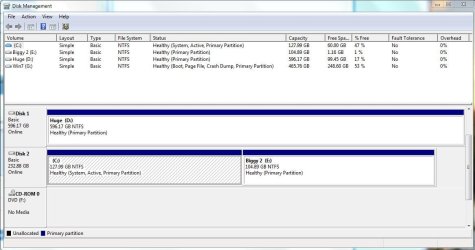
First I would like to understand what the Disk Manager is showing me. I see four entries in the Disk Management tool. The first three (labeled Disk 0, 1, and 2) seem to be physical hard drives (each corresponding to one of the hard drives I have, each with a single partition). Below that is a single entry marked CD-ROM 0. Okay, simple enough so far.
I see the following:
Disk 0: C: - 698.63 GB NTFS - Healthy (Boot, Page File, Active, Crash Dump, Primary Partition)
Disk 1: F: - 232.88 GB NTFS - Healthy (System, Active, Primary Partition)
Disk 2: D: - 232.88 GB NTFS - Healthy (Primary Partition)
CD-ROM 0: DVD (E - No Media
The three disk entries are what I am interested in. From what I have discovered online, and please correct me if I'm wrong, each of these "tags" indicates something about what that drive is used for.
Boot - This drive contains Windows 7 (NOT the boot information, which would make sense)
Page File - This drive contains the paging file
Active - ???
Crash Dump - ??? (Crash Dumps get stored on this drive when the computer crashes?)
Primary Partition - ??? (First partition on the disk?)
System - This drive contains the boot information (NOT the operating system information, which would make sense)
Why the D: drive comes after the F: drive I have no idea. What I would like to do (I think) is move the System tag from F: to C: (plainly, put both Win7 and the Boot information on C:, and ideally on the same partition). The D: drive is currently formatted but has nothing on it, so I'm fine with reformatting (or deleting the partition) on that, and the F: drive only has the boot information on it. I would very much like to avoid having to reformat my Win7 install if it can be helped. I would also prefer it if this could be done without installing anything. I'm trying to keep this system as clutter free as possible and avoiding installing and uninstalling various programs is helping with that immensely.
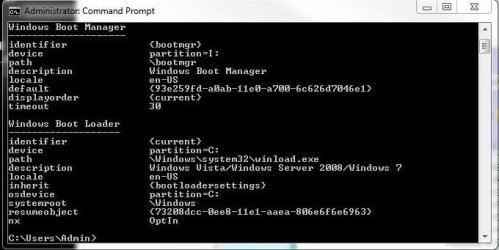
I read that this may be possible using the bcdboot tool which comes with Win7, but I wasn't entirely sure how to go about it and thought I would ask here before I go wreaking havoc across my system. After that, and this is more of a minor cosmetic detail, I would like to put the drives in Alphabetical order with the CD drive being D: (i.e. Disk 0 = C:, Disk 1 = E:, Disk 2 = F:, CD-ROM 0 = D.
Any help would be greatly appreciated. Thanks,
~ Shaun Hamman
I come here hoping you can help me both understand and determine how to fix this little issue. I've recently done a complete reformat of all three of the drives in my desktop and installed Windows 7 on (what I thought) was the largest of the three. Whether it was because I wasn't paying attention, or because the disk formatter is somewhat confusing, I seem to have somehow split the boot information and the windows install onto two separate drives.
First I would like to understand what the Disk Manager is showing me. I see four entries in the Disk Management tool. The first three (labeled Disk 0, 1, and 2) seem to be physical hard drives (each corresponding to one of the hard drives I have, each with a single partition). Below that is a single entry marked CD-ROM 0. Okay, simple enough so far.
I see the following:
Disk 0: C: - 698.63 GB NTFS - Healthy (Boot, Page File, Active, Crash Dump, Primary Partition)
Disk 1: F: - 232.88 GB NTFS - Healthy (System, Active, Primary Partition)
Disk 2: D: - 232.88 GB NTFS - Healthy (Primary Partition)
CD-ROM 0: DVD (E
- No MediaThe three disk entries are what I am interested in. From what I have discovered online, and please correct me if I'm wrong, each of these "tags" indicates something about what that drive is used for.
Boot - This drive contains Windows 7 (NOT the boot information, which would make sense)
Page File - This drive contains the paging file
Active - ???
Crash Dump - ??? (Crash Dumps get stored on this drive when the computer crashes?)
Primary Partition - ??? (First partition on the disk?)
System - This drive contains the boot information (NOT the operating system information, which would make sense)
Why the D: drive comes after the F: drive I have no idea. What I would like to do (I think) is move the System tag from F: to C: (plainly, put both Win7 and the Boot information on C:, and ideally on the same partition). The D: drive is currently formatted but has nothing on it, so I'm fine with reformatting (or deleting the partition) on that, and the F: drive only has the boot information on it. I would very much like to avoid having to reformat my Win7 install if it can be helped. I would also prefer it if this could be done without installing anything. I'm trying to keep this system as clutter free as possible and avoiding installing and uninstalling various programs is helping with that immensely.
I read that this may be possible using the bcdboot tool which comes with Win7, but I wasn't entirely sure how to go about it and thought I would ask here before I go wreaking havoc across my system. After that, and this is more of a minor cosmetic detail, I would like to put the drives in Alphabetical order with the CD drive being D: (i.e. Disk 0 = C:, Disk 1 = E:, Disk 2 = F:, CD-ROM 0 = D
.Any help would be greatly appreciated. Thanks,
~ Shaun Hamman
My Computer
- Computer Manufacturer/Model Number
- Custom Build
- OS
- Windows 7 Professional (x64)
- CPU
- Intel Core 2 Extreme QX9770 3.2GHz Quad-Core
- Motherboard
- XFX NVIDIA nForce 790i Ultra SLI ATX
- Memory
- Patriot Extreme Performance (4 x 2GB) DDR3 1333 (PC3 10666)
- Graphics Card(s)
- BFG Tech GeForce GTX 280 1GB PCIE 2.0 x16 HDCP SLI
- Sound Card
- Creative Sound Blaster X-Fi Titanium Fatal1ty 7.1 PCIE
- Monitor(s) Displays
- V7 D24W33-N6 Black 24" 2ms HDMI Widescreen LCD
- Screen Resolution
- 1920x1200
- Hard Drives
- Seagate Barracuda ES.2 750GB 7200 RPM SATA 3.0Gb/s 3.5"
Seagate Barracuda 7200.10 250GB 7200 RPM SATA 3.0Gb/s 3.5"
Seagate Barracuda 7200.10 250GB 7200 RPM SATA 3.0Gb/s 3.5"
- PSU
- Thermaltake Toughpower 1200W ATX12V / EPS12V SLI CrossFire
- Case
- Thermaltake SwordM VD500LBNA ATX Full Tower LCS
- Cooling
- Built Into Case
- Keyboard
- Razer Tarantula™ Gaming Keyboard
- Mouse
- Razer DeathAdder™ Gaming Mouse
- Other Info
- Speakers: Creative GigaWorks G550W 5.1 Surround


 or set it as first in the Drive priority in the Bios, which will then list it in the Boot device priority, or at least that is the way it works on my system.