Solved Changing Win7 System/Boot Partition without Reinstall

Displaced Boot Solution Worked!

Many thanks to SIW2. I had the same problem albeit with different drive letters. The MS documentation for the install utilities wasn't clear enough to embolden my using them in the way you described. Your posting led me try it, and I'm now glad I did.

A minor secondary problem remained. Copies of the bootmgr file and the boot directory remained on my D: drive, and that confused Acronis Disk Director, making it think D: was still the system drive. Win7 Disk Management showed it correctly however. Removing the leftover boot fragments from the D: drive solved that problem as well, although it was not easy to delete them. I had to first take ownership and change their access settings before I could delete them.

I would expect that there are many Win7 installations with this problem because solid state drives are becoming popular for use as the system drive. This leads naturally to the displaced boot if the SSD is not first in the bios boot priority list at the time of installation. The important thing to know at install time is that the boot will be on the first drive in the bios boot priority list regardless of the drive selected for the install. It makes sense now that I know it.
 

My Computer My Computer

Computer type
PC/Desktop
OS
Win7 Pro 64 bit
Glad to be of help. Thanks for posting.:)
 

My Computers My Computers

System One System Two

  • Computer type
    PC/Desktop
    OS
    7 X64
    CPU
    i5 8400
    Motherboard
    gigabyte b365m ds3h
    Memory
    2x8gb 3200mhz
    Hard Drives
    various
    PSU
    pure power 11 400w cm
    Case
    Coolermaster
    Cooling
    cryorig m9i
  • Computer type
    PC/Desktop
    OS
    7x64
    CPU
    g5400
    Motherboard
    ga b365m ds3h
    Memory
    8gb ddr4 2400
    PSU
    xfx pro 450w
I think I posted this in the wrong thread and this is the right one;

This thread has been helpful but before I try changing the system I would like confirmation of the steps to take.

Drive 0: three partitions . (1)OEM partition, (2)Win7b (D) system, active, primary partition, and (3)Data (E)primary partition

Drive 1: three partitions . (1)Backup (B) primary partition, (2)Data2 (F) primary partition, and (3)Win7c (C) boot, page file, active, crash dump, primary partition

I want to move the system from the partition on Drive 0 to the Win7c partition on Drive 1 and retain the abillity to boot to either Win7c or Win7b partitions. At some stage in the future I will replace the current drive 0 with a solid state drive and reinstall windows 7 on th SSD.
 

Attachments

  • Disk_Drives.jpg
    Disk_Drives.jpg
    32.8 KB · Views: 1

My Computer My Computer

Computer type
PC/Desktop
OS
Windows 7
Unplug DISK0, swap its cable to DISK1, boot into Win7 DVD to run Startup Repair upto 3 separate times to write the System Boot files to C since it is already marked Active as required.

Once Win7 boots on its own you can plug bAck in the other drive to boot it when needed using one-time BIOS Boot Menu key given on first screen. If this is not to your liking install EasyBCD to add the other OS.
 
Many thanks gregrocker - that worked like a charm. Didn't need Easy BCD as both OS's were still available.
 

My Computer My Computer

Computer type
PC/Desktop
OS
Windows 7
Thanks to Mr. SIW2 who posted the first reply. The solution worked, but bootsect.exe was already present. My system is 64 bit and it works using bootsect from System32 folder as there is no separate bootsect in SysWOW64.
 

My Computer My Computer

Computer type
PC/Desktop
OS
Windows 8 64bit
Apologies for resurrecting an old thread but; I just registered to say thank you for the info here, did the job for me after ending up in the same place as the OP.

Thanks again. :dinesh:

You're on the right track.
D/l this .zip, rt click it Properties>Unblock> Apply>OK .
View attachment 48712
Extract the .zip and copy bootsect.exe into your C:\windows\System32 folder.
Open an elevated command ( type cmd in start search box - when the black box pops up - rt click it and run as admin.)
Type the following , and press enter after each line:
bcdboot c:\windows /s c:
bootsect /nt60 c: /mbr
diskpart
sel vol c
act
sel vol f
inact
exi
close cmd prompt. Restart. You're good.
 

My Computer My Computer

Computer type
PC/Desktop
Computer Manufacturer/Model Number
Custom
OS
Windows 7 Ultimate x64
CPU
Intel Core i7-5930K 3.50GHz SKT2011-V3 15MB Haswell-E Unlock
Motherboard
Asus X99-S S2011-V3 Intel X99 DDR4 ATX
Memory
Corsair Vengeance LPX 32GB 4x8GB DDR4 DIMM C16 Blue
Graphics Card(s)
ATI Radeon HD 5750
Sound Card
Propellerhead Balance, Realtek HD
Hard Drives
2x Seagate 2TB Desktop SSHD SATA 6GB/s 64MB 3.5" 8GB SSD Cache (RAID Mirror) + 3TB Barracuda SATA6GB/s 64MB 7200RPM HDD 3TB Barracuda SATA6GB/s 64MB 7200RPM HDD
PSU
CoolerMaster 650W VS Series V650S 80 Plus Gold Modular
Case
Cosmos SE
Cooling
CoolerMaster Nepton 240M 274mm x 27mm Rad + chassis fans x 3
Antivirus
AVG
Browser
FF
Other Info
StarTech.com 2 Port 1394a PCI Express FireWire Card
ReadyNAS NV+ v2 (2x Seagate 3TB Barracuda SATA 6GB/s 64MB 7200RPM 3.5" Hard Drive RAID)
LOL. Had forgotten about this thread.

Glad it worked for you.
 

My Computers My Computers

System One System Two

  • Computer type
    PC/Desktop
    OS
    7 X64
    CPU
    i5 8400
    Motherboard
    gigabyte b365m ds3h
    Memory
    2x8gb 3200mhz
    Hard Drives
    various
    PSU
    pure power 11 400w cm
    Case
    Coolermaster
    Cooling
    cryorig m9i
  • Computer type
    PC/Desktop
    OS
    7x64
    CPU
    g5400
    Motherboard
    ga b365m ds3h
    Memory
    8gb ddr4 2400
    PSU
    xfx pro 450w
HUGE thanks to SIW2! I spent hours trying to find a way to make my SSD (C) the system & boot drive. Now I can format my (D) and not worry about it failing and causing Windows to not boot up anymore, resulting in a painful re-installation of Windows, updates and programs. I can't remember if other drives were connected while Windows was installing, but due to my inexperience with multiple drives, I'm sure they were connected.
 

My Computer My Computer

Computer type
PC/Desktop
Computer Manufacturer/Model Number
Custom
OS
Windows 7 Home Premium x64
CPU
i5-4460
Motherboard
ASUS H97-Plus
Memory
8GB DDR3-1600
Graphics Card(s)
EVGA GTX 660 Ti
Hard Drives
120GB Kingston V300
1TB SeaGate 7200RPM
500MB WD 7200RPM
Antivirus
Norton 360
Browser
FireFox
Hi Shaun,

Good post , nice and clear with all the needed info.

You're on the right track.

D/l this .zip, rt click it Properties>Unblock> Apply>OK .

View attachment 48712

Extract the .zip and copy bootsect.exe into your C:\windows\System32 folder.

Open an elevated command ( type cmd in start search box - when the black box pops up - rt click it and run as admin.)

Type the following , and press enter after each line:

bcdboot c:\windows /s c:

bootsect /nt60 c: /mbr

diskpart

sel vol c

act

sel vol f

inact

exi

close cmd prompt. Restart. You're good.

You might want to go into Bios and set Disk 0 as first HD in Bios boot order - not essential.

You need to keep the C letter for the 7 partition ( which you want to do anyway).

The others you can change as you like. In Disk Management, Rt click the one you want to change and select "Change drive letters and paths".

Hello Folks.
Old thread but it helped me today to upgrade to Windows 10. My system partition was not on the same as the OS (W7) was... always the same error message "we can't tell if your pc has enough space to continue installing windows 10"

After some manipulation, I'm now on windows 10. Thx SIW2 ;-)
 

My Computer My Computer

Computer type
PC/Desktop
Computer Manufacturer/Model Number
Custome Build
OS
Windows 7 Prod x64
CPU
Core 2 duo E6750
Memory
4GB DDR3
Graphics Card(s)
RADEON HD 7850
Hard Drives
SSD Samsung 850 Pro 256Go
WS Blue 500 Go
Antivirus
MSE
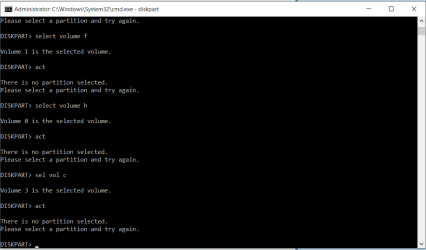
SIW2 , I followed your instructions , every line command is working till I wrote sel vol c , it says volume 3 is selected then after I write " act " it tells me that no partition has been selected ! what's the problem now ?
thanks in advance
 

Attachments

  • volume.PNG
    volume.PNG
    12.9 KB · Views: 0

My Computer My Computer

Computer type
PC/Desktop
OS
Windows 10 - 64 bit
Hi SIW2,
I have had the similar problem and tried the method you just explained here. Don't know what happened, when I tried to restart my system after completing all steps, it is not getting started and displaying the message "Reboot and select proper boot device or insert boot media in selected boot device and press a key". Please help me solve the issue.
Thanks
 

My Computer My Computer

Computer type
PC/Desktop
Computer Manufacturer/Model Number
Dell
OS
Windows 7 professional
Hi guys,

Slightly different issue but could really use some help!

I'm a noob to the forum but have read a tonne of threads on here and always find it a great source of info.

I'm trying to encrypt my Windows 7 laptop using full drive encryption through VeraCrypt. I know VeraCrypt well and have used it a lot, and I'm a CEH so I know a fair bit about computers. I'm not totally computer illiterate!

First issue I had with VeraCrypt was an error saying "The operating system does not boot from the selected drive" or something like that. So I followed this guide: TeraByte Unlimited Knowledge Base

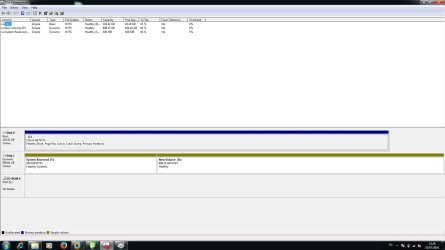
That all worked on and I now have the attached picture as a setup. I'm trying to now switch the System folder over to the C drive rather than the System Reserved (F) so that VeraCrypt will only recognise that as my primary and will stop trying to run full encryption on the System partition. I've deleted the letter, tried changing ownership (although not sure if successfully). If anyone can offer some sort of guide then I'd really appreciate it.

I've tried almost everything but if anyone has ideas then PLEASE help - I'm desperate to get this sorted and you'd be an absolute hero!

Thanks in advance and look forward to spending more time in the forum.

James
 

Attachments

  • Folders.jpg
    Folders.jpg
    116.9 KB · Views: 0

My Computer My Computer

Computer type
PC/Desktop
OS
Windows 7 Pro 64 bit
Hi Shaun,

Good post , nice and clear with all the needed info.

You're on the right track.

D/l this .zip, rt click it Properties>Unblock> Apply>OK .

View attachment 48712

Extract the .zip and copy bootsect.exe into your C:\windows\System32 folder.

Open an elevated command ( type cmd in start search box - when the black box pops up - rt click it and run as admin.)

Type the following , and press enter after each line:

bcdboot c:\windows /s c:

bootsect /nt60 c: /mbr

diskpart

sel vol c

act

sel vol f

inact

exi

close cmd prompt. Restart. You're good.

You might want to go into Bios and set Disk 0 as first HD in Bios boot order - not essential.

You need to keep the C letter for the 7 partition ( which you want to do anyway).

The others you can change as you like. In Disk Management, Rt click the one you want to change and select "Change drive letters and paths".

I just wanted to say "thank you". I upgraded my laptop with a new SSD and I made the mistake of having the two disks connected when I installed Windows (in fact, I didn't even know that it was recommended to only have one disk while performing the installation) - It wasn't until I started having some issues when I tried to install a second OS that I realized this. But thanks to your post, I was able to get everything right this time!
 

My Computer My Computer

Computer type
Laptop
Computer Manufacturer/Model Number
ASUS G75VW
OS
Windows 7 Ultimate x64
Back
Top