
Solved Clean install via Seven Forums tutorial error when activating

trinaz

New member
Member
VIP
Local time
6:03 AM
Messages
477
Location
Phoenix
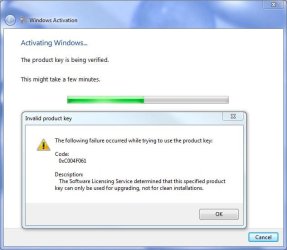
Followed the tutorial on a clean isntall via an upgrade disk but I can not get activation to clear as in the attached screen shot ?

This is an upgrade dvd...liscensed and original...and I successfully installed this on this system priviously. I changed the motherboard and now I'm getting the activation eror ?

Any suggestions on what to do ?

Thanks....TRinAZ
 

Attachments
  • activation.jpg
    activation.jpg
    38.4 KB · Views: 17

My Computer

Computer type
PC/Desktop
Computer Manufacturer/Model Number
Self built
OS
Windows 7 Pro 64bit SP1
CPU
AMD FX-6100 Six-Core Processor
Motherboard
M5A78L-M LX PLUS
Memory
2ea Corsair-1333MHz-PC3-10666-240-pin-CMX4GX3M1A1333C9
Graphics Card(s)
NVIDIA GeForce GT 630 - 1023MB (EVGA)
Sound Card
OnBoard Via High Def Audio
Monitor(s) Displays
Samsung 204B main - ASUS VS228 secondary
Screen Resolution
1920x1080 main - 1920x1080 secondary
Hard Drives
Samsung SSD 840 128GB Win7 Pro 64bit - Western Digital WDC 465GB - Seagate 640GB Sata B/U - Maxtor 500GB Sata B/U - Maxtor 200GB Sata
PSU
Antec 650 watt
Cooling
Multiple case fans
Keyboard
MS USB dual Wireless Keyboard - IntelliType Pro
Mouse
MS USB dual Wireless Mouse - IntelliPoint
Internet Speed
Cox Cable
Antivirus
Bitdefender IS 2014
Browser
FireFox Primary - IE 11
Other Info
Hauppaguge Win TV HVR-1250 (Model 22xxx, Hybrid ATSC/QAM)
Samsung HD103SI USB 1TB Desktop Drive - Backup & Disk Image storage
Followed the tutorial on a clean isntall via an upgrade disk but I can not get activation to clear as in the attached screen shot ?

This is an upgrade dvd...liscensed and original...and I successfully installed this on this system priviously. I changed the motherboard and now I'm getting the activation eror ?

Any suggestions on what to do ?

Thanks....TRinAZ

Use Option 3 or 4 in the tutorial. Option 4 (the double install) is easiest, although it takes longer.

Or, you could do it the way Microsoft intends: install the older qualifying OS first, and then update it. (You need one licensed older OS per Win7 upgrade license, if you wish to comply with the End User Licnense Agreement.)
 

My Computer

Computer Manufacturer/Model Number
homegrown
OS
Windows 7 Pro X64 SP1
CPU
Intel Core I7-3930k
Motherboard
Asus P9X79 Pro
Memory
16 GB Gskill DDR3-2133
Graphics Card(s)
eVGA GTX680
Sound Card
Creative X-Fi Titanium
Monitor(s) Displays
As PA246Q
Screen Resolution
1920 X 1200
Hard Drives
Corsair Force GT, 120 GB
WDC 1.5TB Caviar Black
PSU
PCP&C Silencer 750 Crossfire
Case
Silverstone FT02
Cooling
Noctua NH-D14
Keyboard
cheap Logitech USB
Mouse
Microsoft Intellimouse Explorer (old optical) USB
Internet Speed
6Mb cable
Other Info
Pioneer BDR-205
Samsung SH-203B
Monsoon 5.1 speakers
Use Option 3 or 4 in the tutorial. Option 4 (the double install) is easiest, although it takes longer.

It appears I made my goof by formating the drive prior to Windows re-install...appaerntly this wipes activation records.

Now...before I hit the activation error...I had installed most of the basic Win 7 programs...ie...Office...Printer...AV/Firewall and various utilities.

I also have a full backup of the system now (after reinstalling with upgrade DVD)...can I do the following....with sucess...before trying re-installing XP Pro and updating with the Win 7 Pro upgrade DVD:

1) reformat main drive
2) re-image the newly installation of Win 7 with a current Acronis tib file
3) use the Win 7 Pro 32bit upgrade DVD tore-install a clean windows with the Motherboard changes ?

Will this work to get around the activation error

Thanks
 

My Computer

Computer type
PC/Desktop
Computer Manufacturer/Model Number
Self built
OS
Windows 7 Pro 64bit SP1
CPU
AMD FX-6100 Six-Core Processor
Motherboard
M5A78L-M LX PLUS
Memory
2ea Corsair-1333MHz-PC3-10666-240-pin-CMX4GX3M1A1333C9
Graphics Card(s)
NVIDIA GeForce GT 630 - 1023MB (EVGA)
Sound Card
OnBoard Via High Def Audio
Monitor(s) Displays
Samsung 204B main - ASUS VS228 secondary
Screen Resolution
1920x1080 main - 1920x1080 secondary
Hard Drives
Samsung SSD 840 128GB Win7 Pro 64bit - Western Digital WDC 465GB - Seagate 640GB Sata B/U - Maxtor 500GB Sata B/U - Maxtor 200GB Sata
PSU
Antec 650 watt
Cooling
Multiple case fans
Keyboard
MS USB dual Wireless Keyboard - IntelliType Pro
Mouse
MS USB dual Wireless Mouse - IntelliPoint
Internet Speed
Cox Cable
Antivirus
Bitdefender IS 2014
Browser
FireFox Primary - IE 11
Other Info
Hauppaguge Win TV HVR-1250 (Model 22xxx, Hybrid ATSC/QAM)
Samsung HD103SI USB 1TB Desktop Drive - Backup & Disk Image storage
It couldn't be more clear in the tutorial what to do if you get that error:

OPTION THREE
Clean Install with a Registry Workaround for Error Code 0xc004f061


notesmall1.png
Note

If you get a activation error code 0xc004f061 while doing OPTION ONE or OPTION TWO above, then you will need to use this option instead documented by Paul Thurrott's Supersite Blog: Clean Install Windows 7 with Upgrade Media.


1. Do a clean install of your upgrade Windows 7 at boot without checking the Automatically activate Windows when I'm online box during the installation process.
NOTE: If you already did this from OPTION ONE above and got a activation error, then skip this step and just proceed to step 2 below instead. There's no need to reinstall again.

2. Ensure that there are no Windows Updates pending that would require a system reboot to finish installing. (You'll see an orange shield icon next to Shutdown in the Start Menu if this is the case). If there are, then restart the computer to let them finish installing before proceeding to step 3 below.

3. Click on the Download button below to download the MediaBootInstall.reg file, and save it to your desktop.

4. Double click on the downloaded MediaBootInstall.reg file to merge it, then approve the merge.
NOTE: This will change the MediaBootInstall value from 1 to 0 at the registry location below automatically for you.
HKEY_LOCAL_MACHINE\SOFTWARE\Microsoft\Windows\CurrentVersion\Setup\OOBE


5. Open a elevated command prompt.

6. In the elevated command prompt, type slmgr -rearm and press Enter. (See screenshot below)

7. Click on OK. (See screenshot below)

8. Close the elevated command prompt, and restart the computer.

9. When the computer is finished restarting, then manually activate Windows 7 with your product key number.
Quote: Originally Posted by Pual Thurrott
The method described above should work for just about anyone, with the understanding that any pending Windows Updates could screw things up. If that happens, just shut down, restart, rerun the command line sequence (steps 5 to 8), and retry activation.


Back
Top