Columns in Windows Explorer

sophor

New member
Local time
6:54 PM
Messages
2
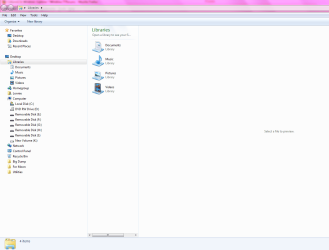
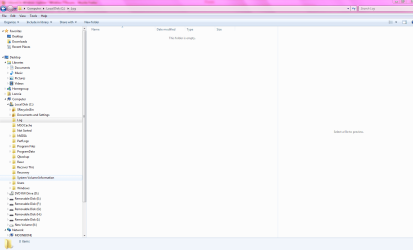
Is it possible to make the columns I choose to view stay put in Windows 7 Windows Explorer? I've tried turning the library view off. I still get a narrow view in the right pane showing the libraries and a huge preview pane. I want to expand the first column to show my selections, e.g. file type, date, etc., then stay put. I drag the little line out each time expanding my file view/details pane, but each time it pops back to the narrow library view. Thanks in advance.
 

My Computer

Computer Manufacturer/Model Number
HP a6152n
OS
Windows 7
CPU
Quad 6600
Memory
4
Graphics Card(s)
Nvidia 8800 GTS

My Computer

Computer Manufacturer/Model Number
Dell XPS420
OS
Vista Ult 64 bit Seven Ult RTM x64
CPU
Intel Core2 Quad Q6600 2.40 gigahertz
Memory
Crucial Ballistix 4x2GB PC2 6400
Graphics Card(s)
NVIDIA GeForce 8600 GTS 256 MB
Sound Card
Creative SB X-Fi audio
Monitor(s) Displays
HP w2207 + HPvs15
Screen Resolution
1680x1050 + 1024x768
Hard Drives
2-WD5000AAKS-500 GB
WD5000AAV-500 GB external
Keyboard
Microsoft Comfort Curve
Mouse
MX Revolution
Other Info
Wacom Intuos 2 Graphics Tablet
Experience Index=5.5
Hello,

Thanks for responding to my post. When I open Windows Explorer I see what's shown in capture 1. I want it to stay like capture 2 with the details pane expanded. How can I make that my default view when opening Windows Explorer?

Also, and maybe I should make a new topic for this, but I've noticed that folders I create on my desktop with shortcuts open to Windows Explorer, as opposed to a window on my desktop simply showing the shortcut icons. Not a huge problem, but it would be nice to revert to the old behavior for some folders.

sophor
 

Attachments

  • Capture1.PNG
    Capture1.PNG
    36 KB · Views: 375
  • Capture2.PNG
    Capture2.PNG
    43.6 KB · Views: 344

My Computer

Computer Manufacturer/Model Number
HP a6152n
OS
Windows 7
CPU
Quad 6600
Memory
4
Graphics Card(s)
Nvidia 8800 GTS
Go to View > Choose details...

There you can set the column widths.

Additionnaly you can hit CTRL-+ (numpad plus) to auto expand the columns. Not sure about a laptop without a numpad, but i'd sure like to know :)

Check these out:
Keyboard Shortcuts - When You Can't or Don't Want to Use a Mouse Here are Ways to Use Your Keyboard
http://www.onecomputerguy.com/explorer_tips.htm#right_panel

and while on the topic of keyboard shortcuts, this one i can't live without - ALT-D when using a browser! :geek: (F6 too, but alt-D is easier when you type without looking)
 
Last edited:

My Computer

Computer Manufacturer/Model Number
Lenovo T61
OS
Windows 7/2008
CPU
core2duo 2.0
Motherboard
Mobile Intel 965 chipset
Memory
4GB
Graphics Card(s)
Nvidia Quadro NVS140M
Hard Drives
WD3200BEKT (7200rpm)
Last edited by a moderator:

My Computer

OS
64
In the Vista Windows Explorer you only have the option to custom set the column widths when you're in the Details View. Isn't that also true in Windows 7?
 

My Computer

Computer Manufacturer/Model Number
HP Pavillion dv5t (generation 1)
OS
Vista 64 bit and 32 bit (SP2)
CPU
Intel(R) Core(TM)2 Duo Processor T9400 (2.53 GHz
Memory
4GB DDR2 System Memory (2 Dimm)
Graphics Card(s)
512 MB NVIDIA GeForce 9600M GT
Monitor(s) Displays
15.4" diagonal WSXGA+ High-Definition HP BrightView Widescre
Screen Resolution
1680 x 1050
Hard Drives
320GB 5400RPM SATA Hard Drive with HP ProtectSmart Hard Drive Protection
Keyboard
Built-in HP
Mouse
Built in - Synaptics TouchPad V6.5 on PS/2 Port
Internet Speed
Max
Other Info
~ Intel Next-Gen Wireless-N Mini-card w/Bluetooth ~ Blu-Ray ROM DVD+/-R/RW ~ Integ. HDTV Hybrid Tuner ~ 12 Cell Battery ~ MS Office (Home Premium) 2007 ~
Back
Top