Compatibility Mode

How to Run a Program in Compatibility Mode in Windows 7


   Information
Compatibility mode allows a older program written for an earlier versions of Windows to possibly run in Windows 7. You can also use Compatibility mode to always have a program to Run as an administrator.

   Note
32 bit Windows has emulation for 16 bit programs built in. 64-bit Windows only has emulation for 32 bit programs. If the program ran on 32-bit Windows 7 and not 64 bit, then chances are it's a 16 bit program and you may have to use something like DosBox or XP Mode to be able to run it in 64-bit Windows.

   Tip
If changing the Compatibility settings does not fix the problem, go to the program manufacturer's website to see if there is an update for the program.

To see if your software is compatible with Windows 7, check it here: Windows 7 Compatibility Center home

   Warning
Do not use Compatibility mode on antivirus programs, firewall programs, disk utilities, or other system programs because it could cause data loss or create a security risk.

You only want to use these type of programs for the Windows listed in their system requirements.


OPTION ONE

To Set Compatibility Mode of Application in Properties Page

1. Right click on the program's shortcut (LNK file), .EXE file, BAT file, CMD file, or MSI file.

2. Click on Properties.

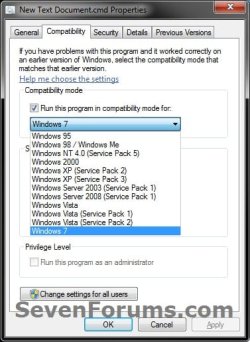
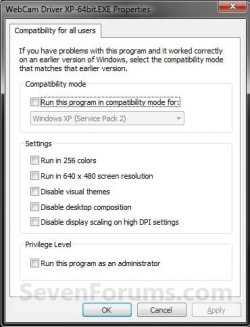
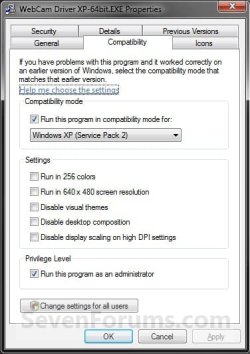
3. Click on the Compatibility tab. (see screenshot below)
NOTE: If the Compatiblity options are grayed out, then it is a 64 bit program and cannot be changed.Compatibility-1.jpg

4. To Run a Program in Compatibility Mode in Only your User Account
NOTE: Runs the program using settings from a previous version of Windows. Try this setting if you know the program is designed for (or worked in) a specific previous version of Windows.A) Check the Run this program in compatibility mode for box. (see screenshot below)

B) Click on the drop down menu arrow and select which version of Windows the program was made for. (see screenshot below)
NOTE: Always pick the latest Windows version the program was written for to have a better chance of it running properly in Windows 7.

   Warning
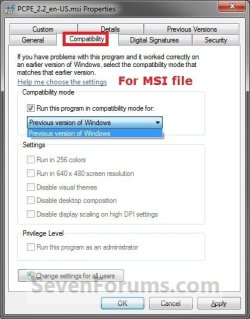
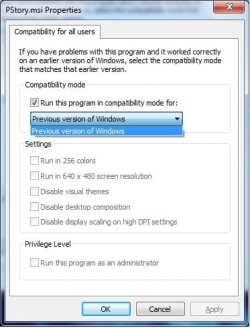
MSI files (right screenshot below) will only have the Previous version of Windows option available for it. This option will allow Windows 7 to automatically use the previous version compatibility mode it thinks is best for the MSI file to run properly as. You will not be able to do steps 5 and 6 below.
compatibility.jpgMSI_Properties.jpg


5. To Change the Settings for a Program in Only your User Account
NOTE: These settings will be grayed out and not available for 64-bit programs.A) Check or uncheck the settings you want for the program. (see screenshot below)
NOTE: See the table below the screenshot for a description of each setting.Settings.jpg

SettingDescription
Run in 256 colorsUses a limited set of colors in the program. Some older programs are designed to use fewer colors.
Run in 640 × 480 screen resolutionRuns the program in a smaller-sized window. Try this setting if the graphical user interface appears jagged or is rendered improperly.
Disable visual themesDisables themes on the program. Try this setting if you notice problems with the menus or buttons on the title bar of the program.
Disable desktop compositionTurns off transparency and other advanced display features. Choose this setting if window movement appears erratic or you notice other display problems.
Disable display scaling on high DPI settingsTurns off automatic resizing of programs if large-scale font size (DPI) is in use. Try this setting if large-scale fonts are interfering with the appearance of the program.


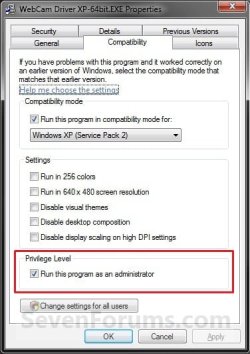
6. To Change the Privilege Level of a Program in Only your User Account
NOTE: Runs the program as an administrator. Some programs require administrator privileges to run properly. If you are not currently logged on as an administrator, this option is not available.A) Check or uncheck the Run this program as an administrator box to enable or disable this option. (see screenshot below)Privilege Level.jpg


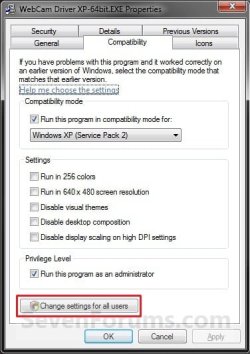
7. To Change These Settings for All Users
NOTE: You must be logged in as an administrator to be able to do this step. A) Click on the Change settings for all users button. (See screenshot below)All_Users.jpg

B) Repeat steps 4, 5, and 6 in this new window to apply them to all users on the computer, and click on OK. (see screenshot below)
NOTE: Changes made here will override and gray out the same setting in the window used in step 4, 5, or 6 above.Compatibility_All_Users.jpg


8. Click on OK to apply the changes. (see screenshot below step 3)


OPTION TWO

Set Compatibility Mode of Application using "Troubleshoot compatibility"


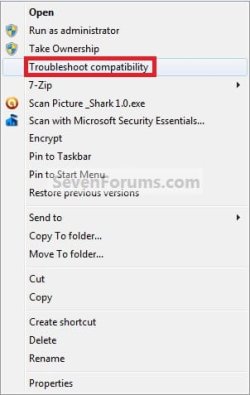
NOTE: This option opens the Program Compatibility Assistant wizard to let Windows 7 help decide what is best to try and make the program compatible.1. Right click on the program's shortcut (LNK file), .EXE file, BAT file, CMD file, or MSI file, and click on Troubleshoot compatibility. (see screenshot below)
NOTE: You will not have the Troubleshoot compatibility option available for pinned items in the Start Menu or on the taskbar. You will only have the Troubleshoot compatibility option available for 3rd party programs in the Start Menu - All Programs area instead.Context_menu.jpg

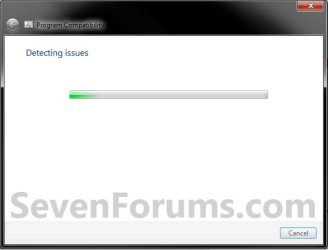
2. You will see this for a moment while Windows 7 is detecting what the issues may be with the program. (see screenshot below)StepA.jpg

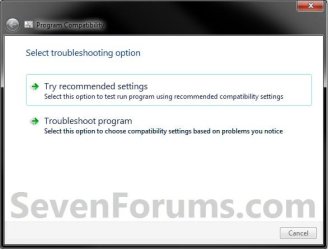
3. The wizard will now give you a list of choices to choose from. Select the option you would like to try, then follow the rest of the onscreen instructions until you are through troubleshooting the compatibility issue with the program. (see screenshot below)StepB.jpg


OPTION THREE

To Set Compatibility Mode of Application in Registry Editor

1. Open the Start Menu, then type regedit in the search box and press Enter.

2. If prompted by UAC, then click on Yes.

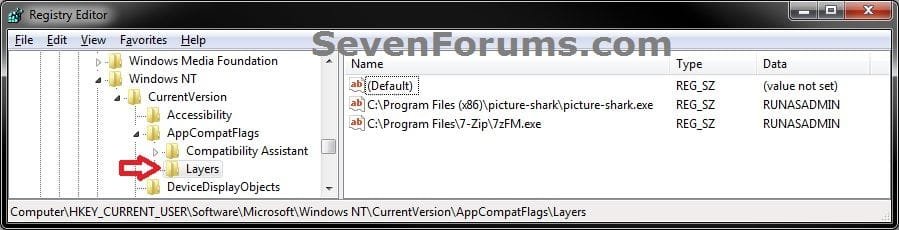
3. In regedit, navigate to each location below one at a time and do the steps below for each location. (see screenshot below)

Code:
HKEY_CURRENT_USER\Software\Microsoft\Windows NT\CurrentVersion\AppCompatFlags\Layers
Code:
HKEY_LOCAL_MACHINE\SOFTWARE\Microsoft\Windows NT\CurrentVersion\AppCompatFlags\Layers
Reg1.jpg

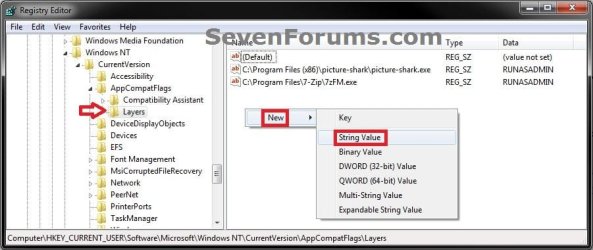
4. To Run a Program in Compatibility ModeA) In the right pane of Layers, right click on a empty area and click on New, then on String Value. (see screenshot below)Reg2.jpg

B) Type in the full path of the program's exe file and press Enter, then right click on the full path and click on Modify. (see screenshot below)Reg3.jpg

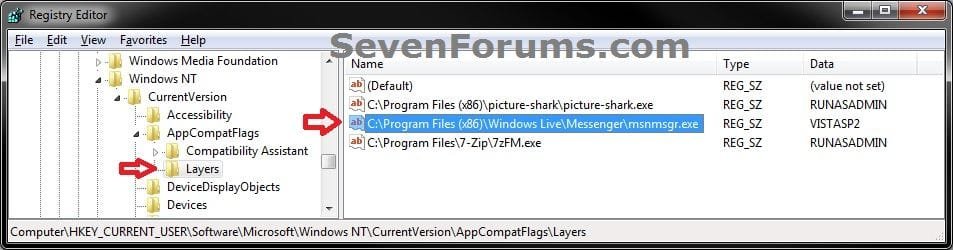
C) Type in a single or combination of Data values (see tables below) for how you want to run the program as, and click on OK. (see screenshot below)
NOTE: If you use more than one Settings, then you must add them in the order they are in the table below.

[Compatibility Mode (only one)] + space + [Settings (one or more with a space inbetween)] + space + [Privilege Level]Reg4.jpg

   Tip

EXAMPLE ONE:
To run a program as if it was in Windows Vista SP2 (Compatibility Mode), and Run in 256 colors (Settings), and to run as administrator you would type:

VISTASP2 256Color RUNASADMIN

EXAMPLE TWO:
Say you also wanted to Run in 640 x 480 screen resolution (2nd Settings) with the above example, you would type:

VISTASP2 256Color 640x480 RUNASADMIN


Compatibility ModeData Value
Windows 95WIN95
Windows 98 / Windows MeWIN98
Windows NT 4.0 (Service Pack 5)NT4SP5
Windows 2000WIN2000
Windows XP (Service Pack 2)WINXPSP2
Windows XP (Service Pack 3)WINXPSP3
Windows Server 2003 (Service Pack 1)WINSRV03SP1
Windows Server 2008 (Service Pack 1)WINSRV08SP1
Windows VistaVISTARTM
Windows Vista (Service Pack 1)VISTASP1
Windows Vista (Service Pack 2)VISTASP2
Windows 7WIN7RTM

SettingsData Value
Run in 256 colors256Color
Run in 640 x 480 screen resolution640x480
Disable visual themesDISABLETHEMES
Disable desktop compositionDISABLEDWM
Disable display scaling on high DPI settingsHIGHDPIAWARE

Privilege LevelData Value
Run this program as an AdministratorRUNASADMIN

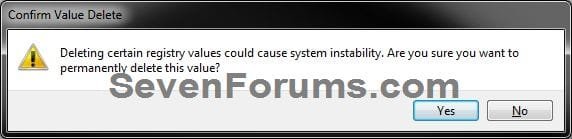
5. To Stop a Program from Running in Compatibility ModeA) In the right pane of Layers, right click on the full path Name and click on Delete. (see screenshot below)Delete1.jpg

B) Click on Yes to confirm deletion. (see screenshot below)Delete2.jpg


6. Close regedit when done.
NOTE: Some programs may require you to restart the computer for this to be applied.


That's it,
Shawn Brink


Attachments

  • Reg5.jpg
    Reg5.jpg
    59 KB · Views: 51
Last edited:
thanks, just installed w7 yestarday and I was having trouble setting up my printer at work. Follow your instructions and it worked perfect.
 

My Computer

OS
windows 7 RC (original vista business)
You're welcome Jotacorredor, and welcome to Seven Forums. :)
 

My Computer

Computer type
PC/Desktop
Computer Manufacturer/Model Number
Self built custom
OS
64-bit Windows 11 Pro for Workstations
CPU
Intel i7-8700K OC'd to 5 GHz
Motherboard
ASUS ROG Maximus XI Formula Z390
Memory
64 GB (4x16GB) G.SKILL TridentZ RGB DDR4 3600 MHz
Graphics Card(s)
ASUS ROG-STRIX-GTX1080TI-O11G-GAMING
Sound Card
Integrated
Monitor(s) Displays
2 x Samsung Odyssey G7 27"
Screen Resolution
2560x1440
Hard Drives
1TB Samsung 990 PRO M.2,
4TB Samsung 990 PRO PRO M.2,
TerraMaster F8 SSD Plus NAS
PSU
Seasonic Prime Titanium 850W
Case
Thermaltake Core P3
Cooling
Corsair Hydro H115i
Keyboard
Logitech wireless K800
Mouse
Logitech MX Master 4
Internet Speed
2 Gb/s Download and 100 Mb/s Upload
Antivirus
Malwarebyte Anti-Malware Premium
Browser
Google Chrome
Other Info
Logitech Z625 speaker system,
Logitech BRIO 4K Pro webcam,
HP Color LaserJet Pro MFP M477fdn,
APC SMART-UPS RT 1000 XL - SURT1000XLI,
Galaxy S23 Plus phone
I am using Windows 7 ultimate RC1. When I go to use compatibility mode to install Photostory 3 it does not give the same dropdown options shown in your tuorial windows. It only says "previous version of windows", and no other choice. And the program does not install.

I also tried the wizard and it says something like "disabled version check". But it still doesn't install.

I have found numerous sites and pictures on the web of people running photostory 3 on thier Windows 7 machines and installed it and run it using the steps above.

How do I make the OS options show up for campatibility mode?

Thanks, -Tim
 

My Computer

OS
Windows 7 Ultimate
Hello Tim, and welcome to Seven Forums.

Are you sure that you are doing this to the installation/setup file?

Could you post a screenshot of this? It may help determine what may be wrong.

Shawn
 

My Computer

Computer type
PC/Desktop
Computer Manufacturer/Model Number
Self built custom
OS
64-bit Windows 11 Pro for Workstations
CPU
Intel i7-8700K OC'd to 5 GHz
Motherboard
ASUS ROG Maximus XI Formula Z390
Memory
64 GB (4x16GB) G.SKILL TridentZ RGB DDR4 3600 MHz
Graphics Card(s)
ASUS ROG-STRIX-GTX1080TI-O11G-GAMING
Sound Card
Integrated
Monitor(s) Displays
2 x Samsung Odyssey G7 27"
Screen Resolution
2560x1440
Hard Drives
1TB Samsung 990 PRO M.2,
4TB Samsung 990 PRO PRO M.2,
TerraMaster F8 SSD Plus NAS
PSU
Seasonic Prime Titanium 850W
Case
Thermaltake Core P3
Cooling
Corsair Hydro H115i
Keyboard
Logitech wireless K800
Mouse
Logitech MX Master 4
Internet Speed
2 Gb/s Download and 100 Mb/s Upload
Antivirus
Malwarebyte Anti-Malware Premium
Browser
Google Chrome
Other Info
Logitech Z625 speaker system,
Logitech BRIO 4K Pro webcam,
HP Color LaserJet Pro MFP M477fdn,
APC SMART-UPS RT 1000 XL - SURT1000XLI,
Galaxy S23 Plus phone
Here is a pic of what I see when I select the installer.

CompMode.jpg

I was expecting to see the list of past windows OS's like in your tutorial. I have a hunch that this is trying to run in vista mode, which it won't work in either. But it runs fine on my other machine with XP on it.
 

My Computer

OS
Windows 7 Ultimate
Tim,

After some research on this, MSI files only have this option available. Instead of letting you choose what previos version of Windows to run the MSI file in compatibily mode as, it has Windows 7 automatically select what it thinks is best for it instead.

It just doesn't seem like it is going to be compatible. You might see if there may be an update for it that addresses this. :(
 

My Computer

Computer type
PC/Desktop
Computer Manufacturer/Model Number
Self built custom
OS
64-bit Windows 11 Pro for Workstations
CPU
Intel i7-8700K OC'd to 5 GHz
Motherboard
ASUS ROG Maximus XI Formula Z390
Memory
64 GB (4x16GB) G.SKILL TridentZ RGB DDR4 3600 MHz
Graphics Card(s)
ASUS ROG-STRIX-GTX1080TI-O11G-GAMING
Sound Card
Integrated
Monitor(s) Displays
2 x Samsung Odyssey G7 27"
Screen Resolution
2560x1440
Hard Drives
1TB Samsung 990 PRO M.2,
4TB Samsung 990 PRO PRO M.2,
TerraMaster F8 SSD Plus NAS
PSU
Seasonic Prime Titanium 850W
Case
Thermaltake Core P3
Cooling
Corsair Hydro H115i
Keyboard
Logitech wireless K800
Mouse
Logitech MX Master 4
Internet Speed
2 Gb/s Download and 100 Mb/s Upload
Antivirus
Malwarebyte Anti-Malware Premium
Browser
Google Chrome
Other Info
Logitech Z625 speaker system,
Logitech BRIO 4K Pro webcam,
HP Color LaserJet Pro MFP M477fdn,
APC SMART-UPS RT 1000 XL - SURT1000XLI,
Galaxy S23 Plus phone
Just a question

I have been running Windows 7 Enterprise for quite some time now and I recieved a call from a friend in a different state. She just got a new PC from a local computer shop and is trying to get some of her old programs to work with Windows 7 Home Premium. When I asked her to right click on the program Icon and go to properties, the compatibility tab is not there.

After reading up a little more on the different Windows 7 operating systems, it looks like it should be available. I am having trouble finding why its not there.

Any Ideas?
 

My Computer

Computer Manufacturer/Model Number
Custom Build
OS
Windows 7 Enterprise
CPU
Intel Quad Core Q9550 @ 2.83 GHz
Motherboard
Asus Rampage Extreme
Memory
8 Gigs DDR 3
Graphics Card(s)
ATI Radeon HD 4870X2
Sound Card
Fatality
Monitor(s) Displays
Gateway HD 1080P
Hard Drives
Seagate 1.5 TB drives (Raid 0)
Seagate 1.5 TB drives (x3 for storage
PSU
1000 Watt
Case
Antec Twelve Hundred
Cooling
Thermaltake Big Water
I have been running Windows 7 Enterprise for quite some time now and I recieved a call from a friend in a different state. She just got a new PC from a local computer shop and is trying to get some of her old programs to work with Windows 7 Home Premium. When I asked her to right click on the program Icon and go to properties, the compatibility tab is not there.

After reading up a little more on the different Windows 7 operating systems, it looks like it should be available. I am having trouble finding why its not there.

Any Ideas?
If it is a Windows Installer than that option isn't available
 

My Computer

Computer Manufacturer/Model Number
Compal JFT02 (Custom Build Laptop)
OS
Windows 7 Home Premium x64 - Mac OS X 10.6.4 x64
CPU
Intel Core 2 Duo T9300 2.5 GHz
Motherboard
JFT02
Memory
4GB Kingston DDR2-800
Graphics Card(s)
NVIDIA Geforce 8600M GT (512MB Model)
Sound Card
Realtek HD Audio
Monitor(s) Displays
WUXGA Standard Laptop Display
Screen Resolution
1680*1050
Hard Drives
Toshiba 320GB 5400RPM Laptop HD
PSU
Standard Laptop Power Supply
Case
Standard Laptop Case
Cooling
Standard Laptop Cooling
Keyboard
Standard Laptop 105 Key-Keyboard
Mouse
Synaptics Touchpad
Internet Speed
Verizion Online DSL 3360/864 kbs (dl/up)
Hi all & thank you for the tutorial Shawn, If i have a program already installed can i just change the compatibility mode of the program or do i need to reinstall it and apply compatibility mode to the installer?

And if i have an old program (say 2007) should i just use compatibilty mode when i install it because it is that old (worked fine on Vista SP2) or try installing it normally?
 

My Computer

Computer Manufacturer/Model Number
Hewlett Packard Compaq Presario CQ60-305au
OS
Windows Seven Home Premium 32bit SP1
CPU
AMD Athlon QI46 2.1Ghz
Motherboard
Wistron 303c
Memory
2048 Mb DDR2 SD RAM
Graphics Card(s)
NVidea GE GoForce 8200M G/256mb dedicated graphics memory
Sound Card
MCP78S NVidea high definition
Monitor(s) Displays
15.6" High definition Brightview Widescreen
Screen Resolution
1336x768
Hard Drives
Toshiba MK2555GSX ATA
Hello Mitchell,

Sure, you can change the Compatibility Mode settings for a program at anytime without having to uninstall it.

It would be best to try installing the program without Compatibility Mode first to see if it runs properly or not in Windows 7. If not, then you can always change the Compatibility Mode settings for the now installed program to one that may work instead.

Hope this helps,
Shawn
 

My Computer

Computer type
PC/Desktop
Computer Manufacturer/Model Number
Self built custom
OS
64-bit Windows 11 Pro for Workstations
CPU
Intel i7-8700K OC'd to 5 GHz
Motherboard
ASUS ROG Maximus XI Formula Z390
Memory
64 GB (4x16GB) G.SKILL TridentZ RGB DDR4 3600 MHz
Graphics Card(s)
ASUS ROG-STRIX-GTX1080TI-O11G-GAMING
Sound Card
Integrated
Monitor(s) Displays
2 x Samsung Odyssey G7 27"
Screen Resolution
2560x1440
Hard Drives
1TB Samsung 990 PRO M.2,
4TB Samsung 990 PRO PRO M.2,
TerraMaster F8 SSD Plus NAS
PSU
Seasonic Prime Titanium 850W
Case
Thermaltake Core P3
Cooling
Corsair Hydro H115i
Keyboard
Logitech wireless K800
Mouse
Logitech MX Master 4
Internet Speed
2 Gb/s Download and 100 Mb/s Upload
Antivirus
Malwarebyte Anti-Malware Premium
Browser
Google Chrome
Other Info
Logitech Z625 speaker system,
Logitech BRIO 4K Pro webcam,
HP Color LaserJet Pro MFP M477fdn,
APC SMART-UPS RT 1000 XL - SURT1000XLI,
Galaxy S23 Plus phone
Hello Mitchell,

Sure, you can change the Compatibility Mode settings for a program at anytime without having to uninstall it.

It would be best to try installing the program without Compatibility Mode first to see if it runs properly or not in Windows 7. If not, then you can always change the Compatibility Mode settings for the now installed program to one that may work instead.

Hope this helps,
Shawn

Thank you Shawn, that gives me clarity not only for now but also for the future much appreciatted
 

My Computer

Computer Manufacturer/Model Number
Hewlett Packard Compaq Presario CQ60-305au
OS
Windows Seven Home Premium 32bit SP1
CPU
AMD Athlon QI46 2.1Ghz
Motherboard
Wistron 303c
Memory
2048 Mb DDR2 SD RAM
Graphics Card(s)
NVidea GE GoForce 8200M G/256mb dedicated graphics memory
Sound Card
MCP78S NVidea high definition
Monitor(s) Displays
15.6" High definition Brightview Widescreen
Screen Resolution
1336x768
Hard Drives
Toshiba MK2555GSX ATA
You're most welcome Mitchell. :)
 

My Computer

Computer type
PC/Desktop
Computer Manufacturer/Model Number
Self built custom
OS
64-bit Windows 11 Pro for Workstations
CPU
Intel i7-8700K OC'd to 5 GHz
Motherboard
ASUS ROG Maximus XI Formula Z390
Memory
64 GB (4x16GB) G.SKILL TridentZ RGB DDR4 3600 MHz
Graphics Card(s)
ASUS ROG-STRIX-GTX1080TI-O11G-GAMING
Sound Card
Integrated
Monitor(s) Displays
2 x Samsung Odyssey G7 27"
Screen Resolution
2560x1440
Hard Drives
1TB Samsung 990 PRO M.2,
4TB Samsung 990 PRO PRO M.2,
TerraMaster F8 SSD Plus NAS
PSU
Seasonic Prime Titanium 850W
Case
Thermaltake Core P3
Cooling
Corsair Hydro H115i
Keyboard
Logitech wireless K800
Mouse
Logitech MX Master 4
Internet Speed
2 Gb/s Download and 100 Mb/s Upload
Antivirus
Malwarebyte Anti-Malware Premium
Browser
Google Chrome
Other Info
Logitech Z625 speaker system,
Logitech BRIO 4K Pro webcam,
HP Color LaserJet Pro MFP M477fdn,
APC SMART-UPS RT 1000 XL - SURT1000XLI,
Galaxy S23 Plus phone
Excellent post and very helpful. I have a question regaring one element of it:

3. Click on the Compatibility tab. (See screenshot below)
NOTE: If the Compatiblity options are grayed out, then it is a 64 bit program and cannot be changed.
Why is it that you cannot change compatability options on a 64 bit program?

Is there any way around this?

The reason is that I have had to install the x86 version of Media Player Classic as opposed to the 64 bit version as I need to 'disable visual themes' and 'disable desktop composition' in order for my ATI Radeon 'theatre mode' to correctly launch the application in full screen on my second display.

Without disabling these options the application incorectly launches in a window on my second display.

As the compatability options were greyed-out when running the 64bit version of the application I had to install the x86 version instead :confused:

Does anyone know how to set these compatability options for 64bit applications?
 

My Computer

Computer Manufacturer/Model Number
Dell
OS
Windows 7 64bit
CPU
AMD Phenom X4 9750
Memory
8192Mb
Graphics Card(s)
Radeon HD 3600
Hello Thomsk, and welcome to Seven Forums.

You might see if you can adjust the Compatibility Mode settings for the 64-bit program using the tutorial below. It's the same in Windows 7 as Vista.

Compatibility Mode List of Programs - Vista Forums

Hope this helps,
Shawn
 

My Computer

Computer type
PC/Desktop
Computer Manufacturer/Model Number
Self built custom
OS
64-bit Windows 11 Pro for Workstations
CPU
Intel i7-8700K OC'd to 5 GHz
Motherboard
ASUS ROG Maximus XI Formula Z390
Memory
64 GB (4x16GB) G.SKILL TridentZ RGB DDR4 3600 MHz
Graphics Card(s)
ASUS ROG-STRIX-GTX1080TI-O11G-GAMING
Sound Card
Integrated
Monitor(s) Displays
2 x Samsung Odyssey G7 27"
Screen Resolution
2560x1440
Hard Drives
1TB Samsung 990 PRO M.2,
4TB Samsung 990 PRO PRO M.2,
TerraMaster F8 SSD Plus NAS
PSU
Seasonic Prime Titanium 850W
Case
Thermaltake Core P3
Cooling
Corsair Hydro H115i
Keyboard
Logitech wireless K800
Mouse
Logitech MX Master 4
Internet Speed
2 Gb/s Download and 100 Mb/s Upload
Antivirus
Malwarebyte Anti-Malware Premium
Browser
Google Chrome
Other Info
Logitech Z625 speaker system,
Logitech BRIO 4K Pro webcam,
HP Color LaserJet Pro MFP M477fdn,
APC SMART-UPS RT 1000 XL - SURT1000XLI,
Galaxy S23 Plus phone
Brink - Thanks for the welcome and the link. I'll give that a try to see if it works for me.
 

My Computer

Computer Manufacturer/Model Number
Dell
OS
Windows 7 64bit
CPU
AMD Phenom X4 9750
Memory
8192Mb
Graphics Card(s)
Radeon HD 3600
network connection

Shawn:

Great article on compatibility mode. My problem is since upgrading from Windows Vista Home Premium to Windows 7 Home Premium, I get random internet disconnects when downloading anything. I was wondering if compatibility mode could be used on my modem? Never had any problems with this before upgrading to 7. Really love 7 but this is driving me nuts.

Thanks,

Rick
 

My Computer

Computer Manufacturer/Model Number
Systemax
OS
windows 7
CPU
Intel Pentium 4 Processor 550 3.4 GHz/800FSB/1M Cache
Motherboard
D915G Motherboard
Memory
1GB DDR333 PC2700 Memory (512MB x 2)
Graphics Card(s)
ATI X300SE 128MB Graphics Card w/ TV-Out PCI Express
Sound Card
SoundBlaster Live 24-Bit PCI Sound Card
Monitor(s) Displays
LG Flatpanel
Hard Drives
250GB 7200RPM 3G SATA II Hard Drive
PSU
350w
Case
Mid-Tower ATX Chassis w/ 350W PS D915G Motherboard
Hello Rick, and welcome to Seven Forums.

I do not believe this would make any difference. You might post this with all details about your connection issue that you think may help in the Network & Sharing forum though to see if we can get you a solution.
 

My Computer

Computer type
PC/Desktop
Computer Manufacturer/Model Number
Self built custom
OS
64-bit Windows 11 Pro for Workstations
CPU
Intel i7-8700K OC'd to 5 GHz
Motherboard
ASUS ROG Maximus XI Formula Z390
Memory
64 GB (4x16GB) G.SKILL TridentZ RGB DDR4 3600 MHz
Graphics Card(s)
ASUS ROG-STRIX-GTX1080TI-O11G-GAMING
Sound Card
Integrated
Monitor(s) Displays
2 x Samsung Odyssey G7 27"
Screen Resolution
2560x1440
Hard Drives
1TB Samsung 990 PRO M.2,
4TB Samsung 990 PRO PRO M.2,
TerraMaster F8 SSD Plus NAS
PSU
Seasonic Prime Titanium 850W
Case
Thermaltake Core P3
Cooling
Corsair Hydro H115i
Keyboard
Logitech wireless K800
Mouse
Logitech MX Master 4
Internet Speed
2 Gb/s Download and 100 Mb/s Upload
Antivirus
Malwarebyte Anti-Malware Premium
Browser
Google Chrome
Other Info
Logitech Z625 speaker system,
Logitech BRIO 4K Pro webcam,
HP Color LaserJet Pro MFP M477fdn,
APC SMART-UPS RT 1000 XL - SURT1000XLI,
Galaxy S23 Plus phone
is windows vista compatibility mode available in windows 7 home premium edition as i understand you can not use xp mode unless you have more than just 7 premium?
 

My Computer

OS
windows xp at current
Hello Dazzap, and welcome to Seven Forums.

Yes, Vista compatibility mode is available in all editions of Windows 7, but you will still not be able to use "Windows XP Mode" in any edition except Windows 7 Professional, Ultimate, or Enterprise. :(
 

My Computer

Computer type
PC/Desktop
Computer Manufacturer/Model Number
Self built custom
OS
64-bit Windows 11 Pro for Workstations
CPU
Intel i7-8700K OC'd to 5 GHz
Motherboard
ASUS ROG Maximus XI Formula Z390
Memory
64 GB (4x16GB) G.SKILL TridentZ RGB DDR4 3600 MHz
Graphics Card(s)
ASUS ROG-STRIX-GTX1080TI-O11G-GAMING
Sound Card
Integrated
Monitor(s) Displays
2 x Samsung Odyssey G7 27"
Screen Resolution
2560x1440
Hard Drives
1TB Samsung 990 PRO M.2,
4TB Samsung 990 PRO PRO M.2,
TerraMaster F8 SSD Plus NAS
PSU
Seasonic Prime Titanium 850W
Case
Thermaltake Core P3
Cooling
Corsair Hydro H115i
Keyboard
Logitech wireless K800
Mouse
Logitech MX Master 4
Internet Speed
2 Gb/s Download and 100 Mb/s Upload
Antivirus
Malwarebyte Anti-Malware Premium
Browser
Google Chrome
Other Info
Logitech Z625 speaker system,
Logitech BRIO 4K Pro webcam,
HP Color LaserJet Pro MFP M477fdn,
APC SMART-UPS RT 1000 XL - SURT1000XLI,
Galaxy S23 Plus phone
Back
Top