Completely wipe HDD using Windows 7 Installation Disc (X: Drive?)

WorseDoughnut

New member
Local time
5:20 PM
Messages
2
Location
Long Island, New York
Alright, so I plan to install a third hard drive into my case tomorrow (or whenever it ships to my house), and before I do I want to make sure I have my current 2 TB HDDs completely blank. (I plan on using the new SSD for booting Win 7 and a few other major programs and use the HDDs for storage only).

The last time I did this (when I installed the 2nd HDD) I used the WIn 7 installation disc and somehow got the command line open to the RAM-based drive (X:) from the "Click Here To Install" screen and proceeded to use that to completely erase the contents of my HDD.

My only problem, is that I complacently forgot how to do that, and scouring the internet has yet to yield any helpful information.

And anyone remind me of the key combination for opening the command line to the X: drive and the syntax for wiping the hard drive from the windows 7 installation disc?
 

My Computer My Computer

Computer type
PC/Desktop
Computer Manufacturer/Model Number
Custom Built
OS
Windows 7 Ult. (64 - bit)
CPU
AMD 8 -Core
Motherboard
ASUS M5 A99X EVO
Memory
32 GB RAM
Graphics Card(s)
Nvidia GTX 680
Hard Drives
1 TB Hitachi
Antivirus
Symantec Endpoint Protection
Browser
Chrome / Torch
On the Install Now screen hit Shift+F10

You will get the X:\Source path inside the command prompt.
 

My Computer My Computer

Computer Manufacturer/Model Number
Custom Built
OS
Windows 7 Ultimate 32-Bit & Windows 7 Ultimate 64-Bit
CPU
Intel Core i7 CPU 950 @ 3.07GHz
Motherboard
ASUS P6T DELUXE V2
Memory
OCZ 6GB (3 x 2GB) 240-Pin DDR3 SDRAM DDR3 1600 OCZ3X1600R2
Graphics Card(s)
ATI Radeon HD 5700 Series
Sound Card
OnBoard
Hard Drives
WD6400AACS-00M3B0 (640GB SATA )
PSU
CORSAIR 850w
Case
NZXT LEXA
Cooling
Intel Stock Heatsink Fan
Keyboard
Microsoft Wireless Laser Keyboard 7000
Mouse
Microsoft Wireless Laser Mouse 7000
On the Install Now screen hit Shift+F10

You will get the X:\Source path inside the command prompt.

Happen to know what I should type in to the command line in order to wipe the HDD?
 

My Computer My Computer

Computer type
PC/Desktop
Computer Manufacturer/Model Number
Custom Built
OS
Windows 7 Ult. (64 - bit)
CPU
AMD 8 -Core
Motherboard
ASUS M5 A99X EVO
Memory
32 GB RAM
Graphics Card(s)
Nvidia GTX 680
Hard Drives
1 TB Hitachi
Antivirus
Symantec Endpoint Protection
Browser
Chrome / Torch
Since you need to Clean Install Windows 7 to the SSD with all other HD's unplugged anyway, you can wait til after install when you plug them back in to Delete and repartition the other HD's partitions in Disk Mgmt.
 
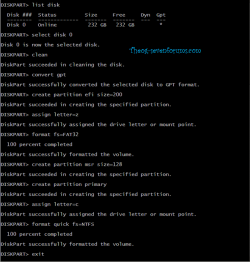
Here are the commands . Press <ENTER> after each line

diskpart list disk select disk # ( # number of the HARD DRIVE ) clean create partition primary select partition 1 active format fs=ntfs label=”AnyThingYouwantHere” quick assign Letter=C exit exit
 

My Computer My Computer

Computer Manufacturer/Model Number
Custom Built
OS
Windows 7 Ultimate 32-Bit & Windows 7 Ultimate 64-Bit
CPU
Intel Core i7 CPU 950 @ 3.07GHz
Motherboard
ASUS P6T DELUXE V2
Memory
OCZ 6GB (3 x 2GB) 240-Pin DDR3 SDRAM DDR3 1600 OCZ3X1600R2
Graphics Card(s)
ATI Radeon HD 5700 Series
Sound Card
OnBoard
Hard Drives
WD6400AACS-00M3B0 (640GB SATA )
PSU
CORSAIR 850w
Case
NZXT LEXA
Cooling
Intel Stock Heatsink Fan
Keyboard
Microsoft Wireless Laser Keyboard 7000
Mouse
Microsoft Wireless Laser Mouse 7000
I cleaned my HD with WipeDrive after a malware infection. Now when trying to load Windows 7 from the DVD it gets as far as the 4th screen and indicates that it doesn't see my HD. Do I need a driver or something?
 

My Computer My Computer

Computer type
PC/Desktop
Computer Manufacturer/Model Number
Panasonic CF-52
OS
Windows 7 Ultimate x64
CPU
500G Seagate
Memory
8G
Antivirus
None
Browser
None
Unplug all other HD's and peripherals,

Boot into BIOS setup, reset to defaults, save changes. (If an EFI BIOS you'll need to decide if you want UEFI BIOS vs. Legacy BIOS. If UEFI follow these special steps for Install, otherwise enable Legacy BIOS or Compatibility Support Module to proceed with normal install.) Set DVD drive first to boot, HD second, set SATA controller to AHCI, Save changes and Exit.

Then boot into Windows 7 installer DVD or flash stick burned or written using tool and latest ISO for your licensed OS version here.

At first installer screen Press Shift + F10, or enter System Recovery Options to open a Command Box, type:

DISKPART
LIST DISK
SELECT DISK 0 (after confirming Windows 7 target HD #)
CLEAN
CREATE PARTITION PRIMARY SIZE=102400 (for 100gb partition, adjust as desired)
FORMAT FS=NTFS LABEL="WINDOWS 7"
ACTIVE
EXIT
EXIT

Next click Install Now, then Custom install to Clean Install Windows 7 to the partition you created. If it fails then report back at which step and the verbatim error message.

In addition read over these steps to understand the tools and methods which work best to get and maintain a perfect Clean Reinstall - Factory OEM Windows 7. The steps are the same for retail.

After install you can adjust partition size or Create new partitions for data, etc. in Disk Mgmt. You are creating the partition here for the purpose of wiping the HD and marking Active which overcomes certain install failures.
 
This was strange, pressed F10 as advised and my phone rang so I closed the Command Box while going to answer it...when I came back I clicked Install Now and the drive appeared as well as allowed me to load Windows 7 HP 64 bit...Thanks! Now my issue is the sound...I can see the "sound wave" indication but nothing is coming out of the speakers? BTW, the computer is a Panasonic CF-52QGNBZ2M. The only changes/modifications from its original state have been the installation of Windows 7 Home Premium 64 bit OS, a Seagate Momentus XT ST95005620AS 500GB 7200RPM RPM 32MB Cache SATA 3.0Gb/s with NCQ 2.5" Solid State Hybryid Drive andtwo Kingston 4GB 204-Pin DDR3 SO-DIMM Unbuffered DDR3 1066 (PC3 8500) System Specific Memory Model M51264H70. As you have probably gathered I am far from computer savvy needing step by step instruction so I truly appreciate your patience.
 
Last edited:

My Computer My Computer

Computer type
PC/Desktop
Computer Manufacturer/Model Number
Panasonic CF-52
OS
Windows 7 Ultimate x64
CPU
500G Seagate
Memory
8G
Antivirus
None
Browser
None
Did you run all rounds of Important and Optional Windows Updates after enabling http://www.sevenforums.com/tutorials/2803-device-installation-settings.html? If not do so now.

Check the sound wiring and connections. How is the sound drawing its power? Run the Sound Playback troubleshooter by typing Troubleshoot into Start Search box and opening the Troubleshooter suite.

You'll need to make sure the 32 bit paging cache is working by installing the correct Intel Rapid Storage driver for it. What drivers are in error or still misssing in Device Manager after all rounds of Updates are run?
 
Good to go now. I had to point 4 drivers (HotkeyDriver_v11.1.1100.0_52P_52Q_W764_ss8605, LanDriver_v11.5.10.0_52P_52Q_W764_ss8600, ModemDriver_v7.80.4.0_52P_52Q_W764_ss8598 and the PanasonicMiscDriver_v1.3.1100.100_52P_52Q_W764_ss8608) that did not have setup files. Thanks Amigo! On a separate note a few more questions...I loaded the OS Windows 7 Home Premium from a disk mailed to me that I purchased from Microsoft about a year ago. If I do the Anytime Upgrade to Ultimate will they mail me another disk with Ultimate on it to reload in the future. Also, once upgraded can I then load the original Home Premium OS on another computer?
 

My Computer My Computer

Computer type
PC/Desktop
Computer Manufacturer/Model Number
Panasonic CF-52
OS
Windows 7 Ultimate x64
CPU
500G Seagate
Memory
8G
Antivirus
None
Browser
None
Anytime Upgrade is just a key that unlocks a few extra expensive features that almost no consumer needs. Otherwise it's the same OS exactly.

If you Anything Upgrade save a WIn7 backup image of Home Premium, then after Upgrade save a backup image of the higher version. Then you have a way to revert to either without having to reinstall Home Premium and Anytime Upgrade again.

Your Premium license becomes overridden by the Anytime Upgrade and can't be used while it is qualifying for the Upgrade. However you can break them apart to use Factory OEM Home Premium again on the PC it came with, or migrate the Anytime Upgrade which can move to Upgrade another PC since it is retail.
 
Back
Top