computer crash

dennisdj

New member
Local time
6:27 PM
Messages
1
i autually have two questions.fist how can you tell if your computer is 64 or 32bit. I went to boot up my computer one day and it starts to boot up and then freezes in a sectiion that says the following:
PXE-E53: NO BOOT FILENAME RECEIVED

PXE-MOF; Exiting PXE ROM.
No Bootable device --- insert boot disk and press any key.

I was able to get into the boot menu by hitting F12... it showed the following information:

1. hdd
2. cd/dvd
3. usb memory
4. fdd
5. lan

(enter setup)


ok i bought this computer from my buddy for 200.00

he never gave me any disk or anything...is someone out there able to help me boot and recover my computer. I was told to download a window 7 recovery boot disk and it would work, but don't seem to be able to find one. I was hoping someone might have a boot disk recovery disk they might let me copy.

any and all help will be greatly appreciated...
 

My Computer

Computer type
PC/Desktop
Computer Manufacturer/Model Number
Toshiba sattellite
OS
windows 7 64 bit
Hi dennisdj,
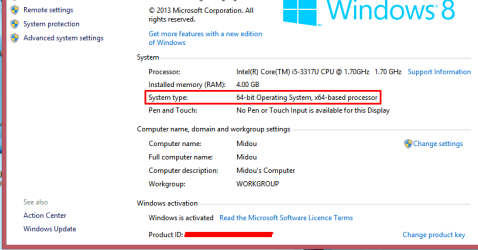
_To tell if your PC is 32-bit or 64-bit simply go to control panel and search for system then click it and you should see here mine is 64-bit: and for the second problem it is really hard to find a fix or that problem if you browse the same topic as yours it will aways end up with no fix so i recommend dong a refresh or a fresh install of your PC.
 

Attachments

  • Screenshot_2.png
    Screenshot_2.png
    13.5 KB · Views: 0

My Computer

Computer type
Laptop
OS
Windows 7 Pro
CPU
Intel Core i3
Memory
4 GB
Graphics Card(s)
Nvidia Geforce GT 630M
Antivirus
Avast Internet Security 2014
Browser
Google Chrome
Your computer is trying to boot from the network (PXE) because it can't find a bootable hard drive. Try running chkdsk and SFC from the Recovery Console.

How to run chkdsk or System File Checker (SFC) from the Recovery Console
  • Boot your Vista or Windows 7 installation DVD
  • When you see "Press any key to boot from CD or DVD", press Enter.
  • At the "Install Windows" screen, click on Repair your computer at lower left
  • At the System Recovery Options screen, make note of the drive letter assigned to your boot drive (normally C: ) and click Next
  • At the Chose a Recovery Tool window, click on Command Prompt. You will be sitting at X:\Sources directory.
Run chkdsk or SFC
  • If you did not note the drive letter of your boot disk, you can enter bcdedit and look at the osdevice line to see what it is.
  • For chkdsk, type chkdsk c: /r and press Enter (use the letter from above if not C: ).
  • For sfc, type sfc /scannow /offbootdir=c:\ /offwindir=c:\windows and press Enter (use the letter from above)
  • Let either run to completion undisturbed.
Vista or Windows 7: If you don't have a install DVD, you can download a legal copy here:
Windows 7 Direct Download Links
Windows Vista Direct Download Links

Make sure you get the same version you have installed: 32 or 64 bit; Home Premium, Pro or Ultimate.
 
Last edited:

My Computer

Computer type
PC/Desktop
Computer Manufacturer/Model Number
Lenovo IdeaCenter 450
OS
Windows 10 Pro X64
CPU
Intel Quad Core i7-4770 @ 3.4Ghz
Memory
16.0GB PC3-12800 DDR3 SDRAM 1600 MHz
Graphics Card(s)
Intel Integrated HD Graphics
Sound Card
Realtek HD Audio
Monitor(s) Displays
HP 22" LCD
Screen Resolution
1680 x 1050
Hard Drives
250GB Samsung EVO SATA-3 SSD
2TB Seagate ST2000DM001 SATA-2
1.5TB Seagate ST3150041AS SATA
Keyboard
Dell USB
Mouse
Lenovo USB
Internet Speed
Cable via Road Runner 3MB Upload, 30MB Download
Antivirus
Windows Defender, MBAM Pro, MBAE
Browser
Seamonkey
Other Info
UEFI/GPT
PLDS DVD-RW DH16AERSH
Back
Top