
How to Create an Internet Explorer Content Advisor Shortcut
Information
Content Advisor is a tool for controlling the types of content that your computer can access on the Internet in Internet Explorer. After you turn on Content Advisor, only rated content that meets or exceeds your criteria can be viewed. You can adjust the settings to suit your preferences.
This tutorial will show you how to create or download a Content Advisor settings shortcut for IE7, IE8, IE9, IE10, and IE11 in Windows.
This tutorial will show you how to create or download a Content Advisor settings shortcut for IE7, IE8, IE9, IE10, and IE11 in Windows.
Note
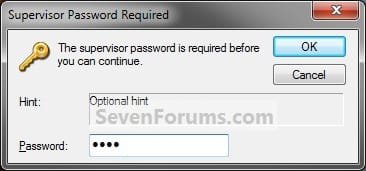
If you have Content Advisor enabled, then you will need to enter your supervisor password in the box below when you use this shortcut before you will be able to change the Internet Explorer Content Advisor settings.
If you do not have Content Advisor enabled, then you will get this warning message below after you use this shortcut and try to make any changes to the Internet Explorer Content Advisor settings. You will need to have Content Advisor enabled before you will be able to use this shortcut.
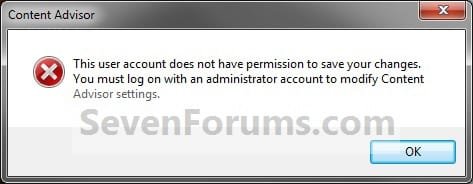
If you do not have Content Advisor enabled, then you will get this warning message below after you use this shortcut and try to make any changes to the Internet Explorer Content Advisor settings. You will need to have Content Advisor enabled before you will be able to use this shortcut.
Warning
You will only be able to use this shortcut while logged in as an administrator.
EXAMPLE: Internet Explorer Content Advisor
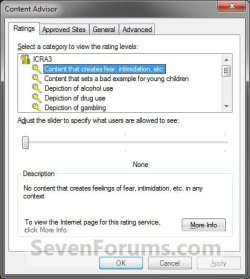
OPTION ONE
To Download IE Content Advisor Shortcut
1. Click/tap on the download button below to download the Content_Advisor.zip file.
Download
2. Save, and the .zip file to your desktop.
3. Open the .zip file and extract (drag and drop) the Content Advisor shortcut to the desktop.
4. Unblock the Content Advisor shortcut.
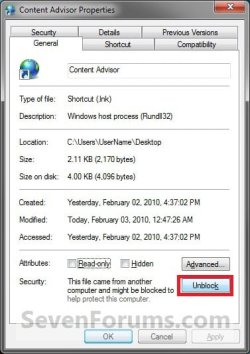
5. Go to step 5 in OPTION TWO below to add the icon you would like to use.
6. In Vista and Windows 7, you can now Pin to Taskbar (Windows 7 only) or Pin to Start Menu, add to Quick Launch, assign a keyboard shortcut to it, or move this shortcut to where you like for easy use.
7. In Windows 8, you can Pin to Taskbar on desktop, Pin to Start screen, add to Quick Launch, assign a keyboard shortcut to it, or move this shortcut to where you like for easy use.
8. When done, you can delete the downloaded .zip file if you like.
OPTION TWO
To Manually Create IE Content Advisor Shortcut
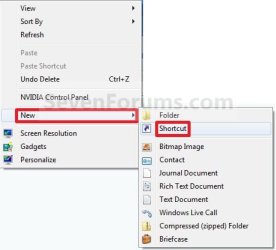
1. Right click or press and hold on an empty area on your desktop, and click/tap on New and Shortcut. (See screenshot below)
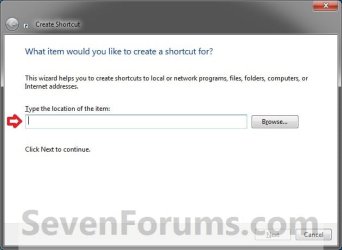
2. Type the location below into the location area, and click/tap on the Next button. (See screenshot below)
rundll32.exe msrating.dll,RatingSetupUI
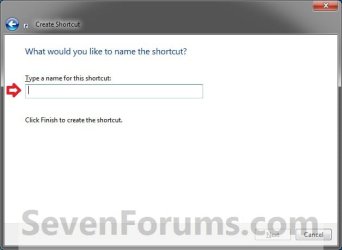
3. Type Content Advisor for the name, and click/tap on the Finish button. (See screenshot below)
NOTE: You can name this anything you would like though.
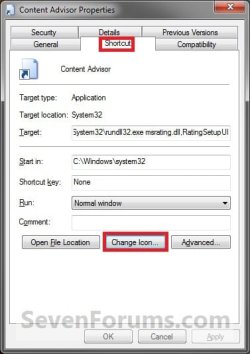
4. Right click or press and hold on the new Content Advisor shortcut, and click/tap on Properties.
5. Click/tap on the Shortcut tab, and click/tap on the Change Icon button. (See screenshot below)
6. To Download and Use a Custom Icon
A) You can click on the Download button below to download and use this custom Content_Advisor.ico file in a ZIP file below as this shortcut's icon if you like, and go to step 8 below.
Download

7. To Use Your Own Custom Icon
A) In the line under "Look for icons in this file", click on Browse and navigate to the location of the 256x256 pixel icon your want to use, and go to step 8 below. (See screenshot below)
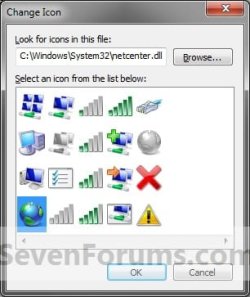
8. Select the icon you want, and click/tap on OK. (See screenshot above)
9. Click/tap on OK. (See screenshot below)

10. In Vista and Windows 7, you can now Pin to Taskbar (Windows 7 only) or Pin to Start Menu, add to Quick Launch, assign a keyboard shortcut to it, or move this shortcut to where you like for easy use.
11. In Windows 8, you can Pin to Taskbar on desktop, Pin to Start screen, add to Quick Launch, assign a keyboard shortcut to it, or move this shortcut to where you like for easy use.
That's it,
Shawn
Related Tutorials
- How to Enable or Disable Internet Explorer Content Advisor
- How to Reset Internet Explorer Content Advisor
- How to Reset or Change Password of Internet Explorer Content Advisor
- How to Change Ratings Level in Internet Explorer Content Advisor
- How to Allow or Block Specific Websites in Internet Explorer Content Advisor
- How to Allow or Block Unrated Websites in Internet Explorer Content Advisor
- Hide or Show Content Advisor in Internet Options for IE10 and IE11
Attachments
Last edited:

