
How to Add "Empty Folder and Subfolders" to Context Menu in Windows
Information
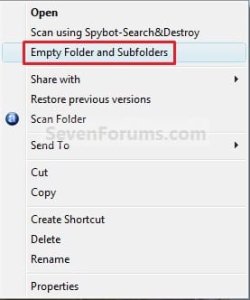
This tutorial will show you how to add Empty Folder and Subfolders to the context menu to be able to automatically permanently delete all file contents of a folder and it's subfolders without deleting the subfolders in Vista, Windows 7, and Windows 8.
Warning
Be careful of what folder you decide to empty. The files deleted by this are permanently deleted and not placed in the Recycle Bin.
EXAMPLE: Context Menu with "Empty Folder and Subfolders" added
Here's How:
1. To Add Empty Folder and Subfolders
NOTE: This will add Empty Folder and Subfolders to the context menu to automatically permanently delete the file contents of a folder and it's subfolders when used.
A) Click on the Download button below to download the
Add_Empty_Folder_and_Subfolders.reg file below.
Download
B) Go to step 7.
2. To Add Empty Folder and Subfolders with a Prompt
NOTE: This does the same as step 1, but will prompt you to type Y or N in the command prompt to approve each file before it is permanently deleted.
A) Click on the Download button below to download the
Add_Empty_Folder_and_Subfolders_Prompt.reg file below.
Download
B) Go to step 7.
3. To Remove Empty Folder and Subfolders
NOTE: This will remove Empty Folder and Subfolders (step 1 or step 2) from the context menu.
A) Click on the Download button below to download the
Remove_Empty_Folder_and_Subfolders.reg file below.
Download
B) Go to step 7.
4. To Add Empty Folder and Not Subfolders
NOTE: This will add Empty Folder and Not Subfolders to the context menu to automatically permanently delete the file contents of only the selected folder and none of it's subfolders when used.
A) Click on the Download button below to download the
Add_Empty_Folder_and_Not_Subfolders.reg file below.
Download
B) Go to step 7.
5. To Add Empty Folder and Not Subfolders with a Prompt
NOTE: This does the same as step 4, but will prompt you to type Y or N in the command prompt to approve each file before it is permanently deleted.
A) Click on the Download button below to download the
Add_Empty_Folder_and_Not_Subfolders_Prompt.reg file below.
Download
B) Go to step 7.
6. To Remove Empty Folder and Not Subfolders
NOTE: This will remove Empty Folder and Not Subfolders (step 4 or step 5) from the context menu.
A) Click on the Download button below to download the
Remove_Empty_Folder_and_Not_Subfolders.reg file below.
Download
7. Save the .reg file to your desktop.
8. Double click/tap one the downloaded .reg file to merge it.
9. If prompted, click/tap on Run, Yes (UAC-Windows 7/8) or Continue (UAC-Vista), Yes, and OK when prompted.
10. When finished, you can delete the downloaded .reg file if you like.
That's it,
Shawn
Attachments
-
Add_Empty_Folder_and_Subfolders.reg322 bytes · Views: 1,448
-
Add_Empty_Folder_and_Subfolders_Prompt.reg328 bytes · Views: 1,198
-
Remove_Empty_Folder_and_Subfolders.reg222 bytes · Views: 1,085
-
Add_Empty_Folder_and_Not_Subfolders.reg324 bytes · Views: 1,039
-
Add_Empty_Folder_and_Not_Subfolders_Prompt.reg330 bytes · Views: 1,026
-
Remove_Empty_Folder_and_Not_Subfolders.reg230 bytes · Views: 926
Last edited:


