Solved CRC Error Count Warning on drive (D:) ?

nikev216

New member
Member
Local time
9:12 AM
Messages
45
1. one of my Disks (D) disappeared from windows 7.

2. I unplugged the 2 connectors then plugged them back in and (D) re-appears.

3. win 7 disk management shows the (D) drive as healthy

4. but HD tune now shows a yellow CRC error count warning on (D) drive that wasn't there before

5. the (D) drive is 1 month old ?

(win 7 screenshot) http://i.imgur.com/gWGHH11.png

(hd tune screenshot) http://i.imgur.com/V9ilxKb.png

any advice appreciated
.
 

My Computer My Computer

OS
WIN-7 x64 bit SP1
Hello nikev216!

I would also advise you to check the drive with WD Data Lifeguard Diagnostics, do both Quick and Extended tests.

WD DLG:
Support Answers

Basically, a CRC Error Count means there is a miscommunication between the drive and the controller (motherboard). It's not necessary that something's wrong with the drive, but could be. That's why you need to check it with the DLG. The CRC error could be due to the SATA cable, could try and change it.

Do post back with results! :)

CK_WD
 

My Computer My Computer

Computer type
PC/Desktop
OS
Windows 7 Home Premium x64
That earlier it had disappeared means a faulty/loose SATA cable. When you redid the connections your drive appeared. What is shown as CRC error is what has been recorded earlier. That is what I would think.

If you do not have any other problem, just keep watching for the next few days. If the count does not increase you are OK. If the count increases change the SATA cable and then check.

In any case also check your drive with Western Digital Data LifeGuard diagnostics for Windows, again periodically for the next few days. If the short and long test passes and you do not see a report of any bad sectors and/or increasing bad sectors you can rest easy.

Please upload your screenshots on SevenForum servers in future.
 

My Computer My Computer

OS
Windows 7 Home Premium 32 bit
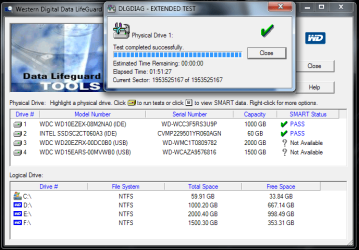
Thank you to all who replied. I ran the WD Data Lifeguard extended test as advised, the (D) drive passed so probably it's OK. One question regarding this test. It identifies drives 1: and 2: as IDE devices, Drives 3: and 4: as USB devices with no SMART status ?

18-03-2015 03-02-01.png
 
Last edited:

My Computer My Computer

OS
WIN-7 x64 bit SP1
Hi again!

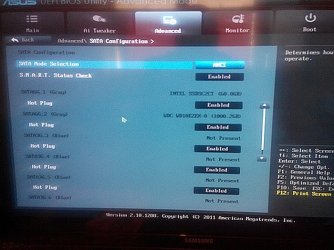
Are all of these drives, including the Green and Caviar Green, internal, connected directly to the motherboard SATA ports? The drives could be seen incorrectly due to wrong jumpers settings, cabling, or BIOS setup configurations. Could you check in your BIOS, under SATA Configuration, the SATA mode selection needs to be set to AHCI, is it IDE by any chance?

Restart and check again.

Otherwise, I'm glad to see the drive has passed the tests, so under Jumanji's advise, if the count does not increase you are fine.

CK_WD
 

My Computer My Computer

Computer type
PC/Desktop
OS
Windows 7 Home Premium x64
Hi CKWD, all drives are connected to motherboard SATA ports

SATA mode selection = AHCI
SMART status check = enabled
SATA_1 (grey port) = Intel SSD (my WIN 7 boot drive)
SATA_2 (grey port) = WD (my WD 1TB drive)
SATA_3 (blue port) = not present
SATA_4 (blue port) = not present

The two WD drives plugged into SATA_3 & SATA_4 are not listed ?
IMG_20150318_125650406.jpg
 
Last edited:

My Computer My Computer

OS
WIN-7 x64 bit SP1
I see. Could you please post your motherboard here. Also, do you have your motherboard's manual? You may be needing it.

Do you see your two Green drives in your system – Disk Management, My Computer, etc.? Can you access them, write to them, copy from them etc.?

The gray SATA ports in your BIOS are 6GB/s controllers, the blue SATA ports should be 3GB/s. The Caviar Green you have, which is 1.5TB is SATAII, but the newer Green which is 2TB is SATAIII.

These are my observations so far. You actually shouldn't be able to see the Green drives anywhere in your system. Look through your BIOS options to see if they are listed somewhere else by any chance.

Power down your PC and try other ports for the Green drives. You could even do the experiment to switch the Blue with one of the Green and check again what will show up where, including in DLG.

CK_WD
 

My Computer My Computer

Computer type
PC/Desktop
OS
Windows 7 Home Premium x64
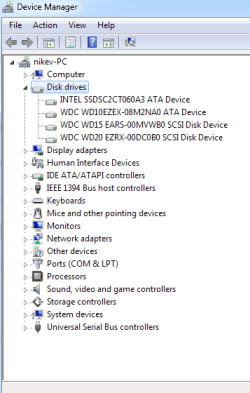
Also check what all is listed under Disk Drives In Device Manager. Post a screenshot.

I am sure that both WDC WD20EZRX-00DC0B0 and WDC WD15EARS-00MVWB0 are internal drives but I guess there is something unusual in these. I have seen an USB Device driver for the first one. https://www.driverdouble.com/drivers/initio-wd20ezrx-00dc0b0-usb-device.html

For CKWD to do more research on it. I am not a WD man :D.
 

My Computer My Computer

OS
Windows 7 Home Premium 32 bit
Success!

Motherboard is an Asus P8Z68 Deluxe - 1155

I un-plugged the two WD Green drives from the 6GB/s (Marvell) SATA ports
and moved them to the 3GB/s (JMicron) SATA ports.

all drives now appear correctly in WD Data LifeGuard Diagnostics with SMART status.

many thanks CKWD & all on 7 forums

dlg.png
device manager.png
 
Last edited:

My Computer My Computer

OS
WIN-7 x64 bit SP1
hi how do I start my on thread or can I just type my prob in this thread thanks
 

My Computer My Computer

OS
Windows 7 64 bit
That is great news, nikev216! I am glad to hear it and that I could help! :)

I suppose the ports have been messing with the drives somehow, although SATA III ports are backward compatible with SATA II. So may be something in the certain controllers.

Thank you also, @Jumanji for the assistance and I suppose WD or not, research is always necessary! :D :)

@WillieG123, under the forum rules it would be best for you to start your own thread. When you get to the section you need, e.g. Hardware Devices, at the bottom there is a yellow button (to the left) that says "New Thread", that's where you start. :)

Cheers!

CK_WD
 

My Computer My Computer

Computer type
PC/Desktop
OS
Windows 7 Home Premium x64
Back
Top