Create simple volume

dimuth

New member
Local time
6:01 PM
Messages
7
hi...
My Laptop is HP-g62. I am using windows 7 home basic OS.
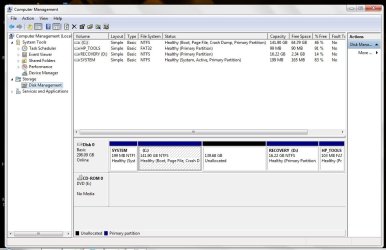
when i seartch my computer Manger it shows Unallocated space.
i want to create partition in that space,i tried several time using internet and my friends advice and lot of ways.
but still i am fail.
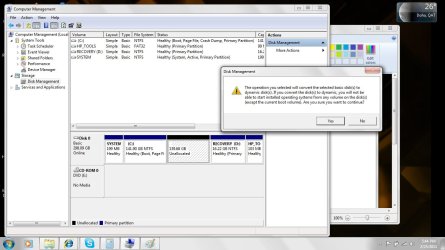
when i go to the Normal path one time it shows messege "convert basic disk to dynamic disk"
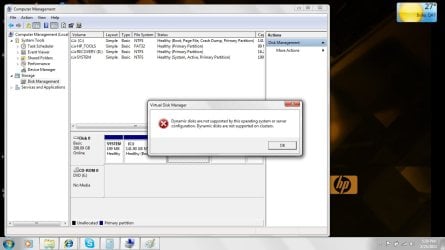
after i select yes it displys error messege "dynamic disk are not support to thi operating system.dynamic disk are not supported on cluster"

i attatch final 2 messeges.

dears...
:D now i am totally fed up. :cry:
anyone can help me..
 

Attachments

  • 6.jpg
    6.jpg
    104.9 KB · Views: 131
  • 7.jpg
    7.jpg
    86.7 KB · Views: 105

My Computer

OS
windows 7 home basic 64 bit
Hello dimuth, welcome to Seven Forums!


After you have copied out or made back-ups of the data you need to save to external media for safe-keeping, have a look at Method Two of this tutorial at the link below, though you will have to extend the C: partition back into the unallocated space to its right first, then use Method Two of the tutorial and be sure to post back with any further questions you may have and to keep us informed.

Do not convert to a Dynamic disk.


Partition / Extended : Logical Drives
 

My Computer

Computer Manufacturer/Model Number
* BFK Customs *
OS
W 7 64-bit Ultimate
CPU
Intel Q9550 Yorkfield
Motherboard
ASUS P5Q Pro
Memory
8GB Dominator 8500C5D
Graphics Card(s)
ATI : XFX 5870
Sound Card
Realtek HD Audio 7-1
Monitor(s) Displays
1x 47" LCD HDMI & 3x 26" LCD HDMI
Screen Resolution
1920x1080P & 1920x1200
Hard Drives
1x 80GB Intel X25-M G2 SSD : 1x 500GB & 1x 640GB WD Caviar Black(s)
PSU
Corsair 620HX
Case
Cooler Master RC-690
Cooling
Tuniq Tower 120, 2x 140mm and 3x 120mm case fans
Keyboard
Microsoft 500
Mouse
Razer Diamondback 3G
Internet Speed
14 Mb/s
Other Info
1x Koutech 3Gb/s SATA HDD Hot Swap Rack
Thank u for ur reply...

dear friends,
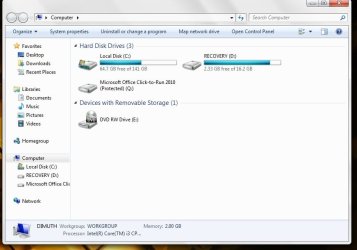
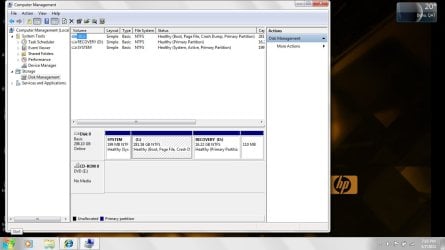
i really appriciate to u. i tried myself as u told.but my unallocated partition didnt display in CMD as online volume.i attatched pic.after u see my disk managment pic maybe u can understand what is my hard disk current situation.

check my attatchement and reply please.

thank u once again...
 

Attachments

  • 1.jpg
    1.jpg
    79.6 KB · Views: 65
  • my computer.jpg
    my computer.jpg
    46.1 KB · Views: 39

My Computer

OS
windows 7 home basic 64 bit
My Computer

Computer Manufacturer/Model Number
* BFK Customs *
OS
W 7 64-bit Ultimate
CPU
Intel Q9550 Yorkfield
Motherboard
ASUS P5Q Pro
Memory
8GB Dominator 8500C5D
Graphics Card(s)
ATI : XFX 5870
Sound Card
Realtek HD Audio 7-1
Monitor(s) Displays
1x 47" LCD HDMI & 3x 26" LCD HDMI
Screen Resolution
1920x1080P & 1920x1200
Hard Drives
1x 80GB Intel X25-M G2 SSD : 1x 500GB & 1x 640GB WD Caviar Black(s)
PSU
Corsair 620HX
Case
Cooler Master RC-690
Cooling
Tuniq Tower 120, 2x 140mm and 3x 120mm case fans
Keyboard
Microsoft 500
Mouse
Razer Diamondback 3G
Internet Speed
14 Mb/s
Other Info
1x Koutech 3Gb/s SATA HDD Hot Swap Rack
hello friend,
i follow that way as u said to me.
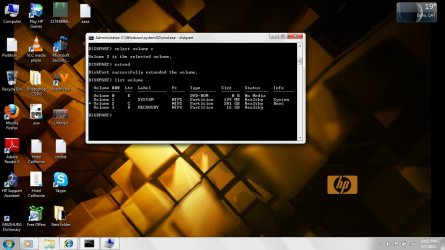
when i extend my c: partition its properly extend.i attatched my computer manage screen shot after extend.,
but after i srink c: volume it same as before time.

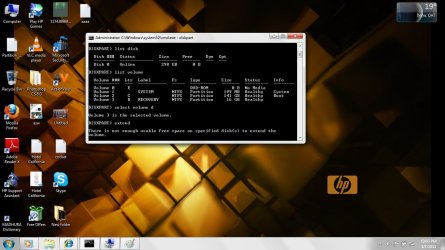
after i tried extend my recovery volume(it is in my right side of unallocated space).but CMD window gives messege "there is no space to extend"
pls.can u check.

NB :-
i attatched 2 screen shot how to show in CMD window, before extend and after extend my C: partition,
 

Attachments

  • after extend.jpg
    after extend.jpg
    84.2 KB · Views: 51
  • after extend in cmd.jpg
    after extend in cmd.jpg
    101.8 KB · Views: 47
  • before extend in cmd.jpg
    before extend in cmd.jpg
    106.3 KB · Views: 69

My Computer

OS
windows 7 home basic 64 bit
Then you have to follow Method Two exactly of this tutorial.

Partition / Extended : Logical Drives


Once you have 4 Primary partitions again and no unallocated space you have to use Method Two of this tutorial to convert the Windows 7 C: partition to an Extended partition and then create Logical drives within that Extended partition.
 

My Computer

Computer Manufacturer/Model Number
* BFK Customs *
OS
W 7 64-bit Ultimate
CPU
Intel Q9550 Yorkfield
Motherboard
ASUS P5Q Pro
Memory
8GB Dominator 8500C5D
Graphics Card(s)
ATI : XFX 5870
Sound Card
Realtek HD Audio 7-1
Monitor(s) Displays
1x 47" LCD HDMI & 3x 26" LCD HDMI
Screen Resolution
1920x1080P & 1920x1200
Hard Drives
1x 80GB Intel X25-M G2 SSD : 1x 500GB & 1x 640GB WD Caviar Black(s)
PSU
Corsair 620HX
Case
Cooler Master RC-690
Cooling
Tuniq Tower 120, 2x 140mm and 3x 120mm case fans
Keyboard
Microsoft 500
Mouse
Razer Diamondback 3G
Internet Speed
14 Mb/s
Other Info
1x Koutech 3Gb/s SATA HDD Hot Swap Rack
You don't want Dynamic Disks. I would make the recovery discs using the HP tool, and then delete the D and the small partition at the end of the drive. Then you should be able to create a new partitions using ALL of the unallocated space, including the space reclaimed from those two partitions. That way you maximize your usage of space, and simplify the disk configuration. That's the simplest, easiest solution.
 

My Computer

OS
Windows 7 Ultimate x64 SP1
CPU
Intel Core i7-2600
Motherboard
Gigabyte GA-P67A-UD3P-B3
Memory
12 GB Patriot Extreme DDR3-1333
Graphics Card(s)
Nvidia GTX 470
Monitor(s) Displays
Dell UltraSharp 2209WA
Hard Drives
OCZ Agility3 240 GB, WD5001AALS, WD7501AALS
PSU
OCZ ModStream 700W
Case
CoolerMaster HAF 912 Advanced
Cooling
CoolerMaster Hyper 212 Plus
dear Bare foot kid,
i create bootable cd and did everything as u said.
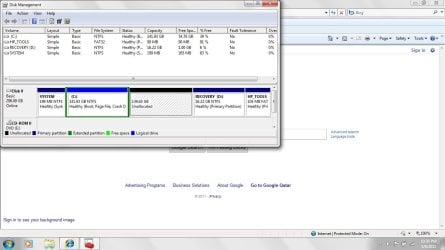
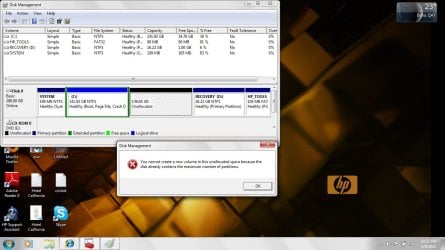
but my problem stiil same.now when i try to create volume in unallocated space it gives different messege. i attatched my computer management and messege window screen shot.
tell me what should i do now...

today i recevied reply from " mr Deconfrost" and what is your idea his proposel...

thank u...:)
 

Attachments

  • after boot.jpg
    after boot.jpg
    92.5 KB · Views: 28
  • after boot create volume.jpg
    after boot create volume.jpg
    110.8 KB · Views: 40

My Computer

OS
windows 7 home basic 64 bit
It is telling you the exact problem...that you have too many partitions. I'm still suggesting the same steps as I did above. First, before anything else, you should make the recover discs using the HP tool. There's absolutely no logic to having your own recovery method on your only hard drive. If the hard drive fails...so does your chance of recovery.

Once you do that, delete the last two partitions on the drive...the ones called RECOVERY and HP TOOLS. Once you do that, you'll have no issues turning all that remaining unallocated space into one usable partition.

Aside from the recovery disc creation, you could have had that done in less time than it would have taken to create the post above this one.
 

My Computer

OS
Windows 7 Ultimate x64 SP1
CPU
Intel Core i7-2600
Motherboard
Gigabyte GA-P67A-UD3P-B3
Memory
12 GB Patriot Extreme DDR3-1333
Graphics Card(s)
Nvidia GTX 470
Monitor(s) Displays
Dell UltraSharp 2209WA
Hard Drives
OCZ Agility3 240 GB, WD5001AALS, WD7501AALS
PSU
OCZ ModStream 700W
Case
CoolerMaster HAF 912 Advanced
Cooling
CoolerMaster Hyper 212 Plus
thank you for your valuable idea for my problem..
i have already create recovery CDs by using HP recovery media creation tool.
and win 7 restore CDs also i created.if i delete "recovery D" and "hp tool" small partition in my right corner,is it problem or not in my win 7 system files. after i delete that partition will i be able to work as usual.pls give me opinion.

thank you....:)
 

Attachments

  • after boot.jpg
    after boot.jpg
    92.5 KB · Views: 32

My Computer

OS
windows 7 home basic 64 bit
If you delete those two partitions all the way to the right, it simply means you will need those recovery discs to restore the computer. Since you have those discs created, you are fine. Just put those discs somewhere safe. My wife has an HP laptop, and the first thing we did was make those discs and then delte the partitions to make them usable space. You should be able to do all of this from within Disk Management as well...no extra software needed.
 

My Computer

OS
Windows 7 Ultimate x64 SP1
CPU
Intel Core i7-2600
Motherboard
Gigabyte GA-P67A-UD3P-B3
Memory
12 GB Patriot Extreme DDR3-1333
Graphics Card(s)
Nvidia GTX 470
Monitor(s) Displays
Dell UltraSharp 2209WA
Hard Drives
OCZ Agility3 240 GB, WD5001AALS, WD7501AALS
PSU
OCZ ModStream 700W
Case
CoolerMaster HAF 912 Advanced
Cooling
CoolerMaster Hyper 212 Plus
You are able to achieve your goal.
Step two in the tutorial using Partition Wizard may be easier.
If you haven't already download PW. Great program to have anyway!

Before repeating all the steps using step 2.
With PW:
Select the unallocated space as is.
Create a logical partition
apply.

see if it lets you.
 
Last edited:

My Computer

Computer type
PC/Desktop
Computer Manufacturer/Model Number
Own build
OS
Windows 7x64 Home Premium SP1
CPU
Intel i7 2600k
Motherboard
ASUS P8Z68 Deluxe
Memory
G.Skill Ripjaws (DDR3-1600) 2x4GB
Graphics Card(s)
Nvidia GeForce GTS 450; Intel HD Graphics 3000(GT2+)
Monitor(s) Displays
Dell Ultrasharp IPS panel U2311H, Samsung SyncMaster P2350
Screen Resolution
1920x1080
Hard Drives
Samsung 850 Pro SSD 256GB, Samsung SSD 840 120GB, Seagates 1TB Barracuda ST31000528AS x2
PSU
Seasonic M12II 520W
Case
Lian Li Lancool PC-K60
Cooling
Case: 1x120mm, 3x140mm CPU: Hyper 212+
Keyboard
Logitech MK520 (wireless)
Mouse
Logitech MK520
Internet Speed
6-7 Mbps
Antivirus
Norton Security Premium, Malwarebytes on 2 (MSE on 3rd PC)
Browser
FireFox
Other Info
Audio: Logitech Z523 2.1
That's just complicating the issue. No other software is needed. The error explains the problem...which isn't a limitation of Disk Management.
 

My Computer

OS
Windows 7 Ultimate x64 SP1
CPU
Intel Core i7-2600
Motherboard
Gigabyte GA-P67A-UD3P-B3
Memory
12 GB Patriot Extreme DDR3-1333
Graphics Card(s)
Nvidia GTX 470
Monitor(s) Displays
Dell UltraSharp 2209WA
Hard Drives
OCZ Agility3 240 GB, WD5001AALS, WD7501AALS
PSU
OCZ ModStream 700W
Case
CoolerMaster HAF 912 Advanced
Cooling
CoolerMaster Hyper 212 Plus
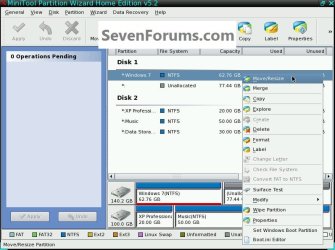
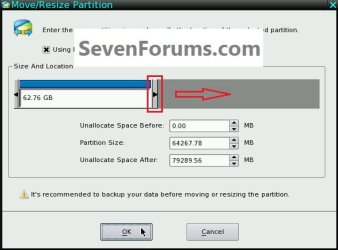
In the Partition Wizard program, right click the Windows 7 partition and click Resize then in the second dialog box that opens click to drag the slider all the way to the right.

click to enlarge
Resize2.jpgResizeToRight.jpg

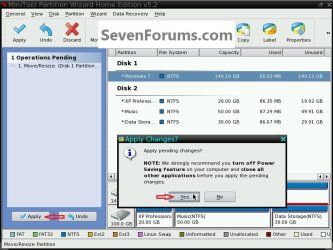
Then in the left pane Operations pendind column click Apply then Yes for the conformation dialog box.

ApplyYes.jpg
 

My Computer

Computer Manufacturer/Model Number
* BFK Customs *
OS
W 7 64-bit Ultimate
CPU
Intel Q9550 Yorkfield
Motherboard
ASUS P5Q Pro
Memory
8GB Dominator 8500C5D
Graphics Card(s)
ATI : XFX 5870
Sound Card
Realtek HD Audio 7-1
Monitor(s) Displays
1x 47" LCD HDMI & 3x 26" LCD HDMI
Screen Resolution
1920x1080P & 1920x1200
Hard Drives
1x 80GB Intel X25-M G2 SSD : 1x 500GB & 1x 640GB WD Caviar Black(s)
PSU
Corsair 620HX
Case
Cooler Master RC-690
Cooling
Tuniq Tower 120, 2x 140mm and 3x 120mm case fans
Keyboard
Microsoft 500
Mouse
Razer Diamondback 3G
Internet Speed
14 Mb/s
Other Info
1x Koutech 3Gb/s SATA HDD Hot Swap Rack
Back
Top