
How to Add or Remove Task Manager from the CTRL+ALT+DEL Screen
Information
This will show you how to add or remove the Start Task Manager option in the Windows 7 CTRL+ALT+DELETE screen for all users on the computer.
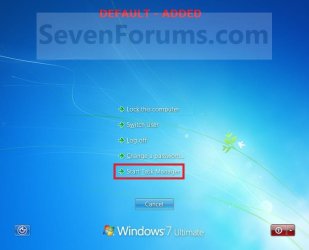
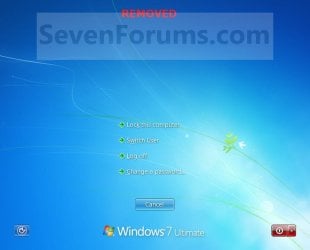
EXAMPLE: CTRL+ALT+DEL screen
NOTE: This is when you press CTRL+ALT+DEL with Start Task Manager added by default (left screenshot below), and removed (right screenshot below).
OPTION ONE
Using a REG File Download
Download
B) Go to step 3.
2. To Remove Task Manager from CTRL+ALT+DEL Screen A) Click on the Download button below to download the file below. Remove_Task_Manager_CTRL+ALT+DEL.reg
Download
3. Click on Save, and save the .reg file to the desktop.
4. Right click on the downloaded .reg file and click on Merge.
5. Click on Run, Yes, Yes, and OK when prompted.
6. When done, you can delete the downloaded .reg file if you like.
OPTION TWO
Through the Local Group Policy Editor
2. In the left pane, click on to expand User Configuration, Administrative Templates, System, and Ctrl+Alt+Del. (See screenshot below)
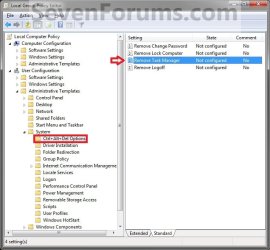
3. In the right pane, right click on Remove Task Manager and click on Edit. (See screenshot above)
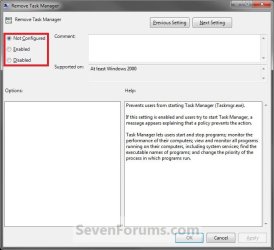
4. To Add Task Manager to CTRL+ALT+DEL Screen A) Select (dot) either Not Configured or Disabled. (See screenshot below step 6)
B) Go to step 6.
5. To Remove Task Manager from CTRL+ALT+DEL Screen A) Select (dot) Enabled. (See screenshot below step 6)
6. Click on OK. (See screenshot below)
7. Close the Local Group Policy Editor window.
That's it,
Shawn
Related Tutorials
- How to Enable or Disable Secure Log On CTRL+ALT+DELETE in Windows 7
- How to Create a Elevated Windows 7 Task Manager Shortcut
- How to Allow or Deny Access of Task Manager for a Specific User
- How to Add or Remove Log Off from the CTRL+ALT+DEL Screen
- How to Add or Remove Lock Computer from the CTRL+ALT+DEL Screen
- How to Add or Remove Change Password from the CTRL+ALT+DEL Screen
- How to Add or Remove Switch User from CTRL+ALT+DEL Screen and Start Menu
- How to Turn Task Manager "Always On Top" On or Off
Attachments
Last edited:
 And is there any way to enable this just for admins?


