
Curious....

bjrichus

New member
Power User
Local time
7:04 AM
Messages
83
Location
Origin: London, UK. Now: Fort Worth TX.
Using VMWare Player 3 to host a Linux VM, for which it works well.

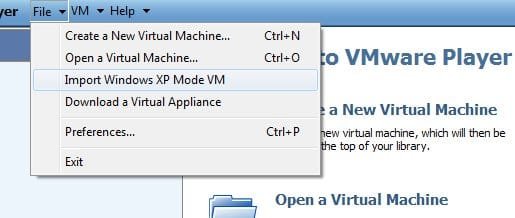
I see from the file menu it is also offering a way to 'import' a VPC VM (see attached screen shot).

I'm trying to get a handle on how this works, so have a few questions, for those who may have actually tried doing this:

1. What results do you get - is it "better" or "worse" and in what ways (i.e. faster boot)?

2, Does it leave the VM still usable by VPC?

3. I suppose the nice integration features like putting an icon on the Windows 7 desktop to start up an app inside XP is not replicated inside this 'imported' VM?

Thanks in advance for any info.
 

Attachments
  • vm.jpg
    vm.jpg
    17.2 KB · Views: 6

My Computer

Computer Manufacturer/Model Number
Dell Lattitude E6500
OS
Windows 7 Pro (64bit).
CPU
Intel Core 2 Duo P8700 @ 2.54Ghz
Motherboard
Dell
Memory
8Gb
Graphics Card(s)
Intel/Dell "4 series Express Chipset"
Sound Card
Intel HD Audio
Monitor(s) Displays
Regular Laptop LCD display
Screen Resolution
1280x800
Hard Drives
Seagate ST9250410ASG 250Gb (well it IS a laptop)...
PSU
Dell
Case
Dell
Internet Speed
As much as I can get!!!!!
When you first installed Windows XP Mode, it installed a base Windows XP install point. When you first fire up XP Mode, it copies this base starting point and creates a unique virtual machine that you can customize. The nice thing with this copy of XP is that it is activated.

When you import the Windows XP Mode VM, vmware also copies this base Windows XP install point. Meaning that it does not bring with it the customizations and software installs that you performed under XP mode since that's now in a second location.

The import basically gives you that licensed and activated copy of XP, but under VMWare instead. My experience is that it boots at least twice as fast and just runs a ton better. I've always been massively disappointed with XP Mode as it's far slower than VMware, Virtualbox or any of the other VM providers.


With regards to number 3...vmware offers Unity mode which allows you access to any installed app on your VM from within your Host operating systems. You just boot the vm, turn on unity mode and you get a second start menu right above your first one. Give it a shot, you will figure it out very quickly.
 

My Computer

Computer Manufacturer/Model Number
Self-Built in July 2009
OS
Windows 7 Ultimate x64
CPU
Intel Q9550 2.83Ghz OC'd to 3.40Ghz
Motherboard
Gigabyte GA-EP45-UD3R rev. 1.1, F12 BIOS
Memory
8GB G.Skill PI DDR2-800, 4-4-4-12 timings
Graphics Card(s)
EVGA 1280MB Nvidia GeForce GTX570
Sound Card
Realtek ALC899A 8 channel onboard audio
Monitor(s) Displays
23" Acer x233H
Screen Resolution
1920x1080
Hard Drives
Intel X25-M 80GB Gen 2 SSD
Western Digital 1TB Caviar Black, 32MB cache. WD1001FALS
PSU
Corsair 620HX modular
Case
Antec P182
Cooling
stock
Keyboard
ABS M1 Mechanical
Mouse
Logitech G9 Laser Mouse
Internet Speed
15/2 cable modem
Other Info
Windows and Linux enthusiast. Logitech G35 Headset.
When you first installed Windows XP Mode, it installed a base Windows XP install point. When you first fire up XP Mode, it copies this base starting point and creates a unique virtual machine that you can customize.

Didn't know that! I "thought" it just downloaded a VM and used it. I guess I've got to back to MSDN and do the reading I always put off doing!!!!

It just completes the setup stuff (Keyboard type, timezone etc) and gets going.

The nice thing with this copy of XP is that it is activated.

Indeed it is. Strikes me that this (it's free) is a good way to get people using it.

When you import the Windows XP Mode VM, vmware also copies this base Windows XP install point. Meaning that it does not bring with it the customizations and software installs that you performed under XP mode since that's now in a second location.

The import basically gives you that licensed and activated copy of XP, but under VMWare instead. My experience is that it boots at least twice as fast and just runs a ton better. I've always been massively disappointed with XP Mode as it's far slower than VMware, Virtualbox or any of the other VM providers.

Don't think it's "far slower"... slower, yes, but "far" slower....

The end result is that while the VMWare certainly appears to start up and feel fast, getting it to the point where I can use an app (all settings set to default values) by booting and as soon as possible, clicking on an icon and the program it links to actually displaying it's main window is 25-26 seconds.

Clicking on a VPC icon in my task bar and getting the main app window running is 29 seconds.

Have run this comparison twice now, with both environments fully closed down as the start point.

;)

With regards to number 3...vmware offers Unity mode which allows you access to any installed app on your VM from within your Host operating systems. You just boot the vm, turn on unity mode and you get a second start menu right above your first one. Give it a shot, you will figure it out very quickly.

The big green start box (can't call it a start "button" as it's wayyyyy too big) is really 1990's-retro! :D

I'd like to be able to drag and drop an icon from this second start menu onto my "7" desktop... I want everything, don't I? :)

Overall, yes it is quicker, but not amazingly so,

I've got to dig deeper and customize it some more... see if I can't get it faster... back later.

:geek:
 

My Computer

Computer Manufacturer/Model Number
Dell Lattitude E6500
OS
Windows 7 Pro (64bit).
CPU
Intel Core 2 Duo P8700 @ 2.54Ghz
Motherboard
Dell
Memory
8Gb
Graphics Card(s)
Intel/Dell "4 series Express Chipset"
Sound Card
Intel HD Audio
Monitor(s) Displays
Regular Laptop LCD display
Screen Resolution
1280x800
Hard Drives
Seagate ST9250410ASG 250Gb (well it IS a laptop)...
PSU
Dell
Case
Dell
Internet Speed
As much as I can get!!!!!
I can get the VMWare start time (from a complete power off), down by another 4 seconds, just by taking the amount of RAM up to 512Mb from the default 256Mb.

Of course, restarting the VM from a 'suspend' is way quicker (5 seconds), but it's not the same thing as a complete reboot, now is it? :)

ROFL.... :geek:


UPDATE:
A day of messing about and an odd observation is that if one of the two VM systems has already started up its VM, the other VM system appears to start (again from cold) much quicker... In about a half the time it takes when the other is closed!!! Works for either of them too! I wonder what service (what else might it be?) that they share, so it has to be started (and take up that time) when NO VM's are already running?

Also, I have noticed that while VMWare sees the entire hard disk it is on as 'available' space from within the VM (i.e. the XP VM sees all disk space - used as well as free - as available to it), VPC does not. It (in my view correctly) only sees the free space as being available for it to use. Ah the joys of virtual disks!!!!

Aiming for a fast boot, I have got it down to about 13 seconds in VMWare but from Hibernate... the very best I have got to bring the VPC XP VM up to fully working in about 8 seconds and the VMWare one up in 4 seconds.

Not too bad.

:)
 
Last edited:

My Computer

Computer Manufacturer/Model Number
Dell Lattitude E6500
OS
Windows 7 Pro (64bit).
CPU
Intel Core 2 Duo P8700 @ 2.54Ghz
Motherboard
Dell
Memory
8Gb
Graphics Card(s)
Intel/Dell "4 series Express Chipset"
Sound Card
Intel HD Audio
Monitor(s) Displays
Regular Laptop LCD display
Screen Resolution
1280x800
Hard Drives
Seagate ST9250410ASG 250Gb (well it IS a laptop)...
PSU
Dell
Case
Dell
Internet Speed
As much as I can get!!!!!
Back
Top