Default boot choice at startup

TechedOut

New member
Local time
12:02 PM
Messages
4
I have a strange problem. After an attempt at installing Win Server 2003 resulted in a dreaded blue screen, I contacted Dell and discovered that my PC was not compatible with server 2003.

Unfortunately, the Default boot choice at startup is now this failed installation setup. And only my actual system - Windows 7 Pro - appears in the Advanced window of System properties.

So unless I manually choose Win 7, my PC boots to this nonexistent installation and winds up in a blue sceen.

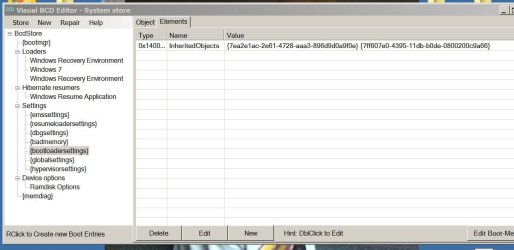
I'm attaching a screenshot of the bootmgr and bootloadersettings, displayed with Visual BCD Editor. Can anyone see what I need to edit, what I need to delete this false boot choice -- or at least set Win 7 as default.

Thaniks!
 

Attachments
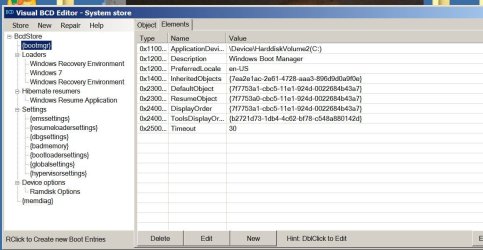
  • bootmgr.JPG
    bootmgr.JPG
    101.6 KB · Views: 230
  • bootloadersettings.JPG
    bootloadersettings.JPG
    79.5 KB · Views: 32

My Computer

OS
Windows 7 Professional
Right click on Computer.
Click on Advanced system settings.
Under Startup and Recovery, click on Settings.
Select Windows 7 in the Default operating system drop down box.

That should fix it for you.

If you set the Time to display to 0 then it will boot there immediately, no delay.

Edit: You can also install EasyBCD and remove the Server info via the Edit Boot Menu selection.
 

My Computer

Computer type
PC/Desktop
Computer Manufacturer/Model Number
Lenovo IdeaCenter 450
OS
Windows 10 Pro X64
CPU
Intel Quad Core i7-4770 @ 3.4Ghz
Memory
16.0GB PC3-12800 DDR3 SDRAM 1600 MHz
Graphics Card(s)
Intel Integrated HD Graphics
Sound Card
Realtek HD Audio
Monitor(s) Displays
HP 22" LCD
Screen Resolution
1680 x 1050
Hard Drives
250GB Samsung EVO SATA-3 SSD
2TB Seagate ST2000DM001 SATA-2
1.5TB Seagate ST3150041AS SATA
Keyboard
Dell USB
Mouse
Lenovo USB
Internet Speed
Cable via Road Runner 3MB Upload, 30MB Download
Antivirus
Windows Defender, MBAM Pro, MBAE
Browser
Seamonkey
Other Info
UEFI/GPT
PLDS DVD-RW DH16AERSH
You should also delete that entry.
 

My Computer

Computer type
PC/Desktop
Computer Manufacturer/Model Number
Skylake Special #666
OS
Windows 10 Pro x64
CPU
Intel Core i7 6700K
Motherboard
Asus Sabertooth Z170 Mark 1
Memory
GSkill TridentZ RGB 16GB 3600 16-16-16-36
Graphics Card(s)
EVGA GTX 980 Ti SC x2
Sound Card
Realtek High Definition
Monitor(s) Displays
AOC G2460PG
Screen Resolution
1920 x 1080 144Hz
Hard Drives
Samsung 860 Pro 256GB, Seagate Barracuda 4TB x2
PSU
EVGA 1000 P2, EVGA White Custom Braided Cables
Case
Corsair Vengeance C70 Gunmetal Black
Cooling
Corsair H100i v2, Corsair ML120 x2, Thermal Grizzly Kryonaut
Keyboard
Logitech G910 Orion Spectrum
Mouse
Logitech G700s
Internet Speed
Verizon Fios Quantum Gateway 75/75
Antivirus
Windows Defender, Malwarebytes Free 3.8.3
Browser
Chrome
Other Info
Corsair SP120 x4, LG Blu-ray Drive, Durabrand HT-395 100 Watt Dolby Digital Amp, Corsair H2100 Wireless 7.1 Headset
1. Just run "Dual-boot Repair" utility -> "Automatic Repair" and confirm.
This will write again MBR, PBR and set default to Windows 7. Boot files left from server installation will be gone.

2. To fix advanced boot options - on admin prompt in Windows 7:
ReAgentC /disable
ReagentC /enable

This would be all.

Note:
In Disk Management check which drive is marked as "active" - if you do not have a "System Reserved" marked as active the Windows 7 partition should be marked as active !
So mark it active and repeat steps 1. and 2.
This will put boot files to Windows 7 partition.
Then it is save to delete other partitions if you want.

Boot related files are always on active !
 

My Computer

Computer Manufacturer/Model Number
Acer Notebook
OS
Win 8 RP, Win 7, XP
CPU
Intel
Thanks, but please read my post again. I've tried this. Only Windows 7 appears as a choice in that drop down box.

I attached screenshots of the BCD using a program that works just like EasyBCD. Please take a look at those screenshots. My question is:
To get rid of that failed installation boot choice what do I need to delete here?
Or:
How can I edit the BCD setting to set Win 7 as default?

Again, as it works now, the setup for a broken Win server 2003 installation is listed at boot -- AND set as default.

Thanks again.

Right click on Computer.
Click on Advanced system settings.
Under Startup and Recovery, click on Settings.
Select Windows 7 in the Default operating system drop down box.

That should fix it for you.

If you set the Time to display to 0 then it will boot there immediately, no delay.

Edit: You can also install EasyBCD and remove the Server info via the Edit Boot Menu selection.
 

My Computer

OS
Windows 7 Professional

My Computer

Computer type
PC/Desktop
Computer Manufacturer/Model Number
home built
OS
Multi-Boot W7_Pro_x64 W8.1_Pro_x64 W10_Pro_x64 +Linux_VMs +Chromium_VM
CPU
AMD Athlon II x4 620
Motherboard
Gigabyte GA-MA785G-UD3H
Memory
6GB GSkill DDR2 800
Graphics Card(s)
AMD 4670 GPU + AMD 4200 IGP
Sound Card
on board Realtek ALC889A
Monitor(s) Displays
RCA 40" LCD TV, Insignia 32" LCD TV, HP 15" LCD monitor
Screen Resolution
1680 x 1050
Hard Drives
OCZ Vertex 3 120GB,
Samsung F3 1TB (3),
Several others - WD, Seagate, Hitachi, ...
PSU
Corsair 500 W
Case
Rosewill mid tower
Cooling
CM 90mm rifle
Keyboard
Gyration wireless, Logitech wireless, Dell USB wired
Mouse
Gyration wireless, Logitech wireless, V7 USB wired
Internet Speed
Spectrum - 100Mbps D / 10Mbps U
Antivirus
Avast, MBAM3, EMET, WinPatrol
Browser
Pale Moon, Firefox, IE
Other Info
2 multi-boot PC's
Mainly HTPC/Office/Gen purpose (no gaming).
Trendnet USB KVM.
LG DVD burner/Blue Ray Player.
Tray system for removable SATA backup drives.

Not currently OCd, under-volted.
I use Hybrid sleep, rarely re-boot or shutdown.

Hauppauge HD-PVR, Avermedia PCIe TV Tuner, Hauppauge PCI TV Tuner.
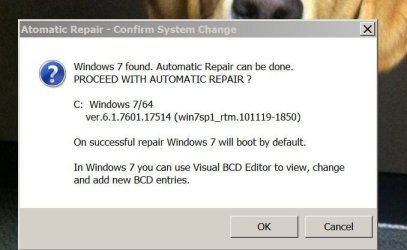
When I run the Dual-boot Repair >automatic repair, a window pops up saying telling me that the repair was successful and Windows 7 is now default.

Unfortunately, a restart gets me to the same 2 boot choices, with that failed setup attempt on default, waiting to time out into a boot setup routine that runs into a blue screen. iow, the repair had no effect.

When I enter ReAgentC \disable into an elevated command prompt, this message appears:
REAGENTC.EXE Operation Failed: 57
The Parameter is incorrect

Thanks again, this is real head-scratcher...


1. Just run "Dual-boot Repair" utility -> "Automatic Repair" and confirm.
This will write again MBR, PBR and set default to Windows 7. Boot files left from server installation will be gone.

2. To fix advanced boot options - on admin prompt in Windows 7:
ReAgentC /disable
ReagentC /enable

This would be all.

Note:
In Disk Management check which drive is marked as "active" - if you do not have a "System Reserved" marked as active the Windows 7 partition should be marked as active !
So mark it active and repeat steps 1. and 2.
This will put boot files to Windows 7 partition.
Then it is save to delete other partitions if you want.

Boot related files are always on active !
 

My Computer

OS
Windows 7 Professional
If you ask for our help you should agree to use our tools which represent countless thousands of successful uses instead of demanding we use your unknown tool.

Install EasyBCD to remove the ghost listing on Edit OS menu.

Confirm you have deleted the old OS correclty by deleting it's partition in Disk Mgmt.
 
When I run the Dual-boot Repair >automatic repair, a window pops up saying telling me that the repair was successful and Windows 7 is now default.

Unfortunately, a restart gets me to the same 2 boot choices, with that failed setup attempt on default, waiting to time out into a boot setup routine that runs into a blue screen. iow, the repair had no effect.

When I enter ReAgentC \disable into an elevated command prompt, this message appears:
REAGENTC.EXE Operation Failed: 57
The Parameter is incorrect

Thanks again, this is real head-scratcher...

1. It is not possible that "Dual-boot Repair" does not fix the problem if no errors are reported - it uses "bcdboot.exe" from MICROSOFT as working horse.

bcdboot, I suppose, has been used by millions if not more.

2. The default boot-menu choice is stored in element "DefaultObject" of {bootmgr} object.

In Visual BCD Editor to set a loader as default you do this:
a) Select loader in left pane.
b) click on Object tab in right pane
c) click on button "Set as default loader" in Object tab

VBCD_set_default_loader.png


3. ReAgentC is the utility from Microsoft for dealing with recovery environment.
It needs the file "\Windows\System32\Repair\boot.wim" for setting recovery environment. It is there by default.
If "boot.wim" missing see here how to get "boot.wim" for Windows 7 32-bit or 64-bit


If the utility fails you should check the parameter you supply:
ReagentC /disable - here the command again.

---------------------------------------------------------------------
@gregrocker
If you do not know about Visual BCD Editor just search for "bcd editor" on Google. Google knows it.
 

My Computer

Computer Manufacturer/Model Number
Acer Notebook
OS
Win 8 RP, Win 7, XP
CPU
Intel
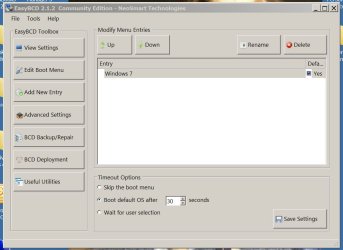
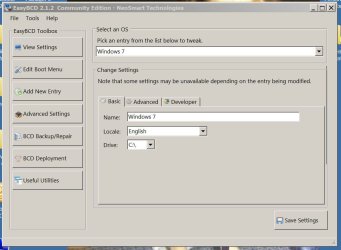
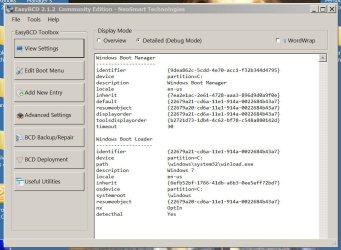
Thanks -- and good point about using the same tools. I've run EasyBCD and Dual-boot Repair, this time making screenshots of both. Attaching 3 shots of my settings in EasyBCD and two -before/after- the Dual-boot Repair.

Once again, the dual-boot repair did not work. The ghost boot remains, and remains set as default. As you can see, in EasyBCD, there is only one boot option.

The command line attempt still results in the same message as before.

Definitely a ghost boot...!

Thanks again...

[/QUOTE]

1. It is not possible that "Dual-boot Repair" does not fix the problem if no errors are reported - it uses "bcdboot.exe" from MICROSOFT as working horse.

bcdboot, I suppose, has been used by millions if not more.

2. The default boot-menu choice is stored in element "DefaultObject" of {bootmgr} object.

In Visual BCD Editor to set a loader as default you do this:
a) Select loader in left pane.
b) click on Object tab in right pane
c) click on button "Set as default loader" in Object tab

VBCD_set_default_loader.png


3. ReAgentC is the utility from Microsoft for dealing with recovery environment.
It needs the file "\Windows\System32\Repair\boot.wim" for setting recovery environment. It is there by default.
If "boot.wim" missing see here how to get "boot.wim" for Windows 7 32-bit or 64-bit


If the utility fails you should check the parameter you supply:
ReagentC /disable - here the command again.

---------------------------------------------------------------------
@gregrocker
If you do not know about Visual BCD Editor just search for "bcd editor" on Google. Google knows it.[/QUOTE]
 

Attachments

  • dual_boot_1.JPG
    dual_boot_1.JPG
    39.3 KB · Views: 15
  • dual_boot_2.JPG
    dual_boot_2.JPG
    34.3 KB · Views: 12
  • easybcd_1.JPG
    easybcd_1.JPG
    65.9 KB · Views: 14
  • easybcd_2.JPG
    easybcd_2.JPG
    71 KB · Views: 13
  • easybcd_3.JPG
    easybcd_3.JPG
    102.7 KB · Views: 16

My Computer

OS
Windows 7 Professional
OK, let's see this ghost.

Can you post:
1) a screenshot from Disk Management so we can see all partitions and disks.
2) output from bcdedit using
bcdedit /enum all /v >bcd.txt
and attach bcd.txt.
 

My Computer

Computer Manufacturer/Model Number
Acer Notebook
OS
Win 8 RP, Win 7, XP
CPU
Intel
Can we see a screenshot of your maximized Disk Mgmt drive map and listings showin all columns, using Snipping Tool in Start Menu?

Have you run Startup Repair a few times to see if it will sort this? Startup Repair - Run 3 Separate Times.

Let us see what's marked Active first as that is key.
 
Never mind , already done, sorry.
 

My Computer

Computer type
PC/Desktop
Computer Manufacturer/Model Number
Lenovo IdeaCenter 450
OS
Windows 10 Pro X64
CPU
Intel Quad Core i7-4770 @ 3.4Ghz
Memory
16.0GB PC3-12800 DDR3 SDRAM 1600 MHz
Graphics Card(s)
Intel Integrated HD Graphics
Sound Card
Realtek HD Audio
Monitor(s) Displays
HP 22" LCD
Screen Resolution
1680 x 1050
Hard Drives
250GB Samsung EVO SATA-3 SSD
2TB Seagate ST2000DM001 SATA-2
1.5TB Seagate ST3150041AS SATA
Keyboard
Dell USB
Mouse
Lenovo USB
Internet Speed
Cable via Road Runner 3MB Upload, 30MB Download
Antivirus
Windows Defender, MBAM Pro, MBAE
Browser
Seamonkey
Other Info
UEFI/GPT
PLDS DVD-RW DH16AERSH
Back
Top