
How to Enable or Disable Desktop Composition in Windows 7 and Vista
Information
The desktop composition visual experience feature, introduced since Vista, fundamentally changed the way applications display pixels on the screen. When desktop composition is enabled, individual windows no longer draw directly to the screen or primary display device as they did in previous versions of Windows. Instead, their drawing is redirected to off-screen surfaces in video memory, which are then rendered into a desktop image and presented on the display.
Desktop composition is performed by the Desktop Window Manager Session Manager (DWM) service. Through desktop composition, DWM enables visual effects on the desktop as well as various Aero features such as thumbnail previews, Aero themes, glass window frames (transparency), 3-D window transition animations, Windows Flip and Windows Flip3D, and high resolution support.
This will show you how to enable or disable Desktop Composition using different options in Windows 7 and Vista.
Desktop composition is performed by the Desktop Window Manager Session Manager (DWM) service. Through desktop composition, DWM enables visual effects on the desktop as well as various Aero features such as thumbnail previews, Aero themes, glass window frames (transparency), 3-D window transition animations, Windows Flip and Windows Flip3D, and high resolution support.
This will show you how to enable or disable Desktop Composition using different options in Windows 7 and Vista.
Note
Windows 7 Starter and Home Basic editions do not have the Aero feature included.
OPTION ONE
Through Visual Effects Settings
NOTE: This option will only affect your user account.
1. Open the Visual Effects settings window in Performance Options.
2. To Enable Desktop Composition
A) Check the Enable desktop composition box, and click on OK. (see screenshot below)
NOTE: This is the default setting.
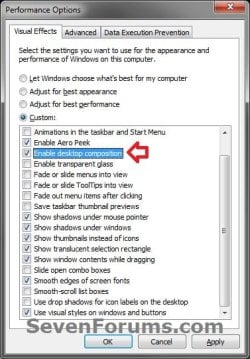
3. To Disable Desktop Composition
A) Uncheck the Enable desktop composition box, and click on OK. (see screenshot above)
OPTION TWO
Through Services
NOTE: This option will affect all users on the computer. You must be logged in as an administrator to be able to do this option.
1. Open the Services window, and select the Desktop Window Manager Session Manager service. (see screenshot below)
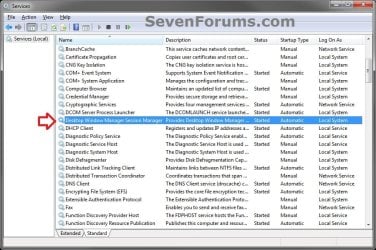
2. Right click on Desktop Window Manager Session Manager, and click on Properties. (see screenshot above)
3. To Enable Desktop Composition
A) Set the Desktop Window Manager Session Manager service to Automatic and Start it. (see screenshot below)
NOTE: This is the default setting.
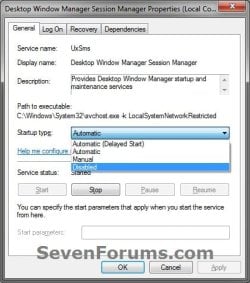
B) Check to make sure that you also have desktop composition enabled using one of the other options in this tutorial as well. Both are required to be enabled.
4. To Disable Desktop Composition
A) Stop and set the Desktop Window Manager Session Manager service to Disabled. (see screenshot above)
OPTION THREE
Using a REG File Download
NOTE: This option will affect all users on the computer. You must be logged in as an administrator to be able to do this option. The REG file in step 1 will also change the Group Policy setting from OPTION FIVE below.
1. To Enable Desktop Composition
NOTE: This is the default setting.
A) Click on the download button below to download the file below.
Enable_Desktop_Composition.reg
Download
B) Go to step 3.
2. To Disable Desktop Composition
A) Click on the download button below to download the file below.
Disable_Desktop_Composition.reg
Download
3. Click on Save, and save the .reg file to the Desktop.
4. Right click on the downloaded .reg file and click on Merge.
5. Click on Run, Yes (Windows 7) or Continue (Vista), Yes, and OK when prompted.
6. Log off and log on, or restart the computer to apply the changes.
7. When done, you can delete the downloaded .reg file if you like.
OPTION FOUR
Manually Through Registry Editor
NOTE: This option will only affect your user account.
1. Open the Start Menu, then type regedit in the search boxand press Enter.
2. If prompted by UAC, then click on Yes (Windows 7) or Continue (Vista).
3. In regedit, navigate to the location below. (see screenshot below)
HKEY_CURRENT_USER\Software\Microsoft\Windows\DWM
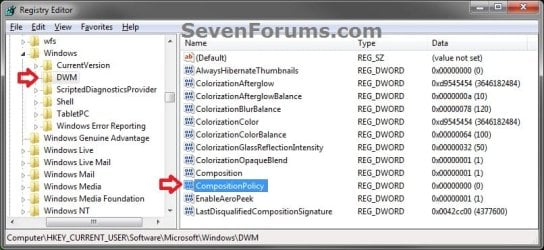
4. In the right pane, double click on CompositionPolicy. (see screenshot above)
5. To Enable Desktop Composition
A) Type in 0, and click on OK. (see screenshot below)
NOTE: This is the default setting.

B) Go to step 7.
6. To Disable Desktop Composition
A) Type in 1, and click on OK. (see screenshot above)
7. Close regedit.
8. Log off and log on, or restart the computer to apply the changes.
OPTION FIVE
Through the Local Group Policy Editor
NOTE: This option will affect all users on the computer. You must be logged in as an administrator to be able to do this option.
1. Open the all users, specific users or groups, or all users except administrators Local Group Policy Editor for how you want this policy applied.
2. In the left pane, click on the arrow to expand User Configuration, Administrative Templates, Windows Components, then click on Desktop Window Manager. (see screenshot below)
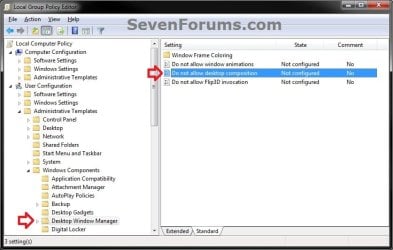
3. In the right pane, right click on Do not allow desktop composition and click on Edit. (see screenshot above)
4. To Enable Desktop Composition
A) Select (dot) Not Configured or Disabled. (see screenshot below step 6)
NOTE: Not configured is the default setting.
B) Go to step 6.
5. To Disable Desktop Composition
A) Select (dot) Enabled. (see screenshot below step 6)
6. Click on OK. (see screenshot below)
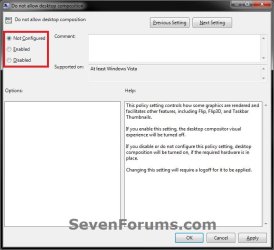
7. Close the Local Group Policy Editor. (See screenshot below step 2)
That's it,
Shawn
Attachments
Last edited:


