
Desktop display not extending full monitor width/height

mshack111

New member
Local time
11:03 AM
Messages
7
Just updated from Vista 64 to Windows7 64 build7100 .

Using DellWFP 32" monitor and ATI v7200 video card.

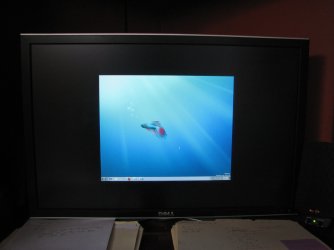
My desktop will not extend all the way left to right or top to bottom on my monitor.

It has black bar around desktop extending to edges of monitor.

When I set screen resolution to max 2560x1280 or recommended 1280x800 , then desktop goes full height and width of monitor. However these settings do not work for me at all.

Any other resolution setting and desktop is centered on monitor, very small with black all around it.


Here is image I took with my camera, as a screen shot only displays the desktop. This shows how the desktop is residing within the monitor. I've tried every resolution setting there is for this video card , checked to make sure I had the latest drivers also.

http://i288.photobucket.com/albums/ll192/ravenshieldtos/IMG_0615.jpg
 

Attachments
  • IMG_0615.JPG
    IMG_0615.JPG
    317.5 KB · Views: 147

My Computer My Computer

At a glance

Windows 7
OS
Windows 7
Just updated from Vista 64 to Windows7 64 build7100 .

Using DellWFP 32" monitor and ATI v7200 video card.

My desktop will not extend all the way left to right or top to bottom on my monitor.

It has black bar around desktop extending to edges of monitor.

When I set screen resolution to max 2560x1280 or recommended 1280x800 , then desktop goes full height and width of monitor. However these settings do not work for me at all.

Any other resolution setting and desktop is centered on monitor, very small with black all around it.


Here is image I took with my camera, as a screen shot only displays the desktop. This shows how the desktop is residing within the monitor. I've tried every resolution setting there is for this video card , checked to make sure I had the latest drivers also.

http://i288.photobucket.com/albums/ll192/ravenshieldtos/IMG_0615.jpg

Hi MShack,

With LCD it is best to chose the native resolution of the screen.
This gives the sharpest image.

If windows then appears with bars around it, go to the ATI settings and find overscan. There's a slider you can set to maximum.

In the new ATI suite they have hidden this option so well, it took me 20 minutes to find it.

If you can't find it, let me know, I'll look where it is.


Further, if you have set the native resolution, but you find the icons and text too small.
rightclick on an empty space on the desktop, choose personal preference,
in the windows that opens in the down left corner you'll find screen or something like that, (I'm on dutch OS)

you'll see, make your screen better visible.
Set it to 125%
this make everything much better readable.


good luck.
 

My Computer My Computer

At a glance

Win7 Build 7600 x86Pentium II 300MHz32mb EDO RAMDiamond Viper
OS
Win7 Build 7600 x86
CPU
Pentium II 300MHz
Motherboard
Asus
Memory
32mb EDO RAM
Graphics Card(s)
Diamond Viper
Sound Card
Soundblaster 16
Monitor(s) Displays
14" AOC CRT 16K color
Screen Resolution
800x600
Hard Drives
300mb Quantum fireball
PSU
110 Watts
Cooling
Passive
Keyboard
Trust Ergonomic
Mouse
Generic
Internet Speed
256K u 128K d
Same problem here had two solutions.

On Win7 builds prior to 7600.16385 - install Catalyst 9.6 and use overscan. 9.7 driver did not work correctly.

On build 7600.16385 - built in driver performed correctly. Installed Catalyst 9.7 with no ill effect.
 
Same problem here had two solutions.

On Win7 builds prior to 7600.16385 - install Catalyst 9.6 and use overscan. 9.7 driver did not work correctly.

On build 7600.16385 - built in driver performed correctly. Installed Catalyst 9.7 with no ill effect.


Hmmm, I went to MS and downloaded from there yesterday but got

7100.0.090421-1700_x64fre_client_en-us_retail_ultimate


Should I install Catalyst 9.6 and use overscan then ?
 

My Computer My Computer

At a glance

Windows 7
OS
Windows 7
Can I conclude that you have installed Catalyst 9.6?

I think 9.7 Antman, they screwed that UI up bigtime.

Took me 20 minutes to find the freaking slider.

The was a little icon on some of the hidden tabs, that didn't look like a click able item, but it was.

Those ATI morons just won't let you get used to something without changing it again. :mad:

My CEO is on the HTPC, so I can't make a screeny of where to find it.

I will post screeny tomorrow.

greetz
 

My Computer My Computer

At a glance

Win7 Build 7600 x86Pentium II 300MHz32mb EDO RAMDiamond Viper
OS
Win7 Build 7600 x86
CPU
Pentium II 300MHz
Motherboard
Asus
Memory
32mb EDO RAM
Graphics Card(s)
Diamond Viper
Sound Card
Soundblaster 16
Monitor(s) Displays
14" AOC CRT 16K color
Screen Resolution
800x600
Hard Drives
300mb Quantum fireball
PSU
110 Watts
Cooling
Passive
Keyboard
Trust Ergonomic
Mouse
Generic
Internet Speed
256K u 128K d
I have a workstation card, so there isn't a 9.6 I don't think

ATI FireGL v7200 , i checked their download site, and they don't have any drivers for Windows 7 for this card, could that ultimately be the issue? When upgrading it didn't say anything about the video card needing drivers though. I'd imagine that vista and windows 7 would use many of the same drivers for peripherals and components
 

My Computer My Computer

At a glance

Windows 7
OS
Windows 7
Read thread. Maybe you have the latest driver. The link I provided seems to include an older version of CCC.

Does your monitor have an option for "Just Scan" or "Auto Fit"?
 
On your DellWFP 32 try:

Menu button > Display Settings > Wide Mode and change 1:1/Aspect to Fill.

(Your Dell menu may differ from mine)
 

My Computer My Computer

At a glance

8 Pro x64i7 3770K 4.6GHz16GB G.Skill Trident X 2666mhzx2 EVGA 780 Ti Superclocked SLI
Computer type
PC/Desktop
Computer Manufacturer/Model Number
Systems by SmartEyeball
OS
8 Pro x64
CPU
i7 3770K 4.6GHz
Motherboard
ASUS P8Z77 WS
Memory
16GB G.Skill Trident X 2666mhz
Graphics Card(s)
x2 EVGA 780 Ti Superclocked SLI
Sound Card
SB X-FI Surround 5.1 PRO USB / ATH-AD900 Headphones
Monitor(s) Displays
x3 Dell U2410 / 58" Samsung
Screen Resolution
5760*1200/ 1920*1200
Hard Drives
2x Intel 520 240GB (RAID 0) * 2x WD Caviar Blacks 2TB (RAID 0) * 2TB WD Caviar Black * Sony Optirac DVD
PSU
Silverstone Strider Evolution 1200W
Case
Thermaltake Level 10 GT Snow Edition
Cooling
Noctua NH-D14
Keyboard
Topre Realforce // Ducky Shine MX Black // Filco Ninja TKL
Mouse
Thermaltake Theron (Highly Recommended) + Razer Imperator
Antivirus
MSE
Browser
IE, FF, WaterFox
Other Info
GT Extreme V2 Sim Racing Cockpit + 40" LCD and K/B Mouse stand ▼
Fanatec CSR Elite Wheel + Clubsport V1 Pedals + CSR shifter/7G-H ▼Saitek X52 Pro ▼ TrackIR 5 Pro
Buttkicker v2 Seat Rumbler with Dedicated 5.1 and Sub Woofer attached to frame ▼
=
Bloody Big Grin
Reboot and uninstall your drivers in safe mode using Driver Sweeper.
 

My Computer My Computer

At a glance

Windows 8.1 PRO3rd Generation Intel Core i7‐3612QM CPU @ 2.1...8GB DDR3NVIDIA GeForce GT 525M (128 bit), 1GB Grpahics
Computer type
PC/Desktop
Computer Manufacturer/Model Number
DELL VOSTRO 3650
OS
Windows 8.1 PRO
CPU
3rd Generation Intel Core i7‐3612QM CPU @ 2.10GHZ
Memory
8GB DDR3
Graphics Card(s)
NVIDIA GeForce GT 525M (128 bit), 1GB Grpahics
Screen Resolution
1920X1080
Hard Drives
750GB 5400RPM
Have you attempted this?


I do not see any settings for my monitor in the control panel , and no options in the properties under device manager.

Is there software from Dell to download that will allow to access menu on Dell monitors?
 

My Computer My Computer

At a glance

Windows 7
OS
Windows 7
looks like no menu for my dell
This brings us back to drivers. Good advice is provided by TG Soldier - Reboot and uninstall your drivers in safe mode using Driver Sweeper. Then install the 8.53 drivers you downloaded.
 
I know that this is a dead thread, but I had the same problem as the OP when I installed Windows 7 on my Asus G2P notebook this morning. This thread was the first thing that showed up on Google when I searched for the problem so I decided to post my fix for others who have the same problem.

First, my issue was basically the same as the OP. I have an Asus G2P notebook with a screen that is optimized for 1900x1200 resolution. When I tried setting the resolution to my preferred 1440x900 I ended up with a small square in the middle of the screen that contained my desktop.

I had already installed the latest Catalyst Control Center, which as of today is 10.9.

Anyway, here's what worked for me:

  1. Open up the Catalyst Control Center. It defaults to Advanced view
  2. From the top select "View" and change it to "Basic"
  3. Accept the little notification prompt, then hit "Next"
  4. Select the "Quick Settings" tab
  5. Select "Notebook Panel Properties"
  6. Select "Resize the desktop to fit the display panel," Then hit "Go"
  7. At this point I started getting some weird exceptions (errors). Just hit continue
  8. At the next screen choose "Resize to fit the display panel," then hit "Finish"
  9. You'll get some more errors (at least I did). Keep hitting "Continue" until they are gone
Once all of that is done just reboot your computer and your problem should be fixed.

Standard Disclaimer: This advice is offered as-is. I don't see how any of this could break anything but if it does then don't blame me. I'm not an expert with graphics cards and I just stumbled through this until I got lucky, so I can't provide much more help than this.
 

My Computer My Computer

At a glance

Windows 7 Ultimate 32bitIntel(R) Core(TM)2 CPE T7200 @ 2.00GHz2.00 GBATI Radeon X1700
Computer Manufacturer/Model Number
Asus G2P
OS
Windows 7 Ultimate 32bit
CPU
Intel(R) Core(TM)2 CPE T7200 @ 2.00GHz
Memory
2.00 GB
Graphics Card(s)
ATI Radeon X1700
Back
Top