Desktop Icons under the Taskbar

Dixit

New member
I just cant seem to figure out why on my 2nd monitor (which is the main one) My taskbar slightly covers my Desktop Icons. I just cannot seem to get it to not do it. Only way to fix it is to not use the Align to Grid. But then all Icons have to be aligned by hand.

One option was to adjust the vertical icon spacing, but I had to adjust it at such a large space or such a small one that it was too much.

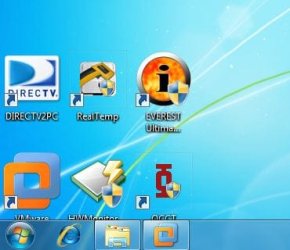
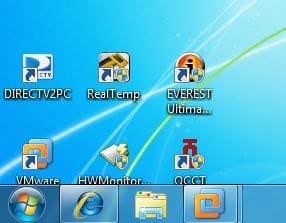
Attached is a screenshot showing the example. I dont know why the desktop icons are sitting under the "locked" taskbar. I dont use any auto hide on the taskbar.

Is there anyway to actually adjust the grid itself? In that where I can tell it where the last line of icons can be?

BTW a little info, the monitor is a Dell E207WFP (20" Widescreen LCD) connected via DVI to the GTS250 video card.

Also one more bit of wierd info. As I mentioned above, I have two of these 20". I dual screen (extend) the displays. The one having the problem is the right monitor. It always puts the desktop icons under the taskbar. If I make the left 20" the "main" display, it displays just fine. So for some reason this monitor which is identical to the other one keeps forcing or telling Windows to adjust the grid and putting the last line of desktop icons under the taskbar.

Dixit
 

Attachments
  • taskbar.JPG
    taskbar.JPG
    21.1 KB · Views: 2,524

My Computer

Computer Manufacturer/Model Number
Myself
OS
Windows7 Home Premium 64bit
CPU
Core i7 920
Motherboard
Gigabyte EX58-UD4P
Memory
Patriot Viper 6GB 1600mhz
Graphics Card(s)
GTS250 1GB
Sound Card
Onboard
Monitor(s) Displays
Two Dell E207
Hard Drives
Seagate 7200.12 1TB
Seagate 7200.11 500GB
PSU
Corsair 750w
Case
Coolermaster CM690
Cooling
Prolimatech Megahalems
Right click on task bar...properties....check use small icons
 

My Computer

Computer type
PC/Desktop
Computer Manufacturer/Model Number
Dell XPS 420
OS
Windows 10, Home Clean Install
CPU
Intel Core2 processsor Q8200(2.33Ghz 1333FSB) Quad Core Tech
Motherboard
Dell
Memory
6 gb
Graphics Card(s)
ATI Radeon 256MB HD3650
Sound Card
Intergrated 7.1 Channel Audio
Monitor(s) Displays
Dell SP2009W 20"
Hard Drives
640 GB Serial ATA Hard drive
Cooling
Fan
Keyboard
Dell USB Keyboard
Mouse
Dell Premium Optical USB
Internet Speed
DSL 2.85
That doesnt fully solve the provlem, all it does is make the taskbar smaller, the 2nd line of text on the icons on the last row are still fully covered by the taskbar.

What I dont understand is why the "grid spacing" is different on one monitor when they are identical monitors. Identical in ever way, model, connected to the graphics card via DVI, everything is the same.

Dixit
 

My Computer

Computer Manufacturer/Model Number
Myself
OS
Windows7 Home Premium 64bit
CPU
Core i7 920
Motherboard
Gigabyte EX58-UD4P
Memory
Patriot Viper 6GB 1600mhz
Graphics Card(s)
GTS250 1GB
Sound Card
Onboard
Monitor(s) Displays
Two Dell E207
Hard Drives
Seagate 7200.12 1TB
Seagate 7200.11 500GB
PSU
Corsair 750w
Case
Coolermaster CM690
Cooling
Prolimatech Megahalems
Click on the desktop, push ctrl key, then use the middle scroll button on your mouse to resize the desktop icons .... are they still partially hidden?
 

My Computer

Computer type
PC/Desktop
Computer Manufacturer/Model Number
Bruce ... somewhere in his 40's
OS
Windows 7 Ultimate 32bit SP1
CPU
Intel(R) Core(TM)2 Quad CPU @ 2.40GHz, 2400 MHz
Motherboard
INTEL/D975XBX2
Memory
4 GB
Graphics Card(s)
ATI Radeon HD 2600 Pro
Monitor(s) Displays
Samsung SyncMaster 914v
Screen Resolution
1280 x 1024
Hard Drives
2/500GB each ... ST3500630AS ATA Device.
One is not connected
PSU
Rocketfish 700 W
Case
G.Skill Gigabyte Chassis
Keyboard
Standard PS/2 Keyboard
Mouse
Microsoft PS/2 Mouse
Internet Speed
DSL
Antivirus
Avira Internet Security
Browser
IE 11
Other Info
ATI HDMI Audio
All that does is change the icon size, which you can do from right clicking the desktop and click View, and then you can select large, medium, small icons.

Even if I use control which gives me more than those 3 options, the bottom line always stays under it, attached is another screenshot that shows how its twice as large now but still keeps that bottom one under it.

The grid is just sitting below it for that last line.

Dixit
 

Attachments

  • taskbar2.JPG
    taskbar2.JPG
    28.8 KB · Views: 32

My Computer

Computer Manufacturer/Model Number
Myself
OS
Windows7 Home Premium 64bit
CPU
Core i7 920
Motherboard
Gigabyte EX58-UD4P
Memory
Patriot Viper 6GB 1600mhz
Graphics Card(s)
GTS250 1GB
Sound Card
Onboard
Monitor(s) Displays
Two Dell E207
Hard Drives
Seagate 7200.12 1TB
Seagate 7200.11 500GB
PSU
Corsair 750w
Case
Coolermaster CM690
Cooling
Prolimatech Megahalems
Experiment with the resolution
 

My Computer

Computer type
PC/Desktop
Computer Manufacturer/Model Number
Dell XPS 420
OS
Windows 10, Home Clean Install
CPU
Intel Core2 processsor Q8200(2.33Ghz 1333FSB) Quad Core Tech
Motherboard
Dell
Memory
6 gb
Graphics Card(s)
ATI Radeon 256MB HD3650
Sound Card
Intergrated 7.1 Channel Audio
Monitor(s) Displays
Dell SP2009W 20"
Hard Drives
640 GB Serial ATA Hard drive
Cooling
Fan
Keyboard
Dell USB Keyboard
Mouse
Dell Premium Optical USB
Internet Speed
DSL 2.85
As above, or look at the menu on both monitors (button on monitor) and see if they are set exactly the same.
 

My Computer

Computer type
PC/Desktop
Computer Manufacturer/Model Number
Bruce ... somewhere in his 40's
OS
Windows 7 Ultimate 32bit SP1
CPU
Intel(R) Core(TM)2 Quad CPU @ 2.40GHz, 2400 MHz
Motherboard
INTEL/D975XBX2
Memory
4 GB
Graphics Card(s)
ATI Radeon HD 2600 Pro
Monitor(s) Displays
Samsung SyncMaster 914v
Screen Resolution
1280 x 1024
Hard Drives
2/500GB each ... ST3500630AS ATA Device.
One is not connected
PSU
Rocketfish 700 W
Case
G.Skill Gigabyte Chassis
Keyboard
Standard PS/2 Keyboard
Mouse
Microsoft PS/2 Mouse
Internet Speed
DSL
Antivirus
Avira Internet Security
Browser
IE 11
Other Info
ATI HDMI Audio
Resolution doesnt seem to help, the last line of icons is always way under the taskbar or way too high (alot of space between).

I tried to mess with the whole dual screen. If I change it to Duplicate displays, both monitors are obviously the same and it looks fine, icons are properly positioned.

If I choose show desktop on 1 only (which is the monitor giving me the problems) it looks fine, icon position is fine.

If I choose extend displays, then when we get back to the same issue of the right monitor (which is #1 for me) having last line of desktop icons slightly under the taskbar.

Dixit
 

My Computer

Computer Manufacturer/Model Number
Myself
OS
Windows7 Home Premium 64bit
CPU
Core i7 920
Motherboard
Gigabyte EX58-UD4P
Memory
Patriot Viper 6GB 1600mhz
Graphics Card(s)
GTS250 1GB
Sound Card
Onboard
Monitor(s) Displays
Two Dell E207
Hard Drives
Seagate 7200.12 1TB
Seagate 7200.11 500GB
PSU
Corsair 750w
Case
Coolermaster CM690
Cooling
Prolimatech Megahalems
You can also right click desktop view and uncheck align icons to grid and put your icons where you want them I have always done this the rebel in me i guess
 

My Computer

Computer Manufacturer/Model Number
I made it
OS
Win7 Ultimate
CPU
Celeron E1400 @ 2 gig dual core
Motherboard
MSI MS-7529
Memory
4 gig dual channel
Graphics Card(s)
nVidia 6600LE 512mgs mem
Sound Card
On Board Realtek HD
Monitor(s) Displays
1 Sceptre Flat
Screen Resolution
I like 1280x800
Hard Drives
System Drive: 300 gig Maxtor SATA3 (It was cheap)

My Storage: 160 gig WD SATA3
Wife's Storage 160 gig WD SATA3
Keyboard
MS Dgital Media Pro
Mouse
MS Optical 3000
Internet Speed
1.5 DSL
Yea I could do that, except im anal and want the crap to be aligned, moving by hand means they wont be aligned perfectly.

Dixit
 

My Computer

Computer Manufacturer/Model Number
Myself
OS
Windows7 Home Premium 64bit
CPU
Core i7 920
Motherboard
Gigabyte EX58-UD4P
Memory
Patriot Viper 6GB 1600mhz
Graphics Card(s)
GTS250 1GB
Sound Card
Onboard
Monitor(s) Displays
Two Dell E207
Hard Drives
Seagate 7200.12 1TB
Seagate 7200.11 500GB
PSU
Corsair 750w
Case
Coolermaster CM690
Cooling
Prolimatech Megahalems
Im really trying to help, but after this I have no other ideas.

Gently left click on any icon, so that it is shaded in the background. Then put your cursor on any icon. Then hit the ctrl while you adjust the size with the mouse button.
 

My Computer

Computer type
PC/Desktop
Computer Manufacturer/Model Number
Dell XPS 420
OS
Windows 10, Home Clean Install
CPU
Intel Core2 processsor Q8200(2.33Ghz 1333FSB) Quad Core Tech
Motherboard
Dell
Memory
6 gb
Graphics Card(s)
ATI Radeon 256MB HD3650
Sound Card
Intergrated 7.1 Channel Audio
Monitor(s) Displays
Dell SP2009W 20"
Hard Drives
640 GB Serial ATA Hard drive
Cooling
Fan
Keyboard
Dell USB Keyboard
Mouse
Dell Premium Optical USB
Internet Speed
DSL 2.85
I appreciate your efforts, really do, anything that I can try I will.

But unfortunately that didnt help. It just seems to adjust the size but continues to keep te bottom part of the icon under the taskbar.

Im going to do some more playing around with the screen settings as it seems it clearly has to do with this dual screening (since when I put it in duplicate mode it works fine or even show desktop on 1).

Maybe try to uninstall and reinstall the Nvidia GTS250 driver and start again. Something is telling this screen incorrectly where the grid should be for the desktop icons.

Dixit
 

My Computer

Computer Manufacturer/Model Number
Myself
OS
Windows7 Home Premium 64bit
CPU
Core i7 920
Motherboard
Gigabyte EX58-UD4P
Memory
Patriot Viper 6GB 1600mhz
Graphics Card(s)
GTS250 1GB
Sound Card
Onboard
Monitor(s) Displays
Two Dell E207
Hard Drives
Seagate 7200.12 1TB
Seagate 7200.11 500GB
PSU
Corsair 750w
Case
Coolermaster CM690
Cooling
Prolimatech Megahalems
Did some pretty intensive testing and troubleshooting. Uninstalled the Nvidia driver, windows7 put the WDDM driver in, same issue, put the Nvidia driver back, still same issue.

Decided to physically rewire the two monitors different (switched the wires), same thing, so its not the monitors.

Then decided to do some more wiring and noticed when I had one of the monitors only plugged in, Windows auto kicks into 1screen (obviously) and that screen is always fine, regardless of whether its the left or right one. As long as just one is connected, the icon grid is perfect.

Plug the 2nd cable in and instantly the other monitor kicks in and the original one has the icon issue. So I can replicate it on either monitor, so I know its not the monitor or the cabling. It seems to be maybe a bug with Nvidia driver or Windows when both are connected the monitor labeled as #1 (in identifying the monitor in display properties) is the one that always has this icon grid issue when the 2nd monitor is connected and extend desktop is chosen.

Dixit
 

My Computer

Computer Manufacturer/Model Number
Myself
OS
Windows7 Home Premium 64bit
CPU
Core i7 920
Motherboard
Gigabyte EX58-UD4P
Memory
Patriot Viper 6GB 1600mhz
Graphics Card(s)
GTS250 1GB
Sound Card
Onboard
Monitor(s) Displays
Two Dell E207
Hard Drives
Seagate 7200.12 1TB
Seagate 7200.11 500GB
PSU
Corsair 750w
Case
Coolermaster CM690
Cooling
Prolimatech Megahalems
I think Ive nailed the problem, no fix, but think I know whats causing it.

So follow me here, I got dual screens. Left one is #1 and Right one is #2 (when you click identify monitors).

Now if I make the left one the MAIN display in display properties, everything is fine, icons on the desktop dont fall under the taskbar. If I make #2 the MAIN, then icons fall under the taskbar.

So I played around. I decided to take the 1 and 2 monitors shown in display properties and switch them around making it 2 and 1 (even though physically its 1 on left and 2 on right). Now remember all I did was flip the monitors in where windows think they actually are, and now the right monitor icons with the task bar are just fine. Not under anymore.

So basically this is what I came down to. IF you attempt to make the RIGHT side of any dual screen setup your main (such as wanting the taskbar on the right monitor), then the icon problem happens. If you make the left one the main (regardless of if its actually monitor 1 or 2) it always works fine.

Windows7 just doesnt seem to like having the taskbar on the right screen.

And as for further proof of this, I noticed when I was flipping the displays "make this display main" setting, I noticed on the right monitor for a SPLIT second the icons were aligned right and then dropped below the taskbar. So that tells me windows doesnt seem to truly tell the icon grid there is a taskbar on the right. IF you check the hide taskbar, you can see how the last line of icons actually align well as if there was no taskbar to the bottom of the screen, so that tells me the grid doesnt believe the taskbar actually there.

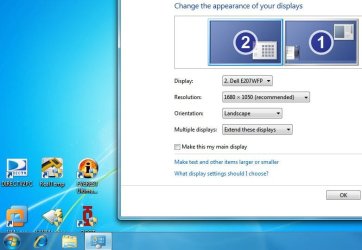
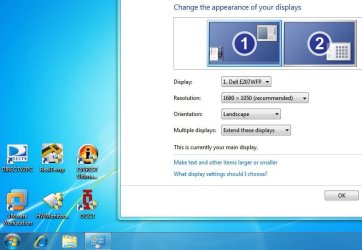
Attached are screenshots showing just the right monitor and all I did was flip the logical monitor positions around. You can see how the icon positions change.

Dixit
 

Attachments

  • display2-1.JPG
    display2-1.JPG
    63.2 KB · Views: 40
  • display1-2.JPG
    display1-2.JPG
    65.5 KB · Views: 39

My Computer

Computer Manufacturer/Model Number
Myself
OS
Windows7 Home Premium 64bit
CPU
Core i7 920
Motherboard
Gigabyte EX58-UD4P
Memory
Patriot Viper 6GB 1600mhz
Graphics Card(s)
GTS250 1GB
Sound Card
Onboard
Monitor(s) Displays
Two Dell E207
Hard Drives
Seagate 7200.12 1TB
Seagate 7200.11 500GB
PSU
Corsair 750w
Case
Coolermaster CM690
Cooling
Prolimatech Megahalems
You may not care for it, but a better solution is to get rid of desktop icons altogether. You could use a program such as ObjectDock and/or RocketDock to organize the icons on a launch bar that hides off screen until you need it.
 

My Computer

Computer Manufacturer/Model Number
DIY
OS
W7x64 Pro, SuSe 12.1/** W7 x64 Pro, XP MCE
CPU
Phenom II 1090T w/Noctua NH-D14 /**4400+ X2 w/CM Hyper TX 3
Motherboard
ASRock 890FX Deluxe 4/**A8N-SLI
Memory
2 x 2GB Patriot PGS34g1600LLKA/**4x1GB Corsair VS
Graphics Card(s)
EVGA GTX460 SC/**EVGA 8800GTS
Sound Card
Asus Xonar D2X/**Xonar D1
Monitor(s) Displays
Acer X233H, Dell E152FPc /**LG M237-WD
Screen Resolution
1920x1080 & 1024x768/**1980x1080
Hard Drives
WDC 2TB, 1.5TB, 1TB, 500GB,Seagate 500GB , Maxtor 80GB /**500GB Seagate & WDC 1TB Black
PSU
CM RS600 w/ APC BX1000G/**Antec 500 TP w/ APC BX1000
Case
HAF922/**Antec 1040IIB
Cooling
3x200mm, 1x140 and 1x120mm/**5x80mm fans
Keyboard
Logitech Media USB/**Saitek Eclipse
Mouse
Cordless Trackman Wheel/**Ditto
Internet Speed
3.3Mbps
Other Info
SB 560 5.1 w/ Sennheiser RS140/**Creative T20 speakers, Dvico FusionHDTV7 Gold RT, Cisco E3000, HP 5510V AIO, Linksys E3000, Belkin F5U237 hub and **F5D8055 adapter
(** = 2nd rig)
You may not care for it, but a better solution is to get rid of desktop icons altogether. You could use a program such as ObjectDock and/or RocketDock to organize the icons on a launch bar that hides off screen until you need it.

or you make a new toolbar for the taskbar that contains the shortcuts.
example:
69q8vp.jpg

the left is the folder, the right is the main bar/quicklaunch. the folder section will show everything that is in the actual folder.
 

My Computer

Computer type
PC/Desktop
Computer Manufacturer/Model Number
Apple 17" iMac MA199LL (Early 2006)
OS
Windows 8 Pro (32-bit)
CPU
1.83GHz Intel Core Duo
Memory
2GB 667MHz DDR2 SDRAM (PC2-5300) (upgrade)
Graphics Card(s)
ATI Radeon X1600 with 128MB GDDR3 memory
Monitor(s) Displays
17-inch TFT active-matrix LCD, millions of colors
Screen Resolution
1440 x 900
Hard Drives
Hitachi 320GB HDT721032SLA360 7200RPM SATA II (upgrade)
Keyboard
Microsoft Wired Keyboard 600
Mouse
Microsoft Basic Optical Mouse v2.0
Internet Speed
4 Mbps
Antivirus
Microsoft Security Essentials
Browser
Google Chrome
Other Info
WEI:
Base Score: 3.9 Processor: 4.4 Memory 4.7
Graphics: 3.9 Gaming Graphics: 4.1 Primary HD: 5.9
I have that also. I use the quick launch for the programs that I use most oft, and the launch bars contain programs that I expect to use often, but not enough to crowd the Taskbar with.
 

My Computer

Computer Manufacturer/Model Number
DIY
OS
W7x64 Pro, SuSe 12.1/** W7 x64 Pro, XP MCE
CPU
Phenom II 1090T w/Noctua NH-D14 /**4400+ X2 w/CM Hyper TX 3
Motherboard
ASRock 890FX Deluxe 4/**A8N-SLI
Memory
2 x 2GB Patriot PGS34g1600LLKA/**4x1GB Corsair VS
Graphics Card(s)
EVGA GTX460 SC/**EVGA 8800GTS
Sound Card
Asus Xonar D2X/**Xonar D1
Monitor(s) Displays
Acer X233H, Dell E152FPc /**LG M237-WD
Screen Resolution
1920x1080 & 1024x768/**1980x1080
Hard Drives
WDC 2TB, 1.5TB, 1TB, 500GB,Seagate 500GB , Maxtor 80GB /**500GB Seagate & WDC 1TB Black
PSU
CM RS600 w/ APC BX1000G/**Antec 500 TP w/ APC BX1000
Case
HAF922/**Antec 1040IIB
Cooling
3x200mm, 1x140 and 1x120mm/**5x80mm fans
Keyboard
Logitech Media USB/**Saitek Eclipse
Mouse
Cordless Trackman Wheel/**Ditto
Internet Speed
3.3Mbps
Other Info
SB 560 5.1 w/ Sennheiser RS140/**Creative T20 speakers, Dvico FusionHDTV7 Gold RT, Cisco E3000, HP 5510V AIO, Linksys E3000, Belkin F5U237 hub and **F5D8055 adapter
(** = 2nd rig)
I personally think it is just an annoying bug. Nonetheless, I fixed my problem by first changing my resolution to something other than what is normal, and then changed it back. My ICONs now show up beside the taskbar instead of underneath it. Not sure if this helps.
 
Last edited:

My Computer

OS
Windows 7
For those who may come across this thread...

I think there's a bug with the desktop handling in Windows 7. The desktop seems to extend under the taskbar including full screen-sized windows.

Every morning I have to go through a small process to reset this back to "normal". It essentially involves resetting the desktop which can probably be done a number of ways... ie. resolution change, then change back. I usually deal with this by right-clicking the taskbar, selecting "Properties" and allowing the taskbar to auto-hide (must press apply). Once you switch this off, it seems to fix the problem but it needs to be done every time you boot.


Mark
 

My Computer

Computer type
PC/Desktop
OS
Windows 7 64-bit
One solution: Right click desktop => View => Auto arrange icons.

Then do it again and uncheck it.

It will rearrange all your icons so you have to manually put them back how you like them BUT it also removes the icons off the bottom level. And when you save new files to the desktop they don't go down there. Stays that way on reboot too.
 

My Computer

Computer type
PC/Desktop
OS
Windows 7 Home Premium 64 bit
Back
Top