Disabling shares folders ending with "$"

kokolo

New member
Local time
10:03 PM
Messages
1
Hi guys,

First post here. I need some help how to disable shares folders, "C$", "IPC$", etc. In Computer Management, I tried right click on the folder and I don't have the "Stop Sharing" option (I have administration rights in my system). I know the dollar sign means that these folders are administrator shares, but I don't know if somebody outside or inside my network can see/connect to these folders, if they have the logon windows password. I don't think this is secure, because I can connect wirelessly to these folders with my phone, and even create files in my system.

I wanted to disable network discovery but I regularly use a wireless printer, so that's not an option. My only option is disabling these sharing "$"folders. Please how to do this? Thanks for any help.
 

My Computer My Computer

Computer type
PC/Desktop
OS
Windows 7 Home
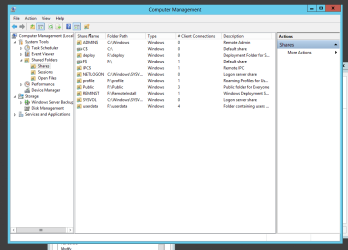
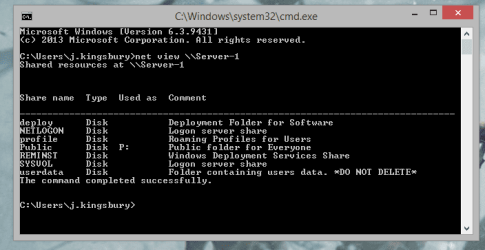
Shares with the '$' at the end of them are hidden from the client machines network tab and any command prompt equivalent. The only way of a client to try and access them are to manually enter the UNC path. As you can see there are hidden shares currently active for this server but the client side cannot see it.

   Note
I am currently using Windows 8 however please be assured that the same information and steps apply to Windows 7 as well as Vista


Server Share.PNG

client share.PNG

client share CMD.PNG

Windows will create these shares for Administrative Purposes which are normally used by IT admins in order to ease management as well as help with virtualisation technology that may restrict them from local access to the server. In a domain environment only Domain Administrators have access to these administrative/hidden shares therefore any standard user will not be able to access these shares. In a WORKGROUP environment which is what you are currently using, only local Administrators of the host machine can have access to the Administrative shares. For example if I have a machine called Josh-PC then only the Administrators account for that machine can have access to the share.

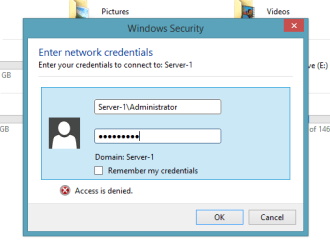
When accessing the share from a remote machine you should be prompted with an Access Denied message prompting you to provide credentials like the one below. From here you enter the username and password of the computer with the share to see if you can access the hidden share. An example below is of me entering Administrator credentials which have access to the hidden shares.

Authentication for Admin share.PNG

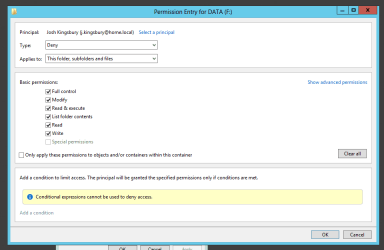
Unless all your users have an Administrator account I would not be worried about the hidden shares since only admins can have access to them. If you wish you can restrict access to these drives for Administrators by applying security permissions to the drive or folder itself. For example, below is an example of me denying local access to the F:\ drive on the server which will reflect to remote access as well.

deny NTFS permissions.PNG

For more information on how to deny someone then please follow this tutorial - http://www.sevenforums.com/tutorials/122666-permissions-allow-deny-users-groups.html

The hidden shares can be disabled temporarily by right clicking and clicking on 'Stop Sharing' but please be advised that upon reboot the shares will reappear because they are a part of the service. Also, you cannot disable the IPC$ share and you also cannot access it since it isn't a share that has a folder structure but rather a tunnel allowing remote administration as stated earlier.

Hope This Helps,
Josh :)
 

My Computer My Computer

Computer type
PC/Desktop
Computer Manufacturer/Model Number
Custom Built
OS
Windows 7 Professional x64 SP1 ; Windows Server 2012 R2 Standard
CPU
Intel Core i5 2400 @ 3.10GHz
Motherboard
Foxconn H67MP-S/-V/H67MP
Memory
8.0GB DDR3 @ 665MHz (2GBx4)
Graphics Card(s)
AMD Radeon HD 6870
Sound Card
Realtek High Definition Audio
Monitor(s) Displays
AOC 2243W & SMB1930NW
Screen Resolution
1440x900 & 1920x1080
Hard Drives
977GB Seagate ST31000524AS ATA Drive (SATA)
250GB WD iSCSI attached Drive
PSU
750W Gaming PSU
Case
Novatech Night
Cooling
Fan
Keyboard
Dell Standard PS/2 Keyboard
Mouse
R.A.T 07 Gaming Mouse
Internet Speed
Download: 10 Mbps Ping: 30ms Upload: 0.81 Mbps
Browser
Google Chrome
Other Info
Optiarc DVD RW AD-5260S ATA Device
Hi guys,

First post here. I need some help how to disable shares folders, "C$", "IPC$", etc. In Computer Management, I tried right click on the folder and I don't have the "Stop Sharing" option (I have administration rights in my system). I know the dollar sign means that these folders are administrator shares, but I don't know if somebody outside or inside my network can see/connect to these folders, if they have the logon windows password. I don't think this is secure, because I can connect wirelessly to these folders with my phone, and even create files in my system.

I wanted to disable network discovery but I regularly use a wireless printer, so that's not an option. My only option is disabling these sharing "$"folders. Please how to do this? Thanks for any help.

Actually it is possible to have Network Discovery turned off while leaving File and Printer Sharing turned on.

This means that clients in the local network can still print through your machine but they won't be able to access any shared folders on your machine.
 

My Computer My Computer

Computer type
PC/Desktop
Computer Manufacturer/Model Number
Home built
OS
Windows 7 Ult, Windows 8.1 Pro,
CPU
Q9650-4.275GHz, E8600 4.5GHz, E6750-3.8GHz
Motherboard
Evga 780i FTW
Memory
G.Skill PC2 9600 1200Mhz 5 5 5 15 2T
Graphics Card(s)
GTX480
Sound Card
Asus Xonar D2
Monitor(s) Displays
HannsG
Screen Resolution
1680X1050
Hard Drives
GSkill Phoenix Pro 120GB SSD
PSU
ThermalTake Toughpower 1000Watt modular
Case
ThermalTake XaserV
Cooling
Xigmatek S1283
Keyboard
Logitech G15
Mouse
Logitech G9
Internet Speed
T1
Back
Top