Display "Open With" cascading sub-menu when multiple files selected
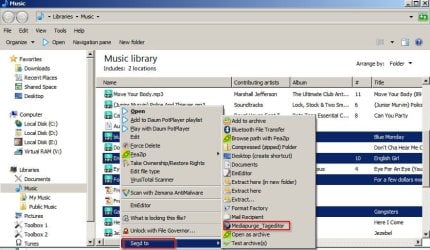
I would like to have Windows Explorer's "Open With" cascading sub-menu displayed when multiple files of a certain type (Perceived: Audio) have been right-clicked on.
Window Explorer already differentiates between the context menus that it displays when a single file has been right-clicked versus the context menu that it displays when multiple files have been right-clicked. It also displays different menus depending on whether the multiple files are of the same type, or whether they are of various different types. So, it seems that the capability is all already there, and I assume that it's just a case of creating the necessary Registry key(s) to make the Open With menu display under the correct circumstances (i.e. only when multiple audio files have been selected).
My reason for wanting to do this is so that I can send multiple audio files to MP3Tagger for tagging, rather than having to manually open the program and then drag and drop the files. I've checked that the program can accept multiple files from the context menu without doing anything weird like opening multiple instances, and it works fine. So it's just the Explorer menu side that needs tackling.
I'd rather not use any kludgy work-arounds because I have spent a lot of time getting all my file associations and context menus really tidy and organized; so things like adding a permanent menu item to the top level context menu of all audio files (regardless of number of items selected), or using the 'Send To' sub menu (which would apply to all files regardless of type) are the kind of things that I wish to avoid.
Any help would be really appreciated, because I've spent days looking into this, but have not been able to find how to do it.
Thanks
I would like to have Windows Explorer's "Open With" cascading sub-menu displayed when multiple files of a certain type (Perceived: Audio) have been right-clicked on.
Window Explorer already differentiates between the context menus that it displays when a single file has been right-clicked versus the context menu that it displays when multiple files have been right-clicked. It also displays different menus depending on whether the multiple files are of the same type, or whether they are of various different types. So, it seems that the capability is all already there, and I assume that it's just a case of creating the necessary Registry key(s) to make the Open With menu display under the correct circumstances (i.e. only when multiple audio files have been selected).
My reason for wanting to do this is so that I can send multiple audio files to MP3Tagger for tagging, rather than having to manually open the program and then drag and drop the files. I've checked that the program can accept multiple files from the context menu without doing anything weird like opening multiple instances, and it works fine. So it's just the Explorer menu side that needs tackling.
I'd rather not use any kludgy work-arounds because I have spent a lot of time getting all my file associations and context menus really tidy and organized; so things like adding a permanent menu item to the top level context menu of all audio files (regardless of number of items selected), or using the 'Send To' sub menu (which would apply to all files regardless of type) are the kind of things that I wish to avoid.
Any help would be really appreciated, because I've spent days looking into this, but have not been able to find how to do it.
Thanks
My Computer
- OS
- Windows 7 Professional x64