Don't understand Enable Integration Features

kshill5

New member
Local time
2:57 PM
Messages
2
I installed Virtual PC and XP Mode but my drives weren't shared - I could not get to my host computer's files and My Documents folder was not on the XP mode desktop. In settings, Auto Integration was on and everything was checked. (Maybe "Enable inegration feature" was not enabled I don't know-wouldn't that have been on automatically?). After first installing was there something I needed to set up to share drives or would it have been done automatically? I tried to attach my printer and it looked for the printer software but couldn't find it. Do I need to install the printer software on XP?

ANyway, I thought it has something to do with the 2 computers needing the same name so I changed XP mode's computer name. Now I can not login when Enable Integration Featuers is on. I did set up a password when setting up XP mode in the first place. I tried changing that password that does not work. Any suggestions? Should I just unistall and start over? What will unistalling to do the software I installed in XP mode? I have Windows 7 64-bit OS. thanks
 

My Computer

OS
Windows 7 64-bit
To start, here's what Wikipedia has to say on this subject:
Virtual Machine Integration Components

To facilitate the exchange and sharing of files, folders and data between the host and guest operating systems, Virtual PC provides an optional set of Virtual Machine Additions. These can be installed in the guest OS to provide the following functionality across the host and guest:
  • Better performance of the guest
  • Integrated use of the mouse
  • Optimized video drivers
  • Dynamic screen resolution (resizing the virtual machine window sets the guest to any screen resolution)
  • Time synchronization with the host
  • Clipboard sharing
  • Drag-and-drop capabilities (not supported in Windows Virtual PC)
  • Access to designated host OS folders from within the guest through folder sharing
  • Support for USB devices beginning with Windows Virtual PC although isochronous USB support is absent
Virtual PC Additions are called Virtual PC Integration Components beginning with Windows Virtual PC. In Windows Virtual PC, enabling integration features automatically makes the virtual machine user account accessible using Remote Desktop Connection.
(Source: Windows Virtual PC - Wikipedia, the free encyclopedia)

Virtual PC integration components have to be installed in order to to enable integration features. To install integration components, run XP Mode or any other Virtual PC machine, where you want to enable integration.

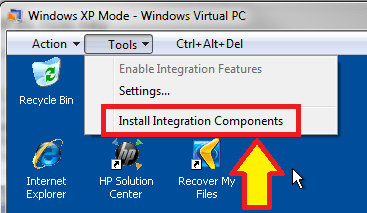
To install integration components, start the virtual machine and go to Tools menu, choose Install Integration Components. Notice that this menu option is not visible if the integration components are already installed:

XPM_Integration1.png

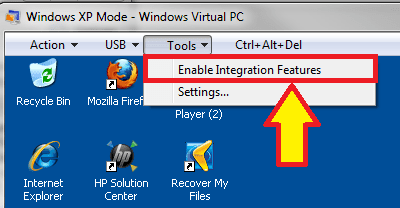
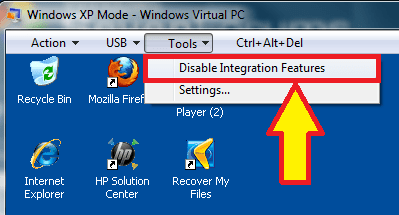
When integration components are installed, you can enable or disable them from the Tools menu:

XPM_Integration2.png

XPM_Integration3.png

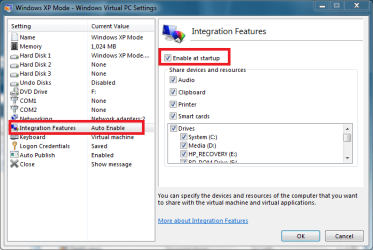
You can also change virtual machine settings so that integration features are automatically enabled. This can be done from virtual machine's settings, for instance XP Mode's settings:

XPM_Integration4.png

If you enable integration features automatically at startup , be sure to scroll down the list of host computer's drives and check the last item: Drives that I plug in later. This way you don't have to manually enable a new drive when it's plugged to host:

XPM_Integration5.png

Hope this clarifies the issue a bit. Keep asking if you have questions.

Kari
 

My Computer

Computer type
Laptop
Computer Manufacturer/Model Number
HP ENVY 17-1150eg
OS
Windows 10 Pro x64 EN-GB
CPU
1.6 GHz Intel Core i7-720QM Processor
Memory
6 GB
Graphics Card(s)
ATI Mobility Radeon HD 5850 Graphics
Sound Card
Beats sound system with integrated subwoofer
Monitor(s) Displays
17" laptop display, 22" LED and 32" Full HD TV through HDMI
Screen Resolution
1600*900 (1), 1920*1080 (2&3)
Hard Drives
Internal: 2 x 500 GB SATA Hard Disk Drive 7200 rpm
External: 2TB for backups, 3TB USB3 network drive for media
Cooling
As Envy runs a bit warm, I have it on a Cooler Master pad
Keyboard
Logitech diNovo Media Desktop Laser (bluetooth)
Mouse
Logitech Performance Mouse MX
Internet Speed
50/10 Mbps VDSL
Antivirus
Windows Defender 4.3.9431.0
Browser
Maxthon 3.5.2., IE11
Back
Top