DOS - how to create list of directories without a particular file extn

undecided

New member
Local time
9:17 PM
Messages
4
hi,

I'm hoping someone can help me perfect a script/batch file etc that will list my folders that do NOT have a particular file extension in it, currently I've been using something similar to the below which would create a list of all directories on the X drive containing jpg files but what I really want is a list of all the folders where I forgot to add the jpg for instance, having to go through the list and comparing to the full folder list to look for differences is too time consuming and often leads to some being missed:

X:\>dir x:\*.jpg /w/o/s > \jpglist.txt


For example, using the above .jpg extension as an example imagine I had:

X:\2009pictures\holiday.jpg
X:\2010stuff\work.jpg
X:\2011work\reminder.txt
X:\2012pictures\holidaysnap.jpg
X:\2013\todo.doc

I'd like an output text file that says:

X:\2011work
X:\2013

Since these are the folders that do not contain any jpg files.


Really hope someone could help with this, would save me loads of time. I saw an old thread where someone was asking about a similarish type of subject ages ago and got some helpful replies so really hopeful a kind person on here can come to my rescue!

http://www.sevenforums.com/general-discussion/51111-dos-list-files-folders-without-path.html
 

My Computer My Computer

At a glance

7 64
Computer type
PC/Desktop
OS
7 64
Code:
dir  /b   /s   x:\|find   /v   /i    ".jpg"
Replace x: with actual drive letter
 

My Computer My Computer

At a glance

Microsoft Windows 7 Home Premium 64-bits 7601...Intel(R) Core(TM) i3 CPU M 370 @ 2.40GHz4,00 GBATI Mobility Radeon HD 5400 Series
Computer type
Laptop
Computer Manufacturer/Model Number
ACER ASPIRE 5742G
OS
Microsoft Windows 7 Home Premium 64-bits 7601 Multiprocessor Free Service Pack 1
CPU
Intel(R) Core(TM) i3 CPU M 370 @ 2.40GHz
Motherboard
Acer Aspire 5742G
Memory
4,00 GB
Graphics Card(s)
ATI Mobility Radeon HD 5400 Series
Sound Card
(1) AMD High Definition Audio Device (2) Realtek High Defi
Screen Resolution
1366 x 768 x 32 bits (4294967296 colors) @ 60 Hz
Hard Drives
WDC WD5000BEVT-22ZAT0
Code:
dir  /b   /s   x:\|find   /v   /i    ".jpg"
Replace x: with actual drive letter

hi, thanks for that although that seems to list all files and folders that aren't a jpg so I get hundreds of results for all the other files the drive contains (eg .txt .doc), it also lists all the folders on the drive even if they do contain .jpg files so using my above example it shows the X:\2009pictures folder for instance even though it has a jpg inside.
 

My Computer My Computer

At a glance

7 64
Computer type
PC/Desktop
OS
7 64
This will show you only the directories a specific file type is found in, for example *.zip

dir \*.zip /n /s | find "Directory of"
 

My Computer My Computer

At a glance

Windows 10 Pro X64Intel Quad Core i7-4770 @ 3.4Ghz16.0GB PC3-12800 DDR3 SDRAM 1600 MHzIntel Integrated HD Graphics
Computer type
PC/Desktop
Computer Manufacturer/Model Number
Lenovo IdeaCenter 450
OS
Windows 10 Pro X64
CPU
Intel Quad Core i7-4770 @ 3.4Ghz
Memory
16.0GB PC3-12800 DDR3 SDRAM 1600 MHz
Graphics Card(s)
Intel Integrated HD Graphics
Sound Card
Realtek HD Audio
Monitor(s) Displays
HP 22" LCD
Screen Resolution
1680 x 1050
Hard Drives
250GB Samsung EVO SATA-3 SSD
2TB Seagate ST2000DM001 SATA-2
1.5TB Seagate ST3150041AS SATA
Keyboard
Dell USB
Mouse
Lenovo USB
Internet Speed
Cable via Road Runner 3MB Upload, 30MB Download
Antivirus
Windows Defender, MBAM Pro, MBAE
Browser
Seamonkey
Other Info
UEFI/GPT
PLDS DVD-RW DH16AERSH
This will show you only the directories a specific file type is found in, for example *.zip

dir \*.zip /n /s | find "Directory of"


thanks, I'll make a note of that, could come in useful although what I'm really after is the exact opposite of that - ie list directories a file type is not in.

Is there a way of listing all directories and listing all directories that have a file in it and then doing a compare and showing the differences, this would give me the list I need.

I was hoping for a DOS command but if it could only be done with vbscript or similar I could live with that, I'd rather keep to stuff that works with standard windows components rather than having to install extra stuff on any PC I used it from but I'd take anything that worked at the moment.
 

My Computer My Computer

At a glance

7 64
Computer type
PC/Desktop
OS
7 64
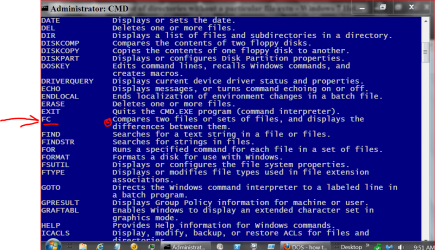
I'm no expert but did find this. Could this be what you are looking for. Use at your own risk.

cmd help 5 26.PNG
 

My Computer My Computer

At a glance

Windows 10 Pro. 64/ version 1709 Windows 7 Pr...Intel i7-6800K @ 4.3Corsair Platinum 16 gig @2400EVGA GTX 1070 OC
Computer type
PC/Desktop
Computer Manufacturer/Model Number
Home made Desktop
OS
Windows 10 Pro. 64/ version 1709 Windows 7 Pro/64
CPU
Intel i7-6800K @ 4.3
Motherboard
ASUS X-99 Deluxe II
Memory
Corsair Platinum 16 gig @2400
Graphics Card(s)
EVGA GTX 1070 OC
Monitor(s) Displays
Asus 27" LED LCD/VE278Q
Screen Resolution
1920-1080 or 1280-720 HDMI
Hard Drives
INTEL SSD 730-240 Gb Sata 3.0/
PSU
EVGA Platium 1200W
Case
Phanteks Luxe Tempered Glass 8 fans/ one radiator
Cooling
XSPC/ Water Cooled CPU
Keyboard
Das 4 Professional
Mouse
Logitech M705/MX Anywhere 2-S
Internet Speed
100 mbits
Antivirus
Microsoft Security Essentials/ Malwarebytes Premium 3.0/ SAS
Browser
I.E. 11 default/Firefox/ ISP Time Warner Cable/Spectrum
Other Info
LG BluRay Burner/
Sound system-KLipsch-THX/
Icy Dock ssd Hot Swap bays.
I'm no expert but did find this. Could this be what you are looking for. Use at your own risk.

View attachment 269811
sorry for the delay replying everything got a bit hectic for a few days. that FC command looked promising but I can't seem to get it to show the differences. It just displays the contents of each text file one after the other. For example I created a set of folders as a test and only folder2 and folder3 had jpg files inside, I then did the following:

dir c:\test\*.jpg /n /s | find "Directory of" > c:\in1.txt
(lists folders containing jpg files and outputs to in1.txt)

dir c:\test\*.* /n /s | find "Directory of" > c:\in2.txt
(lists all folders and outputs to in2.txt)

The FC attempt just got the below output, was hoping only differences would be shown, maybe I'm entering it incorrectly?:

FC c:\in1.txt c:\in2.txt
Comparing files C:\in1.txt and C:\IN2.TXT
***** C:\in1.txt
Directory of c:\test\folder2
Directory of c:\test\folder3
***** C:\IN2.TXT
Directory of c:\test
Directory of c:\test\folder1
Directory of c:\test\folder2
Directory of c:\test\folder3
*****


Anyone got any idea what's wrong or have other suggestions?
 

My Computer My Computer

At a glance

7 64
Computer type
PC/Desktop
OS
7 64
It's the way FC works. Now diff.exe from the Unix Tools for Win32 does exactly what you want.

I did the following:

dir d:\*.jpg /s /n | find "Directory of" > in1.txt
dir d:\*.* /s /n | find "Directory of" > in2.txt

diff in1.txt in2.txt -y > out.txt & notepad out.txt

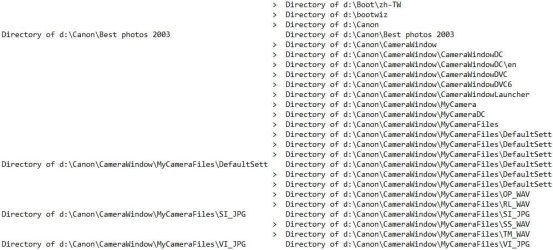
That generated a side-by-side output that looks like this:

diffOutput.jpg

Without any parameter it outputs just the differences, but it puts a offset before each group that I haven't found a way to get rid of yet, looks like this:

> Directory of d:\bootwiz
> Directory of d:\Canon
1a50,61
> Directory of d:\Canon\CameraWindow
> Directory of d:\Canon\CameraWindow\CameraWindowDC
> Directory of d:\Canon\CameraWindow\CameraWindowDC\en
> Directory of d:\Canon\CameraWindow\CameraWindowDVC
> Directory of d:\Canon\CameraWindow\CameraWindowDVC6
> Directory of d:\Canon\CameraWindow\CameraWindowLauncher
> Directory of d:\Canon\CameraWindow\MyCamera
> Directory of d:\Canon\CameraWindow\MyCameraDC
> Directory of d:\Canon\CameraWindow\MyCameraFiles
> Directory of d:\Canon\CameraWindow\MyCameraFiles\DefaultSettings121
> Directory of d:\Canon\CameraWindow\MyCameraFiles\DefaultSettings121\OP_WAV
> Directory of d:\Canon\CameraWindow\MyCameraFiles\DefaultSettings121\RL_WAV
2a63,66
> Directory of d:\Canon\CameraWindow\MyCameraFiles\DefaultSettings121\SS_WAV
> Directory of d:\Canon\CameraWindow\MyCameraFiles\DefaultSettings121\TM_WAV
> Directory of d:\Canon\CameraWindow\MyCameraFiles\OP_WAV
 

My Computer My Computer

At a glance

Windows 10 Pro X64Intel Quad Core i7-4770 @ 3.4Ghz16.0GB PC3-12800 DDR3 SDRAM 1600 MHzIntel Integrated HD Graphics
Computer type
PC/Desktop
Computer Manufacturer/Model Number
Lenovo IdeaCenter 450
OS
Windows 10 Pro X64
CPU
Intel Quad Core i7-4770 @ 3.4Ghz
Memory
16.0GB PC3-12800 DDR3 SDRAM 1600 MHz
Graphics Card(s)
Intel Integrated HD Graphics
Sound Card
Realtek HD Audio
Monitor(s) Displays
HP 22" LCD
Screen Resolution
1680 x 1050
Hard Drives
250GB Samsung EVO SATA-3 SSD
2TB Seagate ST2000DM001 SATA-2
1.5TB Seagate ST3150041AS SATA
Keyboard
Dell USB
Mouse
Lenovo USB
Internet Speed
Cable via Road Runner 3MB Upload, 30MB Download
Antivirus
Windows Defender, MBAM Pro, MBAE
Browser
Seamonkey
Other Info
UEFI/GPT
PLDS DVD-RW DH16AERSH
Back
Top