Dual Boot Installation with Windows 7 and XP

How to Setup a Dual Boot Installation with Windows 7 and XP


   Information
This will show you how to install Windows 7 and XP to dual boot with when you already have either Windows 7 or XP installed first.
   Note
With a dual boot installaton, you will have two operating systems (OS) installed. When you start the computer, you will have the choice to choose which OS you would like to start up to. This method is the easiest way of doing a dual boot with these two operating systems.
   Tip
When dual booting with another OS (ex: Vista or XP), you may not always have that OS partition show up in Computer with a driver letter in Windows 7. If this happens, then you will just need to add a drive letter to the OS (ex: Vista or XP) partition in Windows 7 Disk Management for it to show up in Computer with a driver letter.
   Warning
To stop XP from deleting your Windows 7 System Restore Points everytime XP is started, then see System Restore Points - Stop XP Dual Boot Delete to hide Windows 7 from XP.

Windows 7 Minimum Hardware Requirements


NOTE: For more information on this, see: Windows 7 system requirements
  • 1 GHz 32-bit or 64-bit processor
  • 1 GB RAM for 32-bit Windows 7 OR 2 GB RAM for 64-bit Windows 7
  • 16 GB available disk space 32-bit Windows 7 OR 20 GB for 64-bit Windows 7
  • Support for DirectX 9 graphics with 128 MB memory (in order to enable Aero theme)
  • DVD-R/W Drive
  • Internet or phone access to activate Windows 7.
Windows XP Minimum Hardware Requirements

NOTE: For more information on this, see: System requirements for Windows XP operating systems
  • PC with 300 megahertz (MHz) or higher processor clock speed recommended; 233-MHz minimum required;* Intel Pentium/Celeron family, AMD K6/Athlon/Duron family, or compatible processor recommended
  • 128 megabytes (MB) of RAM or higher recommended (64 MB minimum supported; may limit performance and some features)
  • 1.5 gigabyte (GB) of available hard disk space.*
  • Super VGA (800 × 600) or higher resolution video adapter and monitor
  • CD-ROM or DVD drive
  • Keyboard and Microsoft Mouse or compatible pointing device
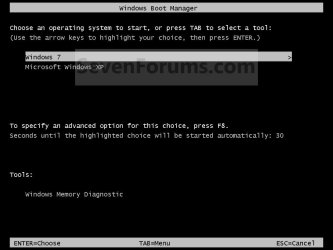
EXAMPLE: Windows Boot Manager
NOTE: This is the boot screen where you select what operating system that you would like to start. By default, you have 30 seconds to choose another operating system before the default operating system will start automatically.
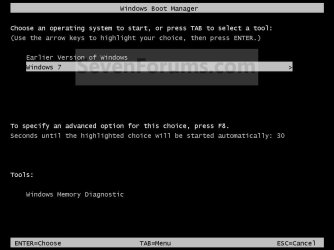
Example.jpg


OPTION ONE

When XP is Installed First


NOTE: If you have a RAID setup, you will need to have the Windows 7 RAID drivers on a USB flash drive available to select and load while installing Windows 7.
1. Do step 2 or 3 below for where you wanted to install Windows 7 at.

2. To Create a New Partition from the XP Hard Disk Drive
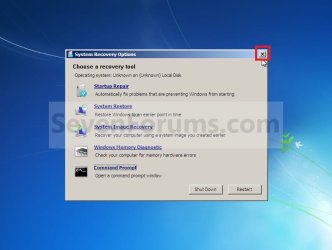
A) With your Windows 7 installation disc boot into the Command Prompt from the System Recovery Options screen.
NOTE: Make sure that the CD/DVD drive is selected first in the boot order in the BIOS.

B) In the command prompt, select and shrink the XP volume by how many MB (1024 MB = 1 GB) you want to have for this Windows 7 partition. (See screenshot below)
NOTE: You would do steps 2 to 9 in METHOD TWO at that link. Windows 7 will need a minimum of 16 GB (16384 MB).
XP-W7_1.jpg
C) Click on the X at the top right corner to close the command prompt. (See screenshot above)

D) Click on the X at the top right corner to close System Recovery Options. (See screenshot below)
XP-W7_2.jpg
E) Go to step 4.
3. To Use a Separate Hard Disk Drive than the XP Drive
A) Boot from your Windows 7 installation disc.
NOTE: Make sure that the CD/DVD drive is selected first in the boot order in the BIOS.
4. Click on the Install now button. (See screenshot below)
XP-W7_3.jpg
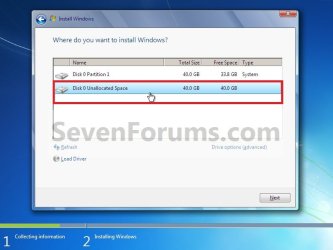
5. When you get to this point, select the partition (step 2) or hard drive to install Windows 7 on. (See screenshot below)
XP-W7_4.jpg
6. Finish installing Windows 7.
NOTE: You would start at step 9 in that link to finish installing Windows 7.

7. When finished, restart the computer to have the option to boot from XP (Earlier Verision of Windows) or Windows 7. (See screenshot below)

   Note
If you are only booting into Windows 7 and do not have XP listed in the Windows Boot Manager, then you can install only EasyBCD (step 8 Option Two below) to add XP (or Windows 7) while started in Windows 7 the same way to the boot list.

Example.jpg


OPTION TWO

When Windows 7 is Installed First


   Warning

1. To Create a New Partition from the Windows 7 Hard Disk Drive
NOTE: If you want to install XP on a separate internal hard drive instead, then skip this step and go to step 2.
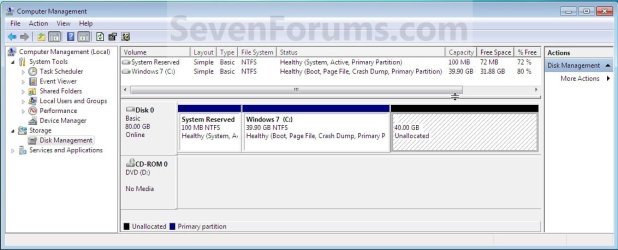
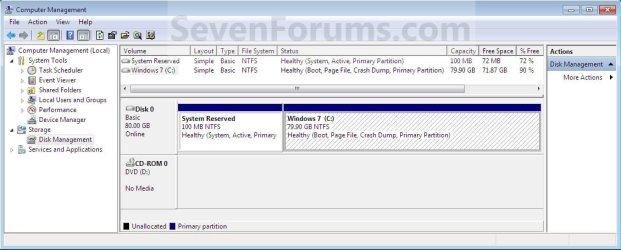
A) In Windows 7, select and shrink the Windows 7 volume in Disk Management by how many MB (1024 MB = 1 GB) you want to have for this XP partition. (See screenshots below)
NOTE: You would do all of Method One at that link.
W7-XP-1.jpg

W7-XP-2.jpg

W7-XP-3.jpg
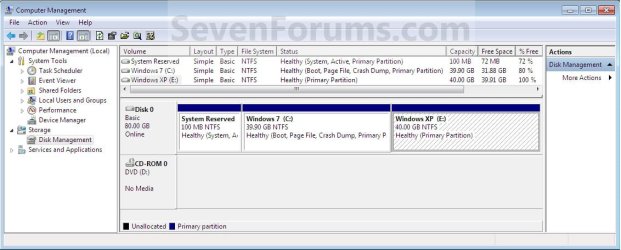
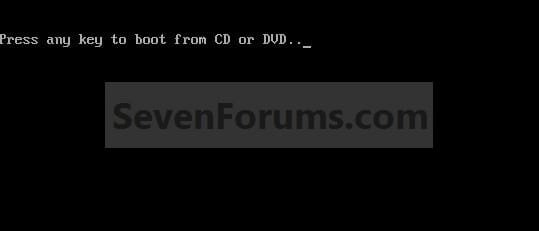
2. Insert your XP installation disc, then restart the computer and press any key to boot from it when prompted. (See screenshot below)
NOTE: Make sure that the CD/DVD drive is selected first in the boot order in the BIOS.
Step1.jpg
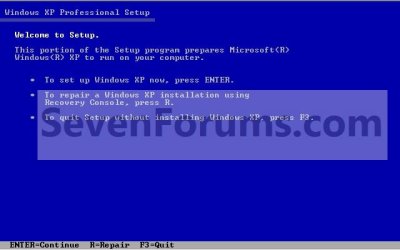
3. From XP Setup, Press Enter. (See screenshot below)


   Warning

W7-XP-4.jpg
4. Press F8. (See screenshot below)
NOTE: On some multimedia keyboards, you may need to press the F-Lock or Function key before pressing F8.
W7-XP-5.jpg
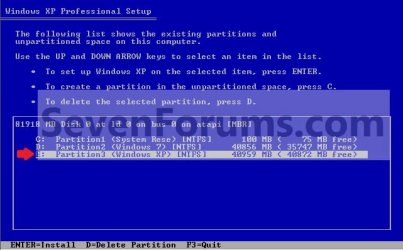
5. Select the partition (step 1) or hard drive that you want to install XP on using the arrow keys and press Enter.
W7-XP-6.jpg
6. Finish installing XP.


   Tip
If you get Error loading Operating System after XP restarts:
  • Using your Windows 7 installation disc, boot to the command prompt at startup.
  • Type in these comands below, and press enter after each one.
    • bootrec /FixMbr
    • bootrec /FixBoot
    • bootrec /RebuildBcd
  • Exit the command prompt and restart the computer.
  • At this point, Windows 7 should boot up the same way before trying to install XP.
  • Continue to step 8 below and run EasyBCD from Windows 7 instead.

7. In XP, download and install .Net Framework 2.0 (32-bit) version or .Net Framework 2.0 (64-bit) version first, and EasyBCD (free version) for your 32-bit (x86) or 64-bit (x86) XP.
NOTE: In XP, Net Framework is required to be installed to run EasyBCD. After you click on Register (at bottom of link) for the free EasyBCD, registration is not required to download it.

8. Run EasyBCD (free version).
NOTE: This is required to repair the Windows 7 boot file and add XP to the Windows Boot Manager list.

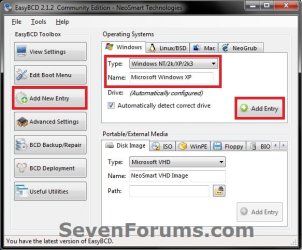
9. On the left side of EasyBCD, click on the Add New Entry button. (See screenshot below)
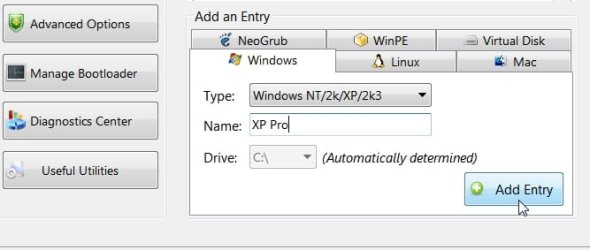
A) In the top section under Operating Systems, click on the Windows tab. (See screenshot below)
B) To the right of Type, select Windows NT/2k/XP/2k3 from the drop down menu. (See screenshot below)
:warn:WARNING: Be sure to leave the Automatically detect correct drive box checked.

C) To the right of Name, you can leave the default Microsoft Windows XP as the name to be displayed in the Windows Boot Manager, or you can type whatever name you would like to have instead. (See screenshot below)
D) Click on the Add Entry button. (See screenshot below)
W7-XP-7.jpg
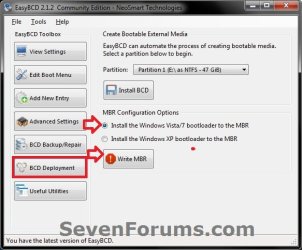
10. On the left side of EasyBCD, click on the BCD Deployment button, select (dot) the Install the Windows Vista/7 bootloader to the MBR option, and click on the Write MBR button. (See screenshot below)
W7-XP-9.jpg
11. Close EasyBCD.

12. Restart the computer to have the option to boot from Microsoft Windows XP or Windows 7. (See screenshot below)
Example2.jpg
   Tip
If Windows 7 will not start up when selected, then use your Windows 7 installation DVD to do a Startup Repair.

That's it,
Shawn


Last edited:
hey guys 1st post & great forum you all have built. Right, now some more problems for ya's lol, Just finished the duel boot install & all went well (spot on tutorial), small trouble is my drive letters, got a 250g drive partitioned, win7 on first part & xp on 2nd, when i look in both OS windows explorers i get Win7=C: & XP=D: pain in the butt when installing on xp (gotta change the install letter), anyway to have it so both OS see themselves as C: ?
Welcome, Dad...

Just curious:

1. You installed w7 first, then XP second ?

2. When you "Boot XP" from the Boot Manager menu, do you see D: or C: in the XP Explorer ?

Thanks...
 

My Computer

Computer Manufacturer/Model Number
Gateway GT5056
OS
XP_Pro, W7_7201, W7RC.vhd, SciLinux5.3, Fedora12, Fedora9_2x, OpenSolaris_09-06
CPU
AMD 64x2
Motherboard
Yes
Memory
1 gig
Graphics Card(s)
Dunno
Sound Card
Realtek something
Monitor(s) Displays
Samsung SyncMaster 940MW w/TV
Screen Resolution
1280x1024
Hard Drives
250 GB WD, USB Seagate Freedesk 1.5 T
Internet Speed
Cable modem
Other Info
1 + 1 = 10b,
7 + 7 = 16o,
a + b = 15h.
thanks for the quick reply guys ,

1 yes win7 first then xp
2 i see both: my xp partition under D: & win7 is under C: no matter what os i am using.
I just dont want to have to change software installs to D: when im in XP.

PS: i tried to disable the drive letter for win7( C: ) in XP but it errors saying it cant disable/change a system/boot drive letter
PPS:
i have disabled the drive letter for the xp partition in win7 so i dont see it, although im a bit worried (havnt rebooted yet) it wont boot back to xp now that ive done that ?
 

My Computer

OS
Win7 32bit / XP 32bit
CPU
P4 3.2GHz
Motherboard
Albatron Mars 915
Memory
2 Gig Kingston
Graphics Card(s)
Ge-Force 9800 GTX+ 512M
Sound Card
On Board
Monitor(s) Displays
24" Acer / 19" Chimei
Hard Drives
250 Gig Split, 2x 500 Gig Externals
Case
Superflower
It doesn't matter - I deliberately set my system up so my first partition (Vista) is always seeen as C, and my second partition (7) is always seen as D - no matter which o/s I boot into, all the drive letters are consistent.

When I am booted into 7 ( D) - I find virtually all software installers automatically point to D.
 

My Computers

System One System Two

  • Computer type
    PC/Desktop
    OS
    7 X64
    CPU
    i5 8400
    Motherboard
    gigabyte b365m ds3h
    Memory
    2x8gb 3200mhz
    Hard Drives
    various
    PSU
    pure power 11 400w cm
    Case
    Coolermaster
    Cooling
    cryorig m9i
  • Computer type
    PC/Desktop
    OS
    7x64
    CPU
    g5400
    Motherboard
    ga b365m ds3h
    Memory
    8gb ddr4 2400
    PSU
    xfx pro 450w
I have the same issue, i had 7 on my one pc, just added XP and all i get is error loading operating system. did a fixmbr on the xp drive but still the same thing? any help please?

Hi David,

You need to reinstate the 7 boot management system, and add an entry for XP to that.

Easiest way is to run 7 startup repair from the dvd 3 times.

Boot into 7 - install easybcd on 7.

http://neosmart.net/dl.php?id=1

Click add/remove entry.

In the drop down flap , select "Windows NT/2K/XP/2K3".

Type the name you want - select the active partition for Drive letter.

Click Add Entry.

EASYBCD-ADD-ENTRY-2009-09-29_001837.jpg
 

My Computers

System One System Two

  • Computer type
    PC/Desktop
    OS
    7 X64
    CPU
    i5 8400
    Motherboard
    gigabyte b365m ds3h
    Memory
    2x8gb 3200mhz
    Hard Drives
    various
    PSU
    pure power 11 400w cm
    Case
    Coolermaster
    Cooling
    cryorig m9i
  • Computer type
    PC/Desktop
    OS
    7x64
    CPU
    g5400
    Motherboard
    ga b365m ds3h
    Memory
    8gb ddr4 2400
    PSU
    xfx pro 450w
It doesn't matter - I deliberately set my system up so my first partition (Vista) is always seeen as C, and my second partition (7) is always seen as D - no matter which o/s I boot into, all the drive letters are consistent.

When I am booted into 7 ( D) - I find virtually all software installers automatically point to D.


Ahh No probs thanks, thats mainly what i was concerned about.
Is there a way to get both OS showing up as C: in each respective boot up ? if not i'll just have to get used to it. :) just that i would like to know in case of probs.


PS: if i disable my XP ( D ) Letter in win7 disk management, will i still be able to boot into XP?
 

My Computer

OS
Win7 32bit / XP 32bit
CPU
P4 3.2GHz
Motherboard
Albatron Mars 915
Memory
2 Gig Kingston
Graphics Card(s)
Ge-Force 9800 GTX+ 512M
Sound Card
On Board
Monitor(s) Displays
24" Acer / 19" Chimei
Hard Drives
250 Gig Split, 2x 500 Gig Externals
Case
Superflower
You may have all sorts of trouble if you change the letter for the System partition.

As XP is ( presumably) a boot partition - not the system partition - you may be okay to do that - but you can't make it C as that is already used.

No point , really.
 

My Computers

System One System Two

  • Computer type
    PC/Desktop
    OS
    7 X64
    CPU
    i5 8400
    Motherboard
    gigabyte b365m ds3h
    Memory
    2x8gb 3200mhz
    Hard Drives
    various
    PSU
    pure power 11 400w cm
    Case
    Coolermaster
    Cooling
    cryorig m9i
  • Computer type
    PC/Desktop
    OS
    7x64
    CPU
    g5400
    Motherboard
    ga b365m ds3h
    Memory
    8gb ddr4 2400
    PSU
    xfx pro 450w
You may have all sorts of trouble if you change the letter for the System partition.

As XP is ( presumably) a boot partition - not the system partition - you may be okay to do that - but you can't make it C as that is already used.

No point , really.


Ok SIW2 thanks very much for your help, much appreciated :)
 

My Computer

OS
Win7 32bit / XP 32bit
CPU
P4 3.2GHz
Motherboard
Albatron Mars 915
Memory
2 Gig Kingston
Graphics Card(s)
Ge-Force 9800 GTX+ 512M
Sound Card
On Board
Monitor(s) Displays
24" Acer / 19" Chimei
Hard Drives
250 Gig Split, 2x 500 Gig Externals
Case
Superflower
Thanks

SIW2,

Thanks for the info, however I already lost patience with it late last night and tried using a boot disc I have "Mr. O's Boot" . I tried a few utilities and no luck, for some reason before xp finished installing it rebooted. thus causing it not to find a valid boot location. I messed with it then just wiped it and threw XP on to be sure the board drivers i rounded up worked. Now that it is on I am going to use the pc for what I needed xp for, then install 7 back on then "hopefully" get that xp partition working. I have done this many times before and really got stumped. I tried the XP disc on another PC and it did the same thing, with around 14 mins left in the "Setting up XP" screen it reboots. That disc went in the trash soon there after. Your info will def help out a bunch when it comes time to do this again, is it possible to do it efficiently with XP on first. It seems like every one does it with 7 on initially?

Dave


I have the same issue, i had 7 on my one pc, just added XP and all i get is error loading operating system. did a fixmbr on the xp drive but still the same thing? any help please?

Hi David,

You need to reinstate the 7 boot management system, and add an entry for XP to that.

Easiest way is to run 7 startup repair from the dvd 3 times.

Boot into 7 - install easybcd on 7.

Download EasyBCD 1.7.2 - NeoSmart Technologies

Click add/remove entry.

In the drop down flap , select "Windows NT/2K/XP/2K3".

Type the name you want - select the active partition for Drive letter.

Click Add Entry.

View attachment 29956
 

My Computer

OS
MS Windows 7 RC 7100
Hi,


Yes,you can do it the other way round.

If you install 7 after XP - it will normally add XP into the boot menu automatically.

If not - for example, if you change the Active partition - you can again install Easybcd on 7 and have it add the XP entry to bcd for you.
 

My Computers

System One System Two

  • Computer type
    PC/Desktop
    OS
    7 X64
    CPU
    i5 8400
    Motherboard
    gigabyte b365m ds3h
    Memory
    2x8gb 3200mhz
    Hard Drives
    various
    PSU
    pure power 11 400w cm
    Case
    Coolermaster
    Cooling
    cryorig m9i
  • Computer type
    PC/Desktop
    OS
    7x64
    CPU
    g5400
    Motherboard
    ga b365m ds3h
    Memory
    8gb ddr4 2400
    PSU
    xfx pro 450w
Good guide.

I have Windows 7 installed. I want to dual boot with Windows XP. I already have the separate partition in place for Windows XP. Here is my problem.

Everytime I restart Windows and put in the Windows XP CD. It goes to the standard blue setup screen, then checks the files. But then it does not load to the Windows XP menu to install Windows XP, but rather, it goes to the blue screen.

Any help on this issue would be good.
Pretty sure that you have to boot from the XP CD, and install from there.

See if that does the trick for you...

Be aware that when you finish XP installation,

you'll probably lose your w7 Bootmgr screen...

I did. Same problem. I can't seem to slipstream the SATA driver on my window XP CD.

By the way, would a 64 bit system work with a 32 bit OS?
 

My Computer

OS
windows 7
If you mean can you install a 32 bit o/s on a 64 bit capable pc - then yes.
 

My Computers

System One System Two

  • Computer type
    PC/Desktop
    OS
    7 X64
    CPU
    i5 8400
    Motherboard
    gigabyte b365m ds3h
    Memory
    2x8gb 3200mhz
    Hard Drives
    various
    PSU
    pure power 11 400w cm
    Case
    Coolermaster
    Cooling
    cryorig m9i
  • Computer type
    PC/Desktop
    OS
    7x64
    CPU
    g5400
    Motherboard
    ga b365m ds3h
    Memory
    8gb ddr4 2400
    PSU
    xfx pro 450w
So how would you do a second install of W7 if your first install it 32bit, and now you want to dual boot to 64bit? Do you follow method two, but do the 64bit install?
 

My Computer

Computer Manufacturer/Model Number
Home Built
OS
Win 7 Ultimate x64 & x86
CPU
AMD Anthalon 64 XT 6000+ 3.0Ghz
Motherboard
Asus M2N-eE
Memory
4 GB
Graphics Card(s)
Nvidia GeForce 8500 GT

My Computer

Computer type
PC/Desktop
Computer Manufacturer/Model Number
Self built custom
OS
64-bit Windows 11 Pro for Workstations
CPU
Intel i7-8700K OC'd to 5 GHz
Motherboard
ASUS ROG Maximus XI Formula Z390
Memory
64 GB (4x16GB) G.SKILL TridentZ RGB DDR4 3600 MHz
Graphics Card(s)
ASUS ROG-STRIX-GTX1080TI-O11G-GAMING
Sound Card
Integrated
Monitor(s) Displays
2 x Samsung Odyssey G7 27"
Screen Resolution
2560x1440
Hard Drives
1TB Samsung 990 PRO M.2,
4TB Samsung 990 PRO PRO M.2,
TerraMaster F8 SSD Plus NAS
PSU
Seasonic Prime Titanium 850W
Case
Thermaltake Core P3
Cooling
Corsair Hydro H115i
Keyboard
Logitech wireless K800
Mouse
Logitech MX Master 4
Internet Speed
2 Gb/s Download and 100 Mb/s Upload
Antivirus
Malwarebyte Anti-Malware Premium
Browser
Google Chrome
Other Info
Logitech Z625 speaker system,
Logitech BRIO 4K Pro webcam,
HP Color LaserJet Pro MFP M477fdn,
APC SMART-UPS RT 1000 XL - SURT1000XLI,
Galaxy S23 Plus phone
1 x XP, 1 x ubuntu, 1 x storage and adding a 4th drive

Hey Brink, nice work!

I have an added dimension.

I have 2 drives, one with xp and the other with ubuntu..
...a 3rd drive which is 1Tb which stores files for work, music etc.

Ive got a Windows 7 Ultimate retail disk gratis of microsoft and want to add a new 4th drive to install it on.

At the moment when i boot up, i get grub and can choose between xp and ubuntu...i want to be able to choose from these two AND windows 7.

How do i go about this? ... i.e. i dont want to harm any of the 3 older drives, theyve got tons of valuable stuff on them.

As a starter for ten, I unplugged the ubuntu drive and the storage drive leaving just xp drive wired up and switched on the pc. It booted into xp as if it was the only OS.

So I thought if i install and activate the new drive (4th drive) in xp and assign it a letter like W, then reboot into the W7 disk using your method, then this will give me a functioning dual boot...am i right???? ...then i just reconnect the storage drive and enable it in W7.

If im right then that just leaves me to reinstall and configure grub from a live CD so that grub has all 3 OSs.

Can you verify my line of thinking or advise otherwise. Thanks.
 

My Computer

OS
xp ubuntu and w7

My Computer

Computer Manufacturer/Model Number
Homemade
OS
Windows 7 Ultimate x64
CPU
Intel E8600, Core 2 Duo 3.33 GHz, 2 Cores
Motherboard
Asus P5B
Memory
4 GB DDR2 A-Data @ 1066 MHz
Graphics Card(s)
Nvidia 9800 GTX+
Sound Card
Creative SoundBlaster Surround 5.1
Monitor(s) Displays
Asus 19" + Asus 24"
Screen Resolution
1440*900 + 1920*1080
Hard Drives
Maxtor STM3250820AS - 240 GB (As 2 partitions) - SATA2
WDC WD2000JB-00GVA0 - 200 GB - SATA2
WDC WD2000JD-00GBB0 - 200 GB - IDE
Seagate ST31000528AS - 1 TB - SATA2
PSU
Corsair VX 550 Watts
Case
Antec Ninehoundred Two
Cooling
Silent Fans (That can turn pretty loud)
Keyboard
Logitech G15v2
Mouse
Logitech G9
Internet Speed
Home: 20,480/2,048 kbps, Dad's: 20,480/1,024 kbps
turns out i got a black screen after the xp loader yesterday.

luckily i hadnt installed w7 yet. so i unplugged the xp drive and ubuntu drive and installed w7 on new drive #4.

Luckily i can see the xp drive from my computer in w7 so have copied all my files over. the third drive with all the stored files was visible too so no problems there.

Ill follow your guide to reinstall grub, thanks.

It means ive lost the xp boot but at least i can see all its files in w7 and can copy them over.
 

My Computer

OS
xp ubuntu and w7
Can someone please help me out? I had xp and 7 working properly with the option of which OS to start with, but then i deleted xp and decided to reinstall it again after a while. After I did, I found out that you cant install an older version with 7 because it will not give you the option of which OS to start with and it will go with xp automatically. So then i deleted 7 and reinstalled it, but still I'm not getting the option and it's going straight to the newly installed 7.
 

My Computer

OS
Windows 7
Easiest to install the free Easybcd on 7.

Add an entry for XP - the XP entry must point at the partition containing the XP boot files - not necessarily the same as the partition XP is installed on.

Go to folder options - show Hidden Files - look for ntldr, ntdetect.com and boot.ini - they should be on the Active partition - that is where you point the XP entry with Easybcd.

Hope it helps
 

My Computers

System One System Two

  • Computer type
    PC/Desktop
    OS
    7 X64
    CPU
    i5 8400
    Motherboard
    gigabyte b365m ds3h
    Memory
    2x8gb 3200mhz
    Hard Drives
    various
    PSU
    pure power 11 400w cm
    Case
    Coolermaster
    Cooling
    cryorig m9i
  • Computer type
    PC/Desktop
    OS
    7x64
    CPU
    g5400
    Motherboard
    ga b365m ds3h
    Memory
    8gb ddr4 2400
    PSU
    xfx pro 450w
I'm really needing a step-by-step. Im on 7 right now which is C: and xp is on E:. In easyBCD i go into add/remove entries. In type put Windows NT/2k/xp/2k3 once i do that the drive cannot be changed anymore so i press add entry and it gives me an error NTDLR not found. What did i do wrong?
 

My Computer

OS
Windows 7
You need to select the drive before you select Windows NT/2k/xp/2k3.

it needs to be the drive those 3 files are located on - they should be on the Active partition.


Look in Disk Management to see which partition is marked System, Active.
 

My Computers

System One System Two

  • Computer type
    PC/Desktop
    OS
    7 X64
    CPU
    i5 8400
    Motherboard
    gigabyte b365m ds3h
    Memory
    2x8gb 3200mhz
    Hard Drives
    various
    PSU
    pure power 11 400w cm
    Case
    Coolermaster
    Cooling
    cryorig m9i
  • Computer type
    PC/Desktop
    OS
    7x64
    CPU
    g5400
    Motherboard
    ga b365m ds3h
    Memory
    8gb ddr4 2400
    PSU
    xfx pro 450w
Back
Top