Dual boot mystery

Warewasher

New member
Local time
3:55 AM
Messages
23
Location
Florida
This is driving me crazy. I had a dual boot set up with windows 7 and windows xp. During the superbowl of all times I got a pop up window that my hard drive was about to die, Save your files and replace the drive. On reboot my bios said the same. Went and bought a new drive (500 GIG), partitioned it 75% for 7 and 25 for xp.Installed windows 7 with out a hitch. But this time I installed the 64 bit version
Now the XP install on the new partition.....at the set up screen I don't "see" my windows 7 installation....only the free space called C . OK so I installed it there ...but on the first reboot it started the whole install process again and somehow it destroyed my windows 7 installation.
Can windows 7 64 bit live on the same drive with XP 32 bit? Shouldn't I see the windows 7 partition on the xp install screen? When I set up the old drive it was easy....leading me to believe the 64 bit is a problem. Any thoughts???
Thanks
 

My Computer

OS
Windows XP/ Vista/ 7
CPU
AMD
Motherboard
M4A79 Delux
Memory
4 G
Sound Card
on Board
It would be best to install XP first then Win7 so that Win7 can correctly configure the Dual Boot as it does when installed last. http://www.sevenforums.com/tutorials/8057-dual-boot-installation-windows-7-xp.html

Use the XP CD to delete all existing partitions, create and full format the partition for itself. After install, boot the Win7 installer to create its partition in Unallocated Space you leave for it.

Win7 should auto-configure the Dual Boot. If not, install EasyBCD 2.0 in WIn7 to easily Add XP, accept offered boot files, Save, restart.
 
Last edited:
Hello Warewasher.

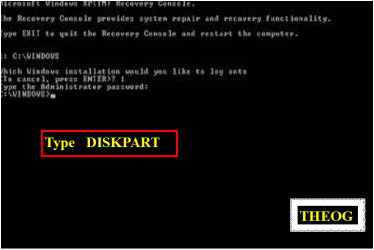
If you really wanted to do it the best way and get some experience out of the process; first after you have copied out or made back-ups of the data you need to save to external media, boot the Windows 7 installation DVD to do a complete wipe (secure erase) of the entire Hard Disk Drive using Step One of this tutorial at the link below, when the clean all finishes, type exit 2 times to close the command window, remove the Windows 7 DVD and add the XP CD and restart the PC.

SSD / HDD : Optimize for Windows Reinstallation

DISKPART : At PC Startup


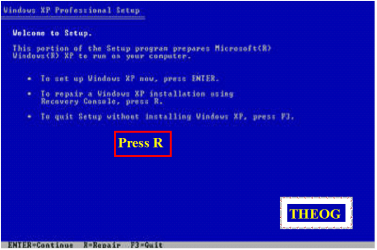
Now do the XP installation as usual creating a single partition to install XP to so it will use the C: drive letter for itself being the first partition on the HDD, if it's not the first partition it will take the next available drive letter and that may cause issues with installed programs/apps.

Then use the info in this tutorial at this link below to "Move/Resize" the XP partition to create a space to clean install Windows 7 to so it will be the first partition on the HDD and as it will be the last OS installed it will auto-configure the Windows managed dual boot and there will be nothing else to do except enjoy Windows.

Clean Install Windows 7 : Ahead of XP


Be sure to post back with any further questions you may have and to keep us informed.
 

My Computer

Computer Manufacturer/Model Number
* BFK Customs *
OS
W 7 64-bit Ultimate
CPU
Intel Q9550 Yorkfield
Motherboard
ASUS P5Q Pro
Memory
8GB Dominator 8500C5D
Graphics Card(s)
ATI : XFX 5870
Sound Card
Realtek HD Audio 7-1
Monitor(s) Displays
1x 47" LCD HDMI & 3x 26" LCD HDMI
Screen Resolution
1920x1080P & 1920x1200
Hard Drives
1x 80GB Intel X25-M G2 SSD : 1x 500GB & 1x 640GB WD Caviar Black(s)
PSU
Corsair 620HX
Case
Cooler Master RC-690
Cooling
Tuniq Tower 120, 2x 140mm and 3x 120mm case fans
Keyboard
Microsoft 500
Mouse
Razer Diamondback 3G
Internet Speed
14 Mb/s
Other Info
1x Koutech 3Gb/s SATA HDD Hot Swap Rack
Thanks everyone.
If installing XP first is the best way then I guess I have must have done it that way on my original hard drive.
 

My Computer

OS
Windows XP/ Vista/ 7
CPU
AMD
Motherboard
M4A79 Delux
Memory
4 G
Sound Card
on Board
Back
Top