Dual boot not working

pjhormell

New member
Local time
2:56 PM
Messages
15
Before installing win7 I was running a dual boot XP Pro set up with each copy of XP being on it’s own disc drive. I installed win7 on one of my discs over the top of the XP system. Win7 runs fine but the copy of XP on the other drive does not boot. At startup time after I select XP in the boot menu, I get the following error messages:
Windows could not start because of a computer disc hardware problem.
Could not read from the selected disc.

I then went to the link below and did Part 2 steps 8-11. I got the same error messages. I know there is no problem with the XP disc because I recovered the XP partition on disc 1 and was able to boot up the other XP system ok
http://www.sevenforums.com/tutorials/8057-dual-boot-installation-windows-7-xp.html?filter
Any suggestions? Help please.
 

My Computer

Computer Manufacturer/Model Number
Home built
OS
win7 32 bit
CPU
AMD 8750
Motherboard
Asus M3N78 Pro
Memory
4 gig
Graphics Card(s)
Evga 9600GT
Sound Card
NA On motherboard
Monitor(s) Displays
Samsung 932BW
Hard Drives
Seagate St3160815A 150 GB ATA
Western Digital WDC2500JS-40 250GB SATA
Seagate ST3500410AS 500 GB SATA
Dual Boot won't work

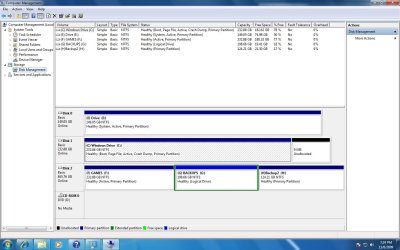
I hope this is the disc map you wanted.


disc_map.jpg
 

My Computer

Computer Manufacturer/Model Number
Home built
OS
win7 32 bit
CPU
AMD 8750
Motherboard
Asus M3N78 Pro
Memory
4 gig
Graphics Card(s)
Evga 9600GT
Sound Card
NA On motherboard
Monitor(s) Displays
Samsung 932BW
Hard Drives
Seagate St3160815A 150 GB ATA
Western Digital WDC2500JS-40 250GB SATA
Seagate ST3500410AS 500 GB SATA
I forgot to mention that Win 7 is installed on drive C. XP Pro is installed in drive F.
 

My Computer

Computer Manufacturer/Model Number
Home built
OS
win7 32 bit
CPU
AMD 8750
Motherboard
Asus M3N78 Pro
Memory
4 gig
Graphics Card(s)
Evga 9600GT
Sound Card
NA On motherboard
Monitor(s) Displays
Samsung 932BW
Hard Drives
Seagate St3160815A 150 GB ATA
Western Digital WDC2500JS-40 250GB SATA
Seagate ST3500410AS 500 GB SATA
You can try booting the xp disk and do a repair or install boot loader. I had no problem, Running 7.vista.xp.Mac.
 

My Computer

OS
win 7
I believe the F:Games drive which is also marked active is complicating Windows 7 normal ability to configure a boot menu.

Unplug all drives except your XP and Win7, boot into Win7 drive and run a Repair install which will reconfigure the boot correctly. A repair install in Windows 7 is an Upgrade install over itself, which leaves programs, files and settings in place but reinstalls the OS and freshly configures the boot.

If unplugging your data drives causes you to lose the ability to boot Windows 7, run startup repair from the Win7 installer repeatedly until it boots.

Please also post back here which drive is set to boot first in BIOS.
 
Without having seen the bcd entries - you could try this:

Open an elevated command prompt and type:

bcdedit /set {ntldr} device partition=F:

then press enter
 

My Computers

System One System Two

  • Computer type
    PC/Desktop
    OS
    7 X64
    CPU
    i5 8400
    Motherboard
    gigabyte b365m ds3h
    Memory
    2x8gb 3200mhz
    Hard Drives
    various
    PSU
    pure power 11 400w cm
    Case
    Coolermaster
    Cooling
    cryorig m9i
  • Computer type
    PC/Desktop
    OS
    7x64
    CPU
    g5400
    Motherboard
    ga b365m ds3h
    Memory
    8gb ddr4 2400
    PSU
    xfx pro 450w
SIW2: His 7 drive should be set to boot first in BIOS, correct? Even if the XP is holding the MBR?
 
Not necessarily.

At this point - it looks like he should be able to get XP booting with correct bcd entries.

Assuming the Xp boot files are in good shape.
 
Last edited:

My Computers

System One System Two

  • Computer type
    PC/Desktop
    OS
    7 X64
    CPU
    i5 8400
    Motherboard
    gigabyte b365m ds3h
    Memory
    2x8gb 3200mhz
    Hard Drives
    various
    PSU
    pure power 11 400w cm
    Case
    Coolermaster
    Cooling
    cryorig m9i
  • Computer type
    PC/Desktop
    OS
    7x64
    CPU
    g5400
    Motherboard
    ga b365m ds3h
    Memory
    8gb ddr4 2400
    PSU
    xfx pro 450w

My Computers

System One System Two

  • Computer type
    PC/Desktop
    OS
    7 X64
    CPU
    i5 8400
    Motherboard
    gigabyte b365m ds3h
    Memory
    2x8gb 3200mhz
    Hard Drives
    various
    PSU
    pure power 11 400w cm
    Case
    Coolermaster
    Cooling
    cryorig m9i
  • Computer type
    PC/Desktop
    OS
    7x64
    CPU
    g5400
    Motherboard
    ga b365m ds3h
    Memory
    8gb ddr4 2400
    PSU
    xfx pro 450w
The dvd drive (drive D) is set to boot 1st, Drive c boots 2nd.
 

My Computer

Computer Manufacturer/Model Number
Home built
OS
win7 32 bit
CPU
AMD 8750
Motherboard
Asus M3N78 Pro
Memory
4 gig
Graphics Card(s)
Evga 9600GT
Sound Card
NA On motherboard
Monitor(s) Displays
Samsung 932BW
Hard Drives
Seagate St3160815A 150 GB ATA
Western Digital WDC2500JS-40 250GB SATA
Seagate ST3500410AS 500 GB SATA
Did you try what I posted earlier?

Without having seen the bcd entries - you could try this:

Open an elevated command prompt and type:

bcdedit /set {ntldr} device partition=F:

then press enter.


If that doesn't help., then post the output of BCDEDIT. Open an elevated command, type :

bcdedit

then press enter.

Post up what it says.

Also, Go to folder options - MAke sure hidden files and protected operating system files are showing, and look for the 3 files ntldr, ntdetect.com and boot.ini.

They should be on the root of one of the drives. Probably F:

Hope it helps
 

My Computers

System One System Two

  • Computer type
    PC/Desktop
    OS
    7 X64
    CPU
    i5 8400
    Motherboard
    gigabyte b365m ds3h
    Memory
    2x8gb 3200mhz
    Hard Drives
    various
    PSU
    pure power 11 400w cm
    Case
    Coolermaster
    Cooling
    cryorig m9i
  • Computer type
    PC/Desktop
    OS
    7x64
    CPU
    g5400
    Motherboard
    ga b365m ds3h
    Memory
    8gb ddr4 2400
    PSU
    xfx pro 450w
Dual boot still doesn't work

I tried:
Unplug all drives except your XP and Windows 7, boot into Windows 7 drive and run a Repair install which will reconfigure the boot correctly. A repair install in Windows 7 is an Upgrade install over itself, which leaves programs, files and settings in place but reinstalls the OS and freshly configures the boot.

If unplugging your data drives causes you to lose the ability to boot Windows 7, run startup repair from the Windows 7 installer repeatedly until it boots.

Then I tried:
Went to a command line and entered: bcdedit /set {ntldr} device partition=F:

Message was Boot configuration data store could not be opened. Access denied.


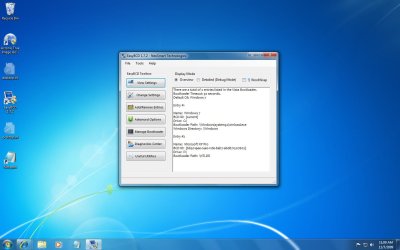
Easybcd printout
Easybcd.jpg

Any other ideas?
 

My Computer

Computer Manufacturer/Model Number
Home built
OS
win7 32 bit
CPU
AMD 8750
Motherboard
Asus M3N78 Pro
Memory
4 gig
Graphics Card(s)
Evga 9600GT
Sound Card
NA On motherboard
Monitor(s) Displays
Samsung 932BW
Hard Drives
Seagate St3160815A 150 GB ATA
Western Digital WDC2500JS-40 250GB SATA
Seagate ST3500410AS 500 GB SATA
If at boot you don't have a sceen to select OS it is a boot loader problem. I have 4 systems on 2 HDs all show in boot screen prompt. I use easybcd for a boot loader (free) because of Macx. you can choose in bios, some PC have an f key to select at boot.
 

My Computer

OS
win 7
I tried:
Unplug all drives except your XP and Windows 7, boot into Windows 7 drive and run a Repair install which will reconfigure the boot correctly. A repair install in Windows 7 is an Upgrade install over itself, which leaves programs, files and settings in place but reinstalls the OS and freshly configures the boot.

If unplugging your data drives causes you to lose the ability to boot Windows 7, run startup repair from the Windows 7 installer repeatedly until it boots.

Then I tried:
Went to a command line and entered: bcdedit /set {ntldr} device partition=F:

Message was Boot configuration data store could not be opened. Access denied.


Easybcd printout
View attachment 35489

Any other ideas?

Did the repair install configure your boot properly with F:Games drive unplugged? Did it give you a boot menu which allowed you to boot into either OS?

Using this automated method should have reconfigured your boot onto the XP/7 drives and off of the F: drive. However if you then immediately ran the bcedit command to restore the boot to F: drive, it would put you back where you started.

You needed to run one fix (repair install with F:Games unplugged) or the other (bcedit) but not both, I believe.
 
If at boot you don't have a sceen to select OS it is a boot loader problem. I have 4 systems on 2 HDs all show in boot screen prompt. I use easybcd for a boot loader (free) because of Macx. you can choose in bios, some PC have an f key to select at boot.

I would use this option now if it is available since you will probably want out of the dual boot soon anyway (everyone else is).

So try using the BIOS shortcut key (normally f10) to choose either your XP or 7 drive to boot into at boot up. This makes it much easier later to unplug your XP drive or format and use it for data.

If you really want a dual boot menu, then try one of the methods given, automated (repair install) or bcedit, but not both as they self-canceled.
 
Workaround for Dual Boot XP/7

I have found that for whatever reason the standard (Vista or) Windows 7 dual boot methods often fail when XP is installed on a physically separate harddrive, you set up EasyBCD with the proper drive for XP and still it doesn't work, or you try the 'automatic' dual boot detection during a boot-repair install and it also fails.

There is a fairly simple way to make an XP dual boot work using EasyBCD. The magic that makes this work is that the XP bootloader already has the ability to redirect the computer to boot into any partition on any drive. What follows is a method to put the XP boot files in a place that is easy to find by the Windows 7 bootloader.

1. Go into your BIOS and determine the HD device number for the physical drive that XP is installed on. In BIOS you will find a list of the boot order of the installed harddrives. The HDs are numbered beginning with 0 (zero) so the first drive in the list is HD0, the second is HD1, the third is HD2 and so on. Get the number for the physical drive that XP is installed on from the BIOS, this is not the drive number that is reported inside Windows.

2. Copy (don't move them) these three files from the XP root folder to the 7 root folder:
Code:
ntdetect.com
ntldr
boot.ini
If necessary mark the copied boot.ini file as NOT read-only.

3. Open the copied boot.ini file (in the Windows 7 root folder) with a plain text editor like Notepad. It should look something like this:
Code:
[boot loader]
timeout=30
default=multi(0)disk(0)rdisk(0)partition(1)\WINDOWS
[operating systems]
multi(0)disk(0)rdisk(0)partition(1)\WINDOWS="Microsoft Windows XP Home Edition" /fastdetect /NoExecute=OptIn
Note that the Windows name in the file is dependent on which version of Windows is installed, this example is for HP Home Edition.

4. There are two lines that contain 'rdisk(0)' which refers to the physical harddrive number. Replace the '0' (zero) in both instances of 'rdisk(0)' with the harddrive number that you got from your BIOS. If the harddrive that XP is installed on is HD1 (the second drive in the BIOS list) then the resulting boot.ini file should look something like this:
Code:
[boot loader]
timeout=30
default=multi(0)disk(0)rdisk(1)partition(1)\WINDOWS
[operating systems]
multi(0)disk(0)rdisk(1)partition(1)\WINDOWS="Microsoft Windows XP Home Edition" /FASTDETECT /NOEXECUTE=OPTIN
Change both instances of 'rdisk(0)' to 'rdisk(1)' (or whatever HD number the XP harddisk is in BIOS), save the file and mark it as read-only if you wish.

In the example above you will also see 'partition(1)' which refers to the partition that XP is installed in. Partition numbers begin at 1 (one) and it is usual that XP is installed into the first partition on a harddrive. That 'partition(1)' can also be changed if necessary, for example if you had multiple installs or had moved the XP partition.

5. Run EasyBCD, remove the old XP entry if it is still there. It might be best to save the changes at this point. Now, add a new entry, select XP, the drive letter WILL be grayed-out and should read "C:". This is correct, you DO NOT select the drive letter for the XP partition, the XP boot files are now in the root folder of the Windows 7 partition which is the "C:" drive and have been properly detected by EasyBCD. Save the changes and exit EasyBCD.

You should now be able to dual boot 7 or XP. The XP boot files in the root folder of Windows 7 will now redirect the boot to the XP drive. When you boot XP it should see itself as the "C:" drive no matter what Windows 7 sees it as. It is also not necessary to set the XP partition as 'Active', the 'Active' flag is only needed for the disk which contains the initial bootloader (and MBR) which in this case is Windows 7. In any case the XP partition CAN be marked as 'Active' so that in an emergency that drive could be set to boot from BIOS, this in no way interferes with the Windows 7 bootloader.

[EDIT] Note that this example is intended for a single XP install. Should there be an XP style multi-boot the boot.ini file will have more entries for the XP style multi-boot. Those multi-boot entries will also need to have their 'rdisk(x)' entries changed as is appropriate for their physical harddisk drive and partition locations. I don't actually know if that XP style multi-boot will work in this case.

 
Last edited:

My Computer

OS
XP SP3 32bit, Vista HP 64bit, Seven Pro 64bit
CPU
Q6600 G0 @ 3.2GHz
Motherboard
GA-P965-DS3
Memory
4Gb OCZ
Graphics Card(s)
nVidia GTX275 896Mb
Sound Card
X-Fi Fatal1ty Platinum
Monitor(s) Displays
Acer H243H
Screen Resolution
1920x1080
Hard Drives
Samsung 1Tb SATA2
MAXTOR 1Tb SATA2
MAXTOR 500Gb SATA2
MAXTOR 300Gb SATA2
PSU
Antec 650 Trio
Cooling
Zalman 9700
Keyboard
G15,G13
Mouse
MX518
Internet Speed
330Kbps down
When WIndows 7 is correctly installed last to dual- or multi-boots, it configures the boot menu correctly, providing there isn't some data drive also marked Active which confuses it - as has been the case with yours and other bollixed dual boots.

Unplug all other drives except the target and multi-boot drives. Install Win7 last.
 
zBobG and gregrocker's solutions fixed the problem along with changing the HDs sequence in the BIOS. Thanks for your help.

Jon
 

My Computer

Computer Manufacturer/Model Number
Home built
OS
win7 32 bit
CPU
AMD 8750
Motherboard
Asus M3N78 Pro
Memory
4 gig
Graphics Card(s)
Evga 9600GT
Sound Card
NA On motherboard
Monitor(s) Displays
Samsung 932BW
Hard Drives
Seagate St3160815A 150 GB ATA
Western Digital WDC2500JS-40 250GB SATA
Seagate ST3500410AS 500 GB SATA
Back
Top