dual boot VISTA/Win 7 does not work

richdave

New member
Member
Local time
10:21 AM
Messages
33
My PC has VISTA home premium x64 installed. After purchasing Win 7 Pro I decided not to upgrade VISTA, rather dual boot for now.

Installing W7 onto a clean HDD I can boot directly to it and can select which drive to boot from via the F12 key at boot up

I installed easyBCD onto the VISTA OS with the expectation that VISTA would be the default OS to boot and Win 7 would be a selectable option.

I get the selection menu when I boot with a 10sec pause and VISTA then boots OK

If I select the W7 option in the menu I get

FILE windows\system32\winload.exe

STATUS 0xc0000428

Windows cannot verify the digital signature of this file.

Any ideas?
 

My Computer

OS
WIndows 7 Professional and Vista Home Premium x64
CPU
E8400
Motherboard
GA-EP35-DS3R
Memory
2 x 2G Kingston HyperX PC6400
Graphics Card(s)
HD4850 512M GA
Monitor(s) Displays
BenQ 24 WS
Screen Resolution
1980 x 1080
Hard Drives
WD 1T, WD 500G
PSU
Enermax ELT620AWT PSU
Case
CoolerMaster Elite 333
Cooling
CPU Arctic 92mm, VGA Zalman VF770
Keyboard
Saitek Eclipse II
Mouse
MX518
Internet Speed
ADSL2+ (typically 8M)
Can you attach a copy of your disk management window using the snipping tool in Win 7?

It all depends which drive was primary when you installed the other operating system. If you installed Win 7 on a separate drive without changing the drive order in the bios, the boot files for Win 7 may be on the Vista drive. The picture will help clarify that.

EasyBCD should be able to set it up for you, but if not you might join their forum and download EasyBCD 2.0 beta, which seems to work better in Win 7.

I do not know exactly what F12 does.
 

My Computer

Computer Manufacturer/Model Number
Homebuilt
OS
Windows 7 x64
CPU
i7-2600K
Motherboard
Asus P8Z77-v Pro
Memory
8 G
Graphics Card(s)
GTX 480
Sound Card
Onboard
Monitor(s) Displays
LG W2753V
Screen Resolution
1920x1080
Hard Drives
Crucial M4 128 G SSD

My Computer

Computer Manufacturer/Model Number
Gateway GT5692
OS
Windows 7 Ulti. x64
CPU
AMD Phenom 8450 triple-core 2.10 ghz
Memory
4GB
Graphics Card(s)
ATI Radion HD 3200
Monitor(s) Displays
Gateway FPD1775W
Screen Resolution
1280x720
Hard Drives
465.6613 Gibibytes
You had the dual boot configured in the best possible way, via the BIOS where the HD's remain independent and can come and go as you please.

Configuring a Windows-managed dual boot instead makes the HD's interdependent and harder to extricate.

Please post back a screenshot of your full Disk Management map, using the Snipping Tool in Start Menu and attaching file using paper clip in reply box.

As Saltgrass noted, you'll need the automated beta of EasyBCD to correct the failed dual boot, so please do the quick registration to use beta and post back also a screenshot of its listings so we can advise you: http://neosmart.net/forums/showthread.php?t=642
 
Can you attach a copy of your disk management window using the snipping tool in Win 7?

It all depends which drive was primary when you installed the other operating system. If you installed Win 7 on a separate drive without changing the drive order in the bios, the boot files for Win 7 may be on the Vista drive. The picture will help clarify that.

EasyBCD should be able to set it up for you, but if not you might join their forum and download EasyBCD 2.0 beta, which seems to work better in Win 7.

I do not know exactly what F12 does.

here are the disk management snips...

I had VISTA installed on mt 1TB drive, removed 1TB drive and installed clean 160G drive and format/install W7. Boots/runs OK.

reinstall 1TB drive and set at first boot drive.

F12 opens the boot order util that allows selection of which HDD to boot from.

I can select/boot from either my 1TB (VISTA) or the 16oG (W7) drive this way.

Wanting to make it easy I installed BCD onto the VISTA drive and I cannot get the W7 drive to boot when selected in the boot menu created by BCD.

I have posted over there at NeoSmart forums but no answer there so thought I'd see if someone here had ideas...

I dont have to use BCD but as I will have a MAC OS (Snow leopard) HDD shortly and possibly a Ubuntu HDD in the future I thought it might be a clean way to multi boot my system.
 

Attachments

  • W 7 HDD.JPG
    W 7 HDD.JPG
    28.8 KB · Views: 26
  • VISTA HDD.JPG
    VISTA HDD.JPG
    24.1 KB · Views: 22
Last edited:

My Computer

OS
WIndows 7 Professional and Vista Home Premium x64
CPU
E8400
Motherboard
GA-EP35-DS3R
Memory
2 x 2G Kingston HyperX PC6400
Graphics Card(s)
HD4850 512M GA
Monitor(s) Displays
BenQ 24 WS
Screen Resolution
1980 x 1080
Hard Drives
WD 1T, WD 500G
PSU
Enermax ELT620AWT PSU
Case
CoolerMaster Elite 333
Cooling
CPU Arctic 92mm, VGA Zalman VF770
Keyboard
Saitek Eclipse II
Mouse
MX518
Internet Speed
ADSL2+ (typically 8M)
In Disk Management, assign a drive letter to the 100mb System Reserved boot partition for Win7.

Install EasyBCD 2.0 beta, remove any listing given for Win7, then Add Win7 on the Add/Remove tab by Name, Type and drive letter, which it should autocomplete.

Then highlight the new Win7 listing above and Save.

It may be necessary to restart Win7 to run EasyBCD from there. This is done by booting the Win7 DVD Repair console, clicking through to Startup Repair and running up to 3 separate times with reboots.

If there are any further problems, post back here the listings screen from EasyBCD.
 
thanks gregrocker for the super fast reply.

I have BCD 2.0 Beta installed so will do as suggested and post back... will be a couple hours though as I am at work for a little while yet...
 

My Computer

OS
WIndows 7 Professional and Vista Home Premium x64
CPU
E8400
Motherboard
GA-EP35-DS3R
Memory
2 x 2G Kingston HyperX PC6400
Graphics Card(s)
HD4850 512M GA
Monitor(s) Displays
BenQ 24 WS
Screen Resolution
1980 x 1080
Hard Drives
WD 1T, WD 500G
PSU
Enermax ELT620AWT PSU
Case
CoolerMaster Elite 333
Cooling
CPU Arctic 92mm, VGA Zalman VF770
Keyboard
Saitek Eclipse II
Mouse
MX518
Internet Speed
ADSL2+ (typically 8M)
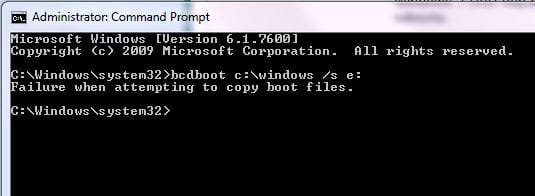
Boot into 7, open an elevated command and type:

bcdboot c:\windows /s e:

press enter.Close comand prompt.

That's it.
 

My Computers

System One System Two

  • Computer type
    PC/Desktop
    OS
    7 X64
    CPU
    i5 8400
    Motherboard
    gigabyte b365m ds3h
    Memory
    2x8gb 3200mhz
    Hard Drives
    various
    PSU
    pure power 11 400w cm
    Case
    Coolermaster
    Cooling
    cryorig m9i
  • Computer type
    PC/Desktop
    OS
    7x64
    CPU
    g5400
    Motherboard
    ga b365m ds3h
    Memory
    8gb ddr4 2400
    PSU
    xfx pro 450w
Si, just curious: Is the only way Easy would configure this correctly is to give 100mb a drive letter?

Would it then auto-complete Adding 7 using 2.0 from Vista?
 
The fix is in my post . Nothing else required. 100 mb partition isn't relevant to the original question - giving it a letter would make no difference.
 

My Computers

System One System Two

  • Computer type
    PC/Desktop
    OS
    7 X64
    CPU
    i5 8400
    Motherboard
    gigabyte b365m ds3h
    Memory
    2x8gb 3200mhz
    Hard Drives
    various
    PSU
    pure power 11 400w cm
    Case
    Coolermaster
    Cooling
    cryorig m9i
  • Computer type
    PC/Desktop
    OS
    7x64
    CPU
    g5400
    Motherboard
    ga b365m ds3h
    Memory
    8gb ddr4 2400
    PSU
    xfx pro 450w
I am not questioning the fix in your post, which I am confidant as always will work.

I am asking you if the correct way when using EasyBCD 2.0 to configure a dual boot where 100mb is present, is to give 100mb a letter and then let it autocomplete, or assign Win7 that letter?

Some of us don't know all the commands and need the automation.
 
If you are using it on 7, then Easy 1.7.2. will need the 100mb to be lettered.Easy 2.0 should be able to edit bcd even when there is no letter on the sys partition.

Occasionally, it doesn't - not clear why that should be. If that is the case, then lettering the partition will usually do it.

The 100mb partition is not involved in this particular case as he installed Easy on Vista - it will be editing Vista bcd by default.
 

My Computers

System One System Two

  • Computer type
    PC/Desktop
    OS
    7 X64
    CPU
    i5 8400
    Motherboard
    gigabyte b365m ds3h
    Memory
    2x8gb 3200mhz
    Hard Drives
    various
    PSU
    pure power 11 400w cm
    Case
    Coolermaster
    Cooling
    cryorig m9i
  • Computer type
    PC/Desktop
    OS
    7x64
    CPU
    g5400
    Motherboard
    ga b365m ds3h
    Memory
    8gb ddr4 2400
    PSU
    xfx pro 450w
Thanks Si. Was aware he might have to start Win7 to run Easy, if Vista wouldn't get it correct on second attempt.

But all good when you show up with the commands!:geek:
 
Yes, you could have done it the other way round - installing Easy on 7 instead.

Much quicker and easier to do the command. Should take no more than 5 seconds.
 

My Computers

System One System Two

  • Computer type
    PC/Desktop
    OS
    7 X64
    CPU
    i5 8400
    Motherboard
    gigabyte b365m ds3h
    Memory
    2x8gb 3200mhz
    Hard Drives
    various
    PSU
    pure power 11 400w cm
    Case
    Coolermaster
    Cooling
    cryorig m9i
  • Computer type
    PC/Desktop
    OS
    7x64
    CPU
    g5400
    Motherboard
    ga b365m ds3h
    Memory
    8gb ddr4 2400
    PSU
    xfx pro 450w
So is that a standard dual boot command from the booted OS c: to the added OS e:?

Seems like a much easier way to help with dual boots.
 
He has two independent installs. Easy BCD needs to access the 100mb partition. It can put necessary files on it, but still needs a drive letter to boot to it.

SIW2, doesn't your solution makes the independent installs-dependent.

I would have made the Win 7 drive primary and run EasyBCD from there, adding the drive letter. The reason being I assume at some point Win 7 will be the surviving OS.
 

My Computer

Computer Manufacturer/Model Number
Homebuilt
OS
Windows 7 x64
CPU
i7-2600K
Motherboard
Asus P8Z77-v Pro
Memory
8 G
Graphics Card(s)
GTX 480
Sound Card
Onboard
Monitor(s) Displays
LG W2753V
Screen Resolution
1920x1080
Hard Drives
Crucial M4 128 G SSD
Saltgrass - no, they can still be used independently.

Greg - there is no "standard" answer - it wouldn't be appropriate for most situations.

For most situations you come across - the use of Easy and startup repair etc. - the way you normally do - works well and is not hard for the OP to do.
 

My Computers

System One System Two

  • Computer type
    PC/Desktop
    OS
    7 X64
    CPU
    i5 8400
    Motherboard
    gigabyte b365m ds3h
    Memory
    2x8gb 3200mhz
    Hard Drives
    various
    PSU
    pure power 11 400w cm
    Case
    Coolermaster
    Cooling
    cryorig m9i
  • Computer type
    PC/Desktop
    OS
    7x64
    CPU
    g5400
    Motherboard
    ga b365m ds3h
    Memory
    8gb ddr4 2400
    PSU
    xfx pro 450w
Well, I just set it up. Windows 7 drive, with 100mb partition, primary.

No letter is required for the 100 mb partition when using Vista to dual boot. I believe XP does need it.

When adding the Vista entry with EasyBCD, use the drive letter of the Vista partition from within Win 7, which will probably be D: or E:

Win7_Vista.GIF
 

My Computer

Computer Manufacturer/Model Number
Homebuilt
OS
Windows 7 x64
CPU
i7-2600K
Motherboard
Asus P8Z77-v Pro
Memory
8 G
Graphics Card(s)
GTX 480
Sound Card
Onboard
Monitor(s) Displays
LG W2753V
Screen Resolution
1920x1080
Hard Drives
Crucial M4 128 G SSD
It says that in the tutorials for dual boot 7 with Vista, and the tut for dual boot 7 with XP. Tho, as I mentioned earlier, if you use Easy 2.0 ( still beta) there shouldn't be a need to add a drive letter.
 

My Computers

System One System Two

  • Computer type
    PC/Desktop
    OS
    7 X64
    CPU
    i5 8400
    Motherboard
    gigabyte b365m ds3h
    Memory
    2x8gb 3200mhz
    Hard Drives
    various
    PSU
    pure power 11 400w cm
    Case
    Coolermaster
    Cooling
    cryorig m9i
  • Computer type
    PC/Desktop
    OS
    7x64
    CPU
    g5400
    Motherboard
    ga b365m ds3h
    Memory
    8gb ddr4 2400
    PSU
    xfx pro 450w
Boot into 7, open an elevated command and type:

bcdboot c:\windows /s e:

press enter.Close comand prompt.

That's it.


nope!

this did not work... refer attached

FWIW giving the 100mb reserved partition a drive letter did not help either
 

Attachments

  • Capture_2.JPG
    Capture_2.JPG
    20.6 KB · Views: 7

My Computer

OS
WIndows 7 Professional and Vista Home Premium x64
CPU
E8400
Motherboard
GA-EP35-DS3R
Memory
2 x 2G Kingston HyperX PC6400
Graphics Card(s)
HD4850 512M GA
Monitor(s) Displays
BenQ 24 WS
Screen Resolution
1980 x 1080
Hard Drives
WD 1T, WD 500G
PSU
Enermax ELT620AWT PSU
Case
CoolerMaster Elite 333
Cooling
CPU Arctic 92mm, VGA Zalman VF770
Keyboard
Saitek Eclipse II
Mouse
MX518
Internet Speed
ADSL2+ (typically 8M)
Back
Top