Dual boot (Windows 7, XP)

burim

New member
Local time
12:13 AM
Messages
6
I have two disks. In one disk I have XP. I disconnect the power of this disk and I attached another new disk where I installed Windows 7. In finish, I connect two disks and I can choose in BIOS which disk can be first boot and this work ok.

But I like to have Dual boot manager. In Windows 7, I create an entry in EasyBCD for Windows XP, but in startup when I choose XP, the PC wont boot (black screen). When I choose Windows 7 it is ok.

Please can you explain me why cannot boot in XP with dual boot.
 

My Computer

OS
Windows 7
Does your system have the 100 mb System Reserved partition? If so you need to give it a letter, like S: and remove and redo the EasyBCD entry. Which EasyBCD version are you using?

Also, the drive you show as primary is very important. That is what determines where the boot files are placed.

A snipping tool picture attached would help us see what might be happening.
----------------
If you do not show the 3 files mentioned in the root directory of the Win 7 drive, you need to copy them there and modify the boot.ini, probably. EasyBCD version 2 will move the files and alter the boot.ini for you if you have that version. You do need to join their forum to download the beta 2.0 version.
 
Last edited:

My Computer

Computer Manufacturer/Model Number
Homebuilt
OS
Windows 7 x64
CPU
i7-2600K
Motherboard
Asus P8Z77-v Pro
Memory
8 G
Graphics Card(s)
GTX 480
Sound Card
Onboard
Monitor(s) Displays
LG W2753V
Screen Resolution
1920x1080
Hard Drives
Crucial M4 128 G SSD
Thank you Saltgrass,

Yes, there are the System Reserved partition, and don't has letter!
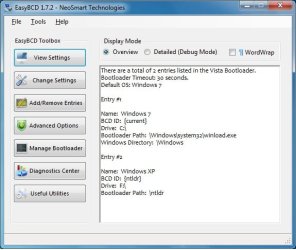
First I use EasyBCD 2 beta, and also I tried with Version 1.7.2, but the same thing.

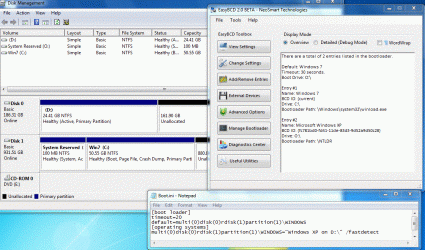
disk.jpg

easybcd.jpg


C: and D: are two partitions in the drive where is Windows 7 installed.
F: and G: partitions are respectively C: and D: partitions in Windows XP drive.


In XP the boot.ini is default:

[boot loader]
timeout=30
default=multi(0)disk(0)rdisk(0)partition(1)\WINDOWS
[operating systems]
multi(0)disk(0)rdisk(0)partition(1)\WINDOWS="Microsoft Windows XP Professional" /fastdetect
 

My Computer

OS
Windows 7
You are using the earlier version of EasyBCD. It would be best to download the 2.0 from the NeoSmart site after joining the forum.

But right now, you probably need to give the small a drive letter. Then remove the current ntldr entry and redo it.

In the end, you need 3 XP files in the System Reserved partition:
ntldr
ntdetect
boot.ini

The boot.ini file can be modified using notepad, or using tools in Easybcd, but is should show rdisk(1) instead of rdisk(0)

Also the entry in the BCD store should show the System partiton drive letter you add. Below is an attachment showing the situation. Don't worry about the disk numbers, they only depend on SATA connections.

Boot.GIF
 

My Computer

Computer Manufacturer/Model Number
Homebuilt
OS
Windows 7 x64
CPU
i7-2600K
Motherboard
Asus P8Z77-v Pro
Memory
8 G
Graphics Card(s)
GTX 480
Sound Card
Onboard
Monitor(s) Displays
LG W2753V
Screen Resolution
1920x1080
Hard Drives
Crucial M4 128 G SSD
Is there a how to on how to set up 2 os?
 

My Computer

OS
Windows 7 Ultimate
CPU
AMD Athlon II X4 630 (95W) Quad Core Socket AM3
Motherboard
GIGABYTE MA785GMT-UD2H
Memory
Patriot Viper Series DDR3 PC3-10666 1333MHz 4GB CL 7-7-7-20
Graphics Card(s)
Geforce GTX550 TI
Sound Card
built in realtech hd
Thank you Saltgrass, solved.

Only for curiosity... I think that some time ago I have set up the bootloader in Windows 7 with EasyBCD, AND putting the F: partition (which was the C: partition in XP) for Device drive (same as in the above image of EasyBCD). The only difference was that I did not disconnect the old hard drive (with XP) when I installed Windows 7!
 

My Computer

OS
Windows 7
I do not really understand you question. But drive letters change depending on which OS you booted into.

Disconnecting the additional drive, just ensures the other drive is primary. You can install an independent OS if the drive you install it on is primary. The new install will never see the secondary drive, even though it has an active partition.

But try whatever combinations you like, I just know what I posted boots fine for me.
 

My Computer

Computer Manufacturer/Model Number
Homebuilt
OS
Windows 7 x64
CPU
i7-2600K
Motherboard
Asus P8Z77-v Pro
Memory
8 G
Graphics Card(s)
GTX 480
Sound Card
Onboard
Monitor(s) Displays
LG W2753V
Screen Resolution
1920x1080
Hard Drives
Crucial M4 128 G SSD
But I like to have Dual boot manager.

Keep in mind that in all likelihood you will end up ditching XP and retaining 7 as your OS of choice. At that time, NOT having dual boot will save you headaches, because you can simply delete XP and move on. When you have a dual boot setup there are a few more hurdles.
 

My Computer

Computer type
PC/Desktop
Computer Manufacturer/Model Number
Custom
OS
7 x64 Ultimate
CPU
AMD Ryzen 5
Motherboard
Gigabyte GA-AB350-Gaming
Memory
16GB DDR4
Graphics Card(s)
Radeon R7 360
Monitor(s) Displays
2 x Dell U2518D
Screen Resolution
2560x1440 2560x1440
Hard Drives
WD 500GB x2
Samsung SSD 128MB (OS)
XPG SX8200 Pro M.2 2280 1TB
PSU
Antec 500
Cooling
Hyper 212 EVO
Keyboard
Logitech cordless K800
Mouse
Logitech M510
Antivirus
Avira
LOL. Unless he's in driver development or something.
 

My Computer

OS
Windows 7
Saltgrass, I mean, why is needed to set the System Reserved partition for booting Windows XP? These 3 files (boot.ini, ntldr, ntdetect) are also in my F: partition (where is xp installed)?
 

My Computer

OS
Windows 7
Because your XP partition isn't marked as the system partition. So thus BIOS won't look there when it boots your machine.
 

My Computer

OS
Windows 7
Saltgrass, I mean, why is needed to set the System Reserved partition for booting Windows XP? These 3 files (boot.ini, ntldr, ntdetect) are also in my F: partition (where is xp installed)?
Hello burim;

You have asked a good question. Here is what I found from MS for their explanation:

How to create a separate system partition for dual booting Windows XP or Windows 2000 with Windows 7

You give the 100MB "Reserved System" partition a drive letter so you can use the "xcopy" command to copy the (boot.ini, ntldr, ntdetect) files from XP to this partition S:

"The legacy boot files are: NTDETECT.COM, NTLDR, and BOOT.INI. To copy these hidden files from the root directory of the legacy OS partition to the new system partition"

Hope this helps answer your question.

Cheers!
Robert
 

My Computer

OS
...
Because your XP partition isn't marked as the system partition. So thus BIOS won't look there when it boots your machine.


How can I mark XP (F: ) partition as system partition?
 

My Computer

OS
Windows 7
How can I mark XP (F: ) partition as system partition?
This answer has nothing to do with the current thread and what is trying to be done.

The system partition is the first active partition encountered where the boot files are located. It might be on a secondary drive if there are no active partitions on the primary drive. If you add an active partition prior to the original system partition, you cannot boot unless you configure the new partition.

In order to show the XP partition as system, change your drive order in the bios so it boots to that drive, or disconnect the other drive. You cannot "Mark" a partition as system.
 
Last edited:

My Computer

Computer Manufacturer/Model Number
Homebuilt
OS
Windows 7 x64
CPU
i7-2600K
Motherboard
Asus P8Z77-v Pro
Memory
8 G
Graphics Card(s)
GTX 480
Sound Card
Onboard
Monitor(s) Displays
LG W2753V
Screen Resolution
1920x1080
Hard Drives
Crucial M4 128 G SSD
Back
Top