Solved Dual boot with Win7 - problem with boot menus on Lenovo laptop

br1anstorm

New member
Local time
4:38 PM
Messages
36
I have just acquired a refurbished Lenovo ThinkPad T430 laptop. It has had Windows 7 Professional cleanly (re)installed.

I noticed that on initial boot up, a boot menu-screen flashed up very briefly with two options - 'Boot to Windows', or 'Restore the original Windows Image'. The latter choice came with a warning note at the bottom of the menu screen that this would erase all existing data. In any case the delay default is only about 2 secs, because if 'Restore Original Image' is not selected (and I have no wish to do so) it then boots up by default into Win7.

Comment: I have other computers with Win7 installed and have never seen this menu appear on booting any of them.

When I looked at the disk partitions, I noticed that there were already three primary partitions on the hard drive: 100MB System Reserved (which is normal and to be expected), 13GB Recovery, and the main Win7 partition.

I had been thinking of installing a Linux distro as dual-boot alongside Win7, and setting it up (as I have done successfully on my main multi-boot computer) using EasyBCD. However when I began running the Linux installer, I noticed that it said there were "multiple OSs already on the system".

Comment: I thought that a bit odd, but assumed that maybe it was seeing the existing Recovery partition as containing a duplicate, or image, of the Win7 OS.

I went ahead anyway with the Linux dual boot install, using the 'something else' option and putting the Linux OS on a separate partition along with its Grub. This is because EasyBCD keeps the Windows MBR and simply adds a link onward to wherever the Grub is. But the dual boot would not work. Although Linux was showing in the EasyBCD menu, on restart the boot process still only displayed the "boot or system image restore " screen briefly , and then booted into Windows, as before.

I can find no clues in the Windows msconfig Boot and Startup tabs. I wondered if this initial screen relates to the Lenovo ThinkVantage Recovery arrangements, and if the MBR/BCD had been modified to offer this display choice (boot normally or restore a system image) before it actually proceeds with the boot process.

In the BCD configuration visible via the EasyBCD GUI, I noticed that the "device" line in both the Windows Boot Manager details and in the Windows Boot Loader details has the entry
Code:
locate=custom:12000002
whereas the equivalent entries in the BCD on my properly dual-booting (in fact multibooting) main computer have entries in the 'device' line which say
Code:
partition=\Device\HarddiskVolume1
in the Boot Manager and
Code:
partition=C:
in the Boot Loader.

I guessed that the customised entries in the 'device' line might be related to the Lenovo Recovery setup, and they cause the boot process to offer up the first screen I see, which has the 'Boot to Windows' or 'Restore System Image' choice.

I found an online website which explains that the "device-locate" customisation in the Windows Boot Manager and Loader, which still kicks in at the first stage in the booting process, is a direction down a path to a particular file or location. It goes on to say that

"..... In multiboot environments the 'locate-device' may not load the desired operating system as the scanning process will stop as soon as the first path\file is found...."
So it looked as if Lenovo (as part of its OEM setup?) might have tweaked the Windows Boot Manager to go to, or via, the file or location which offers the screen with "Boot Normally or Restore System Image" options and then it stops, giving only the choice to boot into Windows or restore an image. It does not go onward to the stage within the BCD boot process where EasyBCD has set up the linkage to Linux and its Grub.

Another website I have found suggests that it is actually not possible to set up dual boot without deleting the Recovery partition - if one exists. I don't know why - and I find that surprising. In my main laptop I have Win7, three Linux distros, and still have a Samsung Recovery partition.

My immediate wish is to find out whether (and how) Lenovo may have modified the BCD or reconfigured the booting process, and if so, how I can reinstate the original arrangements in order to then set up a dual boot.

There are a couple of other clues:


  1. Prompted by searching on other websites and forums I looked to see which partition was labelled "Active". In my other computers, it is always the small System Reserved partition at the beginning of the disk which is marked as the active one (and where I assume the MBR, BCD, and bootloader reside). In this Lenovo laptop, the partition where Win7 is located (labelled C: in the Windows disk manager) is marked "Active".
  2. I did another experiment, using a Linux OS installed on an external USB, to see what entries might appear in its Grub menu. When I updated the Grub, this is what it found
Code:
Found linux image: /boot/vmlinuz-3.13.0-24-generic
Found initrd image: /boot/initrd.img-3.13.0-24-generic
Found memtest86+ image: /boot/memtest86+.elf
Found memtest86+ image: /boot/memtest86+.bin
  No volume groups found
Found Windows 7 (loader) on /dev/sda1
Found Windows Recovery Environment (loader) on /dev/sda2
Found Windows 7 (loader) on /dev/sda3
 Found Linux Mint 18.2 Sonya (18.2) on /dev/sda5

As I read it, this shows - in Windows language - the System Reserved partition (sda1), the Recovery partition (sda2), the partition where Win7 is installed (sda3), aka the C: drive/partition, and the partition where Linux Mint is installed (sda5). It seems interesting - is it unusual? - to see three (loader) entries.

Which makes me wonder - is the current boot setup somehow bypassing the MBR (in the System reserved partition) and booting up from the so-called C: drive, hence not showing the normal boot menu but instead the screen with the "boot normally/system image restore" choice before defaulting into booting Win7?

As is probably obvious, I'm out of my depth when it comes to figuring out the mysteries of MBR, BCD, and bootloading processes. That's one reason why I like using EasyBCD to run dual/multibooting! But I would like to get to the bottom of why this Lenovo laptop has what seems to be an unusual boot arrangement which - at present - seems to be making it difficult/impossible to set up dual booting.
 

My Computer My Computer

At a glance

Windows 7 Professional 64-bit SP1 dual boot w...Intel Core i5-3320M 2.60GHz8 GB
Computer type
Laptop
Computer Manufacturer/Model Number
Lenovo ThinkPad T430
OS
Windows 7 Professional 64-bit SP1 dual boot with Linux Mint 18.2
CPU
Intel Core i5-3320M 2.60GHz
Memory
8 GB
Screen Resolution
1600 x 900
Hard Drives
240 GB SSD
Browser
Firefox
You can take alook at the bcd ebtries using visualbcd 0.9.3 or 0.9.3.1

It has a custom action section. ( New>custom action to see the entries )

Download Visual BCD
 

My Computers My Computers

  • At a glance

    7 X64i5 84002x8gb 3200mhz
    Computer type
    PC/Desktop
    OS
    7 X64
    CPU
    i5 8400
    Motherboard
    gigabyte b365m ds3h
    Memory
    2x8gb 3200mhz
    Hard Drives
    various
    PSU
    pure power 11 400w cm
    Case
    Coolermaster
    Cooling
    cryorig m9i
  • At a glance

    7x64g54008gb ddr4 2400
    Computer type
    PC/Desktop
    OS
    7x64
    CPU
    g5400
    Motherboard
    ga b365m ds3h
    Memory
    8gb ddr4 2400
    PSU
    xfx pro 450w
Hello SIW2, and thanks for that thought.

In fact I'm able to get the details using EasyBCD (which I have already installed). Here is what that shows as the BCD entries in this problematic Lenovo laptop...

Code:
Windows Boot Manager
--------------------
identifier              {9dea862c-5cdd-4e70-acc1-f32b344d4795}
device                  locate=custom:12000002
description             Windows Boot Manager
locale                  en-US
inherit                 {7ea2e1ac-2e61-4728-aaa3-896d9d0a9f0e}
default                 {a6ea9bab-24b4-11e9-8e96-f82fa8e876d9}
resumeobject            {06f87eb3-4038-11e0-aecc-c1f066e6c02a}
displayorder            {06f87eb4-4038-11e0-aecc-c1f066e6c02a}
                        {a6ea9bab-24b4-11e9-8e96-f82fa8e876d9}
toolsdisplayorder       {b2721d73-1db4-4c62-bf78-c548a880142d}
timeout                 20
displaybootmenu         Yes

Windows Boot Loader
-------------------
identifier              {06f87eb4-4038-11e0-aecc-c1f066e6c02a}
device                  locate=custom:12000002
path                    \Windows\system32\winload.exe
description             Windows 7
locale                  en-US
inherit                 {6efb52bf-1766-41db-a6b3-0ee5eff72bd7}
osdevice                locate=custom:22000002
systemroot              \Windows
resumeobject            {06f87eb3-4038-11e0-aecc-c1f066e6c02a}
nx                      OptIn

Real-mode Boot Sector
---------------------
identifier              {a6ea9bab-24b4-11e9-8e96-f82fa8e876d9}
device                  partition=C:
path                    \NST\AutoNeoGrub0.mbr
description             Linux Mint
locale                  en-US
custom:250000c2         0
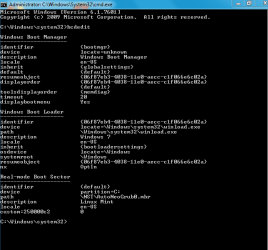
I was able to look for, and get, the same info via the terminal (BCEDIT as a command prompt) The details are almost the same but without the alphanumeric designators and with some other slight differences. I can't copy and paste all the info from the command prompt, but the key points are these:

According to the command prompt terminal display, in the Windows Boot Manager the entry for 'device' says
Code:
locate=unknown
rather than 'custom... etc', and several of the other entries have a generic description such as {globalsettings} or {memdiag} rather than the long string of letters and numbers.

In the Windows Boot Loader, the 'device' entry is shown as
Code:
locate=\Windows\system32\winload.exe
and the 'osdevice' is
Code:
locate=\Windows
whereas EasyBCD shows a 'custom' entry for each of those...

And in the Real-mode Boot Sector entry, the 'identifier' is shown as {default} rather than the detailed string of letters and numbers.

But those two sets of details show pretty clearly what the BCD entries are. I noted in my original post how these differ from the "standard" and perfectly-functioning BCD in my other, main (Samsung) laptop which has a multiboot setup with Win7 and three Linux OSs.

So in a nutshell, the Lenovo laptop


  • has what seems to be some unorthodox/customised BCD entries;

  • has no less than three bootloaders (one in the System Reserved - MBR - partition, one in the Recovery partition, and one in the main - C: - partition where the Win7 OS is located);

  • has the C: partition, not the System Reserved partition, marked as "Active" ( I can post up an image of the Disk Management display window if that would help);

  • when it boots, it briefly shows an unusual screen with the "Boot Normally or Restore System Image" options before booting into Win7;

  • it cannot "see" or show the BCD menu which has had Linux Mint added to it by EasyBCD.
So I hope someone can tell me why and how it is set up like this (is this a Lenovo OEM configuration?) and - more important - how to reconfigure into a normal setup which I can then make into a dual boot with the help of EasyBCD.
 

My Computer My Computer

At a glance

Windows 7 Professional 64-bit SP1 dual boot w...Intel Core i5-3320M 2.60GHz8 GB
Computer type
Laptop
Computer Manufacturer/Model Number
Lenovo ThinkPad T430
OS
Windows 7 Professional 64-bit SP1 dual boot with Linux Mint 18.2
CPU
Intel Core i5-3320M 2.60GHz
Memory
8 GB
Screen Resolution
1600 x 900
Hard Drives
240 GB SSD
Browser
Firefox
visualbcd is better than easybcd. It can add and delete entries and elements. That is why I suggested it.

If you have a look, it might give you a better idea of what is going on.

Most likely you would want to change the locate element.


has the C: partition, not the System Reserved partition, marked as "Active"

The bcd store on the active partition is the live one.

Typical setup for win7 is a small active partition ( typically 100mb in size), a main windows partition and - for oem machines - often a partition containing a recovery image ( typicaly 10-15gb in size)

There are numerous reasons why you might have boot files on several partitions. I usually create them on several partitions on my machines.
 

My Computers My Computers

  • At a glance

    7 X64i5 84002x8gb 3200mhz
    Computer type
    PC/Desktop
    OS
    7 X64
    CPU
    i5 8400
    Motherboard
    gigabyte b365m ds3h
    Memory
    2x8gb 3200mhz
    Hard Drives
    various
    PSU
    pure power 11 400w cm
    Case
    Coolermaster
    Cooling
    cryorig m9i
  • At a glance

    7x64g54008gb ddr4 2400
    Computer type
    PC/Desktop
    OS
    7x64
    CPU
    g5400
    Motherboard
    ga b365m ds3h
    Memory
    8gb ddr4 2400
    PSU
    xfx pro 450w
Thanks again, SIW2.

I'm quite ready to try visual bcd, and if that reveals details of the current setup in a clearer or fuller way, so much the better.

BUT..... I have minimal knowledge and even less experience of how the booting process works, and what the BCD should look like or how to edit it. Giving me a tool which has the power to change the current setup when I don't know what to change, what to edit, and what to delete or add is like giving a chainsaw to a child. I worry that I could do enormous damage and end up with an unbootable machine. Not much comfort if someone says afterwards, "..... but surely you realised X, or would have known about Y". Er, no.

At present the laptop does (or did) have the standard partition setup: a small 100 MB System Reserved partition, a 13GB Recovery partition, and a large partition (C:) with Win7. I shrank that Win7 partition and created new partitions for Linux. But I remain rather uncertain about what bits of which bootloaders are where, and which of these may need to be reconfigured or modified.

Most guidance about editing the BCD comes with dire warnings about the need for caution. That's why, until now, I've used EasyBCD to do whatever is required to configure dual-boot. But in this situation I, and EasyBCD, seem to be faced with an untypical, non-standard, boot configuration to start with!

So I need to know (a) the outcome I need to get to - ie what exactly the BCD, or any other element of the booting and bootloader setup, should look like; and (b) the detailed process, literally step-by-step, for how I get from what exists at present to the way it ought to be.

I'm accustomed to following the workshop manual so that I know what I'm doing and why. A "suck-it-and-see" approach is not really my style.

Is it possible - before going any further - to be clear about exactly what the current boot arrangement is, why it shows an unusual screen (the 'Boot Normally or Restore System Image' options display) as it boots, what needs to be changed in the BCD (or which partition should be labelled 'Active'), and why?
 

My Computer My Computer

At a glance

Windows 7 Professional 64-bit SP1 dual boot w...Intel Core i5-3320M 2.60GHz8 GB
Computer type
Laptop
Computer Manufacturer/Model Number
Lenovo ThinkPad T430
OS
Windows 7 Professional 64-bit SP1 dual boot with Linux Mint 18.2
CPU
Intel Core i5-3320M 2.60GHz
Memory
8 GB
Screen Resolution
1600 x 900
Hard Drives
240 GB SSD
Browser
Firefox
Quick follow up. I've just had a look through the VisualBCD site and its guides and tutorials.

OMG. Utterly incomprehensible. Clearly written by expert technicians for expert technicians. Might as well be in Chinese.

Just a random example - instructions for the first step in setting up dual boot:

Adjust ApplicationDevice(=C:) and ApplicationPath(=\FreeBSD.pbr) to point to boot sector file.
The Description element of the loader defines the text that will appear in boot menu for this loader.
A boot sector loader object has only three elements: ApplicationDevice, ApplicationPath and Description.
.......
Now we know how to create a boot sector loader using either bcdedit or Visual BCD.
Eh? No we don't. How do you "....adjust ApplicationDevice and ApplicationPath"? How do you know where the boot sector file is and how to point to it? What text is being defined? What does the text need to say? What exactly is a boot loader object and how do you identify it? And so on.

Sorry. Looks as if Visual BCD is worse than a chainsaw and about as easy to follow as a left-handed upside- down corkscrew. No way am I going to be able to do any BCD editing safely on that basis.

Has anyone got any suggestions for remedial action that can be explained in plain English?
 

My Computer My Computer

At a glance

Windows 7 Professional 64-bit SP1 dual boot w...Intel Core i5-3320M 2.60GHz8 GB
Computer type
Laptop
Computer Manufacturer/Model Number
Lenovo ThinkPad T430
OS
Windows 7 Professional 64-bit SP1 dual boot with Linux Mint 18.2
CPU
Intel Core i5-3320M 2.60GHz
Memory
8 GB
Screen Resolution
1600 x 900
Hard Drives
240 GB SSD
Browser
Firefox
It is a lot easier if you just d/l the thing and run it.

If you can use easybcd, you should be able to understand the visualbcd User Interface.

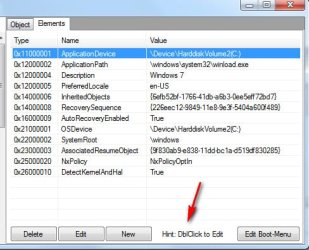
How do you "....adjust ApplicationDevice and ApplicationPath"?

It tells you HINT:DBLE CLICK TO EDIT

dble-click.jpg

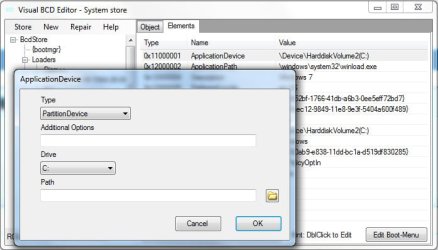
Then after double clicking the element you want to change:

edit-element.jpg
 

My Computers My Computers

  • At a glance

    7 X64i5 84002x8gb 3200mhz
    Computer type
    PC/Desktop
    OS
    7 X64
    CPU
    i5 8400
    Motherboard
    gigabyte b365m ds3h
    Memory
    2x8gb 3200mhz
    Hard Drives
    various
    PSU
    pure power 11 400w cm
    Case
    Coolermaster
    Cooling
    cryorig m9i
  • At a glance

    7x64g54008gb ddr4 2400
    Computer type
    PC/Desktop
    OS
    7x64
    CPU
    g5400
    Motherboard
    ga b365m ds3h
    Memory
    8gb ddr4 2400
    PSU
    xfx pro 450w
Thanks again SIW2. Yesterday was a long day and I think my patience was running out and fatigue setting in!

I'm ready to give Visual BCD a go - and I reckon I could probably navigate my way round its various screens.

But here's the problem. Even if I get to the screen(s) such as those shown in your screenshots...... how do I know which BCD entries to edit? And what to insert in place of what's there?

I posted up in my OP a full image of the BCD entries I pulled up on my Lenovo laptop. But no-one has yet said which - if any - of those entries might need changing; nor what should be inserted instead.

Indeed I still don't know whether the BCD whose entries I posted is actually the one which the booting process uses (since I don't get a Windows Boot Manager menu screen showing up, as I should, with Win7 and Linux listed). Is there another BCD somewhere? I don't know. And if so might it need editing too? I don't know. Does there need to be a change in which partition is labelled "active"? I don't know. Why am I getting this odd "Boot Normally or Restore System Image" options-screen briefly before it boots into Win7? I don't know. How many bootloaders are there on this laptop's system? I don't know. Do I need more than one and should I be removing/deleting any? I don't know.....

So I accept that VisualBCD might be the right tool for solving the problem(s). But right now I don't yet know exactly what and where the problems are. I have posted up such evidence of the "symptoms" as I can offer. I would very much like to have the diagnosis/analysis first. Once I have some focused help in that, and once I know what needs to be amended, deleted, or reconfigured, it should not be too difficult to figure out how to use Visual BCD to effect a cure.
 

My Computer My Computer

At a glance

Windows 7 Professional 64-bit SP1 dual boot w...Intel Core i5-3320M 2.60GHz8 GB
Computer type
Laptop
Computer Manufacturer/Model Number
Lenovo ThinkPad T430
OS
Windows 7 Professional 64-bit SP1 dual boot with Linux Mint 18.2
CPU
Intel Core i5-3320M 2.60GHz
Memory
8 GB
Screen Resolution
1600 x 900
Hard Drives
240 GB SSD
Browser
Firefox
A quick follow-up to my previous message (above). Just to prove that I am not the only person finding it hard to get clear advice on how to edit the BCD, there is an interesting post in this forum here

bcd - How to use BCDEdit to dual boot Windows installations? - Super User

The post there contains some classic quotes which I find very appropriate ... for example

Since I did not set id to a well-known identifier, I must set /device to "the option that is used to specify the new boot entry as an additional device options entry". I know all those words; they're all English. But I have no idea what it is saying; those words in that order seem nonsensical.
and then
I don't want to be like Dan Stolts from Microsoft, who destroyed his hard drives trying to use BCDEdit:
I found no content that was particularly helpful when I hosed my machine by playing with BCDEdit. This post would have been ok if there was much more detail especially on the /set command OSDevice, etc....
I mean, if a Microsoft guy can't even figure out how to use BCDEdit to edit his BCD, then what chance do I have?
He goes on to say in a footnote:
I tried Visual BCD Editor. It seems to be a visual BCD editor. That is to say that it's a GUI, but still uses the same terminology as BCDEdit, and requires the same knowledge that BCD doesn't document.
At this stage I am not even certain that editing the BCD in this Lenovo laptop is the right solution to the problem I have described. It may be that I need to make an adjustment to some other part of the boot sequence. So I know exactly how that guy feels. And it proves that I'm not alone in wanting better and more precise guidance than just "use the program".
 

My Computer My Computer

At a glance

Windows 7 Professional 64-bit SP1 dual boot w...Intel Core i5-3320M 2.60GHz8 GB
Computer type
Laptop
Computer Manufacturer/Model Number
Lenovo ThinkPad T430
OS
Windows 7 Professional 64-bit SP1 dual boot with Linux Mint 18.2
CPU
Intel Core i5-3320M 2.60GHz
Memory
8 GB
Screen Resolution
1600 x 900
Hard Drives
240 GB SSD
Browser
Firefox
It is not possible to
destroy a hard drive using bcdedit
.

All bcdedit does is create/make entries in the bcd store.

However, it is possible to make the wrong entries in the store. If you do that, you obviously won't be able to boot until you correct the entries.

It is a little complicated - which is why GUIs have been made. I frequently create and edit bcd stores. I have dozens of entries in my currently live bcd store.

You could try running starup repair from booted win7 media - but it will likely remove any non MS entries.

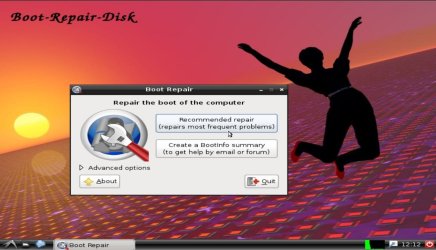
Or you could use grub boot repair media - you would then end up with grub as the boot manager. It should create the correct windows entries automatically.

boot media download:

boot-repair-disk - Browse Files at SourceForge.net

Boot-Repair, simple tool to recover access to your Operating Systems.

Easy-to-use (repair in 1 click ! )
Free (GPL open-source license)
Helpful (Boot-Info summary to get help by email or on your favorite forum)
Safe (automatic backups)
Reliable (400.000 users per year)
Can recover access to Windows (XP, Vista, Windows7, Windows8, Windows10).
Can recover access to Debian, Ubuntu, Mint, Fedora, OpenSuse, ArchLinux...
Can recover access to any OS (Windows, MacOS, Linux..) if your PC contains Debian, Ubuntu, Mint, Fedora, OpenSuse, ArchLinux, or derivative.
Can repair MBR-locked OEM computer boot if the original bootsector has been saved by Clean-Ubiquity
Can repair the boot when you have the "GRUB Recovery" error message
Options to reinstall GRUB2/GRUB1 bootloader easily (OS by default, purge, unhide, kernel options..)
and much more ! (UEFI, SecureBoot, RAID, LVM, Wubi, filesystem repair...)

grub-boot-repair.jpg
 

My Computers My Computers

  • At a glance

    7 X64i5 84002x8gb 3200mhz
    Computer type
    PC/Desktop
    OS
    7 X64
    CPU
    i5 8400
    Motherboard
    gigabyte b365m ds3h
    Memory
    2x8gb 3200mhz
    Hard Drives
    various
    PSU
    pure power 11 400w cm
    Case
    Coolermaster
    Cooling
    cryorig m9i
  • At a glance

    7x64g54008gb ddr4 2400
    Computer type
    PC/Desktop
    OS
    7x64
    CPU
    g5400
    Motherboard
    ga b365m ds3h
    Memory
    8gb ddr4 2400
    PSU
    xfx pro 450w

My Computer My Computer

At a glance

Win 10 x64, Linux Lite, Win 7 x64, BlackArch,...
Computer type
PC/Desktop
Computer Manufacturer/Model Number
HP Desktop & Compaq Laptop
OS
Win 10 x64, Linux Lite, Win 7 x64, BlackArch, & Kali
Hard Drives
Samsung 850 Pro 256Gb,
Hitachi HDD 1Tb,
Crucial MX SSD 250Gb
Segate 3Tb USB 3.0 Ext. Backup HDD
Internet Speed
150Mbps dn, 20Mbps up
Antivirus
Avast Free, Malwarebytes Anti-Exploit & Anti-Ransomware
Browser
Firefox, Chrome, Opera, & VPN
Yes Snick, that's absolutely right. I know the Matthew Moore tutorials on YouTube very well, and I've been a supporter of his method, and a user of EasyBCD, for years. I have three other computers (plus my wife's netbook) all set up to dual boot Windows with one or more Linux distros. They all work flawlessly.

BUT...... the issue with this refurbished Lenovo T430 laptop (as I tried to explain in my OP) is that the boot arrangements are not "normal". The boot manager, the boot loader, and/or the BCD, appear to have been modified. I don't know whether this was by Lenovo (as part of their OEM Recovery setup) or - less likely - when the laptop was refurbished.

The result is that the normal EasyBCD configuration doesn't seem to work. Although I installed Linux Mint and its Grub into a separate partition, and added that to the BCD using EasyBCD, the boot process doesn't seem to "see" or use that BCD. It only boots, as before, into a briefly-displayed screen with "Boot normally into Win7" or "Restore System Image" options, and then goes on to boot into Win7. So the normal EasyBCD dual boot process doesn't seem to kick in even though Linux shows up as having been added to the list of installed OSs.

I don't know why this Lenovo boots up like that - apparently bypassing the normal BCD and/or boot manager - and I don't know how to change or correct that so that EasyBCD will do its stuff.

Regrettably my requests to the EasyBCD support forum have brought no answers. I was hoping that someone who understands the boot process better than me (and perhaps is more familiar with Lenovo's setup and recovery arrangements) might be able to diagnose and explain. I am reluctant to try to mess around with or "repair" the bootloader - which at least still boots Win7 - until the cause(s) of the problem are pinpointed so that I know what any repair process is aiming to do.
 

My Computer My Computer

At a glance

Windows 7 Professional 64-bit SP1 dual boot w...Intel Core i5-3320M 2.60GHz8 GB
Computer type
Laptop
Computer Manufacturer/Model Number
Lenovo ThinkPad T430
OS
Windows 7 Professional 64-bit SP1 dual boot with Linux Mint 18.2
CPU
Intel Core i5-3320M 2.60GHz
Memory
8 GB
Screen Resolution
1600 x 900
Hard Drives
240 GB SSD
Browser
Firefox
You could post a screenshot of disk managament window, so we can see the partition layout.

You could also post a zipped copy of your current bcd store.
 

My Computers My Computers

  • At a glance

    7 X64i5 84002x8gb 3200mhz
    Computer type
    PC/Desktop
    OS
    7 X64
    CPU
    i5 8400
    Motherboard
    gigabyte b365m ds3h
    Memory
    2x8gb 3200mhz
    Hard Drives
    various
    PSU
    pure power 11 400w cm
    Case
    Coolermaster
    Cooling
    cryorig m9i
  • At a glance

    7x64g54008gb ddr4 2400
    Computer type
    PC/Desktop
    OS
    7x64
    CPU
    g5400
    Motherboard
    ga b365m ds3h
    Memory
    8gb ddr4 2400
    PSU
    xfx pro 450w
Happy to do both, SIW2, but with slight delay as I'm now away travelling for a few days and have left the problematic computer in a drawer at home while relying on another laptop which is configured normally.


I posted details in my post #3 of the entries in the BCD which EasyBCD displayed; and I listed the (few) differences from what the BCDEDIT command prompt displayed in the terminal. I don't know whether "the BCD store" would reveal anything different....?


What remains a mystery to me is whether, or how, the laptop is currently using this BCD during boot-up, if at all. The only menu screen I see during the process is this mysterious "Boot Windows Normally or Restore System Image" display for a couple of seconds before the Win7 logo/splash screen appears.


Screenshots to follow when I get home later in the week....
 

My Computer My Computer

At a glance

Windows 7 Professional 64-bit SP1 dual boot w...Intel Core i5-3320M 2.60GHz8 GB
Computer type
Laptop
Computer Manufacturer/Model Number
Lenovo ThinkPad T430
OS
Windows 7 Professional 64-bit SP1 dual boot with Linux Mint 18.2
CPU
Intel Core i5-3320M 2.60GHz
Memory
8 GB
Screen Resolution
1600 x 900
Hard Drives
240 GB SSD
Browser
Firefox
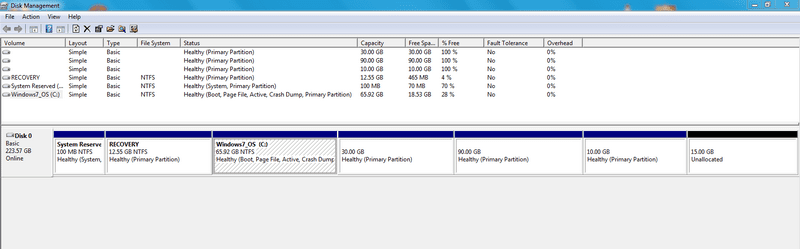
A follow up to the suggestion that I post a screenshot of my disk management screen. Here it is

Disk Management Screen Capture resize.png


Just to clarify what the image shows.... The first three partitions are those which were originally on the computer (System Reserved, Recovery, and Windows7 OS). The next three partitions, which I created with GParted, are formatted ext4, so they simply show as empty in the Windows disk management display. The 30GB partition has the Linux Mint operating system on it; the 90GB one is the "/home" partition for Linux Mint - where I would keep my files; and the 10GB partition is the "swap" space. Then there is a small unallocated space at the end.


I shall be interested to learn whether SIW2 or anyone else can find clues in this as to why the computer boots up in the way I have described!


I will try to add, in a separate post, the details of the contents of the current BCD store - if I can find out exactly how to do this. I'm not clear whether this would be different from the details of the BCD entries which I have already provided in my post #3.
 

My Computer My Computer

At a glance

Windows 7 Professional 64-bit SP1 dual boot w...Intel Core i5-3320M 2.60GHz8 GB
Computer type
Laptop
Computer Manufacturer/Model Number
Lenovo ThinkPad T430
OS
Windows 7 Professional 64-bit SP1 dual boot with Linux Mint 18.2
CPU
Intel Core i5-3320M 2.60GHz
Memory
8 GB
Screen Resolution
1600 x 900
Hard Drives
240 GB SSD
Browser
Firefox
The second part of the response to SIW2 's request.

Here is a screenshot of the display in response to the BCDEDIT command prompt. I assume this reveals the contents of the current BCD store? To me it looks pretty much the same as the information shown by EasyBCD..... although the EasyBCD information has more precise details (eg in the 'identifier' and 'device' lines) than the command prompt display.

BCDEDIT Capture.PNG


It does seem - to my non-expert eye - that the key to understanding how and why the laptop currently boots the way it does lies in the entries for 'device' in the Windows Boot Manager. The command prompt says "locate=unknown". EasyBCD seems to suggest that there is a custom entry for this and/or the path.

At present the boot process works - in a way. The system boots up into Win7 (albeit via an unusual screen). It does not show the normal Windows Boot Manager menu (which ought to list Linux Mint as an option). The crucial question is - what specific change might be needed to make the boot process work normally? I am just a bit wary of any kind of "automatic" Boot Repair, since there is no way of knowing what such automatic repairs might change, and I would prefer not to end up with a system which won't boot at all, not even into Win7.
 

My Computer My Computer

At a glance

Windows 7 Professional 64-bit SP1 dual boot w...Intel Core i5-3320M 2.60GHz8 GB
Computer type
Laptop
Computer Manufacturer/Model Number
Lenovo ThinkPad T430
OS
Windows 7 Professional 64-bit SP1 dual boot with Linux Mint 18.2
CPU
Intel Core i5-3320M 2.60GHz
Memory
8 GB
Screen Resolution
1600 x 900
Hard Drives
240 GB SSD
Browser
Firefox
You can make a copy of your current bcd store from an admin command prompt

bcdedit /export C:\bcd-copy

That will dump a copy onto your C partition.

Then zip up the bcd-copy file and post it here.
 

My Computers My Computers

  • At a glance

    7 X64i5 84002x8gb 3200mhz
    Computer type
    PC/Desktop
    OS
    7 X64
    CPU
    i5 8400
    Motherboard
    gigabyte b365m ds3h
    Memory
    2x8gb 3200mhz
    Hard Drives
    various
    PSU
    pure power 11 400w cm
    Case
    Coolermaster
    Cooling
    cryorig m9i
  • At a glance

    7x64g54008gb ddr4 2400
    Computer type
    PC/Desktop
    OS
    7x64
    CPU
    g5400
    Motherboard
    ga b365m ds3h
    Memory
    8gb ddr4 2400
    PSU
    xfx pro 450w
Okay, SIW2, thanks for that useful advice on how to do it!

Zipped copy of BCD store now attached (I hope...).

View attachment bcd-copy.zip

I haven't looked at it, but I'm ready for whatever insights, diagnosis or instructions you're willing to offer.

And by the way, thanks for your patience and help on this. It will be interesting to see if we can get to the bottom of how the boot process is configured on this computer.
 

My Computer My Computer

At a glance

Windows 7 Professional 64-bit SP1 dual boot w...Intel Core i5-3320M 2.60GHz8 GB
Computer type
Laptop
Computer Manufacturer/Model Number
Lenovo ThinkPad T430
OS
Windows 7 Professional 64-bit SP1 dual boot with Linux Mint 18.2
CPU
Intel Core i5-3320M 2.60GHz
Memory
8 GB
Screen Resolution
1600 x 900
Hard Drives
240 GB SSD
Browser
Firefox
Run these from an admin command:

bcdedit /set {current} osdevice boot
bcdedit /set {current} device boot
bcdedit /set {bootmgr} device boot
bcdedit /set {memdiag} device boot
bcdedit /set {a6ea9bab-24b4-11e9-8e96-f82fa8e876d9} device boot
bcdedit /set {ae5534e0-a924-466c-b836-758539a3ee3a} SDIdevice boot
 

My Computers My Computers

  • At a glance

    7 X64i5 84002x8gb 3200mhz
    Computer type
    PC/Desktop
    OS
    7 X64
    CPU
    i5 8400
    Motherboard
    gigabyte b365m ds3h
    Memory
    2x8gb 3200mhz
    Hard Drives
    various
    PSU
    pure power 11 400w cm
    Case
    Coolermaster
    Cooling
    cryorig m9i
  • At a glance

    7x64g54008gb ddr4 2400
    Computer type
    PC/Desktop
    OS
    7x64
    CPU
    g5400
    Motherboard
    ga b365m ds3h
    Memory
    8gb ddr4 2400
    PSU
    xfx pro 450w
Okay, SIW2, will do.

Forgive the idiot question: do I run these commands one-by-one separately, and wait for each to complete before putting in the next? Or do I copy-and-paste the whole lot in one go?

And can I ask (in the spirit of my - steep - learning curve!) what you found in the BCD store and what changes these edits will deliver?

I'm just curious to know how/why the boot process was different from that in any other computer I've used, and whether there is any way of knowing if the BCD arrangements which are now to be edited were a Lenovo OEM setup or a mod done at a later stage (eg when the laptop was refurbished and/or Win7 reinstalled, before I bought it).


EDIT: This may be a total red herring: but ahead of the reconfiguring of the BCD, I have been reading up and checking on the Advanced Boot Options and the System Recovery Options in Win7 - partly because at present on this Lenovo computer I cannot access those screens and cannot boot into Safe Mode (eg by using F8).

This led me into looking at the msconfig screens, and in particular at the Boot tab in msconfig. I found something peculiar. I had expected to see only Win7 listed (as in my other laptops). But in that Boot tab in this problematic Lenovo computer, there were two entries. First was Windows 7 (\Windows). Below it was another entry AuditPE (\windows): Default OS.

What is that and why is it there? Just as an experiment while I had msconfig open, I changed the first entry, Windows 7, to be the default OS, and rebooted. Made no difference. But I am still puzzled as to what AuditPE is, and why it seems to be listed as a second (?) OS in the Boot tab of msconfig. An online search for AuditPE gives very little information that I can understand.....

Like I said, maybe a red herring and nothing to do with the BCD issues we have been grappling with. But I mention it just in case it is relevant, and because I wonder what if anything to do about it.
 
Last edited:

My Computer My Computer

At a glance

Windows 7 Professional 64-bit SP1 dual boot w...Intel Core i5-3320M 2.60GHz8 GB
Computer type
Laptop
Computer Manufacturer/Model Number
Lenovo ThinkPad T430
OS
Windows 7 Professional 64-bit SP1 dual boot with Linux Mint 18.2
CPU
Intel Core i5-3320M 2.60GHz
Memory
8 GB
Screen Resolution
1600 x 900
Hard Drives
240 GB SSD
Browser
Firefox
Back
Top