Dual Boot XP and 7 from two HDD.

DeniqueCoelum

New member
Member
Local time
7:30 PM
Messages
97
Location
Falkirk, Scotland
I'm planning a bit of an upgrade of my Windows 7 running machine (see spec).

What I hope to do is install a second internal hard disk drive and run Windows XP Home Edition from that, while running Windows 7 on the original HDD, dual boot.

What I would like to know is:

Is it possible to run a dual-boot system from two separate HDD?

What's the best size and brand of HDD to choose?

Any other considerations / possible hazards of dual-boot?

Many thanks! :)
 

My Computer My Computer

Computer Manufacturer/Model Number
Fujitsu P9900 0-Watt
OS
Windows 7 Professional x64 SP 1
CPU
Intel Core i5 - 3.2 GHz - Dual Core
Motherboard
D2912 - μBTX
Memory
4 GB
Graphics Card(s)
Asus Radeon HD 6770 1 GB
Sound Card
Realtek ALC663
Monitor(s) Displays
Fujitsu SL 3230T 23" LCD TFT
Screen Resolution
1920 x 1080
Hard Drives
500 GB Seagate / 500 GB Western Digital external HDD.
PSU
Corsair CX500
Keyboard
Fujitsu KB400 PS/2
Mouse
Fujitsu OPT FSC BC
Internet Speed
54 Kb/ps
Other Info
Windows Experience Index Score: 5.9 |

Processor: 7.1 |
Memory: 5.9 |
Graphics: 7.3 |
Gaming Graphics 7.3 |
Primary Hard Disk: 5.9
Short answers: Yes, up to you and your budget, no problems at all.

Slightly longer story: if I dual-boot, I always do it with separate physical hard drives. And I keep all my data on yet another hard drive. It is often recommended to remove the hard drive with another OS while installing the new one, but personally I've never done that and I've never had any problems. My motivation to keep things separated like this is simply that if a hard drive fails, then all partitions are gone, while other hard drives are not affected at all.

As to best hard drives - there are lots of brands, people prefer different ones, as of recent I have Samsung (see my specs), but at the same time nowadays it seems that it's best to put the OS on a SSD, if you can afford it (they are getting cheaper and cheaper though).

As to possible hazards - I don't know any. Of course something may go wrong and you can find lots of questions on this forum about various issues, but issues come up in single-OS systems as well, I don't think that a dual-boot system is more prone to problems.

Good luck!
 

My Computer My Computer

Computer Manufacturer/Model Number
Dell Inspiron 530
OS
Windows 7 Ultimate (x64)
CPU
Q6600
Memory
8 GB
Graphics Card(s)
ATI Radeon HD 2600 XT
Monitor(s) Displays
Samsung Syncmaster P2450
Screen Resolution
1920x1080
Hard Drives
Samsung HD103UJ
Samsung HD501LJ
Internet Speed
25 Mb/s
The simplest solution is to follow the following steps (that is, if you feel comfortable about digging around the innards of your computer):
  1. Open your computer case.
  2. Disconnect one of the HDD drives.
  3. Install either XP or W7 on the remaining drive (it doesn't matter which OS).
  4. When you have finished installing the OS, disconnect that HDD and reconnect the other one.
  5. Repeat Step 3 with the other OS.
  6. Reconnect both HDDs, with the proviso that the drive containg the OS that you want to boot up by default is on the first controller channel.
You should now be able to boot up into either OS by using the one-time boot option in your BIOS, or allow the OS on the HDD connected to the first controller channel to boot up automatically.

   Note
When disconnecting or reconnecting your HDDs (or indeed any internal hardware) you should ensure that your system is powered down and unplugged.
 

My Computer My Computer

Computer type
PC/Desktop
Computer Manufacturer/Model Number
Dwarf Dwf/11/2012 r09/2013
OS
Windows 8.1 Pro RTM x64
CPU
Intel Core-i5-3570K 4-core @ 3.4GHz (Ivy Bridge) (OC 4.4GHz)
Motherboard
ASRock Z77 Extreme4-M
Memory
4 x 4GB DDR3-1600 Corsair Vengeance CMZ8GX3M2A1600C9B (16GB)
Graphics Card(s)
MSI GeForce GTX770 Gaming OC 2GB
Sound Card
Realtek High Definition on board solution (ALC 898)
Monitor(s) Displays
ViewSonic VA1912w Widescreen (VGA)
Screen Resolution
1440x900
Hard Drives
OCZ Agility 3 SSD 120GB SATA III x2 (RAID 0)
Samsung HD501LJ 500GB SATA II x2
Hitachi HDS721010CLA332 1TB SATA II
Iomega 1.5TB Ext USB 2.0
WD 2.0TB Ext USB 3.0
PSU
XFX Pro Series 850W Semi-Modular
Case
Gigabyte IF233
Cooling
1 x 120mm Front Inlet 1 x 120mm Rear Exhaust
Keyboard
Microsoft Comfort Curve Keyboard 3000 (USB)
Mouse
Microsoft Comfort Mouse 3000 for Business (USB)
Internet Speed
NetGear DG834Gv3 ADSL Modem/Router (Ethernet) ~4.0 Mb/s (O2)
Antivirus
Avast! 8.0.1497
Browser
IE 11
Other Info
Optical Drive: HL-DT-ST BD-RE BH10LS30 SATA Bluray
Lexmark S305 Printer/Scanner/Copier (USB)
WEI Score: 8.1/8.1/8.5/8.5/8.25
Asus Eee PC 1011PX Netbook (Windows 7 x86 Starter)
Any size of the available disks are more than enough for the windows XP installation . What you are to do is ...

Unplug the Windows 7 hard disk, and plug in the second (XP) hard disk. Install XP in it as usual. Plug back the Windows 7 Hard disk . Now set up the booting ...

You may do it in two different ways .

First one, without adding the windows XP entry in the Windows 7 MBR . Usually the Boot Menu Key for Fujitsu is F12 . Press and hold it during startup until the boot menu appears , and then select which drive is to boot up .

Second one, Download EasyBCD 2.1 and install it in windows 7 . Add a boot entry of windows XP using it , following steps from 8 to 12 of the tutorial http://www.sevenforums.com/tutorials/8057-dual-boot-installation-windows-7-xp.html .
 

My Computer My Computer

Computer type
PC/Desktop
Computer Manufacturer/Model Number
Self Assembled
OS
Microsoft Windows 10 Pro Insider Preview 64-bit
CPU
Intel(R) Core(TM) i3-4130 CPU @ 3.40GHz
Motherboard
Gigabyte Technology Co., Ltd. B85M-D3H
Memory
Corsair Vengence 4GB x2 (8.00GB Dual-Channel DDR3 @ 798MHz)
Graphics Card(s)
2047MB GeForce GTS 450 (ZOTAC International)
Sound Card
Onboard (Realtek High Definition Audio)
Monitor(s) Displays
LG Flatron E2040T
Screen Resolution
1600x900
Hard Drives
Western Digital 1 TB
Seagate 500 GB
PSU
Corsair VS550
Case
Cooler Master K380
Cooling
Cooler Master Seidon 120V Plus
Keyboard
Logitech MK260r
Mouse
Logitech MK260r
Internet Speed
PMPL Broadband
Antivirus
Windows Defender + MBAM
Browser
Firefox
Other Info
Dell Studio 15" Laptop
While we're at it, could you guys comment on why do you insist on unplugging other hard drives while installing new OS and what's wrong with using Windows boot loader as opposed to the BIOS menu? My experience with this is probably limited, since I am only dealing with my own machines, but I've never had any problems by simply installing another OS on another hard drive and then using Windows MBR to choose the OS.
 

My Computer My Computer

Computer Manufacturer/Model Number
Dell Inspiron 530
OS
Windows 7 Ultimate (x64)
CPU
Q6600
Memory
8 GB
Graphics Card(s)
ATI Radeon HD 2600 XT
Monitor(s) Displays
Samsung Syncmaster P2450
Screen Resolution
1920x1080
Hard Drives
Samsung HD103UJ
Samsung HD501LJ
Internet Speed
25 Mb/s
When you no longer need the two OS's, just unplug one HD, no need for all the hard work going back to one OS.
 

My Computer My Computer

OS
ME/XP/Vista/Win7
While we're at it, could you guys comment on why do you insist on unplugging other hard drives while installing new OS and what's wrong with using Windows boot loader as opposed to the BIOS menu? My experience with this is probably limited, since I am only dealing with my own machines, but I've never had any problems by simply installing another OS on another hard drive and then using Windows MBR to choose the OS.

The prime benefit of having OS's on two separate HD's is their independence including the ability for either HD to come and go as you please.

If you leave both connected during install Win7 will configure a Dual Boot which interlocks the HD's requiring major surgery to remove one, hence defeating the benefit of full independence and instead making them interdependent.

That said, it is up to User preference and we are always here to help extricate one OS from the other if needed, and do so almost daily.

Interesting Win7 tidbit
: After release was the busiest time for removing Dual Boots as dozens of users decided to abandon XP or Vista almost immediately after installing Win7. We could hardly keep up with the traffic and it's a big reason we use automated methods here to this day. It is easier for the average user to mark Win7 Active and run 3 Startup Repairs than to use Command Lines and bcedit.
 
Thanks for all the information, guys! I'll probably come back to you with a load of questions when I actually get round to doing this. In the meantime though, I'll just be saving up the cash. :D
 

My Computer My Computer

Computer Manufacturer/Model Number
Fujitsu P9900 0-Watt
OS
Windows 7 Professional x64 SP 1
CPU
Intel Core i5 - 3.2 GHz - Dual Core
Motherboard
D2912 - μBTX
Memory
4 GB
Graphics Card(s)
Asus Radeon HD 6770 1 GB
Sound Card
Realtek ALC663
Monitor(s) Displays
Fujitsu SL 3230T 23" LCD TFT
Screen Resolution
1920 x 1080
Hard Drives
500 GB Seagate / 500 GB Western Digital external HDD.
PSU
Corsair CX500
Keyboard
Fujitsu KB400 PS/2
Mouse
Fujitsu OPT FSC BC
Internet Speed
54 Kb/ps
Other Info
Windows Experience Index Score: 5.9 |

Processor: 7.1 |
Memory: 5.9 |
Graphics: 7.3 |
Gaming Graphics 7.3 |
Primary Hard Disk: 5.9
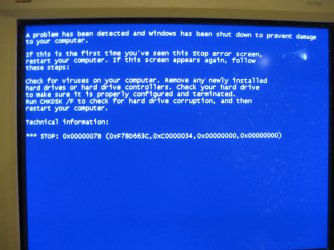
I am trying to install XP on a separate HD, on a computer that has Win7 pre-installed. I disconnected all HD's except the blank Sata HD that I want to install the WinXP on. Problem is that it stops just after it says "Setup is starting windows" then I get a blue screen of death...(see attached pic) I have done a chkdsk /f as the error screen recommended but its still gives me the same problem/error screen.

Why does this happen, and how do I over come it?
 

Attachments

  • IMG_3142.jpg
    IMG_3142.jpg
    769.8 KB · Views: 0

My Computer My Computer

Computer type
PC/Desktop
Computer Manufacturer/Model Number
Custom
OS
Windows 7 Home Premium 64bit.
CPU
AMD X6 FX-6300
Motherboard
MSI 970A-G46
Memory
8 GB RAM
Graphics Card(s)
Sapphire Radeon R7 265 2GB GDDR5
Hard Drives
1 TB HDD
Antivirus
Norton
You should should start your own thread and not attach it to someone else`s old thread.

Are you trying to put XP on a Sata hard drive ?
 

My Computer My Computer

Computer type
PC/Desktop
Computer Manufacturer/Model Number
Skylake Special #666
OS
Windows 10 Pro x64
CPU
Intel Core i7 6700K
Motherboard
Asus Sabertooth Z170 Mark 1
Memory
GSkill TridentZ RGB 16GB 3600 16-16-16-36
Graphics Card(s)
EVGA GTX 980 Ti SC x2
Sound Card
Realtek High Definition
Monitor(s) Displays
AOC G2460PG
Screen Resolution
1920 x 1080 144Hz
Hard Drives
Samsung 860 Pro 256GB, Seagate Barracuda 4TB x2
PSU
EVGA 1000 P2, EVGA White Custom Braided Cables
Case
Corsair Vengeance C70 Gunmetal Black
Cooling
Corsair H100i v2, Corsair ML120 x2, Thermal Grizzly Kryonaut
Keyboard
Logitech G910 Orion Spectrum
Mouse
Logitech G700s
Internet Speed
Verizon Fios Quantum Gateway 75/75
Antivirus
Windows Defender, Malwarebytes Free 3.8.3
Browser
Chrome
Other Info
Corsair SP120 x4, LG Blu-ray Drive, Durabrand HT-395 100 Watt Dolby Digital Amp, Corsair H2100 Wireless 7.1 Headset
Sorry, I thought since its the same task i was trying to accomplish that shouldn't start another thread. Also, yes i am trying to install on a Sata drive.
 
Last edited:

My Computer My Computer

Computer type
PC/Desktop
Computer Manufacturer/Model Number
Custom
OS
Windows 7 Home Premium 64bit.
CPU
AMD X6 FX-6300
Motherboard
MSI 970A-G46
Memory
8 GB RAM
Graphics Card(s)
Sapphire Radeon R7 265 2GB GDDR5
Hard Drives
1 TB HDD
Antivirus
Norton
The XP installer probably does not have sata drivers, they have to be inserted during the install.
 

My Computer My Computer

Computer type
PC/Desktop
Computer Manufacturer/Model Number
Skylake Special #666
OS
Windows 10 Pro x64
CPU
Intel Core i7 6700K
Motherboard
Asus Sabertooth Z170 Mark 1
Memory
GSkill TridentZ RGB 16GB 3600 16-16-16-36
Graphics Card(s)
EVGA GTX 980 Ti SC x2
Sound Card
Realtek High Definition
Monitor(s) Displays
AOC G2460PG
Screen Resolution
1920 x 1080 144Hz
Hard Drives
Samsung 860 Pro 256GB, Seagate Barracuda 4TB x2
PSU
EVGA 1000 P2, EVGA White Custom Braided Cables
Case
Corsair Vengeance C70 Gunmetal Black
Cooling
Corsair H100i v2, Corsair ML120 x2, Thermal Grizzly Kryonaut
Keyboard
Logitech G910 Orion Spectrum
Mouse
Logitech G700s
Internet Speed
Verizon Fios Quantum Gateway 75/75
Antivirus
Windows Defender, Malwarebytes Free 3.8.3
Browser
Chrome
Other Info
Corsair SP120 x4, LG Blu-ray Drive, Durabrand HT-395 100 Watt Dolby Digital Amp, Corsair H2100 Wireless 7.1 Headset
Back
Top