Dual Boot - XP Install Not Showing All Windows 7 Partitions

ChipsF

New member
Local time
8:06 AM
Messages
6
In trying to set up a dual boot system with Windows 7 and Window XP I have come across a very frustrating problem.

New system
HP Pavilion p7-1270t with Windows 7 installed

I have followed the instructions in SevenForums - Dual Boot Installation with Windows 7 and XP.

I shrunk my disk (in Win7) so now I have a Windows 7 partition and a XP Partition.
I did the slipstream so my SATA driver (Intel Express Chipset SATA AHCI Controller) was incorporated into the XP install (and I included SP3 after many different tries).

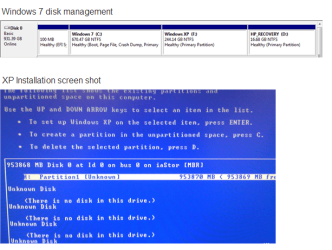
When I go to through the XP install and get to the select partition, I only see one partition, it is the entire size of the disk. I do not see any of the partitions that were created under Windows 7.

Any thoughts on what the problem is here?

Thanks,

Chips
 

My Computer My Computer

At a glance

Windows 7
OS
Windows 7
It shows them ok from windows 7 in disk management ? Can you post a screeshot ?
 

My Computer My Computer

At a glance

Windows 10 Pro x64Intel Core i7 6700KGSkill TridentZ RGB 16GB 3600 16-16-16-36EVGA GTX 980 Ti SC x2
Computer type
PC/Desktop
Computer Manufacturer/Model Number
Skylake Special #666
OS
Windows 10 Pro x64
CPU
Intel Core i7 6700K
Motherboard
Asus Sabertooth Z170 Mark 1
Memory
GSkill TridentZ RGB 16GB 3600 16-16-16-36
Graphics Card(s)
EVGA GTX 980 Ti SC x2
Sound Card
Realtek High Definition
Monitor(s) Displays
AOC G2460PG
Screen Resolution
1920 x 1080 144Hz
Hard Drives
Samsung 860 Pro 256GB, Seagate Barracuda 4TB x2
PSU
EVGA 1000 P2, EVGA White Custom Braided Cables
Case
Corsair Vengeance C70 Gunmetal Black
Cooling
Corsair H100i v2, Corsair ML120 x2, Thermal Grizzly Kryonaut
Keyboard
Logitech G910 Orion Spectrum
Mouse
Logitech G700s
Internet Speed
Verizon Fios Quantum Gateway 75/75
Antivirus
Windows Defender, Malwarebytes Free 3.8.3
Browser
Chrome
Other Info
Corsair SP120 x4, LG Blu-ray Drive, Durabrand HT-395 100 Watt Dolby Digital Amp, Corsair H2100 Wireless 7.1 Headset
Attached are the screens shots from what I am seeing.
Notice the XP Install sees the disk but no partitions.
 

Attachments

  • DiskScreens.png
    DiskScreens.png
    100 KB · Views: 86

My Computer My Computer

At a glance

Windows 7
OS
Windows 7
Look in BIOS setup to see if you're using AHCI mode for SATA controller - if so you'll need those drivers for XP.

The XP CD with those drivers may be too old to see a 1tb HD's partitions, which normally requires a BIOS update which you obviously don't need since the HD is seen in Win7.

You can try again using an XP w/SP3 ISO and different drivers, but the hardware may have simply left XP behind.

Have you tried virtualizing which is becoming a best solution? VMWare, Virtual Player and Virtual Box are all good freeware choices.
 
If I can't figure out it soon, I may just go head with the XP install and wipe out the Win7 install. Then go back in and install Win7.
 

My Computer My Computer

At a glance

Windows 7
OS
Windows 7
In that case you may have better luck with IDE mode if it's set to AHCI now in BIOS setup. You don't give up much.
 
Decided to throw another disk in the system and install XP on that disk but ran into another problem. When I choose that disk to perform the install, it wants to write some startup files on disk 0 (the Win7 disk) and it cannot because "this disk does not contain a windows xp-compatible partition".

I guess I can disable the the Win7 disk and install XP on the second disk but I wonder what will happen once I enable the disk. Sounds like the EasyBCD program will update the boot file and add the XP boot option to the disk?
Thoughts?
 

My Computer My Computer

At a glance

Windows 7
OS
Windows 7
Always unplug the other HD during install to avoid these problems. Then after install plug back in the other HD, set preferred one to boot first in BIOS setup. When you want to boot the other OS HD, use the HP ESC one-time Boot Menu key to trigger it. This keeps the HD's independent to come and go as you please, and avoids problems that dual booting XP with modern OS's can cause.
 
Kind of found that out the hard way. Have everything setup and tried to use the EasyBCD program in Win7 to manage the boots, and now the system is in a constant reboot state after going through the Windows Boot Manager. I enter the Windows 7 option and it just reboots again.

If I can find a way to fix the boot manager than I will just use the HP boot manager as you suggested. Otherwise I just may end up trashing it and just install XP on the primary disk and be done with it.
 

My Computer My Computer

At a glance

Windows 7
OS
Windows 7
Unplug XP HD, boot into Win7, in EasyBCD choose Edit OS Menu to Delete the XP entry.

Now plug back in the XP hd to see if you can boot it using BIOS Boot Menu. If not unplug Win7 HD and reinstall XP, deleting its partition to create and full format a new one.

If Easy malfunctions in Win7 and it continues to boot loop at start, unplug XP HD, boot into DVD to run Startup Repair a few times after making sure Win7 or it's 100mb SysReserved partition is marked Active: Partition - Mark as Active.
 
Unfortunately, it still wont go into Win7 even with the other drive unplugged, continues the boot loop. I have tried the Win7 repair using the HP Recovery console. The Win7 repair details looks like it says something like NO_OS as a reason.

I have tried using the commands
bootrec /FixMbr
bootrec /FixBoot
bootrec /RebuildBcd - which give the error: requested system device cannot be found

I am thinking of using the HP Restore and just go back to the original HP install. Since this is going to a development system, there will be some programs I will have to install, but I do not think a major hassle. Then we will just use the HP boot manager.

Thoughts?
 

My Computer My Computer

At a glance

Windows 7
OS
Windows 7
The XP-era bootrec commands are all automated in Win7 Startup Repair which often has other repairs it needs to run in tandem. Make sure the Win7 partition or its 100mb System Reserved partition are marked Active first. Then run Startup Repair - Run 3 Separate Times

However if GRUB is on the Win7 HD it can corrupt it beyond repair.

I would consider clean reinstalling as do most tech enthusiasts, especially because HP has the worst load of preinstalled crapware in the industry. Here are the steps: Clean Reinstall - Factory OEM Windows 7

You can copy out your files to external using Win7 DVD or System Repair Disk using this method: Copy & Paste - in Windows Recovery Console or Paragon rescue disk to recover data
 
Back
Top