Dual boot XP with Win 7?

piikea

New member
Member
Local time
7:34 AM
Messages
53
Location
San Diego
I have a new system with Win 7 on C: (SSD) & a 2nd 1TB HDD. Considering installing XP onto the 2nd drive to dual boot into either OS for recovery (or other purposes that may arise). My previous system was configured as such except w/ different Os's & 2 HDD's (no SSD's).

I have no experience yet with Win 7 but if this setup is "worthwhile" should I place XP on a separate (it's own) partition & leave the rest for Data, etc or just leave as one large drive/partition?
 

My Computers

System One System Two

  • Computer type
    PC/Desktop
    OS
    Windows 7 Home Premium 64bit with SP1, OEM
    CPU
    Intel Core i7-3770
    Motherboard
    Gigabyte GA-Z77X-UD3H LGA1155
    Memory
    G Skill 8GB (2x4GB) Ripkaws PC3-12800 DDR3 1600MHz
    Graphics Card(s)
    EVGA, GeForce GTX 560 Ti FPB (AR) 1GB GDDR5 4104MHz
    Sound Card
    Creative Sound Blaster Audigy SE, 7.1 channels, 24 bit
    Monitor(s) Displays
    HP ZR24w
    Screen Resolution
    1920x1200 - 60Hz
    Hard Drives
    Intel 60GB 520 Series SSD, MLC SandForce SF-2281, 550/475 MB/s

    WD 1TB Caviar Blue, SATA 6 Gb/s, 7200 RPM
    PSU
    Seasonic X-560, 80 PLUS Gold
    Case
    Cooler Master Elite 430
    Cooling
    2 stock fans
  • Antivirus
    MS Security Essentials
Why not try using W7 for a while.

After a short learning period, you probably won't care about using XP anymore.
 

My Computer

Computer Manufacturer/Model Number
HP p6370t
OS
Windows 7 Home Premium 64bit
CPU
i3-530
Motherboard
MSI - IONA
Memory
8 Gb
Graphics Card(s)
onboard
Sound Card
onboard
Monitor(s) Displays
Dell ST2400
Screen Resolution
1920x1080
Hard Drives
Intell 520 SSD 120Gb, WD6400AAKS, 640Gb & WD USB MyBook 1Tb
Internet Speed
1.5 Mmbps, Hughes Satellite
That's quite possible. However, IF I am to partition the 2nd drive (for having another OS on it or other reasons) I'd rather do so now when there's nothing on it than down the road when there is.
 

My Computers

System One System Two

  • Computer type
    PC/Desktop
    OS
    Windows 7 Home Premium 64bit with SP1, OEM
    CPU
    Intel Core i7-3770
    Motherboard
    Gigabyte GA-Z77X-UD3H LGA1155
    Memory
    G Skill 8GB (2x4GB) Ripkaws PC3-12800 DDR3 1600MHz
    Graphics Card(s)
    EVGA, GeForce GTX 560 Ti FPB (AR) 1GB GDDR5 4104MHz
    Sound Card
    Creative Sound Blaster Audigy SE, 7.1 channels, 24 bit
    Monitor(s) Displays
    HP ZR24w
    Screen Resolution
    1920x1200 - 60Hz
    Hard Drives
    Intel 60GB 520 Series SSD, MLC SandForce SF-2281, 550/475 MB/s

    WD 1TB Caviar Blue, SATA 6 Gb/s, 7200 RPM
    PSU
    Seasonic X-560, 80 PLUS Gold
    Case
    Cooler Master Elite 430
    Cooling
    2 stock fans
  • Antivirus
    MS Security Essentials
Partition or Volume - Create New

You can boot the WIn7 DVD or Repair CD to rescue files or repair the OS.
System Recovery Options
Copy & Paste - in Windows Recovery Console

XP for rescue would be a lot of problems to only be able to copy your files. You could boot it for that purpose on Hirens Boot CD. I just booted into it to delete a file that wouldn't budge even after taking ownership. It has a lot of other tools too. Hiren’s BootCD 15.1
Hiren's BootCD From USB Flash Drive (Pen Drive) » www.hiren.info
 
"...boot into either OS for recovery..."

Just to clarify:
the reason I prefer to have 2 options (OS's on diff drives) is in case one won't boot or it's drive fails - I still have another way to access/use the computer w/o any "down time". Especially internet access to find answers/solutions to whatever problem might arise. Otherwise I'd be clueless (nearly!).
 

My Computers

System One System Two

  • Computer type
    PC/Desktop
    OS
    Windows 7 Home Premium 64bit with SP1, OEM
    CPU
    Intel Core i7-3770
    Motherboard
    Gigabyte GA-Z77X-UD3H LGA1155
    Memory
    G Skill 8GB (2x4GB) Ripkaws PC3-12800 DDR3 1600MHz
    Graphics Card(s)
    EVGA, GeForce GTX 560 Ti FPB (AR) 1GB GDDR5 4104MHz
    Sound Card
    Creative Sound Blaster Audigy SE, 7.1 channels, 24 bit
    Monitor(s) Displays
    HP ZR24w
    Screen Resolution
    1920x1200 - 60Hz
    Hard Drives
    Intel 60GB 520 Series SSD, MLC SandForce SF-2281, 550/475 MB/s

    WD 1TB Caviar Blue, SATA 6 Gb/s, 7200 RPM
    PSU
    Seasonic X-560, 80 PLUS Gold
    Case
    Cooler Master Elite 430
    Cooling
    2 stock fans
  • Antivirus
    MS Security Essentials
You can try installing XP onto a partition you shrink on the other HD. Be sure to unplug the Win7 SSD first so it isn't interfered with by XP install. Partition or Volume - Shrink

You may find that XP installer cannot see the HD since it's so old the installer has few SATA drivers. In that case you must slipstream the SATA controller driver for XP into the installer. But you can try it anyway.

After XP install, plug back in Win7 SSD, set it again as first HD to boot in BIOS setup, boot XP HD when needed using the one-time BIOS boot menu key at boot.
 
If you'r just worried about "down time" why not just make weekly images of the SSD. You can restore the drive in about 20 minuets. Check out the Macrium tutorials on Sevenforums.
 

My Computer

Computer Manufacturer/Model Number
HP p6370t
OS
Windows 7 Home Premium 64bit
CPU
i3-530
Motherboard
MSI - IONA
Memory
8 Gb
Graphics Card(s)
onboard
Sound Card
onboard
Monitor(s) Displays
Dell ST2400
Screen Resolution
1920x1080
Hard Drives
Intell 520 SSD 120Gb, WD6400AAKS, 640Gb & WD USB MyBook 1Tb
Internet Speed
1.5 Mmbps, Hughes Satellite
I did do a backup to an ext HDD of the OS drive (the SDD) with Win 7's utility so yes - as long as that restore didn't fail then all would be well. I'm also looking into the other imaging options because I'd like to have 2 options available. I have exceedingly bad luck. :sarc:
 

My Computers

System One System Two

  • Computer type
    PC/Desktop
    OS
    Windows 7 Home Premium 64bit with SP1, OEM
    CPU
    Intel Core i7-3770
    Motherboard
    Gigabyte GA-Z77X-UD3H LGA1155
    Memory
    G Skill 8GB (2x4GB) Ripkaws PC3-12800 DDR3 1600MHz
    Graphics Card(s)
    EVGA, GeForce GTX 560 Ti FPB (AR) 1GB GDDR5 4104MHz
    Sound Card
    Creative Sound Blaster Audigy SE, 7.1 channels, 24 bit
    Monitor(s) Displays
    HP ZR24w
    Screen Resolution
    1920x1200 - 60Hz
    Hard Drives
    Intel 60GB 520 Series SSD, MLC SandForce SF-2281, 550/475 MB/s

    WD 1TB Caviar Blue, SATA 6 Gb/s, 7200 RPM
    PSU
    Seasonic X-560, 80 PLUS Gold
    Case
    Cooler Master Elite 430
    Cooling
    2 stock fans
  • Antivirus
    MS Security Essentials
Some users say not to trust W7 backup images.

Just trying to be safe, I make images using W7 and Macrium.
 

My Computer

Computer Manufacturer/Model Number
HP p6370t
OS
Windows 7 Home Premium 64bit
CPU
i3-530
Motherboard
MSI - IONA
Memory
8 Gb
Graphics Card(s)
onboard
Sound Card
onboard
Monitor(s) Displays
Dell ST2400
Screen Resolution
1920x1080
Hard Drives
Intell 520 SSD 120Gb, WD6400AAKS, 640Gb & WD USB MyBook 1Tb
Internet Speed
1.5 Mmbps, Hughes Satellite
The free version of Acronis True Image which comes with any WD or Seagate HD is a cut above the others.

I've never had Win7 backup imaging fail, however it isn't as flexible as the others on what you can image and where you can reimage it. You must use the same offset (position on HD).
 
I did do a backup to an ext HDD of the OS drive (the SDD) with Win 7's utility so yes - as long as that restore didn't fail then all would be well. I'm also looking into the other imaging options because I'd like to have 2 options available. I have exceedingly bad luck. :sarc:

You might benefit by checking out some of the many tutorials stored on the forum (already mentioned by Bumpkin), written by very experienced members:

http://www.sevenforums.com/backup-restore/128494-imaging-strategies.html (by whs)

Using Macrium imaging: http://www.sevenforums.com/tutorials/73828-imaging-free-macrium.html (by whs)

Using Windows imaging: http://www.sevenforums.com/tutorials/663-backup-complete-computer-create-image-backup.html (by Brink)

And a very long thread by many members discussing their strategies: http://www.sevenforums.com/backup-restore/233468-system-image-backup-strategies-thoughts.html

If you've got access to a spare external HD you can test that your image works by restoring to that spare HD and then boot from it. You do have to verify that your machine actually booted from the spare rather than normal working drive because if it works, the booted spare will look and work almost exactly like your machine did when the image was made.
 
Last edited:

My Computer

OS
Windows 7 Ultimate x64
I've done a Windows Imaging to an ext HDD but have not tested it (yet). I also have Norton Ghost 15.0 disc but I've never used it so it's a matter of learning W7 and any of these backup software(s). On my previous computer I used Ghost 2003 which was fairly easy & never failed me but I don't think it'll work on 64 bit W7 not to mention I have no floppy drive in this computer! NG 15.0 looked a bit more involved but I didn't have time enough to fully check it out completely.

At the moment I've done the SSD & W7 tweaks following a tutorial on this forum so will need to do a new backup image. Having disabled System Restore I'm a bit more nervous lol It being new & not under heavy use yet it should be fine until I can figure out which backup is easiest for me to use!
 

My Computers

System One System Two

  • Computer type
    PC/Desktop
    OS
    Windows 7 Home Premium 64bit with SP1, OEM
    CPU
    Intel Core i7-3770
    Motherboard
    Gigabyte GA-Z77X-UD3H LGA1155
    Memory
    G Skill 8GB (2x4GB) Ripkaws PC3-12800 DDR3 1600MHz
    Graphics Card(s)
    EVGA, GeForce GTX 560 Ti FPB (AR) 1GB GDDR5 4104MHz
    Sound Card
    Creative Sound Blaster Audigy SE, 7.1 channels, 24 bit
    Monitor(s) Displays
    HP ZR24w
    Screen Resolution
    1920x1200 - 60Hz
    Hard Drives
    Intel 60GB 520 Series SSD, MLC SandForce SF-2281, 550/475 MB/s

    WD 1TB Caviar Blue, SATA 6 Gb/s, 7200 RPM
    PSU
    Seasonic X-560, 80 PLUS Gold
    Case
    Cooler Master Elite 430
    Cooling
    2 stock fans
  • Antivirus
    MS Security Essentials
Your old Ghost will likely work. You could at least give it a shot. You'll be aware soon enough if it cannot do the job.

Not sure how large your SSD is but I don't think I would disable System Restore until I could ensure I can do reliable imaging. You could limit the space allocated to it, although I think it is aware of the free space on the partition anyway (not sure about that awareness though).
 

My Computer

OS
Windows 7 Ultimate x64
Why have you disabled System Restore, which is never a good idea?

If you Dual Boot on separate HD"s booted via the BIOS as I suggested earlier then there is no issue with System Restore being affected by XP.

Even so, I would not disable System Restore until an issues arises and we have a chance to look at it.
 
Your old Ghost will likely work. You could at least give it a shot. You'll be aware soon enough if it cannot do the job.

Not sure how large your SSD is but I don't think I would disable System Restore until I could ensure I can do reliable imaging. You could limit the space allocated to it, although I think it is aware of the free space on the partition anyway (not sure about that awareness though).

I need to create Ghost 2003 disk in place of the floppys.

Why have you disabled System Restore, which is never a good idea?

If you Dual Boot on separate HD"s booted via the BIOS as I suggested earlier then there is no issue with System Restore being affected by XP.

Even so, I would not disable System Restore until an issues arises and we have a chance to look at it.

You are both right....I probably shouldn't disable system restore. I was doing so to save space on the SSD even though it is very premature since only 15.2GB (of 55GB) are currently being used.

However, I have mucked up the 2nd HDD trying to partition it so have that to straighten out now first. It is not showing up under Computer Management top pane any more only in the bottom pane (as unallocated) therefore I cannot click on it & format it. It should be formatted already unless whatever I did changed that (?).

Update: I have got it recognized & displaying properly (again) under Computer and Disk Management. Correctly? Idk but it's there anyway. Phew
 
Last edited:

My Computers

System One System Two

  • Computer type
    PC/Desktop
    OS
    Windows 7 Home Premium 64bit with SP1, OEM
    CPU
    Intel Core i7-3770
    Motherboard
    Gigabyte GA-Z77X-UD3H LGA1155
    Memory
    G Skill 8GB (2x4GB) Ripkaws PC3-12800 DDR3 1600MHz
    Graphics Card(s)
    EVGA, GeForce GTX 560 Ti FPB (AR) 1GB GDDR5 4104MHz
    Sound Card
    Creative Sound Blaster Audigy SE, 7.1 channels, 24 bit
    Monitor(s) Displays
    HP ZR24w
    Screen Resolution
    1920x1200 - 60Hz
    Hard Drives
    Intel 60GB 520 Series SSD, MLC SandForce SF-2281, 550/475 MB/s

    WD 1TB Caviar Blue, SATA 6 Gb/s, 7200 RPM
    PSU
    Seasonic X-560, 80 PLUS Gold
    Case
    Cooler Master Elite 430
    Cooling
    2 stock fans
  • Antivirus
    MS Security Essentials
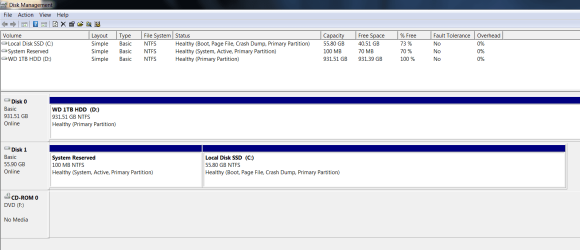
Please post back a screenshot of your maximized Disk Management drive map and listings:

1. Type Disk Management in Start Search box.
2. Open Disk Mgmt. window and maximize it.
3. Type Snipping Tool in Start Search box.
4. Open Snipping Tool, choose Rectangular Snip, draw a box around full map and all listings.
5, Save Snip, attach using paper clip in Reply Box.

Tell us what is on each partition.
 
As I said in previous post I got 2nd drive (D) to show up again. There is nothing on it. SSD C: has W7 & 1 or 2 programs on it.

As to my initial question/thought of dual booting XP (to be installed on a separate partition to be created on the D drive) I finally decided it's not imperative since I have another computer (at least for the time being) to access internet for finding help/instructions on getting this computer going again should a crash occur so why bother? Also I'm 100% competent at doing the partitioning anyway.

After reading conflicting opinions on partitioning a data storage drive or not and w/ not dual booting I'd (again) decided why bother? However, installing Photoshop on C: it suggested putting it's Scratch Disk on a different physical drive than OS is on but you can't also have on that same drive W7 temp folder (which I had done per SSD tweaks tutorial). So my thought is it would be better to have at least 1 partition on D: for future dual boot if desired, a place to put either the temp folder or PS Scratch disk (& put the other on the other partition) & just to have more flexibility for other things like this that may crop up. Seems to me partitioning a large drive doesn't harm performance that much so why not? Also for less space being required for an image of say a 131GB partition (the other 800GB left just for data archives) rather than an entire 1TB drive. (Just FYI - the data archives would be backed up onto a separate ext HDD).

On my previous PC I think I had too many partitions but if I left D: on this new PC as 1 large drive that would too few.
 

Attachments

  • Capture.PNG
    Capture.PNG
    25.9 KB · Views: 16

My Computers

System One System Two

  • Computer type
    PC/Desktop
    OS
    Windows 7 Home Premium 64bit with SP1, OEM
    CPU
    Intel Core i7-3770
    Motherboard
    Gigabyte GA-Z77X-UD3H LGA1155
    Memory
    G Skill 8GB (2x4GB) Ripkaws PC3-12800 DDR3 1600MHz
    Graphics Card(s)
    EVGA, GeForce GTX 560 Ti FPB (AR) 1GB GDDR5 4104MHz
    Sound Card
    Creative Sound Blaster Audigy SE, 7.1 channels, 24 bit
    Monitor(s) Displays
    HP ZR24w
    Screen Resolution
    1920x1200 - 60Hz
    Hard Drives
    Intel 60GB 520 Series SSD, MLC SandForce SF-2281, 550/475 MB/s

    WD 1TB Caviar Blue, SATA 6 Gb/s, 7200 RPM
    PSU
    Seasonic X-560, 80 PLUS Gold
    Case
    Cooler Master Elite 430
    Cooling
    2 stock fans
  • Antivirus
    MS Security Essentials
Your DM screenshot looks good.

If you put the PS scratch folder and the Windows temp folder both on the 1TB, even in separate partitions, that still means they're on the same physical drive. Per PS docs, is that okay?

And a few partitions on that size HD is no big deal. They can be adjusted at a later time anyway if needed. A lot easier to deal with too few partitions rather than a slew of them.
 

My Computer

OS
Windows 7 Ultimate x64
Your DM screenshot looks good.

If you put the PS scratch folder and the Windows temp folder both on the 1TB, even in separate partitions, that still means they're on the same physical drive. Per PS docs, is that okay?

And a few partitions on that size HD is no big deal. They can be adjusted at a later time anyway if needed. A lot easier to deal with too few partitions rather than a slew of them.

I took PS to be meaning: it performs better w/ it's Scratch Disk on a different physical drive than the application itself. Not it & the Windows Temp folder being on diff physical drives - so I think each being on a diff partition is ok.

Ideally 1 partition splitting 1TB into one 131GB "piece" & an 800GB "piece". Initially I thought the larger archive data partition would rarely need defragging but w/ the frequently written to Temp or Scratch Disk on it that would not be the case.

I need a diff program to do the partitioning because for some reason Shrink Volume will only allow me to split it roughly in half (inexplicably).
 

My Computers

System One System Two

  • Computer type
    PC/Desktop
    OS
    Windows 7 Home Premium 64bit with SP1, OEM
    CPU
    Intel Core i7-3770
    Motherboard
    Gigabyte GA-Z77X-UD3H LGA1155
    Memory
    G Skill 8GB (2x4GB) Ripkaws PC3-12800 DDR3 1600MHz
    Graphics Card(s)
    EVGA, GeForce GTX 560 Ti FPB (AR) 1GB GDDR5 4104MHz
    Sound Card
    Creative Sound Blaster Audigy SE, 7.1 channels, 24 bit
    Monitor(s) Displays
    HP ZR24w
    Screen Resolution
    1920x1200 - 60Hz
    Hard Drives
    Intel 60GB 520 Series SSD, MLC SandForce SF-2281, 550/475 MB/s

    WD 1TB Caviar Blue, SATA 6 Gb/s, 7200 RPM
    PSU
    Seasonic X-560, 80 PLUS Gold
    Case
    Cooler Master Elite 430
    Cooling
    2 stock fans
  • Antivirus
    MS Security Essentials
Back
Top