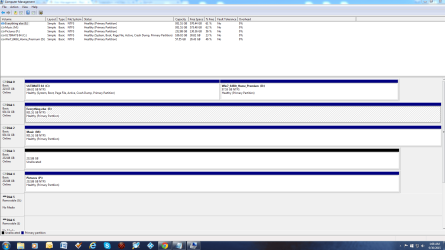
Here is what i would do.
Create a Backup Image of the Win 7 Home Premium OS partition, save it on the E drive.
Create a Backup Image of the Win 7 Ultimate OS partition, save it on the E drive.
I prefer using Macrium Reflect (free) for backup images.
http://www.sevenforums.com/tutorials/73828-imaging-free-macrium.html
I would temporarily disconnect the M drive and the P drive, so there are fewer drives while doing this.
Create a Primary Partition the size you want for the Win 7 Home Premium you are moving to the new Hard Drive (Disk 3).
Mark this new partition as Active.
http://www.sevenforums.com/tutorials/71432-partition-mark-active.html
Restore the Win 7 Home Premium backup Image you created earlier to the new Disk 3/Partition.
Make sure Disk 3 is still set as Active after the restore.
Shut down the PC.
Disconnect Disk 0, your current dual boot HD.
Boot the PC with a Win 7 install disc, bootable flash drive, or System Repair Disc.
http://www.sevenforums.com/tutorials/2083-system-repair-disc-create.html
Run
http://www.sevenforums.com/tutorials/681-startup-repair.html
You may need to run Startup Repair up to 3 times to get the Disk 3 to boot up.
The Startup Repair will create the necessary boot files on Disk 3 for Win 7 Home Premium.
Make sure you can boot up with Disk 3, and everything looks ok.
Shut down the PC.
Reconnect Disk 0.
Boot the PC.
You should be able to use the one time boot option to choose which HD you want to boot with.
Make sure you can boot from each HD.
Boot up with Disk 3, or boot with a Partiton Wizard free bootable CD.
Bootable Partition Manger | MiniTool Partition Wizard Bootable Edition
Delete the Win 7 Home Premium partition on Disk 0.
Resize the Disk 0 Win 7 Ultimate partition to use the unallocated space.
Reboot the PC with Disk 0 Win 7 Ultimate.
Install EasyBCD free (you don't have to register to download).
EasyBCD - NeoSmart Technologies
Run EasyBCD and delete the entry for Win 7 Home Premium that is no longer on Disk 0.
You could now also add a new entry for the Win 7 Home Premium that is on Disk 3.
If you don't add the new entry you will have to use the one time boot menu to override the default bios boot device.
Reconnect the M drive and the P drive, if you disconnected them.
You should now have a dual boot PC where you can boot from either HD.
If either HD fails or either OS gets corrupted, you should still be able to boot the PC with the other HD/OS.